Learn the concept
This is the step-by-step. For what it is and how it fits the bigger picture, read Payment Processing in the reference.
This is the step-by-step. For what it is and how it fits the bigger picture, read Payment Processing in the reference.
What this does
Use Receive Payment to record money a customer has paid you and knock it off against their outstanding invoices. Confirming the receipt lowers what the customer owes and raises your bank or cash.
Before you start
- The customer exists and has at least one outstanding invoice.
- The bank or cash account the money went into is set up in your Chart of Accounts.
Steps
- Go to Menu > Finance > Receive Payment and choose New. The date defaults to today.
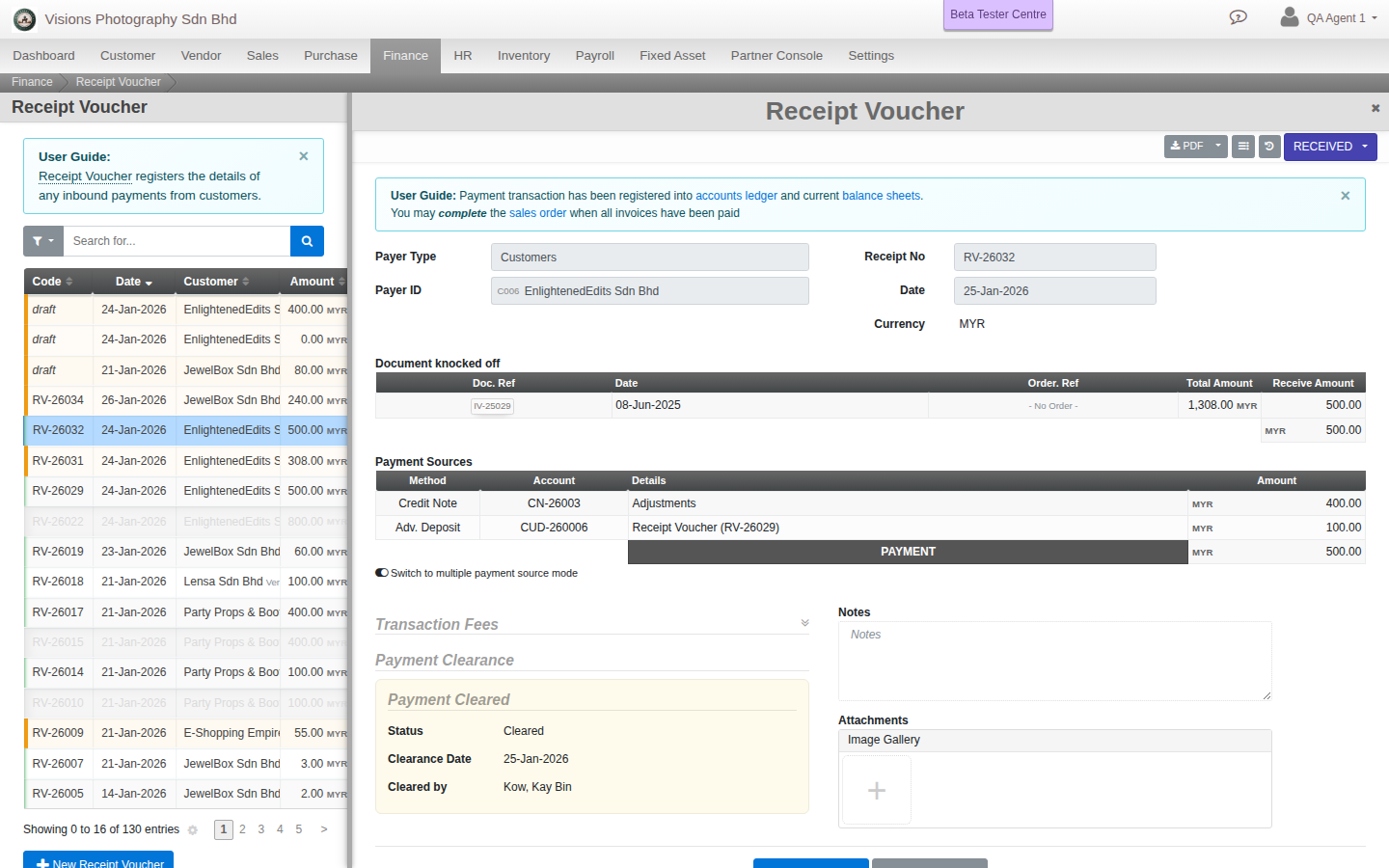
- Set Payer to Customer and pick the customer. Their outstanding invoices load automatically.
- In the documents list, enter the amount to knock off against each invoice.
- Under Payment Sources, add the bank or cash account the money landed in. Enter the amount, and put the bank or cheque reference in Details. Your default payment account is pre-filled.
- Optionally add a transaction fee, such as a bank charge, and the expense account it goes to.
- Set Clearance. Leave it Pending, or mark it Cleared and set the clearance date.
- Save to keep it as a draft, or confirm to post it.
The totals must match. The total you applied to invoices must equal the total from your payment sources, and it must be more than zero. Cloudby checks this when you confirm.
What confirming does
When you confirm, Cloudby lowers the customer outstanding balance, raises the bank or cash account you chose, posts any fee to its expense account, and handles foreign-exchange differences for you. The receipt gets its official number, and a printable Payment Receipt becomes available.
After it is posted
A posted receipt is locked. If it was wrong, use Cancel. Cloudby posts a reversing entry, and you choose the date, so your books stay balanced. You can print or download the receipt once it is posted, but not while it is a draft.
Field guide
- Receipt No. Leave blank for the next automatic number.
- Date. When the payment was received.
- Payer. Customer, Vendor, Director or Employee (for reimbursements). Usually Customer here.
- Documents knocked off. The invoices, deposits or notes you are knocking the payment off against.
- Payment Sources. Where the money landed. Details holds the bank or cheque reference.
- Transaction Fee. Optional bank charge and its expense account.
- Clearance status and date. Pending or Cleared. A date is required when Cleared.
- Notes and Attachments. Optional.