Learn the concept
This is the step-by-step. For what it is and how it fits the bigger picture, read e-Invoice (MyInvois) in the reference.
This is the step-by-step. For what it is and how it fits the bigger picture, read e-Invoice (MyInvois) in the reference.
Setup
What this is
Connect Cloudby to Malaysia LHDN MyInvois so your invoices are submitted as e-Invoices. You enter your company tax details and connection credentials once.
Before you start
You need access to Finance settings, and your LHDN MyInvois registration with its intermediary credentials (a Client ID and two secrets). You get these from the MyInvois Portal.
Open E-Invoice
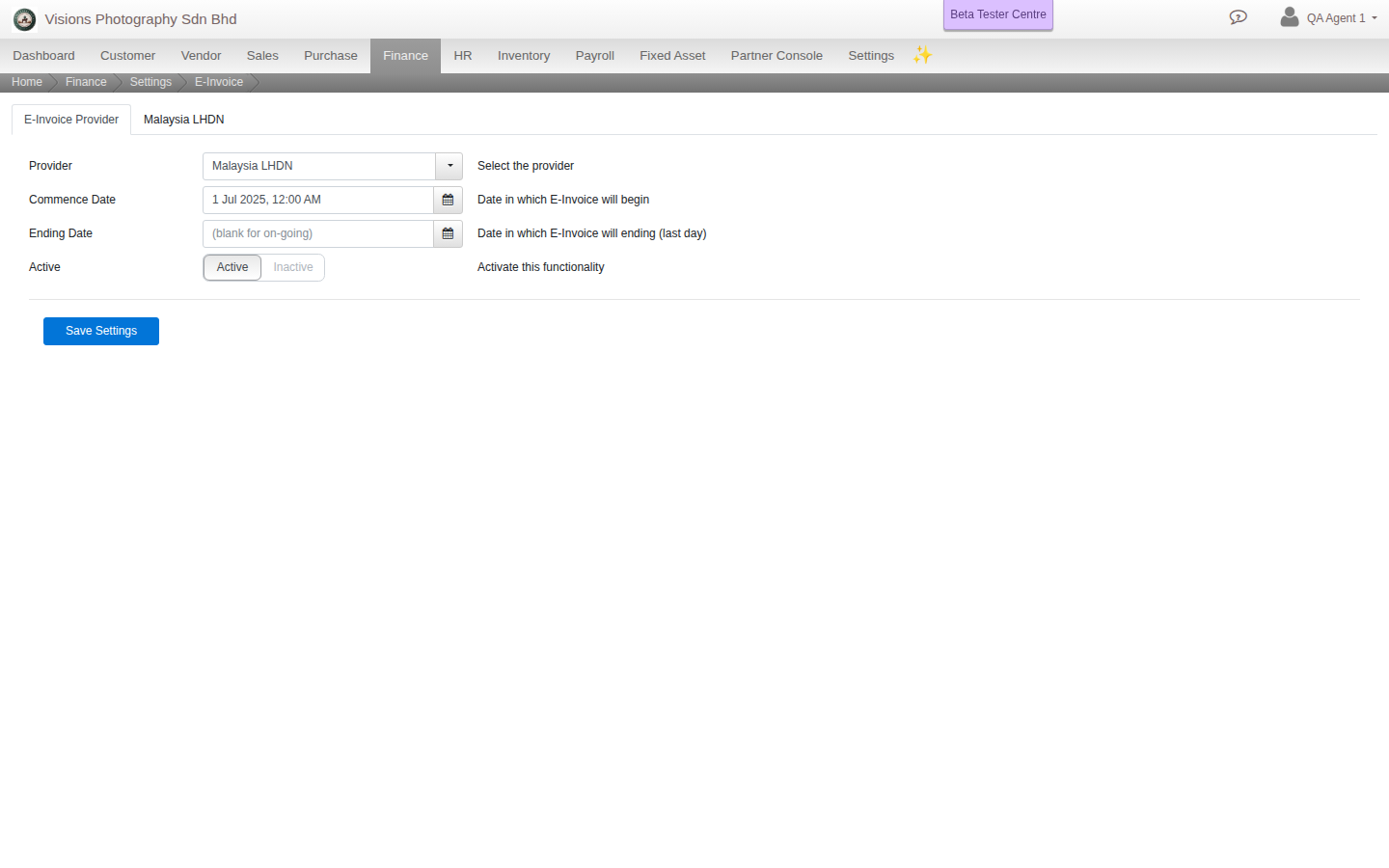
Go to Menu > Finance > Settings > E-Invoice. There are two tabs: E-Invoice Provider and Malaysia LHDN.
Set the provider
- On E-Invoice Provider, choose your Provider (Malaysia LHDN), set the Commence Date (when e-Invoice starts) and keep it Active.
Enter your LHDN details
- On the Malaysia LHDN tab, fill the intermediary credentials: Client ID, Secret 1 and Secret 2. Turn on Sandbox Mode while testing.
- Fill Company Information: Company Name, TIN Number, BRN Number, SST Number (blank for none), MSIC Code and name (your industry classification), plus address, telephone and email.
- Set a default Item Class (document classification) if you want one.
- Click Test to check the connection, then Save Settings.
Field guide
- Provider, Commence / Ending Date, Active. Which service, and when e-Invoice runs.
- Client ID, Secret 1, Secret 2, Sandbox Mode. Your connection credentials.
- TIN, BRN, SST, MSIC Code. Your company tax identifiers and industry classification.
- Item Class. The default classification code for your documents.
Good to know. Use Sandbox Mode and the Test button until the connection passes before you go live. MSIC and classification codes come from the MyInvois reference lists.