Learn the concept
This is the step-by-step. For what it is and how it fits the bigger picture, read Tax Rates in the reference.
This is the step-by-step. For what it is and how it fits the bigger picture, read Tax Rates in the reference.
Setup
What this is
Tax codes let Cloudby work out tax on your sales and purchase documents. You set up a code once, then pick it on invoices and bills.
Before you start
You need access to Finance settings. If you do not see Settings under Finance, ask whoever manages your Cloudby account to give you access, or to set this up for you.
Open Taxes
Go to Menu > Finance > Settings > Taxes.
Create a tax code
- Click Create.
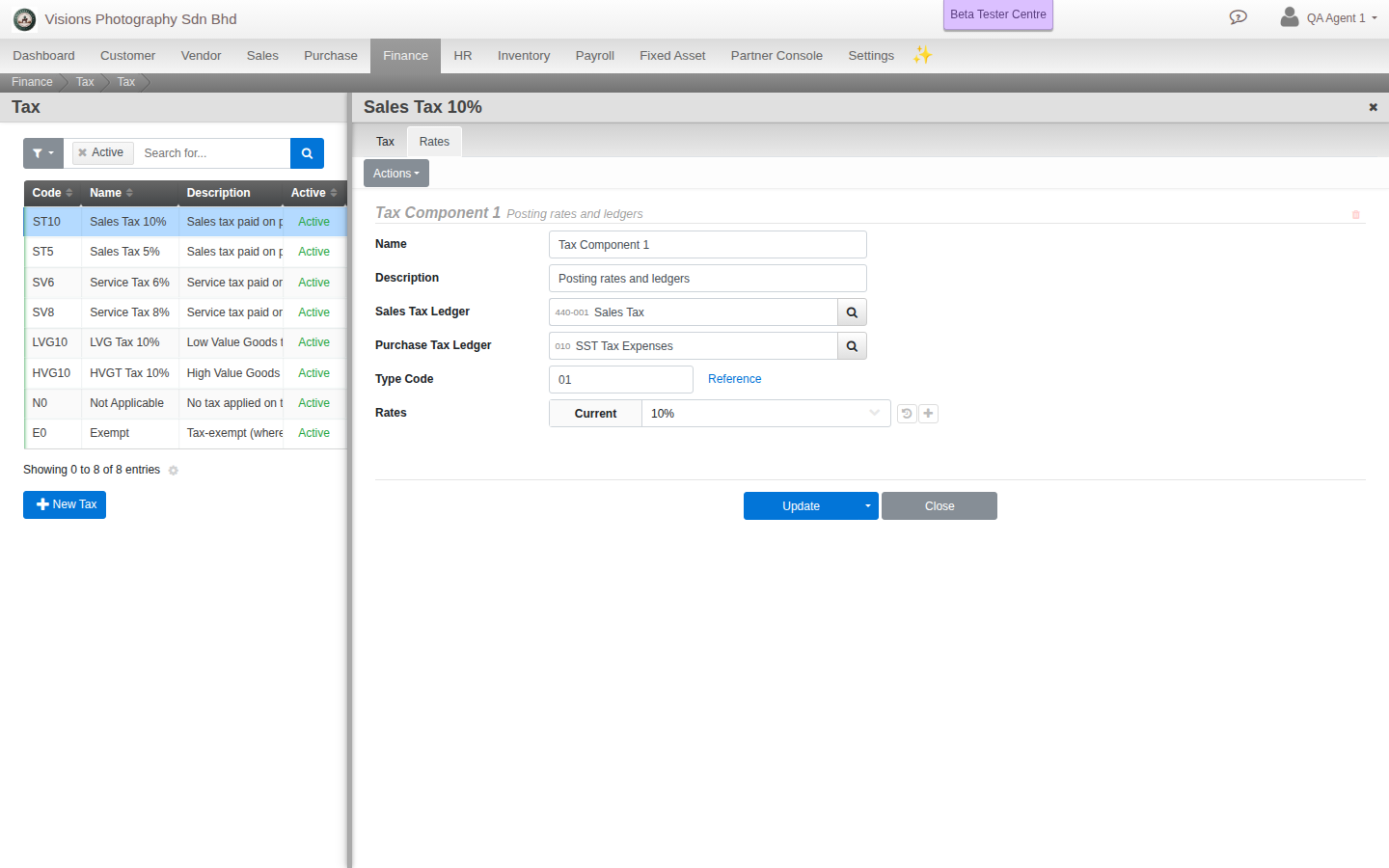
- Enter a Code (this is what you refer to on documents) and a Name.
- Add a Description if useful, and keep it Active.
- Open the Rates tab and use Add more rates to set the rate and the date it applies from.
- Click Create.
Using it
On a sales invoice or purchase bill, pick the tax code on a line. Cloudby applies the rate and totals the tax for you.
Field guide
- Code. The short reference used on documents.
- Name. The full name.
- Active. Turn a code off without deleting it.
- Rates. The percentage and the date it takes effect. A code can carry more than one rate over time.