Learn the concept
This is the step-by-step. For what it is and how it fits the bigger picture, read Accounting Periods in the reference.
This is the step-by-step. For what it is and how it fits the bigger picture, read Accounting Periods in the reference.
Setup
What this is
Closing a period locks it so its figures cannot change. Use it at month-end or year-end to protect your books.
Before you start
You need access to Finance accounting processes, and your financial year end set.
Open Period Management
Go to Menu > Finance > Accounting Processes > Period Management.
Close a period
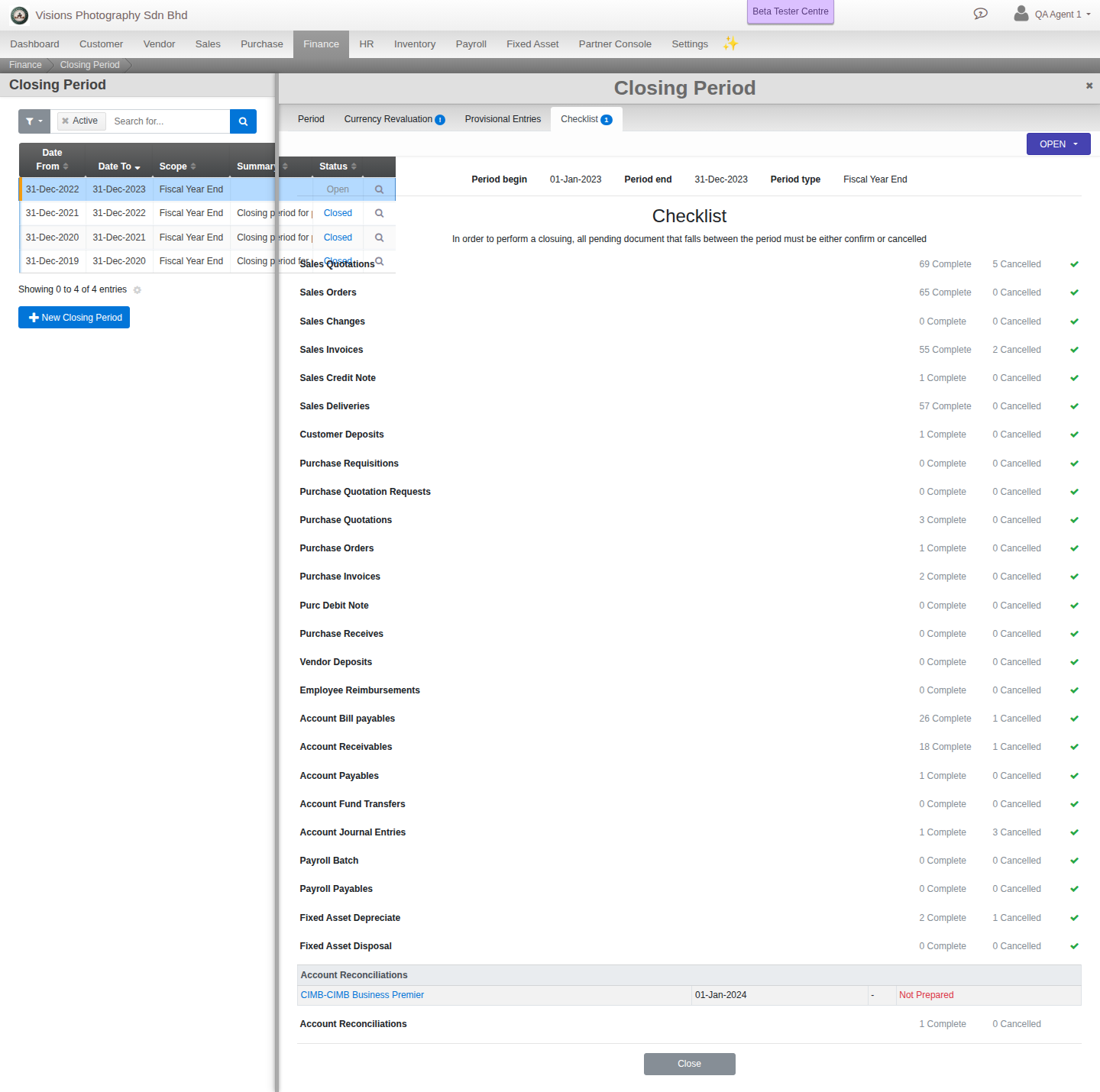
Click Create to open a new Closing Period, or select an existing one. It has four tabs: Period, Currency Revaluation, Provisional Entries and Checklist.
- On Period, set the Period begin, Period end and the Close Scope, and lock the period from its status control once you are done.
- On Currency Revaluation and Provisional Entries, let Cloudby post the adjusting entries the period needs.
- Work through Checklist: every pending document type that falls inside the period, plus your Account Reconciliations, must be either confirmed or cancelled before you can lock.
Good to know. A locked period stops new postings dated inside it. An override is available, and cancelling a close asks for a reason, so the history stays clear. Your default year end is shown on the screen.