Learn the concept
This is the step-by-step. For what it is and how it fits the bigger picture, read Approval and Verification in the reference.
This is the step-by-step. For what it is and how it fits the bigger picture, read Approval and Verification in the reference.
What this is
Posting Review is a checkpoint where you confirm that posted documents, such as sales invoices, purchase invoices, bills and reimbursements, landed in the right income and expense accounts. The documents are already posted. Here you check how they are classified and fix any that are wrong, then mark them reviewed.
Before you start
You need access to Finance accounting processes. If you do not see them, ask whoever manages your Cloudby account.
Steps
- Go to Menu > Finance > Accounting Processes > Posting Review.
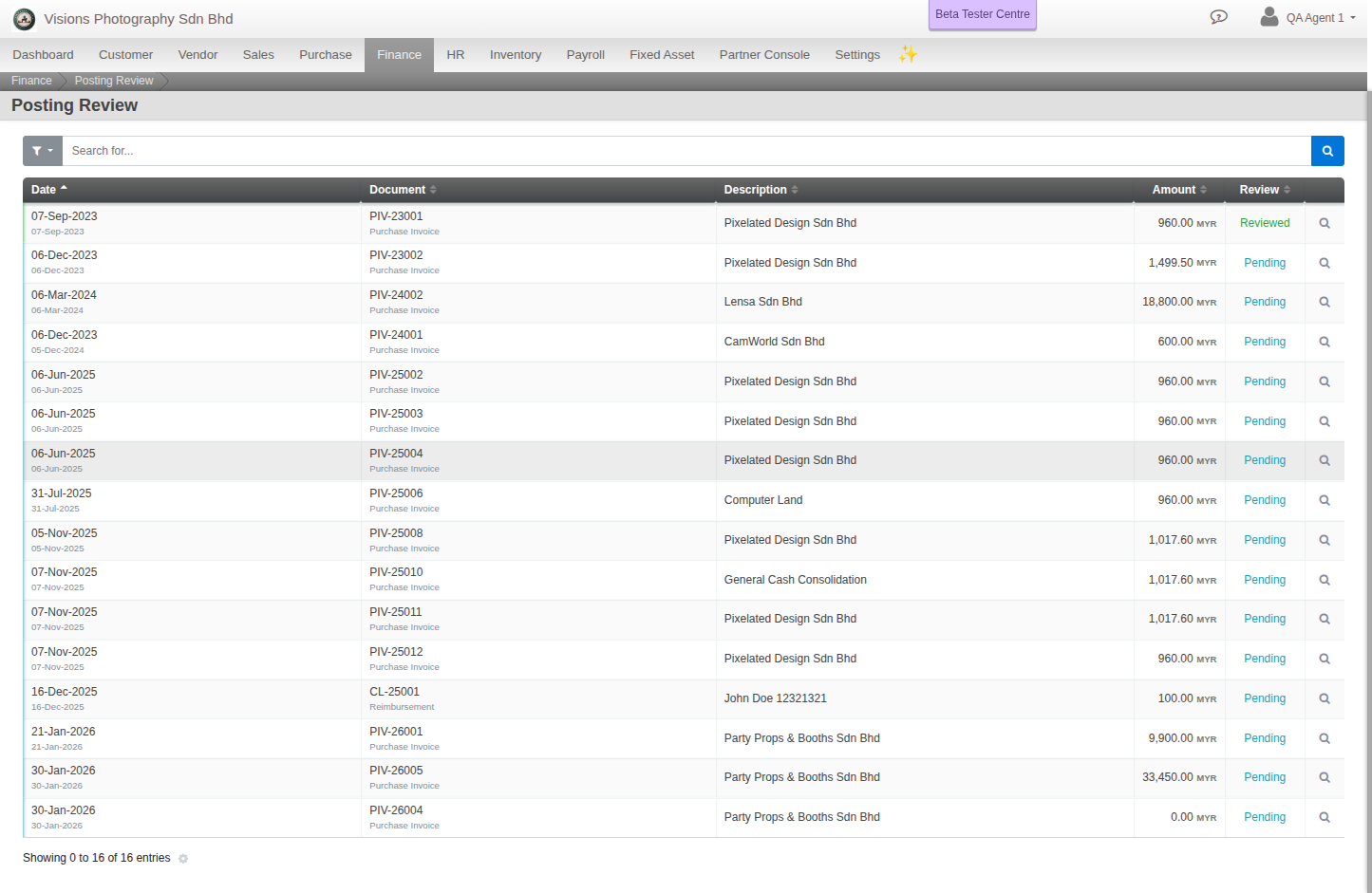
- The list shows posted sales invoices, purchase invoices, bills and reimbursements, each with a review status of Pending or Reviewed. Use the Pending Review filter to see only what still needs checking.
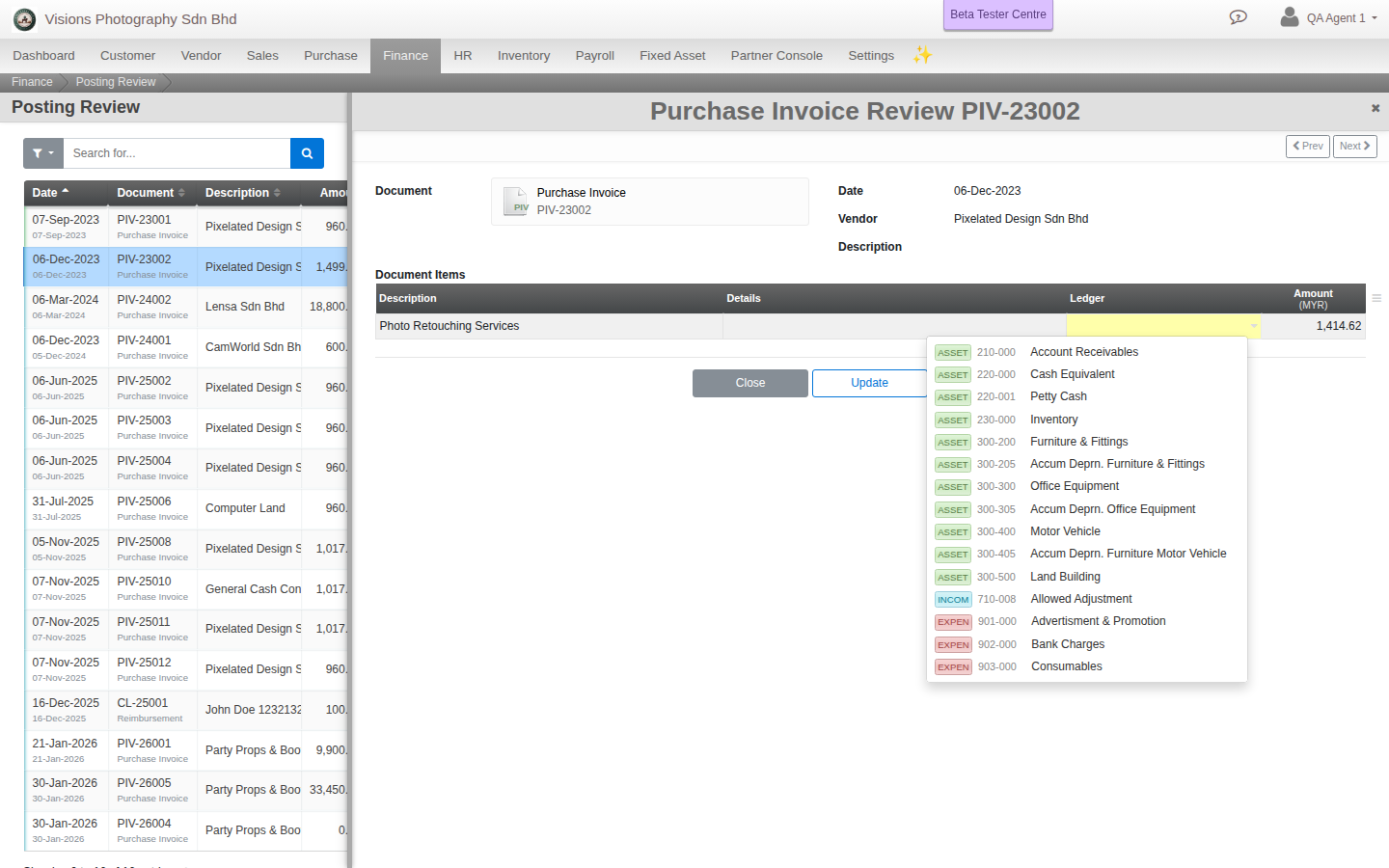
- Click a document. For each line, check the account it posted to. If it is wrong, pick the correct one from the Ledger dropdown.
- Update. The document is re-classified and marked Reviewed. To work through the queue quickly, use Update and Next, which saves and opens the next document still pending. You review one document at a time, there is no bulk action.
Note. Posting Review does not create new accounting entries. It re-points the existing ones to the correct account and marks the document reviewed. Documents dated before a closed period do not appear here.