This is the step-by-step. For what it is and how it fits the bigger picture, read Document Lifecycle and Cancellation in the reference.
One pattern, everywhere
Almost everything you do in Cloudby is a document: a quotation, a sales order, an invoice, a payment, a journal entry, a payroll run, a stock entry. They all follow the same shape, so once you understand one, you understand them all.
The document screen
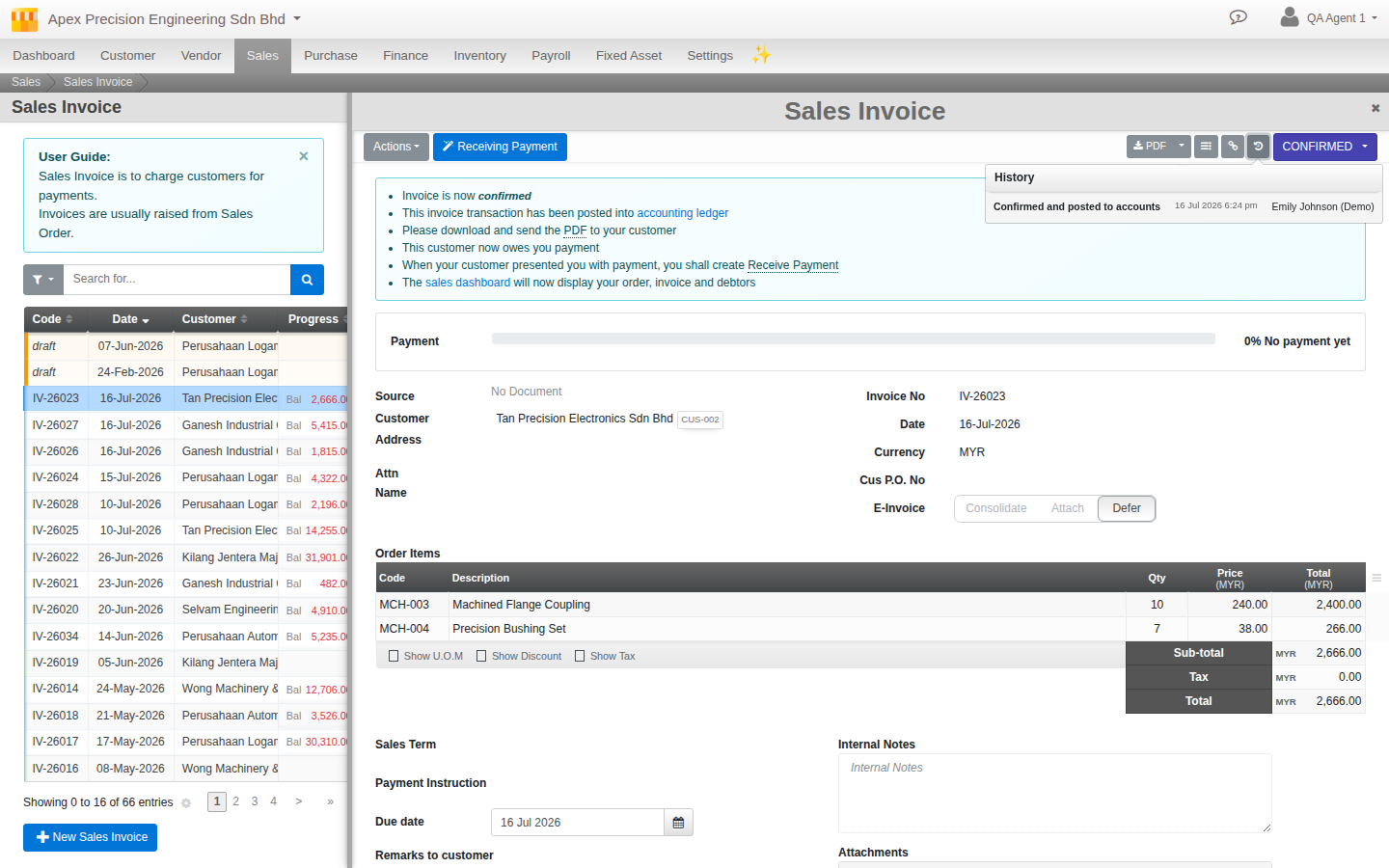
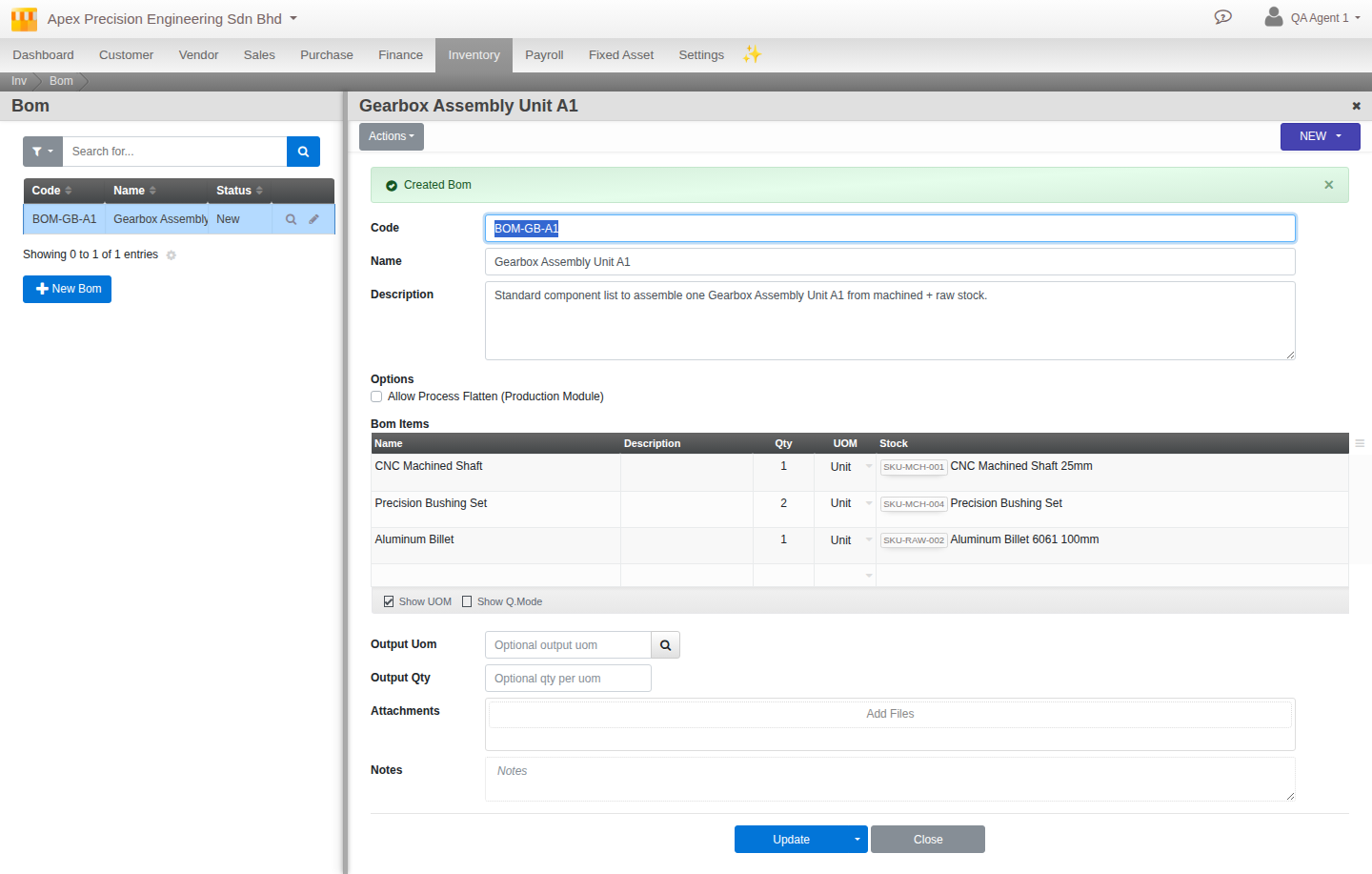
Every document screen is laid out the same way:
- On the left, a list of documents with search and filters, so you can find the one you want.
- On the right, the open document.
- Across the top, a toolbar; the actions on one side, and the state and output controls on the other.
- At the bottom, the Save button.
Save sitting at the bottom is deliberate. It means you scroll through and read the whole document before you commit it, rather than saving blindly from the top.
The lifecycle
Most documents begin as a Draft you can freely edit. When it is right you confirm or post it, and it becomes part of your records. Many documents have further states such as Hold, Complete or Cancelled.
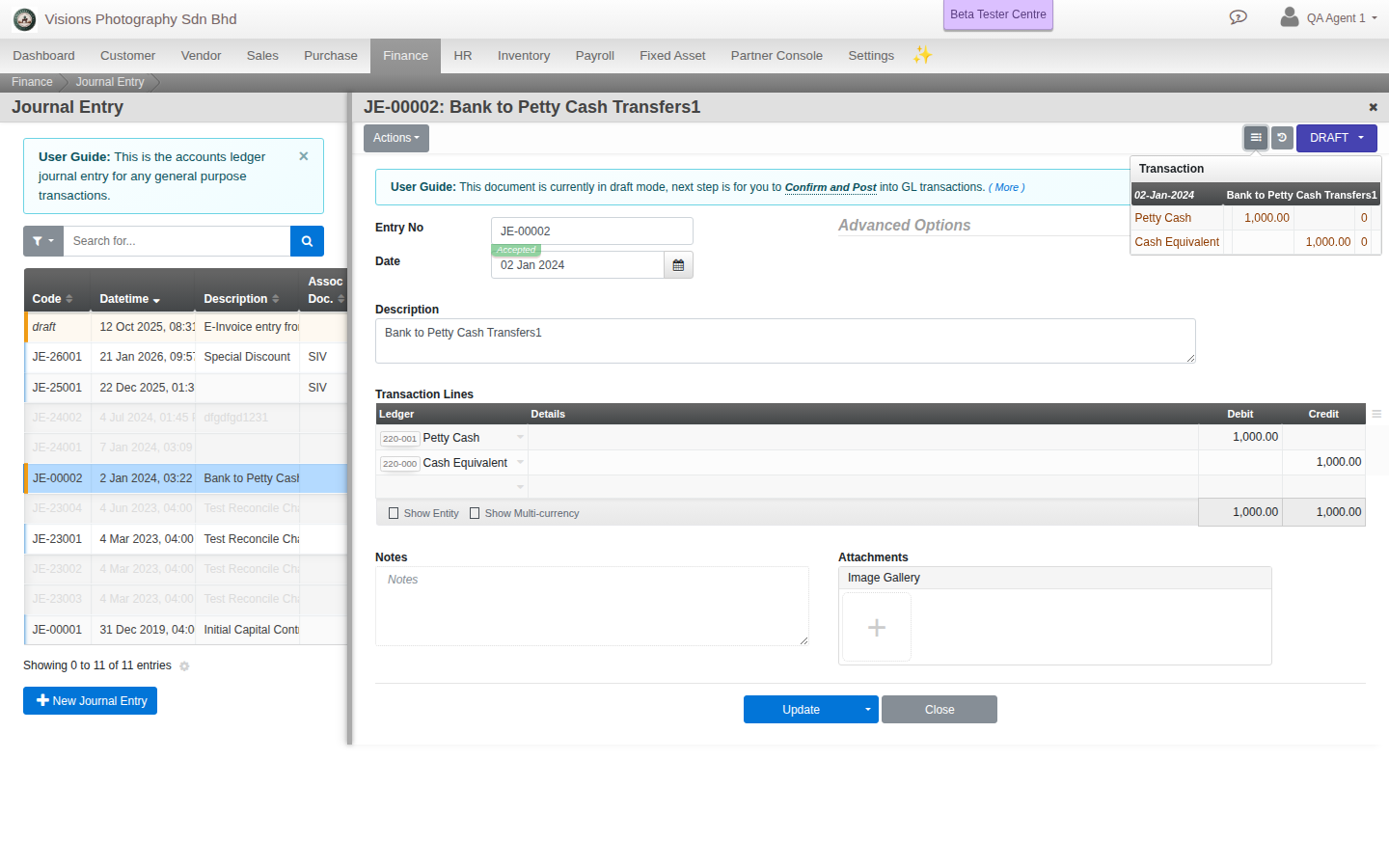
Financial documents preview before they commit
A financial document creates a double-entry accounting transaction when it posts. Before you commit, click the small Transaction icon next to the status control to see exactly which accounts will be debited and credited, and that it balances.
The document history chain
Documents are linked to each other, upstream and downstream. An order knows the quotation it grew from, and the deliveries and invoices that came from it. From any document you can follow the whole chain.
The activity log
Every change is recorded: who created, edited, posted or generated a document, and when. So there is always a clear answer to who touched something and when it happened, which keeps your records trustworthy and easy to audit.