This is the step-by-step. For what it is and how it fits the bigger picture, read Users & User Groups in the reference.
What this is
This explains how Cloudby decides what each person can see and do. The short version: you do not give permissions to people directly. You give permissions to roles, and you put people into roles.
The chain
- User. The person, with their own account and login.
- User group. A role within an organisation, such as Administrator, Manager or User. A person is placed into one.
- Permissions. Each user group carries the permissions: which modules it can reach and what it may do in them. A Level sets its authority, where a higher value means more.
- Access. The result: the screens and data a person can open follow from the group they are in.
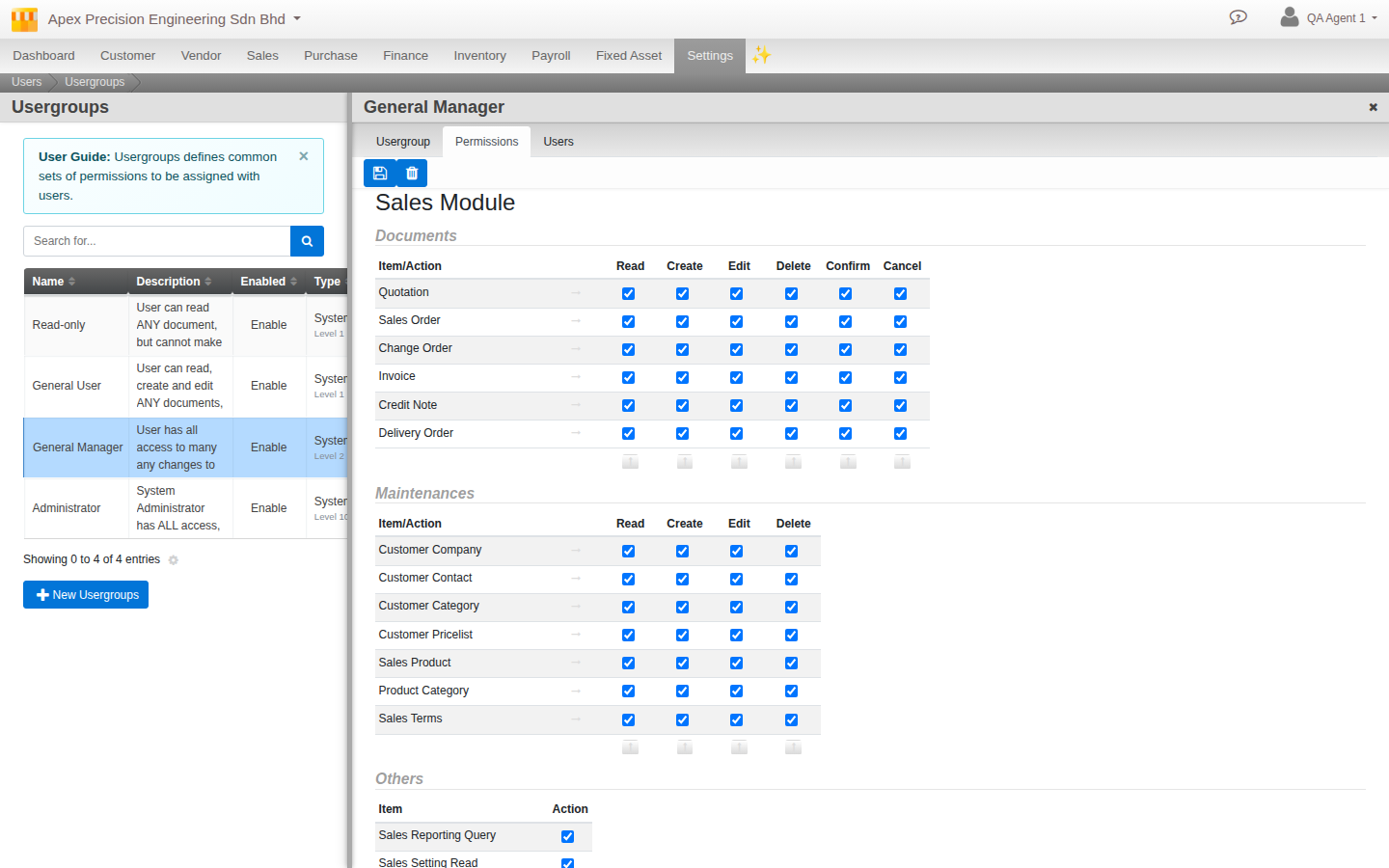
Because permissions live on the group, not the person, you set them up once per role and everyone in that role gets them. Access is also per organisation: the same person can be an Administrator in one organisation and a limited User in another.
Best practice by team size
Solo
If it is just you, keep it simple: you are the Administrator, and that is the only role you need. Set up the rest of Cloudby and come back to roles when you bring people in.
Small team
Use a few clear roles rather than fine-tuning each person. A common shape is Administrator for the owner, Manager for whoever runs finance or operations, and User for everyone else. Resist over-engineering; three good roles cover most small businesses.
Larger team
Design roles around jobs and departments, and follow a few habits:
- Least privilege. Give each role the minimum it needs, not the maximum that is convenient.
- Separate duties. Keep sensitive steps in different hands, for example so the person who raises payments is not the only one who approves them.
- Onboard through invitations. Assign an invitation to a user group so new joiners land in the right role automatically.
- Review now and then. Check who is in each group, and remove access people no longer need.