Learn the concept
This is the step-by-step. For what it is and how it fits the bigger picture, read Users & User Groups in the reference.
This is the step-by-step. For what it is and how it fits the bigger picture, read Users & User Groups in the reference.
Setup task
What this does
Users are the people who sign in to Cloudby. User groups decide what each of them can see and do, so everyone has the right access and no more.
Open Users
Go to Menu > Settings > Users.
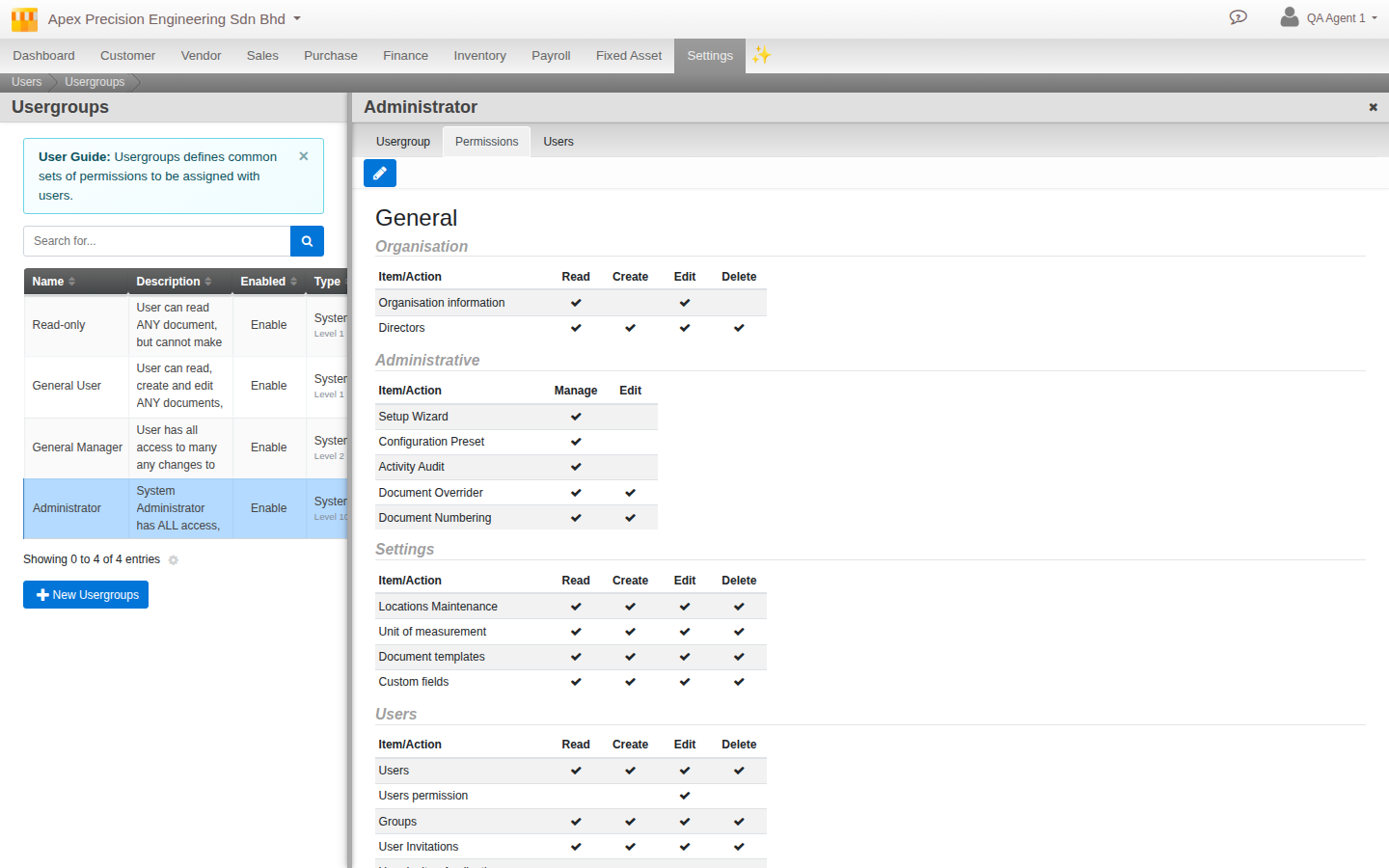
Users
Under Users, add each person with their name, email and contact details, set them active, and assign them to a user group.
User groups
Under Usergroups, define the roles. Each group has three tabs:
- Usergroup. Its name and a Level, where a higher value means more authority.
- Permissions. What the group may reach, module by module and feature by feature.
- Users. Who is in the group.
Invite people
Use Invitations to invite someone to your organisation by email, rather than creating their login by hand.
Good to know. Group access by role, not by person. Set up a few user groups that match the jobs people do, then drop each person into the right one.
Related
- Set up your organisation
- What you can see
- Guide: Compartmentalizing access (best practice for designing groups and access)