
Scope: designing user groups, applying least privilege, using Cloudby’s per-document review step for basic segregation of duties, and keeping access current as people join, move and leave.
What this guide is not: a click-by-click tutorial (see Manage users and access for that), and not a guide to branch- or location-restricted access, which Cloudby does not support today (more on this below).
1. Why this matters
Every business that grows past one or two people who see everything eventually runs into the same handful of problems. Someone in a junior role can technically delete a customer’s entire invoice history, because nobody ever narrowed what their account could reach. A staff member who left six months ago still has a working login, because removing people is not part of anyone’s routine. A document gets created, submitted and approved by the same person in one sitting, because the same account can do all three, and nobody would ever know unless they went looking. None of these are hypothetical: they are the ordinary, unglamorous ways access control quietly rots in a growing business, not the result of anyone being careless on purpose.
The fix is not a single setting you switch on once. It is a habit: design access around jobs, grant only what a job needs, and keep the arrangement current. The rest of this guide is that habit, made concrete for Cloudby.
2. The building blocks, briefly
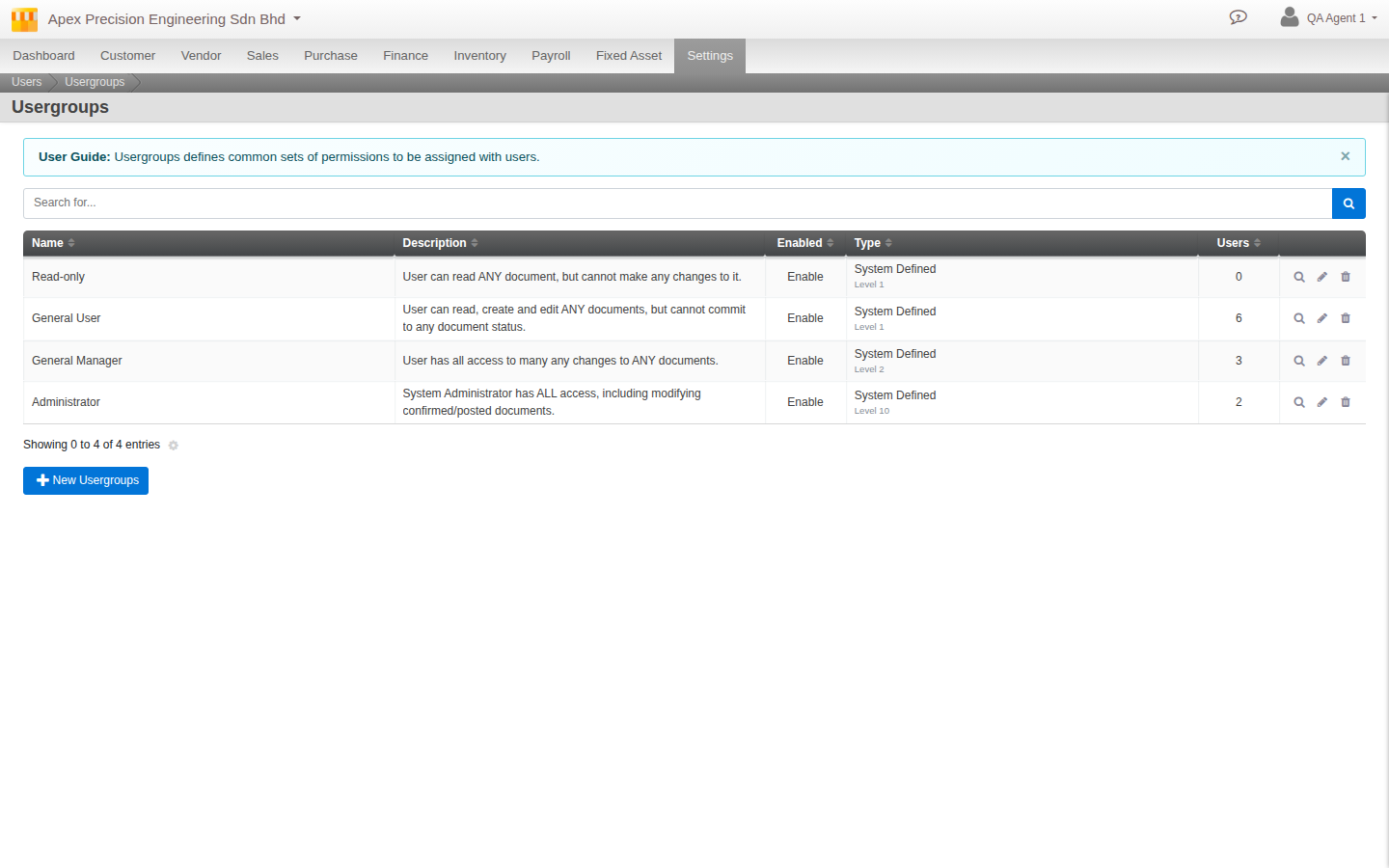
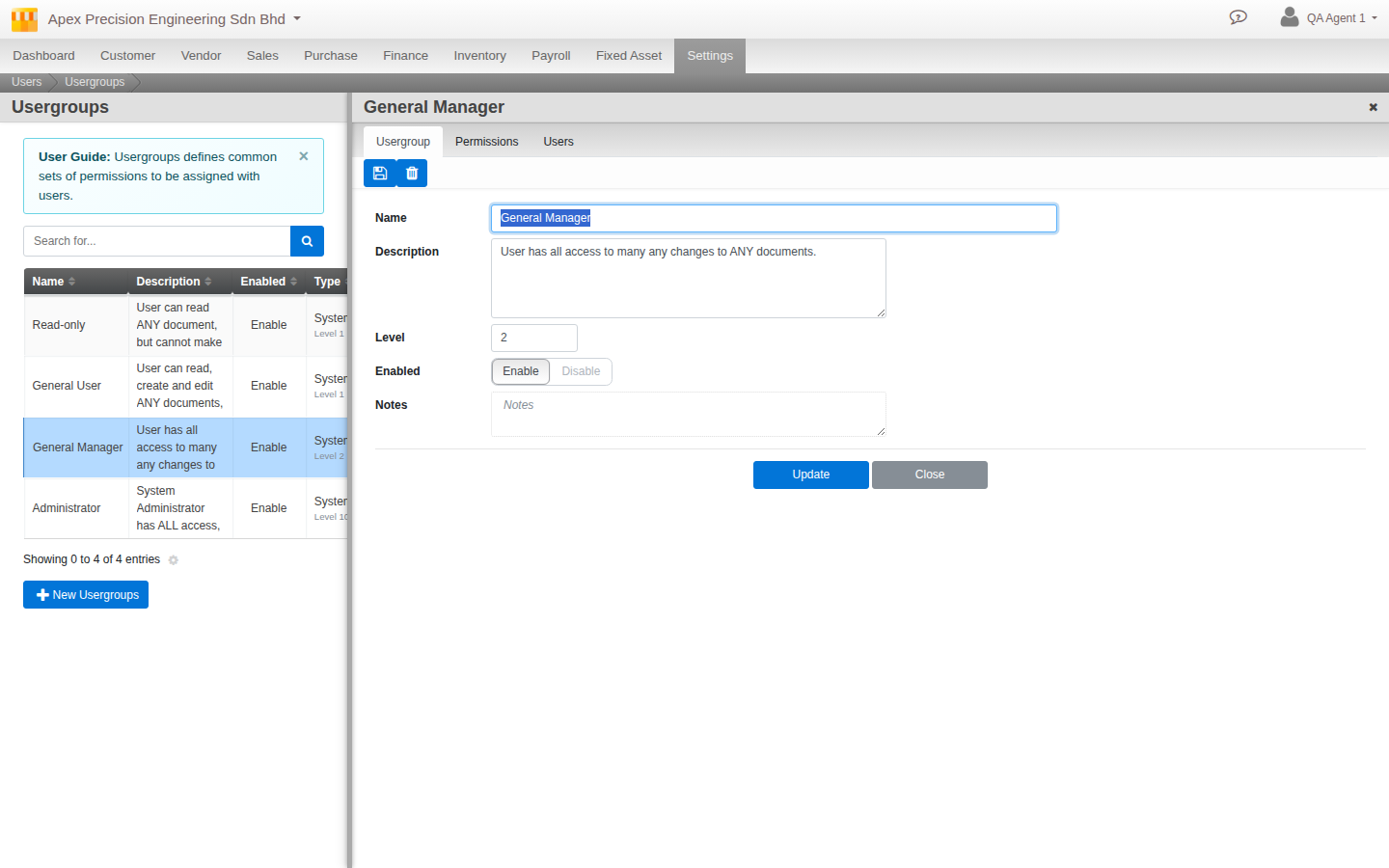
Cloudby’s access model has three layers, covered in full in Users & User Groups: a user belongs to one or more user groups, and each group carries a set of granular permissions. A user’s actual access is the union of everything every group they belong to carries; there is no separate per-user override sitting on top of that. Each group also carries a numeric level, 1 and up, higher meaning more authority, with four groups seeded out of the box to start from: Read-only and General User at level 1, General Manager at level 2, Administrator at level 10.
This guide takes that model as read and spends its time on the part that matters more than the mechanics: how to use it well.
3. Least privilege as the core discipline
Least privilege means exactly what it sounds like: give each person the smallest set of permissions that lets them do their actual job, no more. It is easy to state and easy to drift away from in practice, usually for a reasonable-sounding reason in the moment: it is faster to add someone to an existing broad group than to think about what they specifically need, or a manager gets added to a wide “just in case” group during a busy week and nobody ever revisits it.
Because Cloudby’s access is composed rather than assigned in one lump, least privilege is achievable without constant friction: you build several narrow groups and let people belong to more than one, rather than maintaining one bloated group per rough seniority tier. A person who does both sales and light reporting joins a Sales group and a Reporting group; they get exactly the union of the two, nothing else.
4. Design groups around job functions, not people
The single most useful habit in this whole guide: name and build your user groups after what the job does, not after who currently holds it. “Sales Clerk,” “Accounts Payable,” “Warehouse Staff,” rather than “Ahmad’s access” or “Temp access for the new hire.” A job-shaped group survives staff turnover for free: when someone leaves and someone else takes the role, you move the group membership, not rebuild the permissions from scratch.
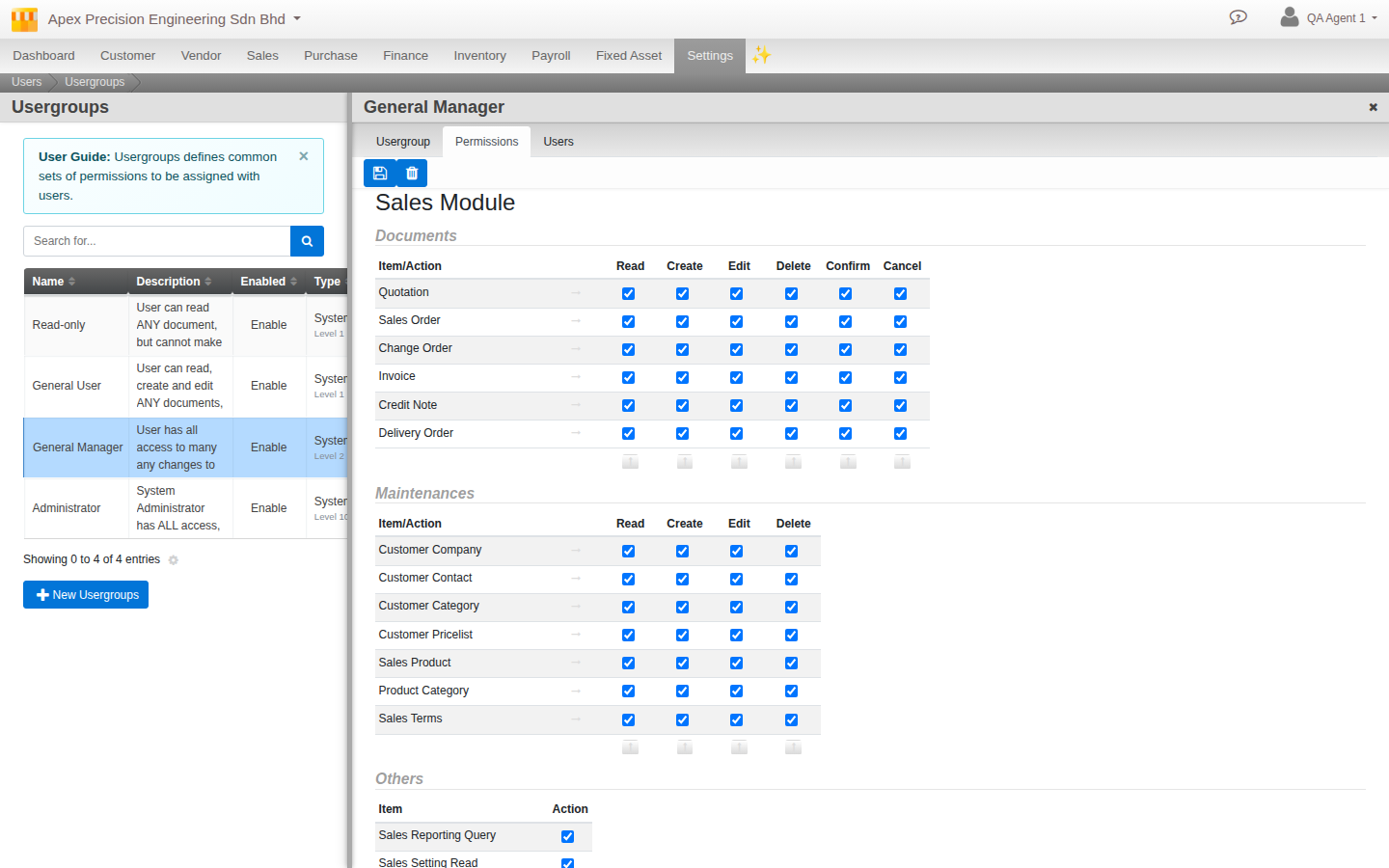
A practical way to get there: list the actual jobs done in your organisation (not the org chart, the jobs), and for each one write down what it needs to touch. Sales Clerk needs to create and view sales documents, nothing in Purchase, nothing in Settings. Accounts Payable needs Purchase and Bill access, and arguably nothing in Sales at all. Build one group per job, assign the matching permissions, and add people to the groups that describe what they actually do. Someone doing two jobs simply belongs to two groups.
5. Segregation of duties, applied concretely
This is the section worth reading most carefully, because Cloudby’s tool for this is real and useful, but basic, and using it well means understanding exactly what it does and does not do.
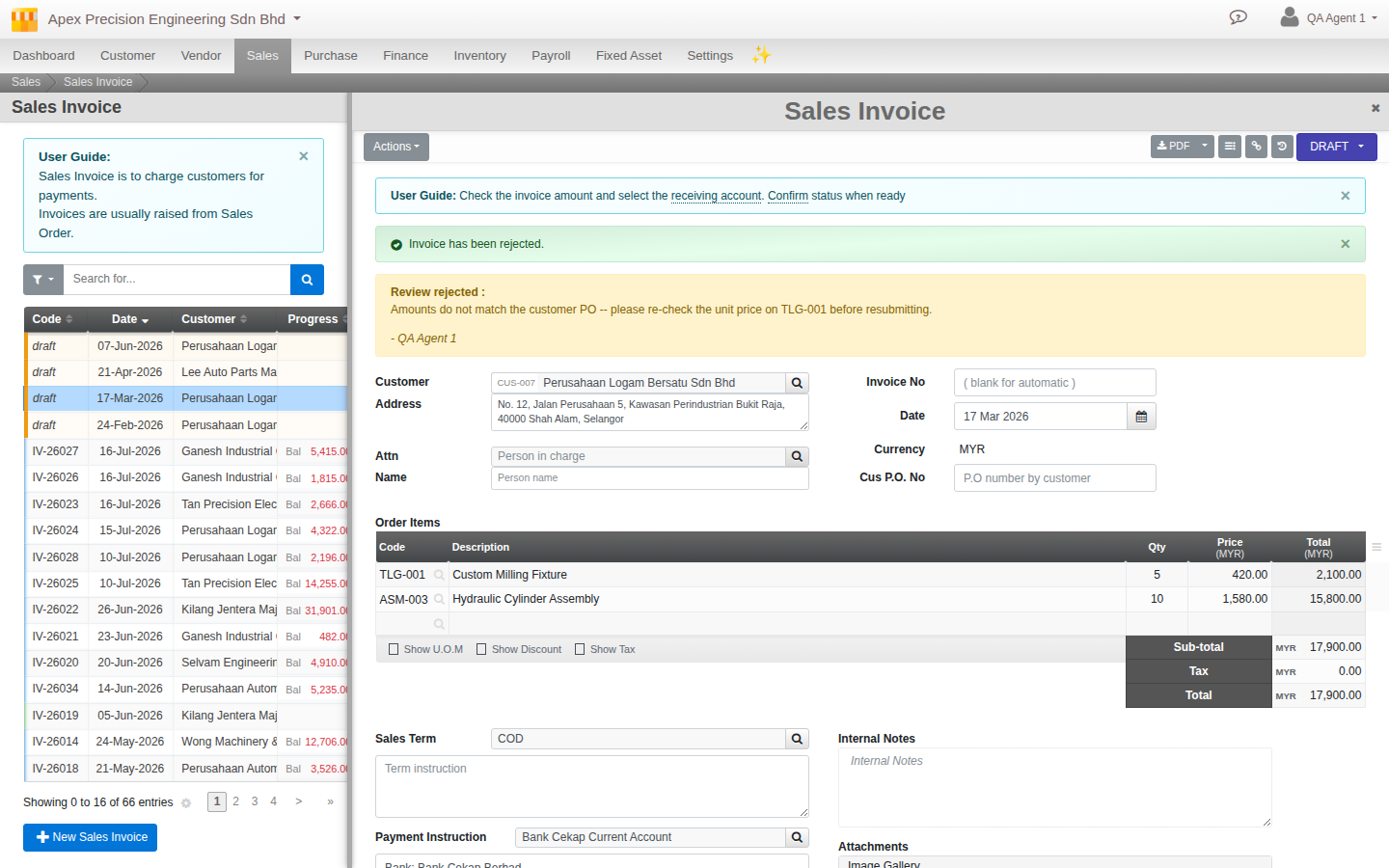
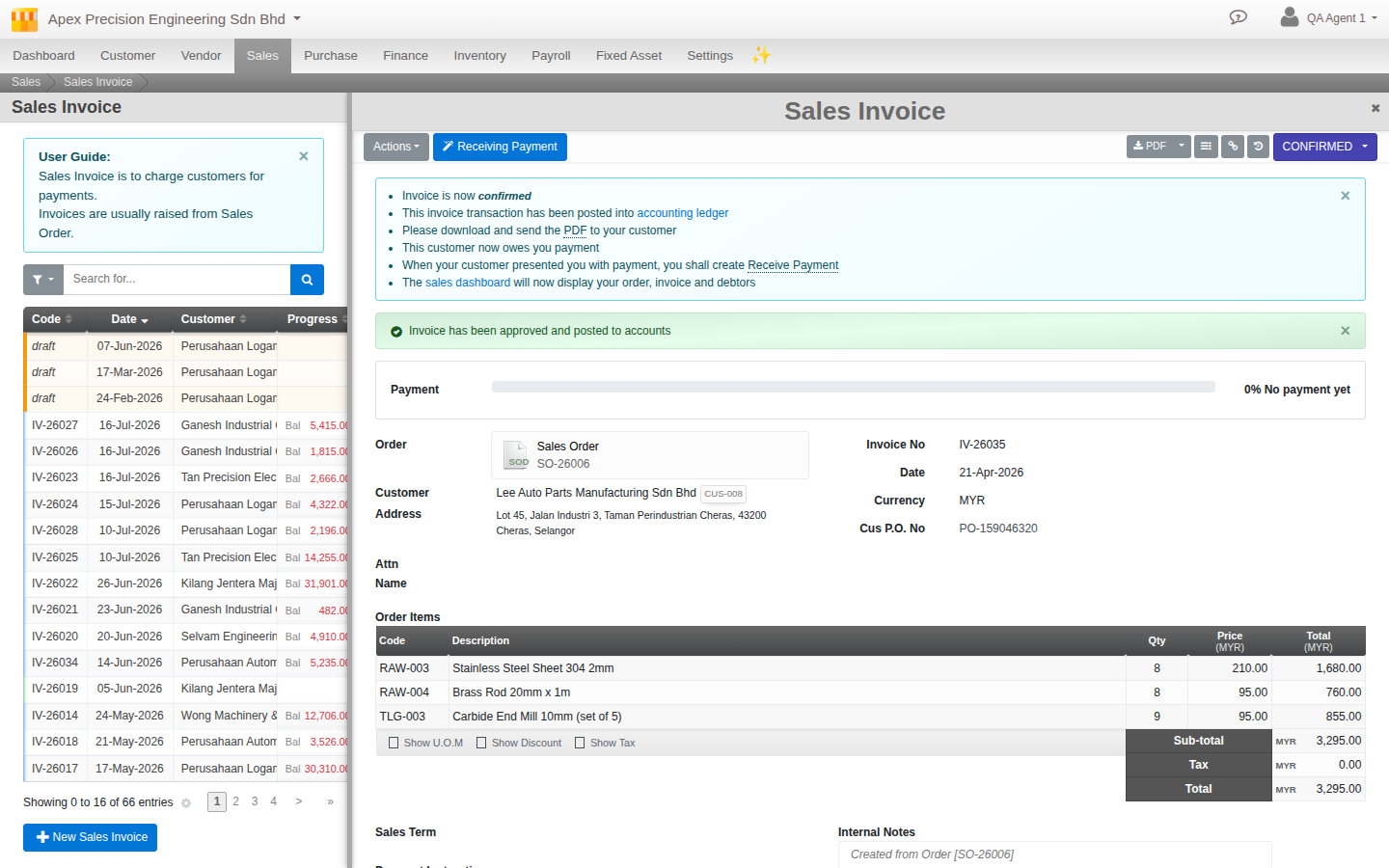
Every major document type in Cloudby, sales and purchase documents, bills, contras, reimbursements, payroll batches and more, can pass through an optional Verify step between Draft and Confirmed. Whoever is working the document chooses whether to submit it for review or confirm it directly; when it is submitted, a reviewer records a verdict, accepted or rejected, and an accepted document moves on while a rejected one returns to draft with the reviewer’s reason attached. This is described in full in Approval and Verification.
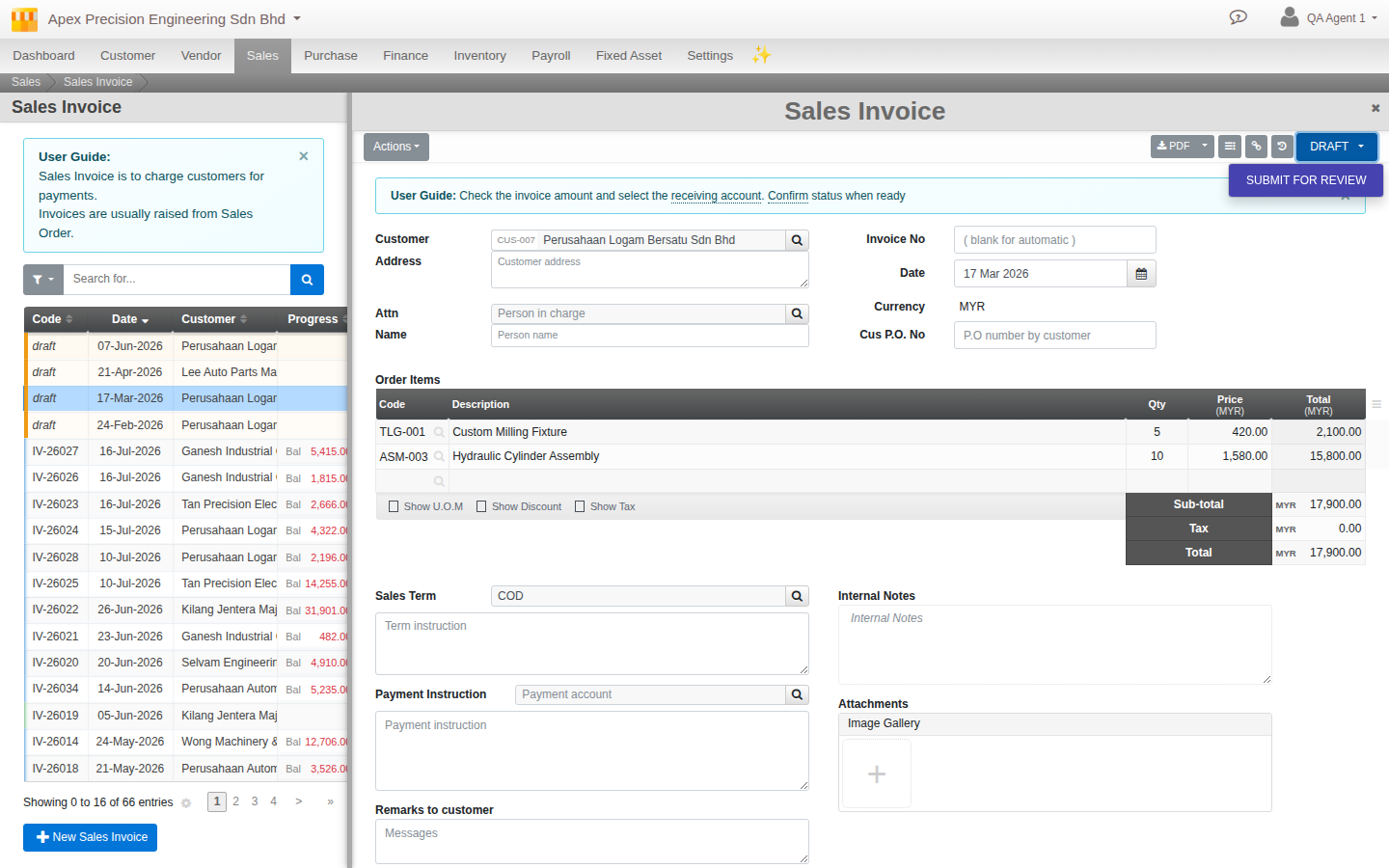
Here is the part that matters for segregation of duties specifically, and it is worth being direct about: there is no organisation-wide switch that forces every document through Verify. Every document type has a direct path straight to Confirmed alongside the path through Verify, and whoever is holding the document each time picks which one to take. The only way Verify actually enforces a second pair of eyes is by permission design: if the same person’s user group holds both the permission to create and edit a document type and the permission to confirm it, nothing stops them from creating a document and confirming it themselves in one sitting, because the system itself does not check whether the creator and the approver are the same person. Tested directly: a user holding both permissions sees exactly the same generic confirmation prompt approving their own document as they would approving anyone else’s, no warning at all.
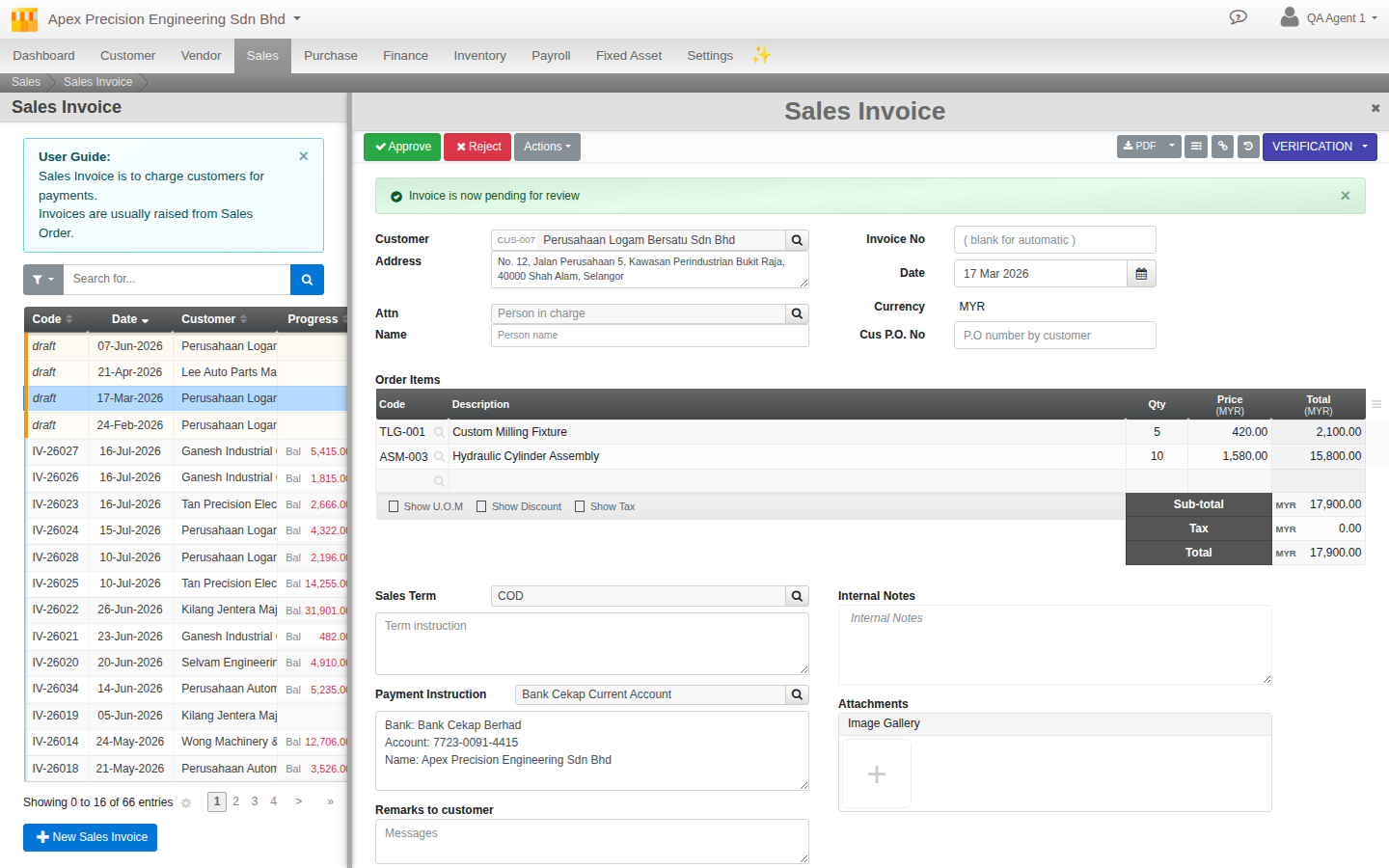
So real segregation of duties here means one deliberate act on your part: for any document type where a second sign-off should actually mean something, put the create and edit permission in one user group and the confirm permission in a different one, and make sure no single person belongs to both. Do that, and the preparer’s only real path is Draft to Verify, and someone else with the confirm permission has to actually act on it. Skip that deliberate split, and Verify is available but not actually enforcing anything.
6. The authority ladder, used sparingly
A group’s level is a real, server-enforced ceiling, not just a label: you can never create or raise a group above your own current highest level, and you can never assign a user into a group above your own level either. Both are enforced on the server, not merely hidden in the interface, so this cannot be worked around by a clever click.
The practical consequence is simple: the level you personally hold is the level you can hand out to anyone else. Keep your own highest membership no broader than it needs to be, and resist the temptation to push everyone to a high level “to avoid permission errors later.” A permission error is a five-minute fix. An organisation where most staff sit at Administrator level because someone got tired of tuning permissions is a much harder thing to walk back.
7. Onboarding as a repeatable process
Treat every new hire the same way, every time: identify which job-shaped group or groups match their actual role, add them to those groups (or invite them directly into your organisation using Invitations, single-use for one specific person or multi-use for a batch of similar hires), and resist adding anything extra “just to be safe.” If their job changes later, add or remove group membership then, when you know what the new job actually needs.
8. Offboarding: remove from the organisation, do not delete
The real, available action here is Remove from organisation, not a deactivate switch. It is worth being precise about this, because it is easy to expect a simple Active/Inactive toggle on a user’s own record and go looking for one: that field exists in the data model, but today it is not something your organisation can reach or change on its own, so it is not the tool to reach for. Removing someone from the organisation does the job in one action: it detaches them from every user group they belong to and from the organisation itself, while leaving the underlying user record untouched. Because the record itself is not deleted, everything that person created, approved or touched stays correctly attributed wherever it is referenced, exactly the outcome you want when someone leaves. Make offboarding as routine as onboarding: the moment someone leaves or changes role in a way that should remove access, remove them the same day, not on the next review cycle.
9. A periodic review cadence
Access drifts even when everyone follows the rules above, simply because businesses change. Set a recurring reminder, quarterly is a reasonable default for a small or mid-sized organisation, to walk through your user groups and ask three questions: does everyone in this group still do this job, does this group still hold only what the job needs, and is there anyone in the organisation who should have been removed and was not. This is a short exercise if you have been disciplined about job-shaped groups, and a much longer one if access has been handed out ad hoc, which is itself a good argument for doing it regularly rather than letting it become a large, dreaded task.
10. Common anti-patterns to watch for
- One giant “Staff” group everyone belongs to. This defeats the entire point of a granular permission model; it is one login’s worth of access wearing many people’s names.
- Groups named after people instead of jobs. “Backup for Sarah” or “Ahmad’s group” cannot be handed to a replacement cleanly and nobody remembers what they actually contain a year later.
- The same person holding both the create/edit and the confirm permission on a document type you actually care about controlling. As covered in section 5, this quietly turns Verify into a formality rather than a real check.
- Former staff left in the organisation “in case they need something.” If they need something again, invite them again; a working login for someone no longer with the business is pure downside.
- Pushing everyone’s level up to stop dealing with permission errors. A high level handed out broadly is exactly what lets one compromised or careless account do the most damage.
11. Worked examples by team size
A solo shop, just you. One user, the default Administrator group, nothing more to design yet. Worth knowing anyway for the day you hire your first person.
A small functional-team business. A handful of job-shaped groups: Sales Clerk, Accounts Payable, General Manager (broader, but still not everything), and an Administrator group held by the owner and perhaps one trusted deputy. Verify switched on deliberately for the document types where a second sign-off matters most, most commonly bills and payments, with the create/edit and confirm permissions for those specifically split across two different groups.
An external bookkeeper needing scoped, temporary access. Build a narrow group covering exactly the Finance screens a bookkeeper needs, invite them with a single-use invitation, and calendar their own review, or their removal from the organisation outright, for the date their engagement ends. This is the least-privilege discipline and the offboarding discipline working together for a case that comes up often in practice: someone needs real access, for a limited time, to a limited slice of the system.
What’s next
A few notes as you keep working with access control in Cloudby:
- There is currently no branch- or location-scoped permission model. Every permission a group carries applies across the whole organisation; you cannot today restrict a group to, for example, one warehouse or one outlet’s data only. This is a real, greenfield gap, not a configuration you have missed.
- There is no organisation-wide, configurable approval workflow engine either. The per-document Verify step covered in section 5 is the real tool available today, and it is usable for basic segregation of duties when you deliberately split the create/edit and confirm permissions, but it is not a chain-of-command or multi-step workflow system.
- A user record does carry an Active/Inactive field, but today it is not something your own organisation can view or change; it is reserved on the platform side. Removing someone from the organisation, covered in section 8, is the real, available action for taking away a departing user’s access.
- Whenever you add a new module or feature to your organisation, revisit your job-shaped groups: does an existing group’s job description now also cover this new area, or does it need its own group.
Scenarios and troubleshooting
I submitted a document for review and confirmed it myself a moment later, and nothing stopped me.
That is expected given how Verify works today, see section 5. It only blocks self-approval when the confirm permission for that document type sits in a different user group than the one you belong to. Check whether your own group holds both the create/edit and confirm permissions for that document type; if it does, that is the setting to change.
I cannot raise a colleague’s user group to the level I want.
You cannot create or assign a group above your own current highest level, this is enforced on the server rather than being a UI restriction you can work around. Either have someone with a higher level make the change, or reconsider whether that level is needed.
A document I rejected shows who rejected it, but an approved one does not show who approved it.
This is a known limitation rather than something wrong on your end, see the callout in section 5. The document’s own dedicated field for this only records rejections. If you need to know who approved something, check that document’s Activity history instead, every status change including approval is recorded there with who did it and when.
I need to restrict a user group to just one branch or location.
This is not possible today; Cloudby’s permission model is organisation-wide, not branch- or location-scoped. There is currently no workaround inside the permission model itself for this.
I am looking for a way to deactivate a user rather than remove them entirely.
There is no deactivate-then-reactivate switch your organisation can use today, this is a known limitation rather than something you have missed. Remove the person from the organisation instead, covered in section 8: it takes away their access in one action while leaving their name and everything they did correctly attributed. If they come back later, invite them again.
Related
- Guide: Migrating to Cloudby: planning, cutover and go-live
- Reference: Users & User Groups
- Reference: Invitations
- Reference: Approval and Verification
- How to: Manage users and access
- Guide: Running your business day to day in Cloudby