Learn the concept
This is the step-by-step. For what it is and how it fits the bigger picture, read Payment Processing in the reference.
This is the step-by-step. For what it is and how it fits the bigger picture, read Payment Processing in the reference.
What this does
Use Issue Payment to pay money out and knock it off against what you owe, such as a vendor bill or a debit note. It is the outgoing counterpart of Receive Payment.
Before you start
You need a confirmed document to pay (such as a bill), and the bank or cash account the money leaves.
Open Issue Payment
Go to Menu > Finance > Issue Payment.
Steps
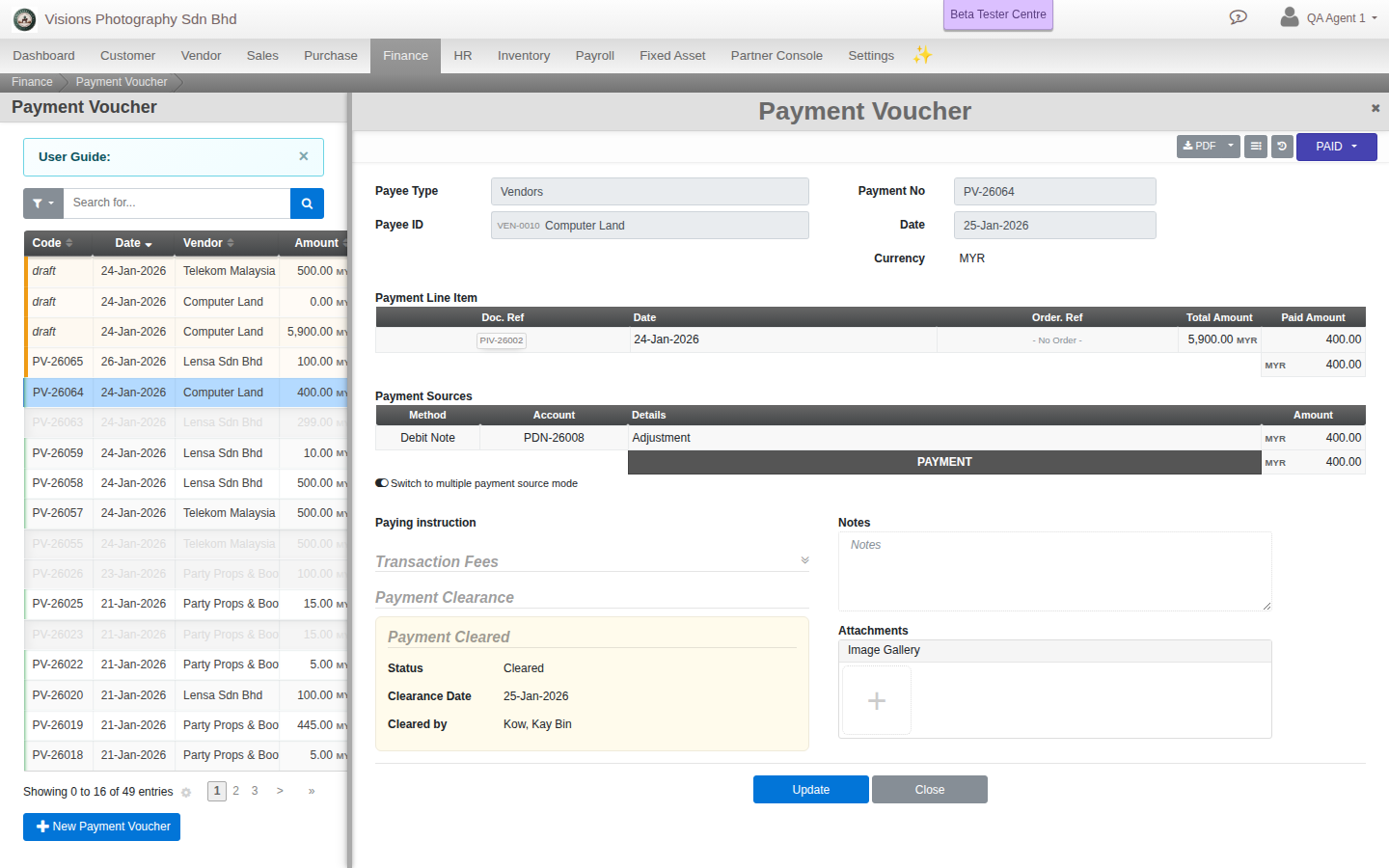
- Click Create. A Payment Voucher opens, dated today.
- Set Payee to the right type (Vendor, Director, Employee and so on) and pick the payee. Their outstanding documents load.
- In Payment Line Item, enter the amount to knock off against each document.
- Under Payment Sources, add the bank or cash account the money leaves, with the amount and a reference in Payment Details.
- Add a Paying instruction if the payee needs one, and an optional Transaction Fee.
- Set Payment Clearance (Pending, or Paid with the date), then save as a draft or confirm to post it.
What confirming does
Cloudby lowers what you owe, lowers the bank or cash account, posts any fee, and gives the voucher its number. A printable Payment Voucher becomes available.
Field guide
- Payee. Who you are paying, and their type.
- Payment Line Item. The documents you are knocking the payment off against.
- Payment Sources. Where the money leaves from.
- Paying instruction. A note for the payee. Payment Clearance. Pending or Paid.
Good to know. Issue Payment is the mirror of Receive Payment. Same shape, money flows out instead of in.