This is the step-by-step. For what it is and how it fits the bigger picture, read Chart of Accounts in the reference.
Setup
What this is
Your Chart of Accounts is the list of accounts every transaction posts to. Your sales, your expenses, your bank accounts, your receivables, and so on, arranged as a tree. You set this up before you start posting transactions. The good news is that Cloudby can build most of it for you.
Before you start
You need access to Finance settings. If you do not see Settings under Finance, ask whoever manages your Cloudby account to give you access, or to set this up for you.
Open the Chart of Accounts
Go to Menu > Finance > Settings > Chart of Accounts. You see your accounts as a tree, grouped by type such as Income, Cost of Sales, Expenses, Assets, Cash and Bank, Receivables, Liabilities, Payables and Equity.
Build your chart with the Setup Wizard
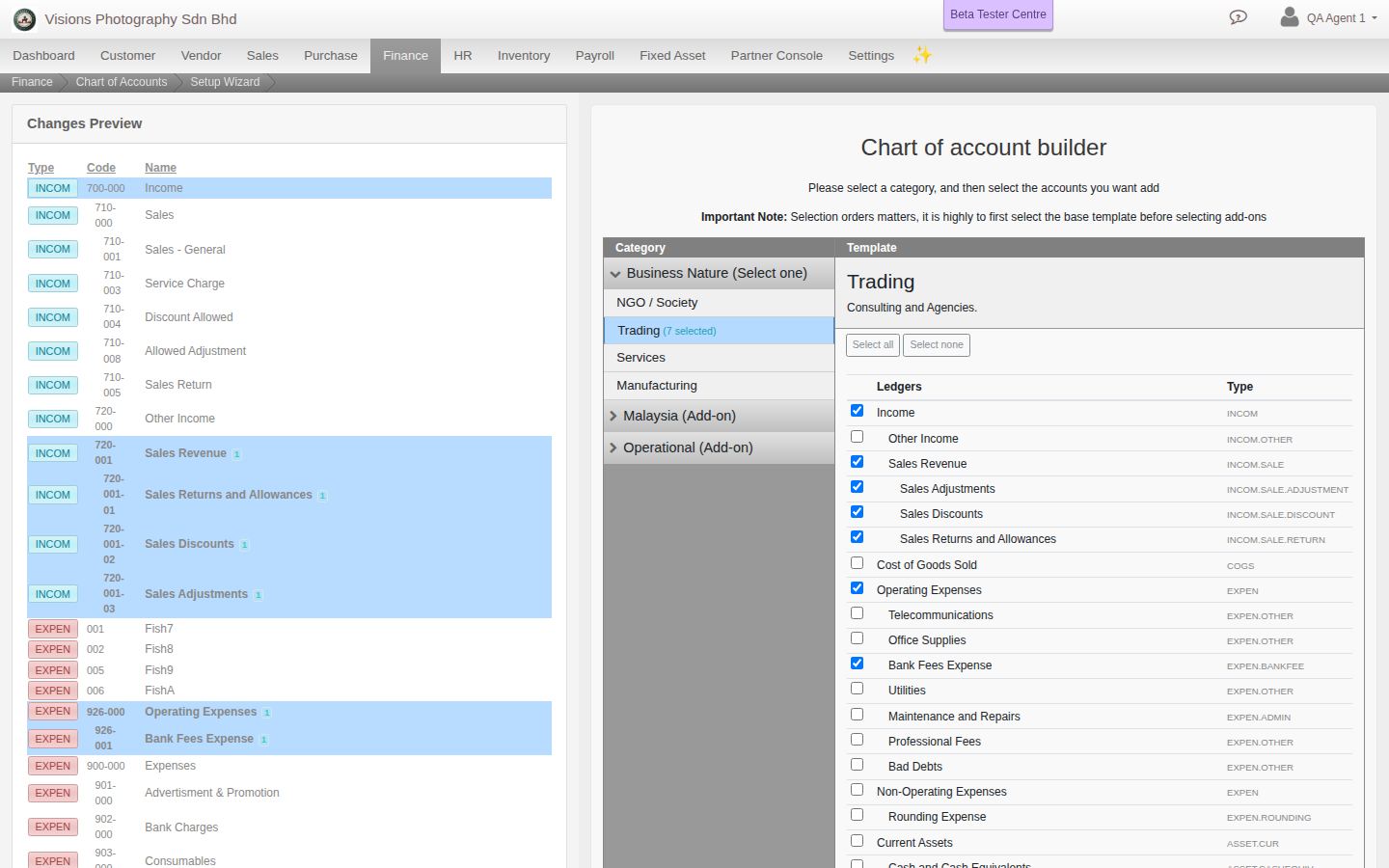
You do not have to create accounts one by one. Open the Setup Wizard for three tools: Chart of account builder to add ready-made templates, Delete Unused Ledger to remove accounts with no transactions, and Import Chart of Accounts to bring one in from a file.
The builder groups templates into categories. Start with one Business Nature template, the base for your chart: NGO / Society, Trading, Services or Manufacturing. Then layer on optional add-ons that suit you, such as Malaysia (Corporate Sdn Bhd, Sole Prop/Partner, SST & WHT, Payroll) or Operational (Assets, Administrative, Sales & Marketing, Financing & Investing, Specialised/R&D, Multi Currencies). Order matters: pick your Business Nature base before any add-ons.
- Pick a category, then a template inside it. Its accounts appear as a ticklist, already grouped and indented to match your chart.
- Tick the accounts you want. Ticking a parent ticks its children, and ticking any child ticks its way back up to the parent, so a whole branch moves together. Use Select all or Select none to move quickly.
- Watch the Changes Preview on the left. It updates live with the exact new ledger codes your ticks will add.
The templates add together, so mix and match the ones that fit you. The wizard gives you a working chart in minutes, which you can fine-tune. You can always add or change accounts later.
Add or edit an account
- Select the parent account the new one belongs under.
- Click Create and fill in the form (see the field guide below).
- Click Create to save it. To change an account later, select it, click Edit, make your changes, then Update. To remove one, use Delete.
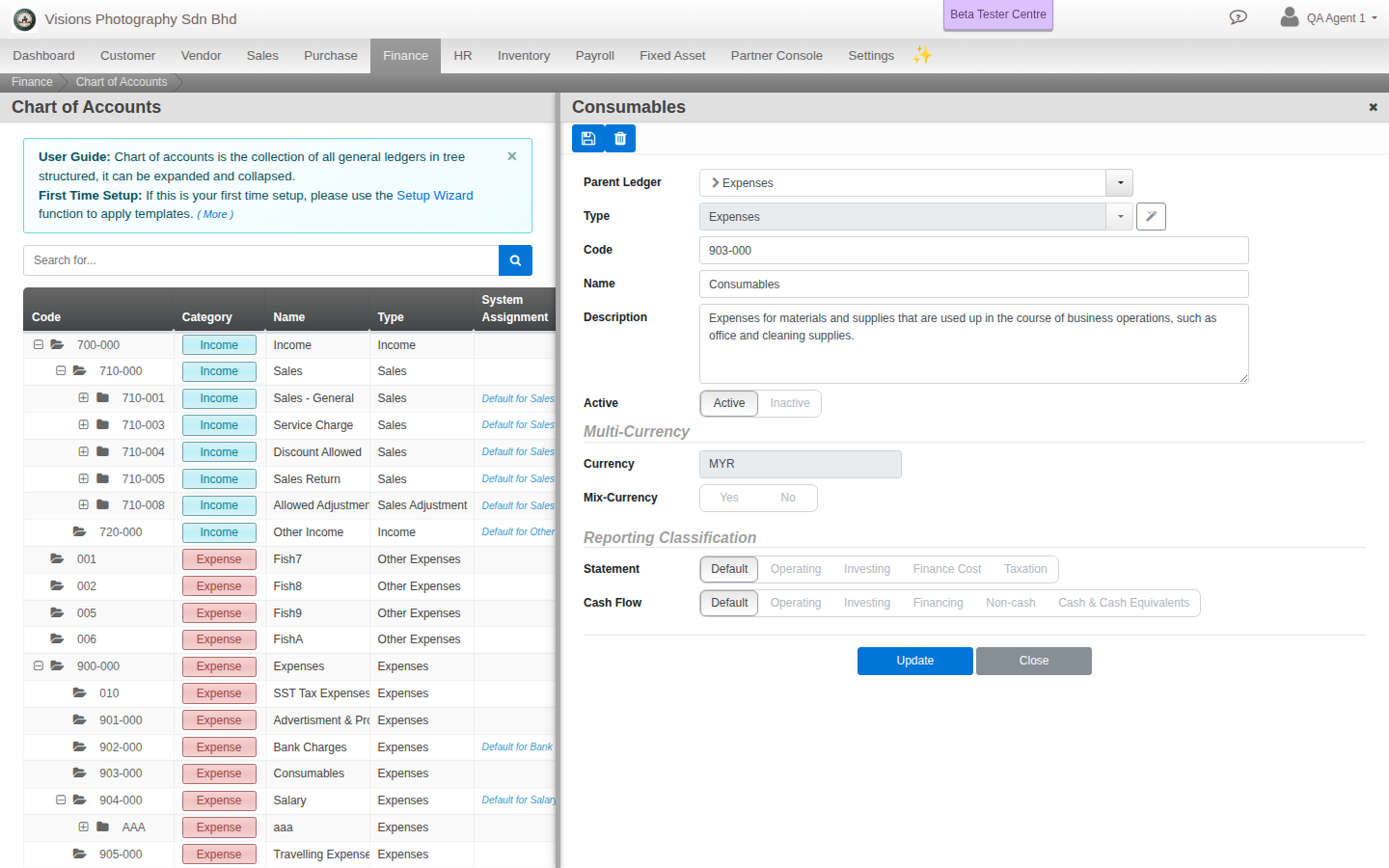
Field guide
- Parent Ledger. Where the account sits in the tree.
- Type. The kind of account. You pick the specific subtype, and Cloudby works out the top-level type from where the account sits in the tree.
- Code. The account number. Leave it blank to let Cloudby assign the next one. It must be unique.
- Name. What the account is called.
- Description. Optional notes.
- Active. Turn an account off without deleting it.
- Multi-Currency. The account’s Currency, defaulting to your organisation currency and locking once the account has transactions, plus Mix-Currency to let a single account hold more than one.
- Reporting Classification. An optional Statement section and Cash Flow category override for this account, beyond the default its type already gets.
Account types
When you create an account you choose its type. Cloudby works out the top-level group from where the account sits in the tree. The full set of types:
- Income: Sales, Sales Return, Discount Allowed, Sales Adjustment, Other Income, Fixed Asset Disposals.
- Cost of Sales: Services Outsource, Inventory Purchases, Production Labour, Production Overhead, Production WIP Materials Adjustment, Production Raw Materials Adjustment.
- Expense: Salary, Bank Fees, Income Tax, Fixed Asset Depreciation, Rounding, Inventory Adjustments, Realised FX Gain or Loss.
- Equity: Capital, Retained Earnings.
- Asset (current): Cash, Bank, Fixed or Term Deposits, Receivable, Receivable (Non-Trading), Inventory, Inventory Incoming, Production Finished Goods, Production Work-In-Progress, Production Raw Materials, Production Supplies, Vendor Deposit, Input Tax (GST/VAT), Suspense, Cash-In-Transit.
- Asset (non-current): Investment, Fixed Asset, Accumulated Depreciation, Intangible Asset.
- Liability (current): Payable, Payable (Non-Trading), Credit, Customer Deposit, Overdraft, Output Tax (GST/VAT), Accruals, Accruals for Payroll, Accruals for Reimbursement, Provisions, Provision for Income Tax.
- Liability (non-current): Bank Long-term Loans Payable, Director Loans Payable, Staff Loans Payable.
Cash, Bank, Receivable and Payable accounts are handled specially by Cloudby and allow only basic edits.