Learn the concept
This is the step-by-step. For what it is and how it fits the bigger picture, read Multi-currency in the reference.
This is the step-by-step. For what it is and how it fits the bigger picture, read Multi-currency in the reference.
Setup
What this is
Set up the currencies you trade in and how each one is formatted (symbol, decimals and separators). Your organisation currency is the base everything is measured against.
Before you start
You need access to Finance settings. If you do not see Settings under Finance, ask whoever manages your Cloudby account to give you access, or to set this up for you.
Open Currencies
Go to Menu > Finance > Settings > Currencies.
Add a currency
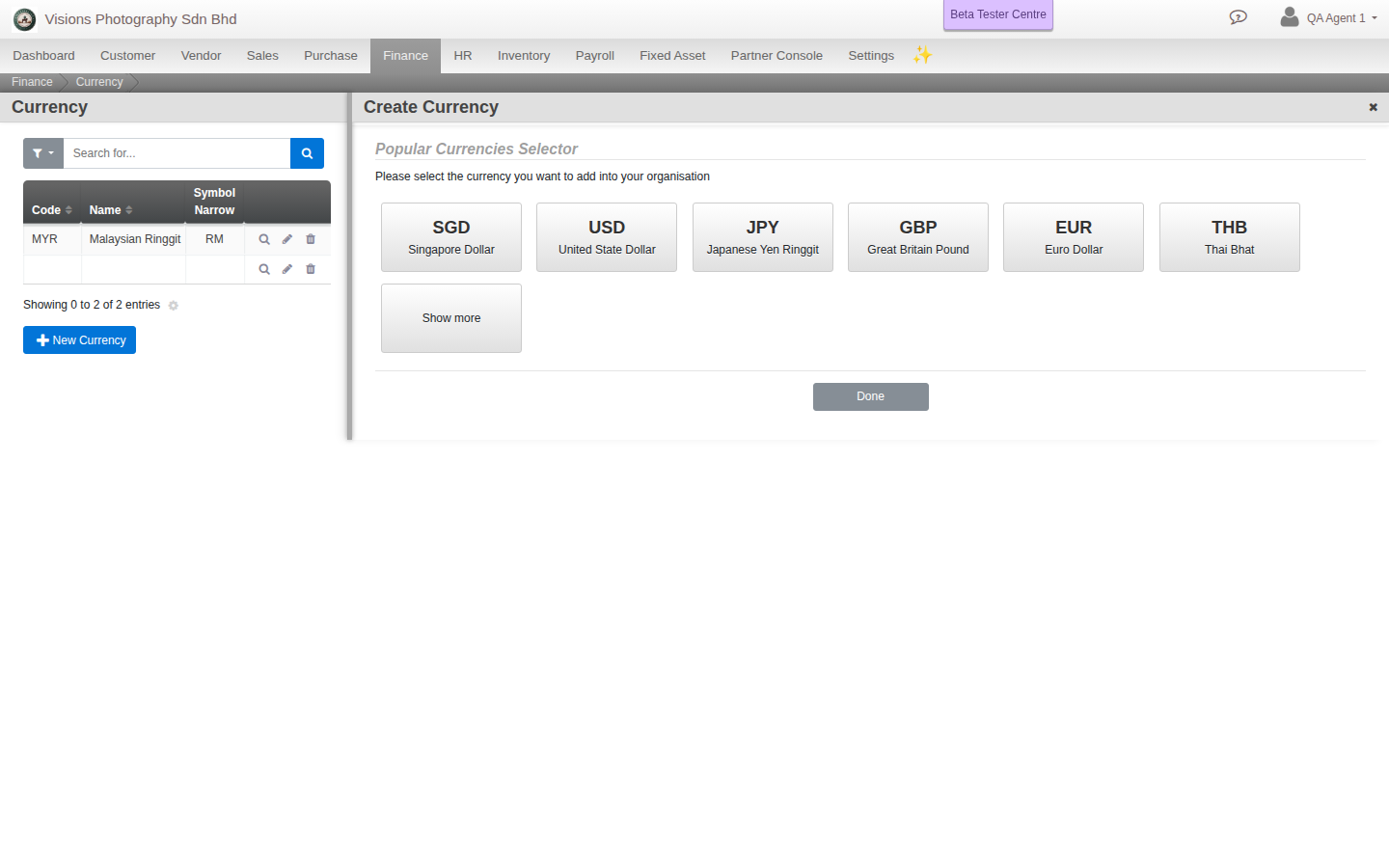
- Click Create. The Popular Currencies selector appears.
- Pick a common currency to add it straight away, or choose Show more for the full list. Cloudby asks you to confirm before adding it.
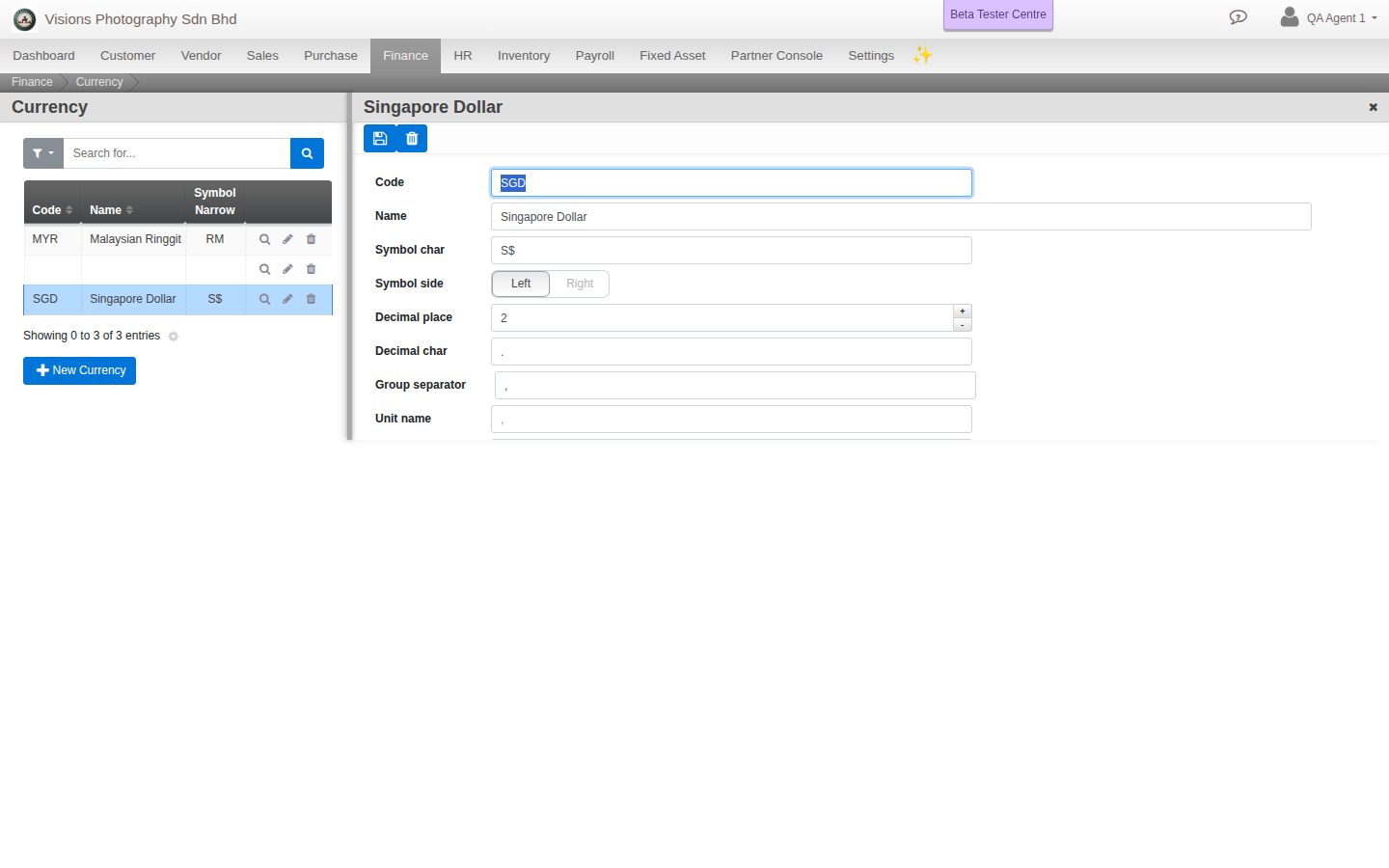
- To fine-tune the format, set the Symbol char and Symbol side (left or right), Decimal place, Decimal char, Group separator, and the Unit and Sub-unit names.
- Click Create.
Field guide
- Code (for example MYR) and Name.
- Symbol char and Symbol side. The symbol and whether it sits before or after the number.
- Decimal place, Decimal char, Group separator. How the number is formatted.
- Unit and Sub-unit names. For example Ringgit and Sen.
Good to know. Currency setup here controls the format. The exchange rate for a foreign-currency document is entered on the document itself, and period-end revaluation is handled under Accounting Processes.