Learn the concept
This is the step-by-step. For what it is and how it fits the bigger picture, read Cash & Financial Accounts in the reference.
This is the step-by-step. For what it is and how it fits the bigger picture, read Cash & Financial Accounts in the reference.
Setup
What this is
A cash or bank account in Cloudby represents a real account your money sits in. Each one links to a ledger in your Chart of Accounts, so money in and out posts to the right place.
Before you start
You need access to Finance settings, and your Chart of Accounts is set up. If you do not see Settings under Finance, ask whoever manages your Cloudby account to give you access, or to set this up for you.
Open Cash and Bank Accounts
Go to Menu > Finance > Settings > Cash and Bank Accounts.
Add an account
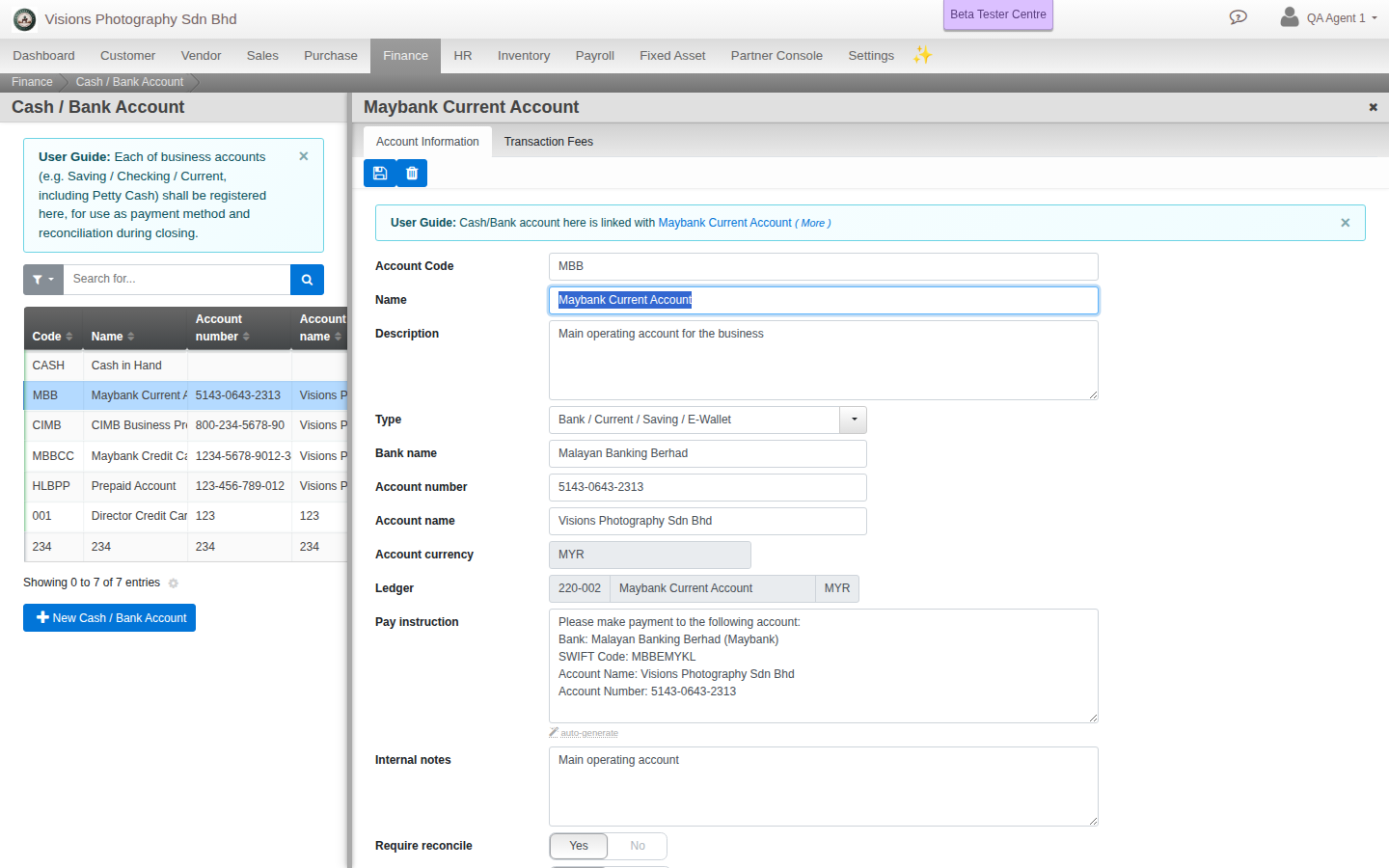
- Click Create.
- Set Type to Cash or Bank.
- Enter a short Name (for example MBB-1234) and an optional Description.
- For a bank account, fill Bank name, Bank swift, Account number and Account name.
- Set the Account currency (for example MYR).
- Leave Ledger blank to let Cloudby create and link the ledger for you (recommended), or pick an existing one.
- Turn on Require reconcile if you reconcile this account, keep it Active, then click Create.
Field guide
- Account Code. Leave blank for the next automatic number.
- Type. Cash or Bank.
- Bank name / swift / Account number / Account name. The bank details, used on payment instructions.
- Account currency. The currency this account holds.
- Ledger. The Chart of Accounts ledger this account posts to. Leave blank to auto-create.
- Require reconcile. Turns on bank reconciliation for this account.
- Pay instruction. Bank details shown to customers on invoices. Internal notes stay private.
Good to know. Each account is tied to a Chart of Accounts ledger. Deleting an account leaves an orphaned ledger, so set an unused account to inactive rather than deleting it.