Learn the concept
This is the step-by-step. For what it is and how it fits the bigger picture, read Custom Fields in the reference.
This is the step-by-step. For what it is and how it fits the bigger picture, read Custom Fields in the reference.
Setup task
What this does
Custom fields let you capture information Cloudby does not ask for out of the box, by adding your own fields to records such as customers, vendors, employees, and sales and purchase documents.
Open Custom Fields
Go to Menu > Settings > Maintenance > Custom Fields.
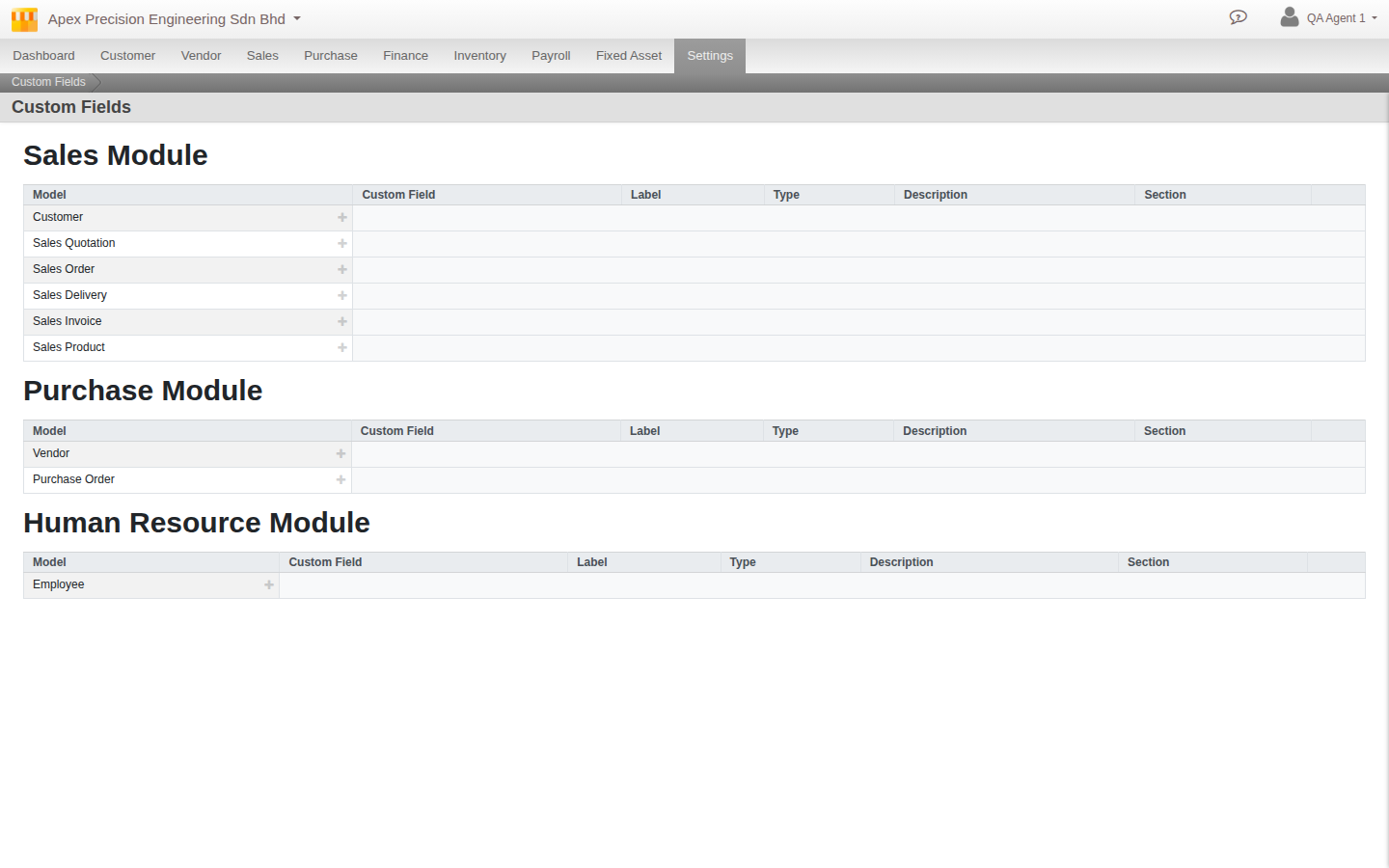
Define a field
- Choose the Model: which record the field belongs to, for example Customer, Vendor, Employee or a sales document.
- Set a Section to group it under, a Label for how it reads, and the Type of input (text, dropdown, radio button, date and so on).
- Add any help text, default value or list options, and the display order.
Your fields then appear in a Details section on that record, ready to fill in.
Good to know. This is how the Details tab on customers, vendors and employees is built. Add only what you will use, so forms stay quick to complete.