Learn the concept
This is the step-by-step. For what it is and how it fits the bigger picture, read Employee Record in the reference.
This is the step-by-step. For what it is and how it fits the bigger picture, read Employee Record in the reference.
What this does
Adding an employee creates the master record used across HR and Payroll. It holds who the person is and the detail you need on file.
Open Employee
Go to Menu > HR > Employee and click Create.
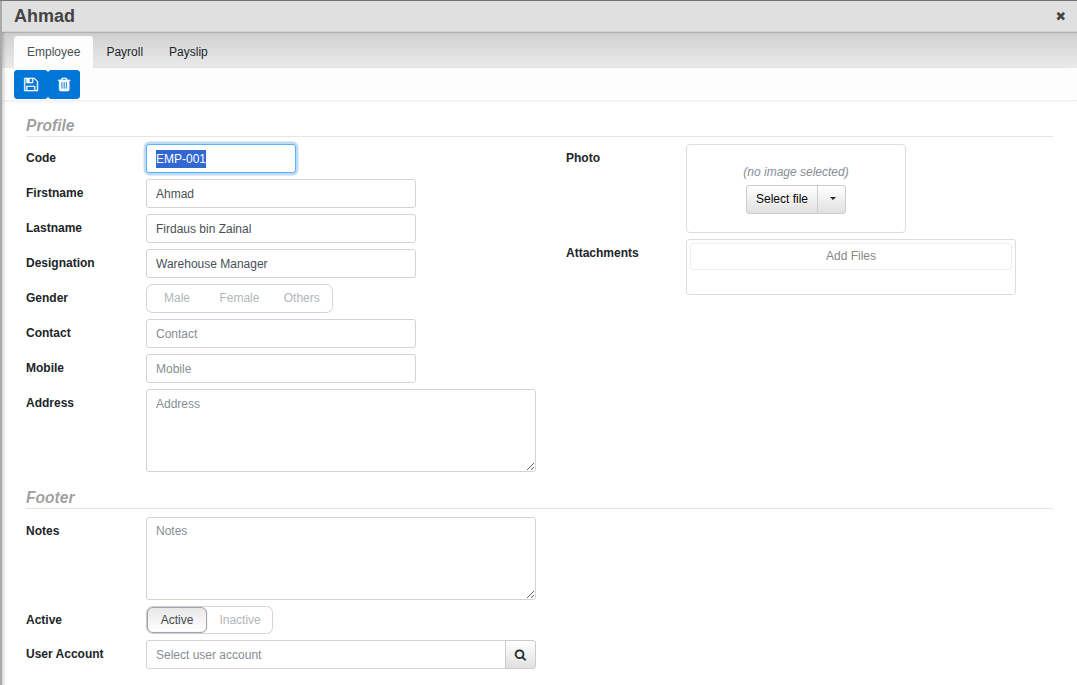
Fill in the Employee tab
- Enter Firstname and Lastname, the Designation, and contact details (Contact, Mobile, Address). Leave Code blank to have it numbered automatically.
- Add a Photo and link a User Account if this person signs in to Cloudby.
- Fill in Gender if relevant. If your organisation has set up custom fields for employees, fill in whichever sections apply: Person, Residential, Contact, Emergency, Employment, Foreigner and Tax are the categories available. A fresh organisation starts with none configured, so this step may not show anything yet.
- Set Active to Yes and save.
Next step. To pay this person, set their pay and statutory details on the Payroll tab. That is covered in Set up an employee for payroll.