
Scope: registering, categorising, depreciating and disposing of fixed assets. This guide assumes you already have an organisation with a Chart of Accounts (covered in the go-live guide) and are simply adding assets to it as you go.
What this guide is not: a guide to inventory or stock (a fixed asset is something the business keeps and uses, not something it buys and resells; see the planned Inventory guide for that).
1. What a fixed asset is in Cloudby, and where it lives
A fixed asset is something your business buys and keeps for more than one accounting period: a machine on the factory floor, a company van, an office full of desks. Unlike stock, you are not planning to sell it. Unlike a normal expense, its cost is not fully used up the moment you buy it. Instead, its value is spread out and expensed gradually over its useful life, a process called depreciation.
Everything to do with this lives in Cloudby’s Fixed Asset module, reached from Menu > Fixed Asset. Four tabs matter for this guide: Assets (the register itself), Category (a classification layer, more on this below), Depreciation (running and posting each period’s depreciation), and Disposal (writing off or selling an asset you no longer hold).
2. Register an asset: always from a real document, never a blank form
Here is the first thing worth knowing before you go looking for it: there is no blank “add a new asset” screen in Cloudby. Every single asset originates from a line on a document you have already posted:
- a Purchase Invoice line (bought through the full Purchase flow),
- a Bill line (a Finance-side purchase that skipped the Purchase-Order flow),
- a Journal Entry line (including an opening-balance entry at go-live, see the callout below), or
- a Reimbursement Claim line (someone bought it personally and claimed it back).
This is a deliberate design, not a missing feature. Cloudby only lets you turn a line item into an asset if it was posted against a ledger of the Fixed Asset type, so an asset’s book value is always traceably tied back to a real transaction, never a number typed into a form with nothing behind it.
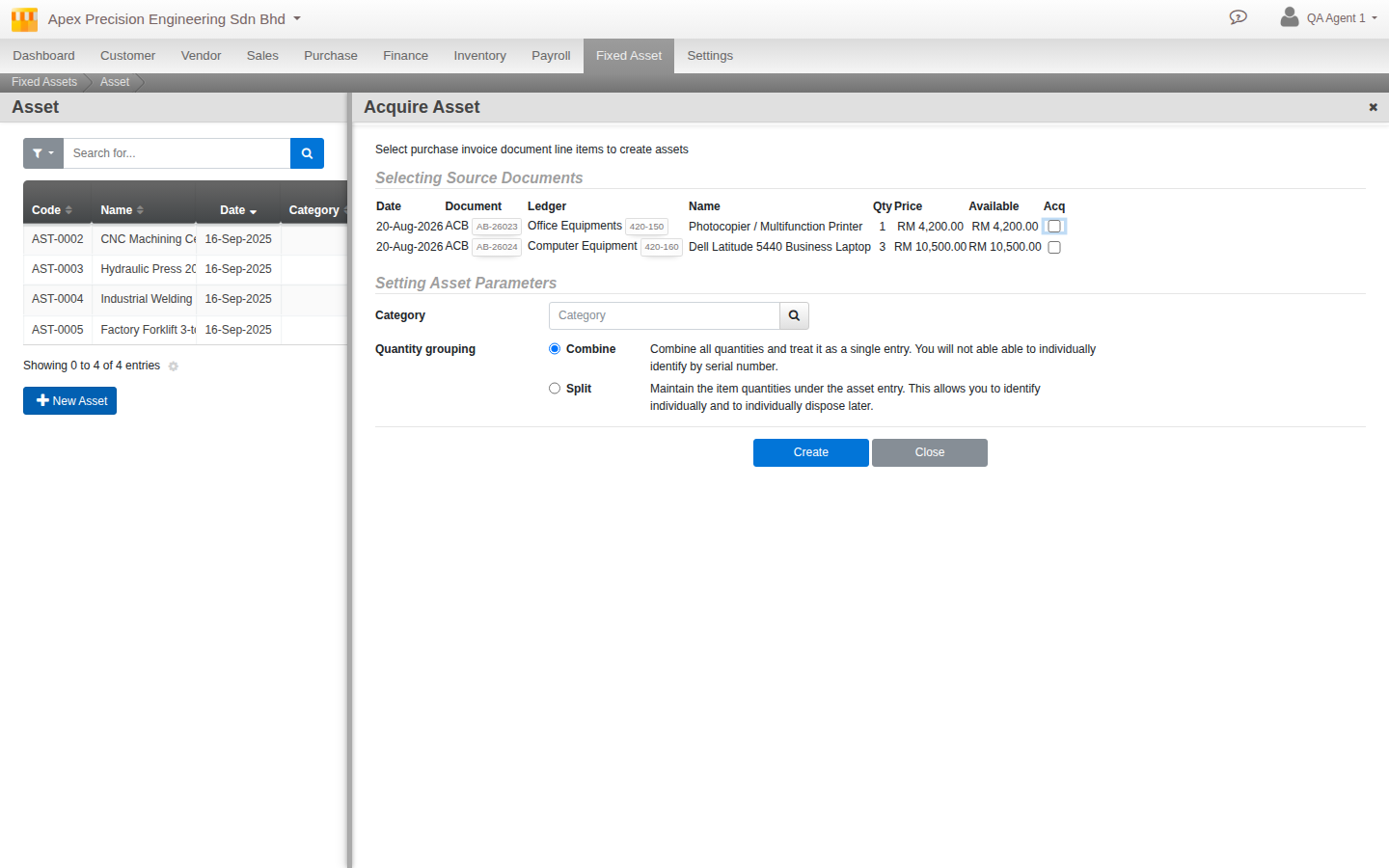
From Assets > Create, you are shown a list of eligible, not-yet-acquired document line items to choose from, and tick the ones you want to bring in as assets.
3. The one decision to get right the first time: Combine or Split
When the document line you are acquiring from has a quantity greater than one, for instance ten identical office chairs on one purchase invoice line, Cloudby stops and asks exactly one question before it creates the asset record. This is worth pausing on, because it is the single choice that shapes how that asset behaves for the rest of its life, and it is made once, at the moment of creation, with no way to change your mind afterward.
The real, on-screen wording is already written in plain language, so here it is verbatim:
Combine (the default): “Combine all quantities and treat it as a single entry. You will not be able to individually identify by serial number.”
Split: “Maintain the item quantities under the asset entry. This allows you to identify individually and to individually dispose later.”
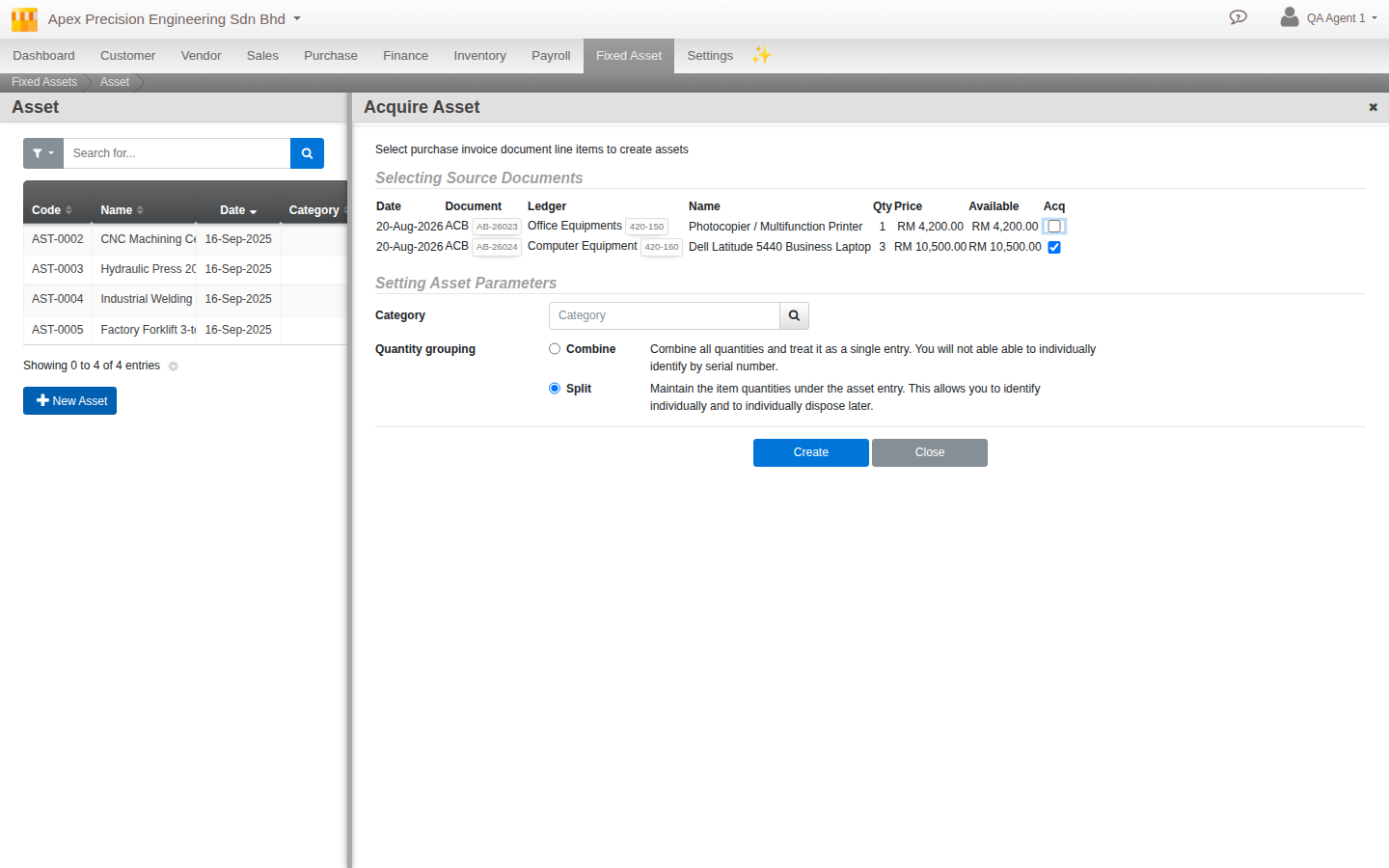
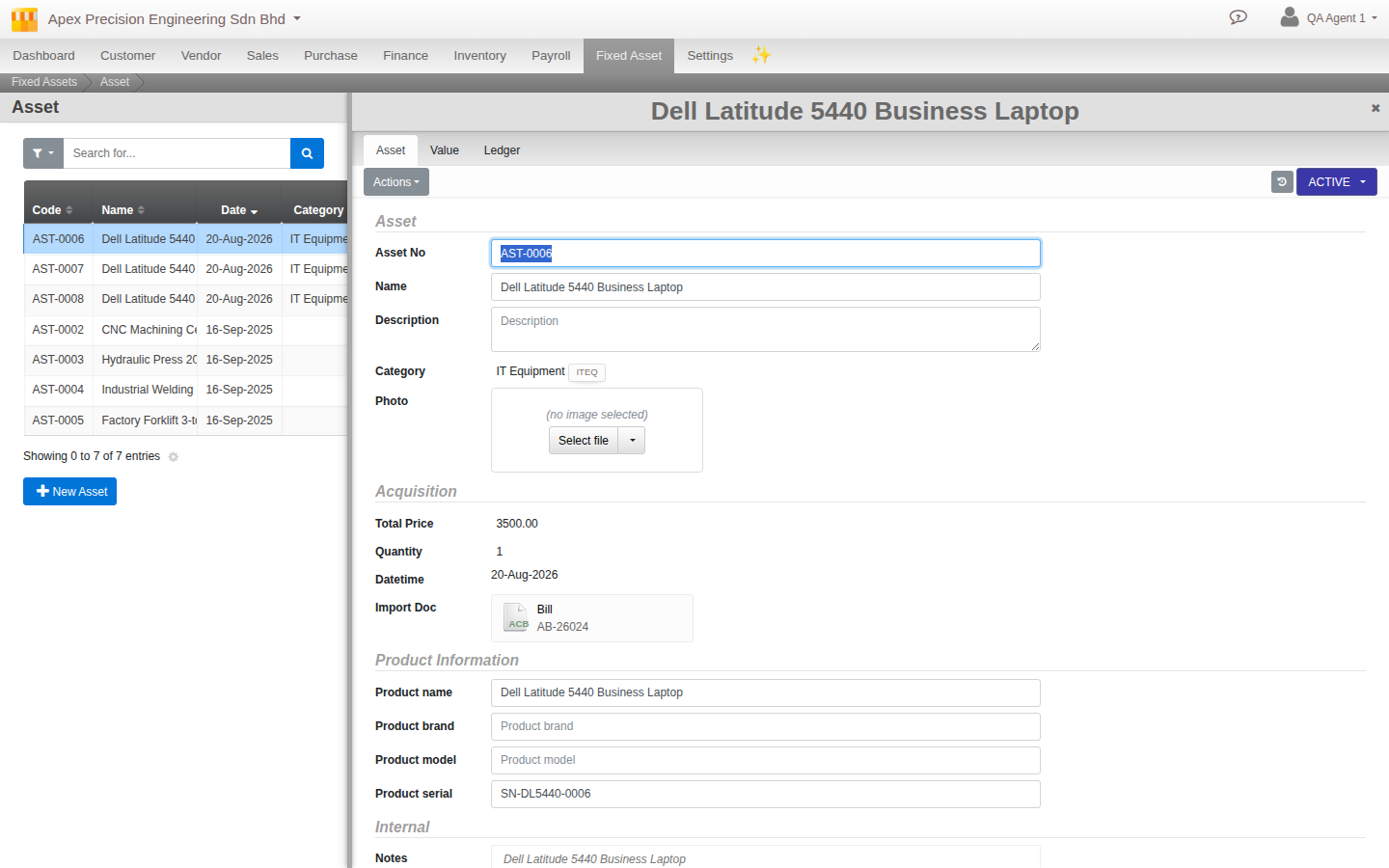
What actually happens behind each choice. Combine creates one asset record covering the full quantity you bought, at the per-unit price. It depreciates as one line, and you can dispose part of it later (say, 3 of the 10 chairs) if you need to, but every unit inside it is treated as interchangeable: there is no serial number or identity tying any part of its value back to one specific physical item. Split does the opposite: it creates a separate asset record for every single unit, each with its own asset code and its own serial-number field, and from that point on each one lives, depreciates, and can eventually be disposed of completely independently of the others.
How to actually decide, with real examples rather than in the abstract. Reach for Combine for generic, lower-value items bought in bulk where no single unit needs its own identity: a batch of twenty office chairs, a set of identical warehouse shelving units, fifty uniform desks for a new floor. One line to track, one line to depreciate each period, one line to eventually dispose of as a batch. Simpler books, at the cost of never being able to answer “which specific chair is this one.” Reach for Split for anything the business needs to track, insure, assign to a person, or dispose of individually: company vehicles (each with its own registration and its own eventual resale value), machinery with serial numbers you might need for a warranty claim, laptops issued to named employees. Every unit gets its own depreciation line every period, more line items to look at, more granular reporting, but you can sell the one van being replaced or write off the one laptop that broke without touching the value of anything else in the batch.
4. Category: a way to filter and report, not a rate template
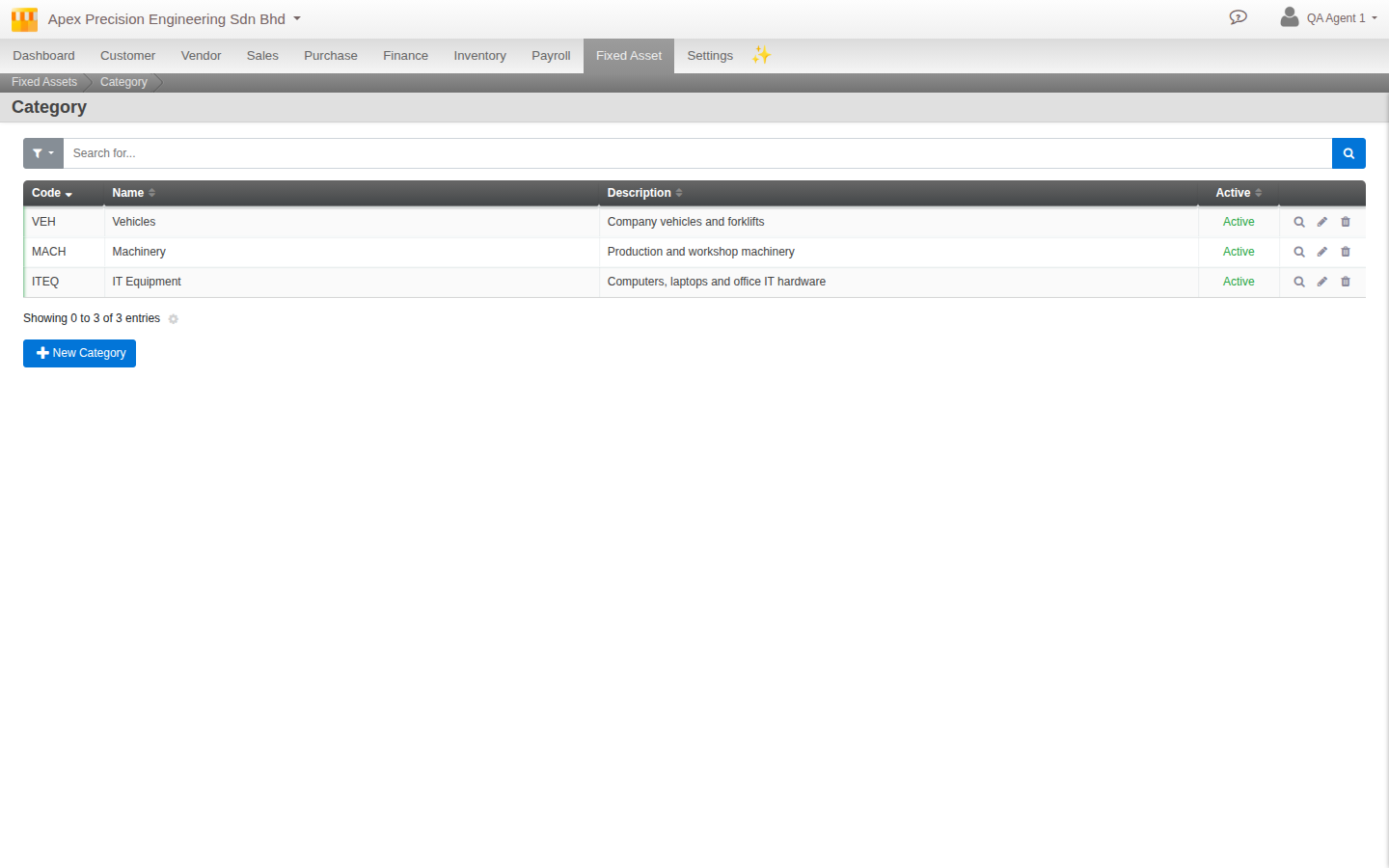
Every asset can be assigned a Category (Fixed Asset > Category), a simple name and description you set up yourself, for example “Vehicles,” “IT Equipment,” “Machinery.” It is worth being clear about what a Category is and is not: it does not carry its own depreciation rate, method, or ledger. Every new asset gets the same flat default (Straight Line, 10% a year, annual frequency) regardless of which category you assign it to; you then adjust the rate on the individual asset if it needs to differ, category by category yourself, asset by asset.
Category’s real job is filtering and reporting: scoping a depreciation run to just one category, or slicing a fixed-asset report by it. Think of it as a label for grouping and finding your assets later, not a template that sets anything automatically.
5. Run depreciation: what’s automatic, and what isn’t
Two limits are worth knowing before you run your first depreciation, so nothing here comes as a surprise later. Straight Line is the only depreciation method Cloudby supports today. There is no reducing-balance or accelerated option, no matter what the dropdown might once have suggested. And depreciation frequency is locked to annual: the field on an asset’s edit screen may look free-text, but anything other than once a year is rejected when you try to save it.
Within those limits, running a depreciation is straightforward. From Depreciation > Create, choose Eligible (only assets whose scheduled depreciation date has actually arrived) or All, optionally narrowed down to one Category or one ledger. Verify the numbers, then post. Cloudby records the expense automatically with the standard double entry every accounting system uses for this: a debit to Depreciation Expense, a credit to that asset’s Accumulated Depreciation.
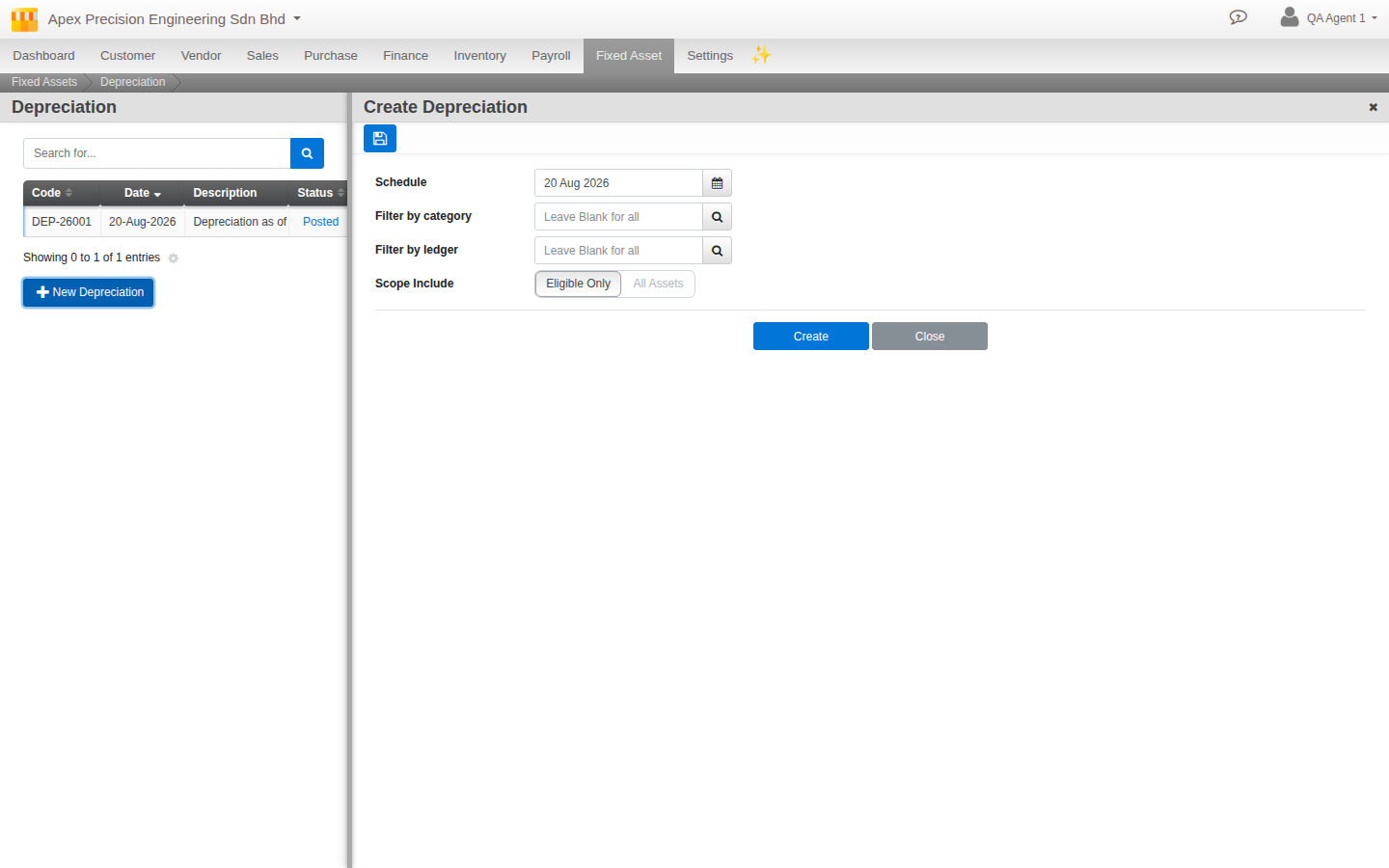
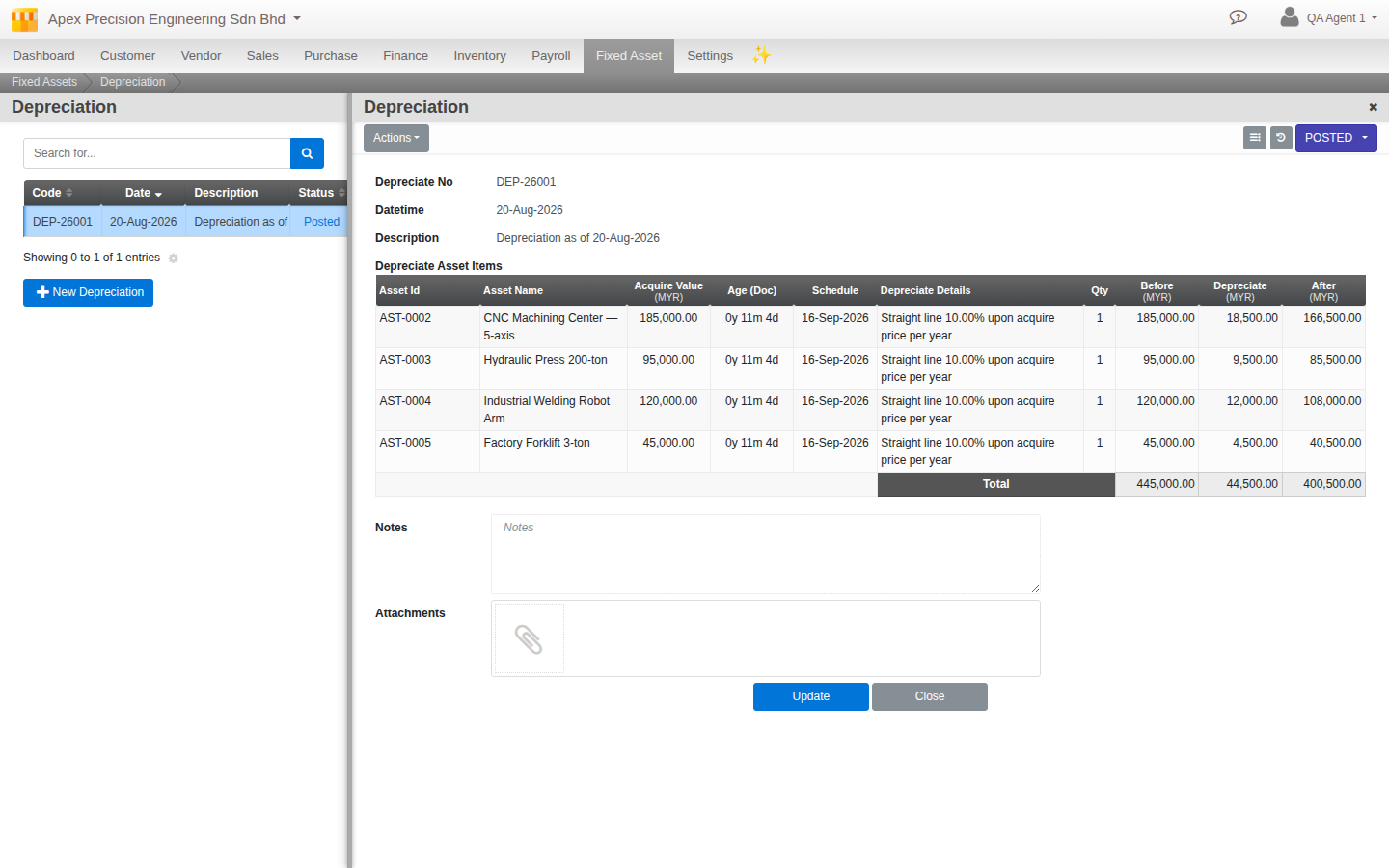
One thing depreciation is not: automatic on a schedule. A human creates the run each period, exactly like the closing-your-financial-year guide already describes for its own depreciation step. If you are working through a period close right now, this is the same step; you do not need to do it twice.
6. Dispose of an asset: Write off or Sold, with real guardrails
Eventually an asset reaches the end of its life in your business: it breaks, you sell it, you replace it. Disposal has two modes, Write off (it has no further value, you are simply removing it from the books) and Sold (you actually got something for it, and Cloudby asks who bought it). Either way, you pick the asset and the quantity you are disposing of from it.
Cloudby checks several real, sensible guardrails before it will let a disposal post: the quantity you are disposing of cannot exceed what the asset currently holds, the disposal price cannot exceed the asset’s current (already-depreciated) value, the disposal document must be dated after the asset’s own acquisition date and after its last depreciation posting (you cannot backdate a disposal earlier than the asset’s own history), and you cannot list the same asset line twice in one disposal document.
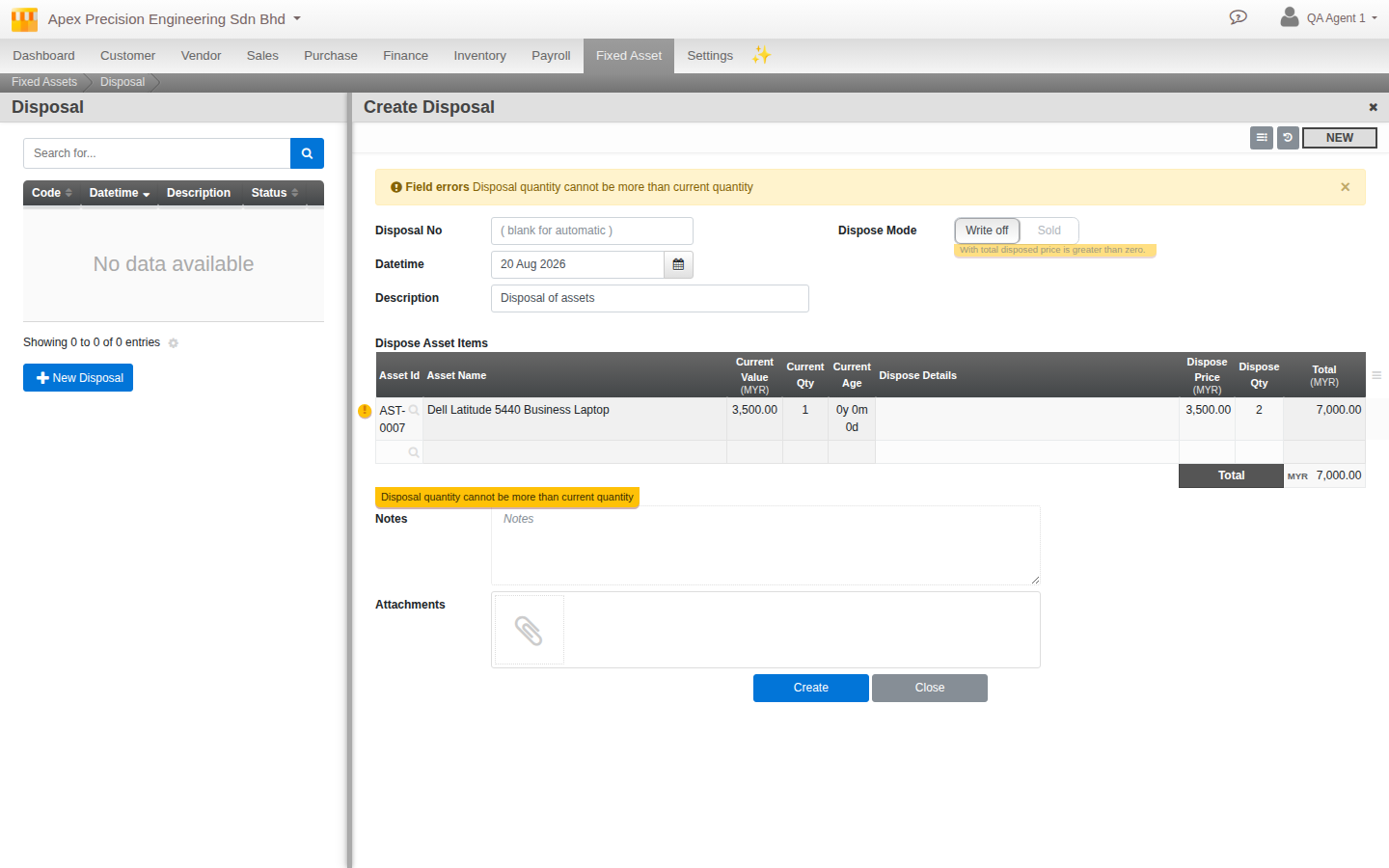
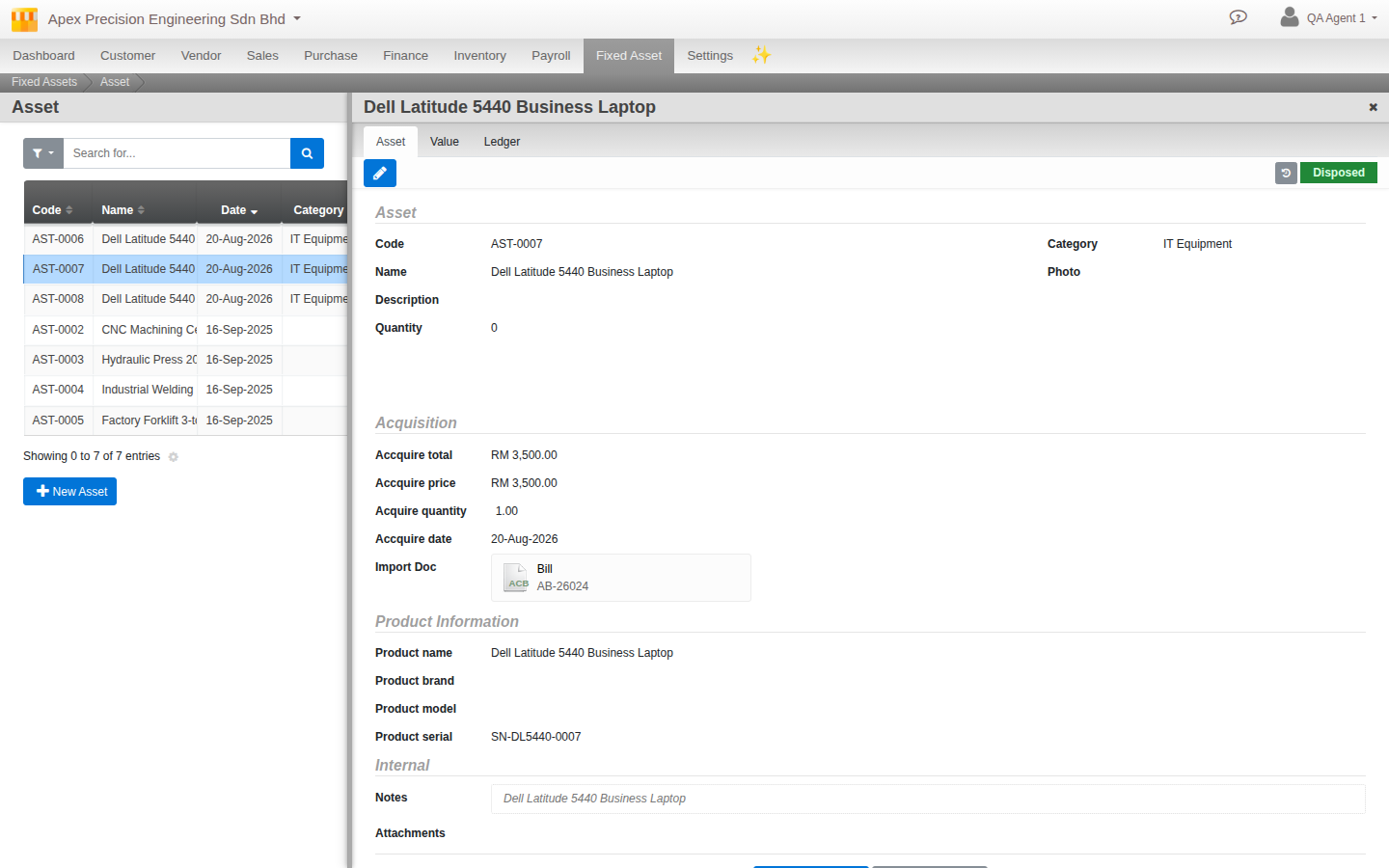
This is exactly where the Combine-or-Split decision from earlier cashes out in practice. Disposing from a Combined entry means removing a quantity from one shared pool, for example “3 of the 10 chairs,” any three. Disposing from a Split entry means picking the one specific asset code you are actually selling or writing off, independent of its siblings. Once an asset’s remaining quantity reaches zero, Cloudby automatically flips its status from Active to Disposed. Nothing further to do on that line.
What’s next
A few notes as you keep working with fixed assets:
- There is currently no way to record a category-level default depreciation rate. Every asset starts at a flat 10% Straight Line regardless of category, and you adjust it per asset yourself if your business’s real rates differ (for example, a shorter rate for IT equipment than for machinery).
- Fixed assets brought in through the day-to-day operations guide’s document types (Purchase Invoice, Bill, Journal Entry, Reimbursement Claim) all flow into this same register automatically, there is nothing separate to set up for that to work.
- When you reach a period close, this guide’s depreciation step is exactly the one the closing-your-financial-year guide asks you to have already posted.
Scenarios and troubleshooting
I cannot find a plain “add a new asset” button anywhere.
There isn’t one, deliberately. Every asset starts from a posted Purchase Invoice, Bill, Journal Entry or Reimbursement Claim line item, specifically one posted against a Fixed-Asset-type ledger. Go to Fixed Asset > Assets > Create and pick the source document line from the list there.
I chose Combine and now I need to dispose of just one unit out of the batch.
You still can, a Combine entry lets you dispose of a partial quantity from the pool, just not tied to one specific serial-identified unit; any unit within it is treated as interchangeable. If you need to track and dispose of individual units going forward, that only works for assets created as Split from the start.
My depreciation frequency field looks editable to something other than yearly, but it will not save.
That is expected. The field currently only accepts annual depreciation; anything else is rejected when you try to save.
My disposal will not post.
Check the guardrails in step 6: the quantity or price may exceed what remains on the asset, or the disposal date may fall before the asset’s acquisition date or its last depreciation posting. Cloudby will not let a disposal happen out of order with the asset’s own history.
An asset I migrated in from an opening balance shows the wrong age.
This is a known limitation, not a bug you have hit by accident. Cloudby only stores one acquisition date per asset, which for a migrated asset is the opening entry’s cutover date, not its true original purchase date. There is currently no separate field to record the real original date for reference.
Related
- Guide: Migrating to Cloudby: planning, cutover and go-live
- Reference: Asset Lifecycle: Assets
- Reference: Asset Lifecycle: Category
- Reference: Asset Lifecycle: Depreciation
- Reference: Asset Lifecycle: Disposal
- How to: Register a fixed asset
- How to: Run fixed asset depreciation
- How to: Dispose of a fixed asset
- Guide: Closing your financial year (depreciation is one of its checklist steps)