Scope: turning multi-currency on, registering currencies and rates, raising documents in a foreign currency, telling your ledgers how to treat it, and what happens at period close.
What this guide is not: a repeat of the domestic document cycle already covered in Day-to-day operations. Read that first if you have not already; this guide assumes you already know how to raise an invoice, receive a payment and close a period, and only adds what changes once a foreign currency is involved.
1. Turning it on, and what it actually unlocks
Multi-currency is a real entitlement, gated behind a feature toggle on your Cloudby plan, not a settings checkbox you flip yourself. Once it is active for your organisation, every screen this guide covers becomes available; before that, the currency picker on a document, the extra fields on a ledger, and the revaluation step at period close simply do not appear at all. If you are not sure whether it is active, ask whoever manages your Cloudby subscription, or try adding a currency at the screen in the next section, if the Create button is not there, it is not on yet.
2. Register the currencies you trade in, and keep their rates current
Go to Menu > Finance > Settings > Currencies. Click Create, pick a currency from the popular list or search the full list, and set its display format (symbol, decimal places, separators). Your organisation’s own base currency is set once, at go-live, and is not something you add here; this screen is for every other currency you actually transact in.
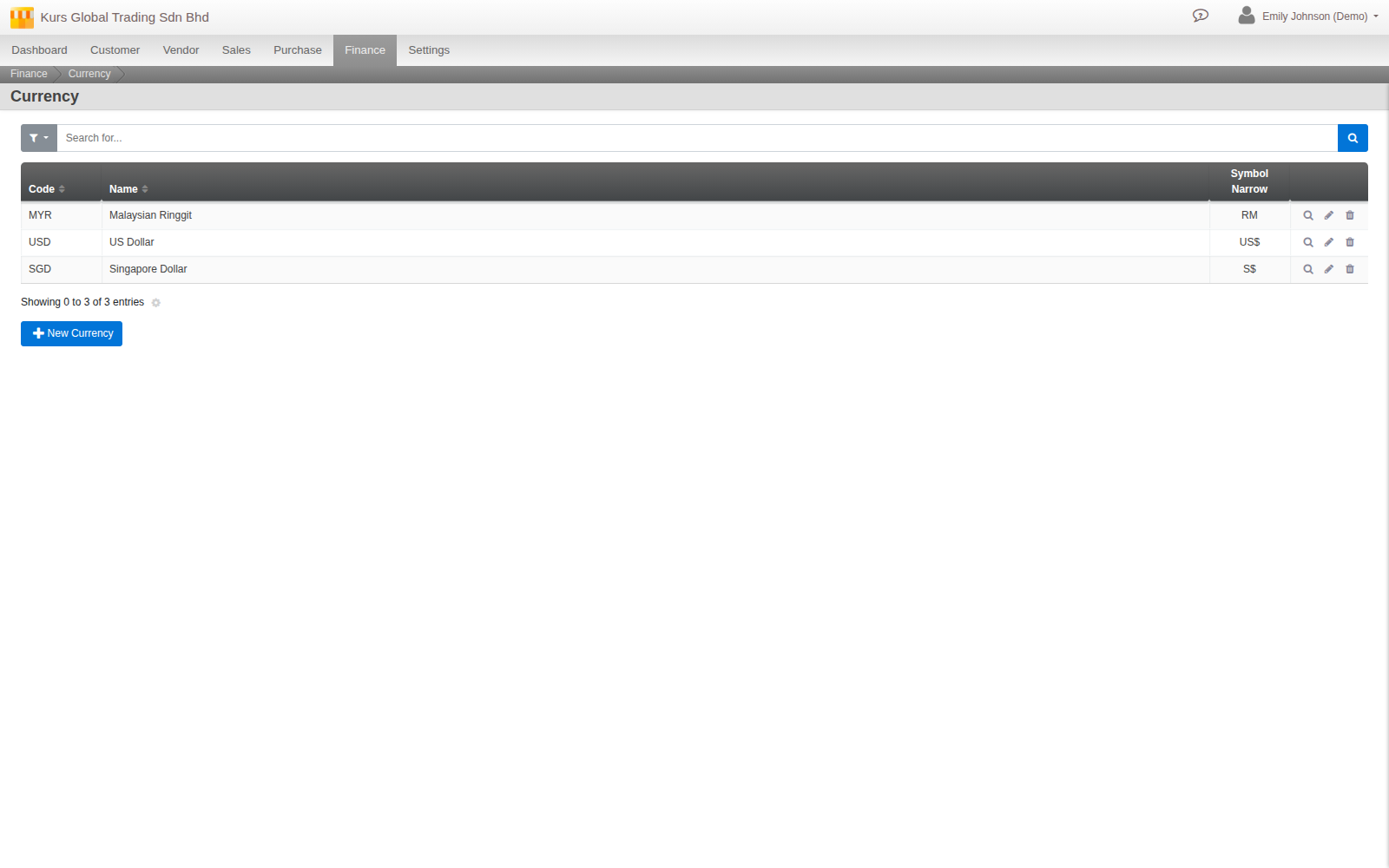
Each currency needs a live exchange rate against your base currency before anything can be posted in it. Cloudby can fetch this automatically from a live rate provider (refreshed roughly once a day), or you can enter a rate by hand. Either way, one rule holds everywhere: there is no silent default. If a currency has no rate on record, Cloudby will not quietly assume 1:1, it stops and asks for one. And a manually entered rate is checked against the reference rate for that currency as of the document’s own date, an org setting caps how far you are allowed to deviate (30% by default), so a rate that is simply wrong, a typo, a stale figure carried over from months ago, gets rejected rather than quietly misvaluing a document.
Day to day, you rarely go back to this settings screen just to get a fresh rate. Every document’s currency field has its own small refresh button right next to the rate, which pulls the latest available rate as of that specific document’s date, not just “today,” in one click. Type a rate by hand instead if you prefer, and Cloudby warns you visually, right there in the field, the moment it drifts more than 30% from the reference rate, before you have even tried to save.

3. One switch buying does not need, but selling does
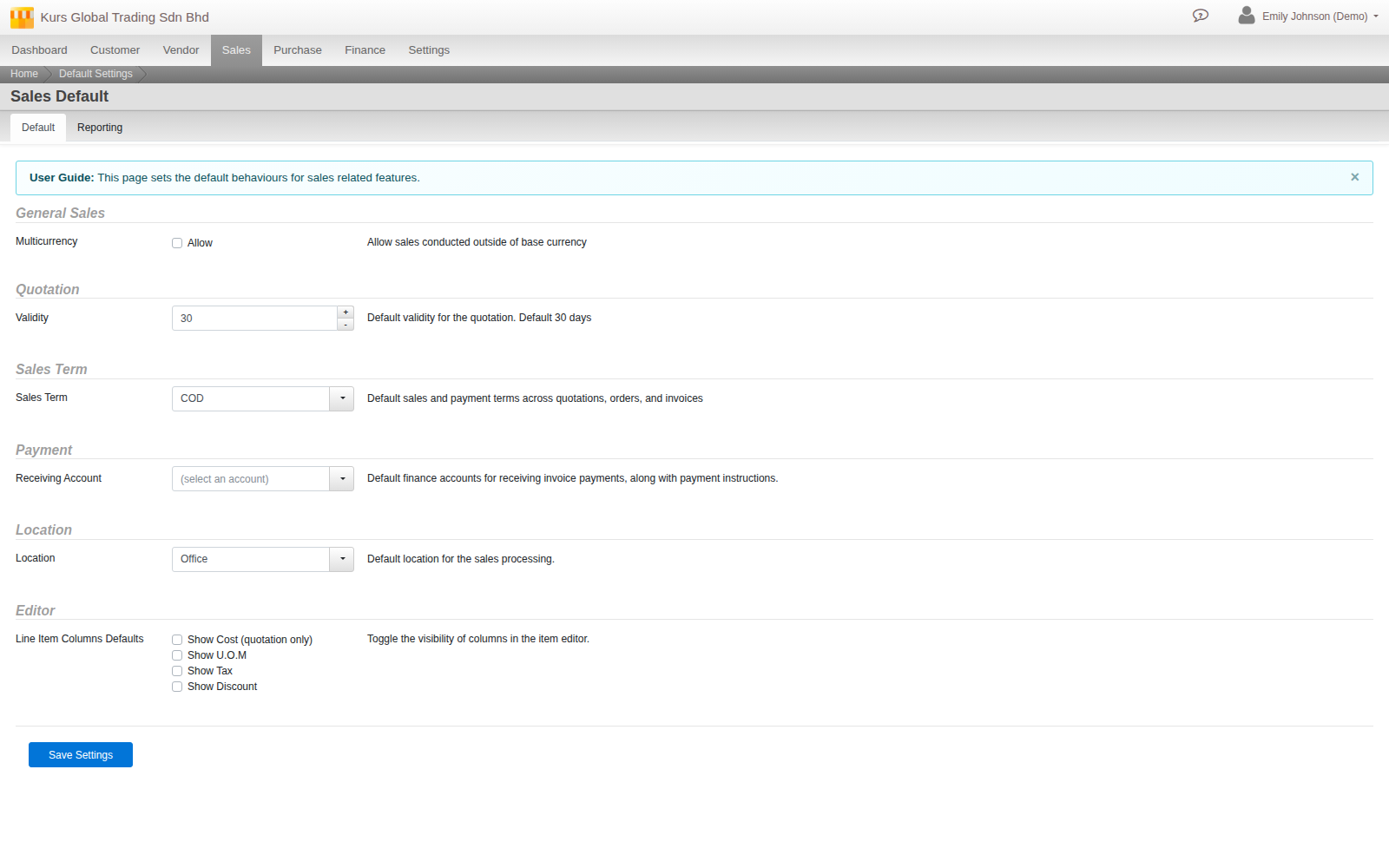
Here is the one asymmetry worth knowing before you go looking for a missing feature. Once multi-currency is on, every Purchase-side document (Order, Invoice, Debit Note, Bill and the rest) shows a currency picker automatically, nothing further to turn on. Sales-side documents do not, by design, until you flip one more switch: Menu > Sales > Settings > Default Settings, a Multicurrency field with an Allow checkbox next to it (“Allow sales conducted outside of base currency”), off by default.
4. The currency widget on a document
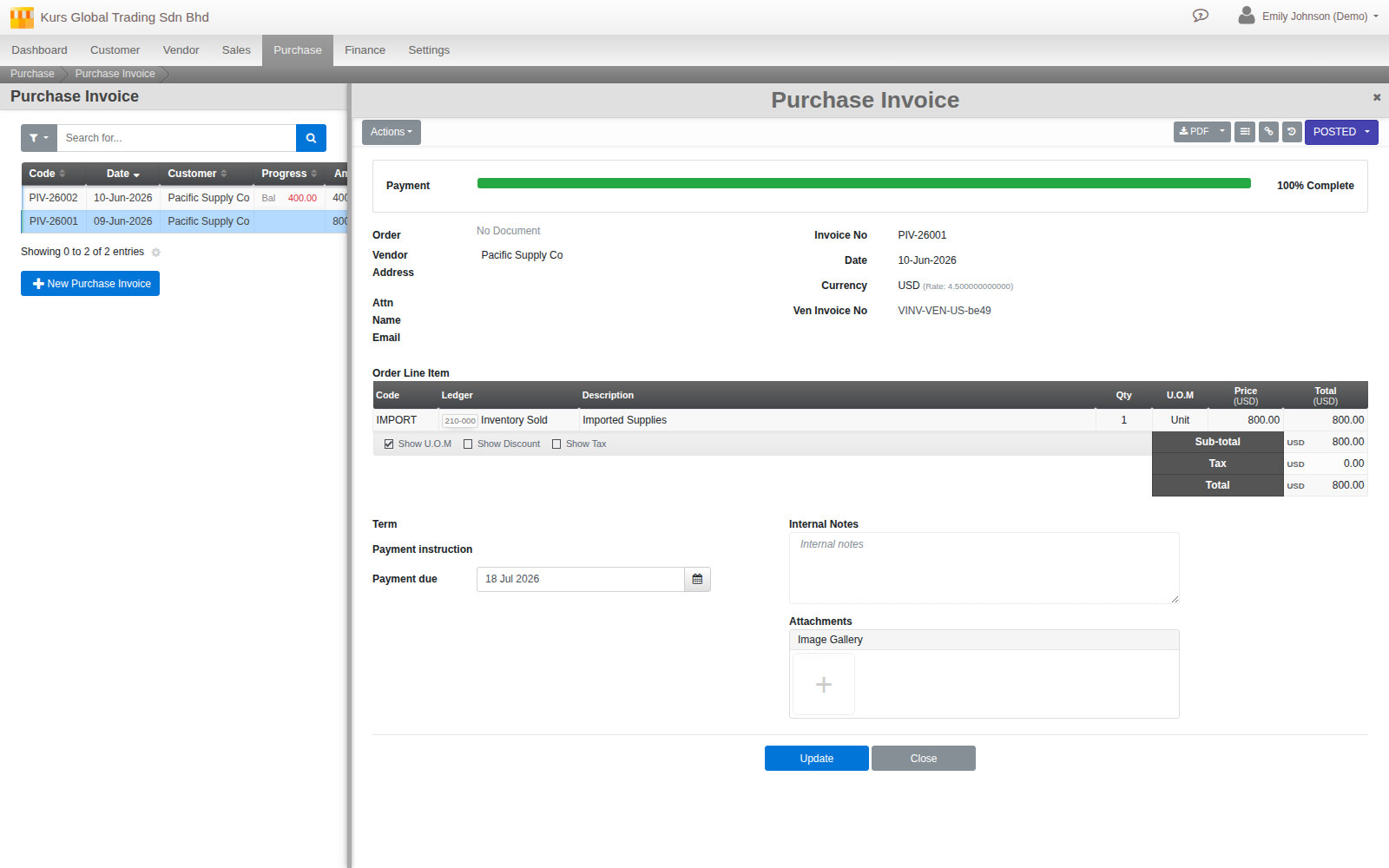
Where multi-currency applies, a document carries a shared currency-and-rate control, the same component across roughly twenty document types, from Sales and Purchase Quotations through to Bills, Reimbursements and Payroll’s own payable batch. It behaves a little differently depending on how far along a document is. A Quotation or Order only captures which currency you are quoting in, nothing has actually happened financially yet, so there is no rate to lock in. Once a document becomes a real financial transaction, an Invoice, a Bill, a Credit Note and so on, the widget also captures the exchange rate that applied, and that rate is what fixes the document’s base-currency value from that point forward.
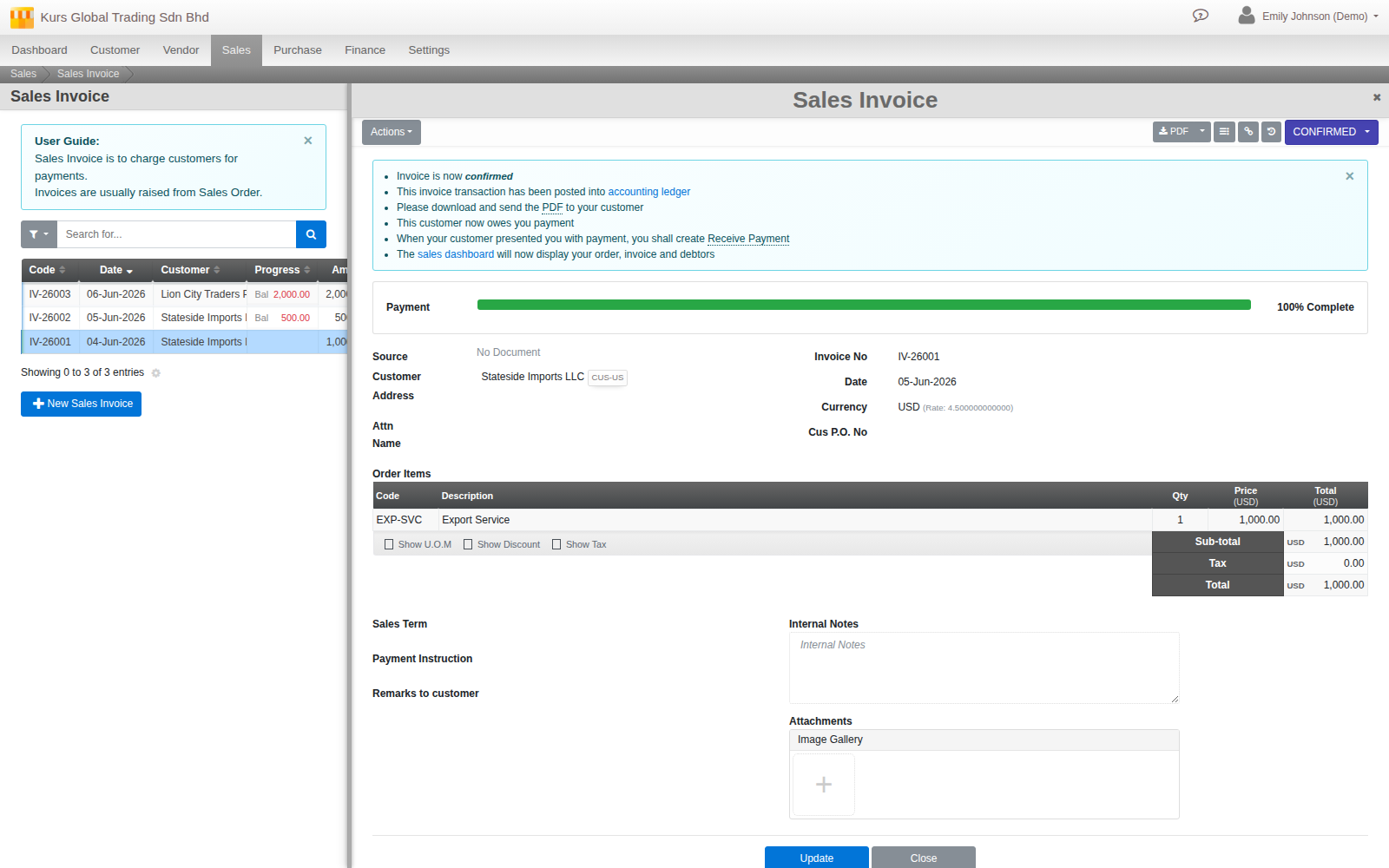
So the currency itself can follow a deal all the way from an early quote, but the rate that actually matters for your books only gets pinned down at the point the deal becomes a real invoice or bill. Once a document is confirmed, both fields lock, as shown above, the widget only stays editable while a document is still in draft.
5. Tell your ledgers how to handle foreign currency
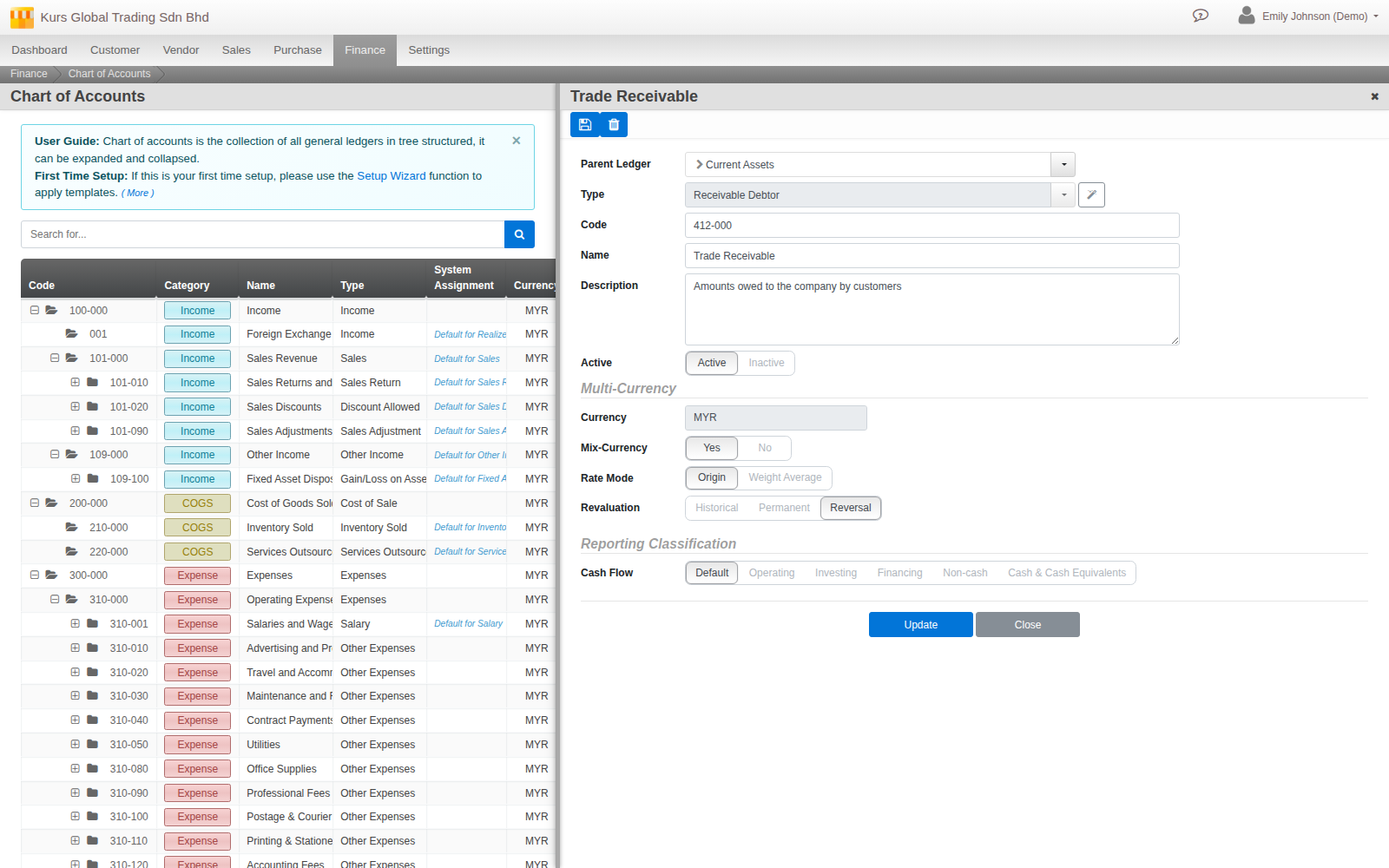
A currency being registered organisation-wide is not the same as a ledger being ready to hold it. Each ledger in your Chart of Accounts (Menu > Finance > Settings > Chart of Accounts) has its own currency behaviour, set on the ledger’s edit screen:
- Currency. Lock this ledger to one specific foreign currency, a USD bank account, for instance, or leave it at your base currency.
- Mix-Currency. Turn this on instead of a single locked currency to let the ledger hold any of your registered currencies at once. A posting in a foreign currency is rejected outright if the ledger is neither set to that currency nor flagged Mix-Currency, this is enforced when you try to post, not just a label. A USD bank account you use only for USD receipts is a good candidate for a locked Currency instead, it will only ever hold one foreign currency; Trade Receivables usually needs Mix-Currency turned on, since customers in several different currencies all post through the same control account.
- Rate Mode. Origin or Weighted Average, explained properly just below, this is the field worth actually understanding rather than leaving at its default.
- Revaluation. Covered in full in section 8, this is the one that decides what happens to this ledger’s foreign balance at period close.
Rate Mode, in plain terms: which rate wins when money actually moves
Every foreign-currency transaction has, in effect, two rates in play: the rate the original document was raised at (an invoice’s own rate, call it the source), and the rate of whatever is actually settling it today (the bank account paying it, call it the spot). Rate Mode decides which one Cloudby uses when it clears one against the other.
- Origin (the default): the source rate wins. The invoice or bill keeps the exact rate it was raised at, and settling it values the clearing entry off that original rate, not today’s rate, not an average. This is the right choice for anything that represents an individually tracked debt: a specific customer’s invoice, a specific supplier’s bill.
- Weighted Average: instead of any one document’s rate, Cloudby values the ledger off its own running blended average cost as of the posting date. This is the right choice for a ledger that holds a mixed pool of foreign currency rather than individually tracked debts, a foreign bank account, for instance, which receives money from many different invoices at many different rates and mixes them into one balance. There is no single “the rate” for what leaves an account like that, so Cloudby blends it instead.
6. Before you can close a period: two accounts Cloudby insists on
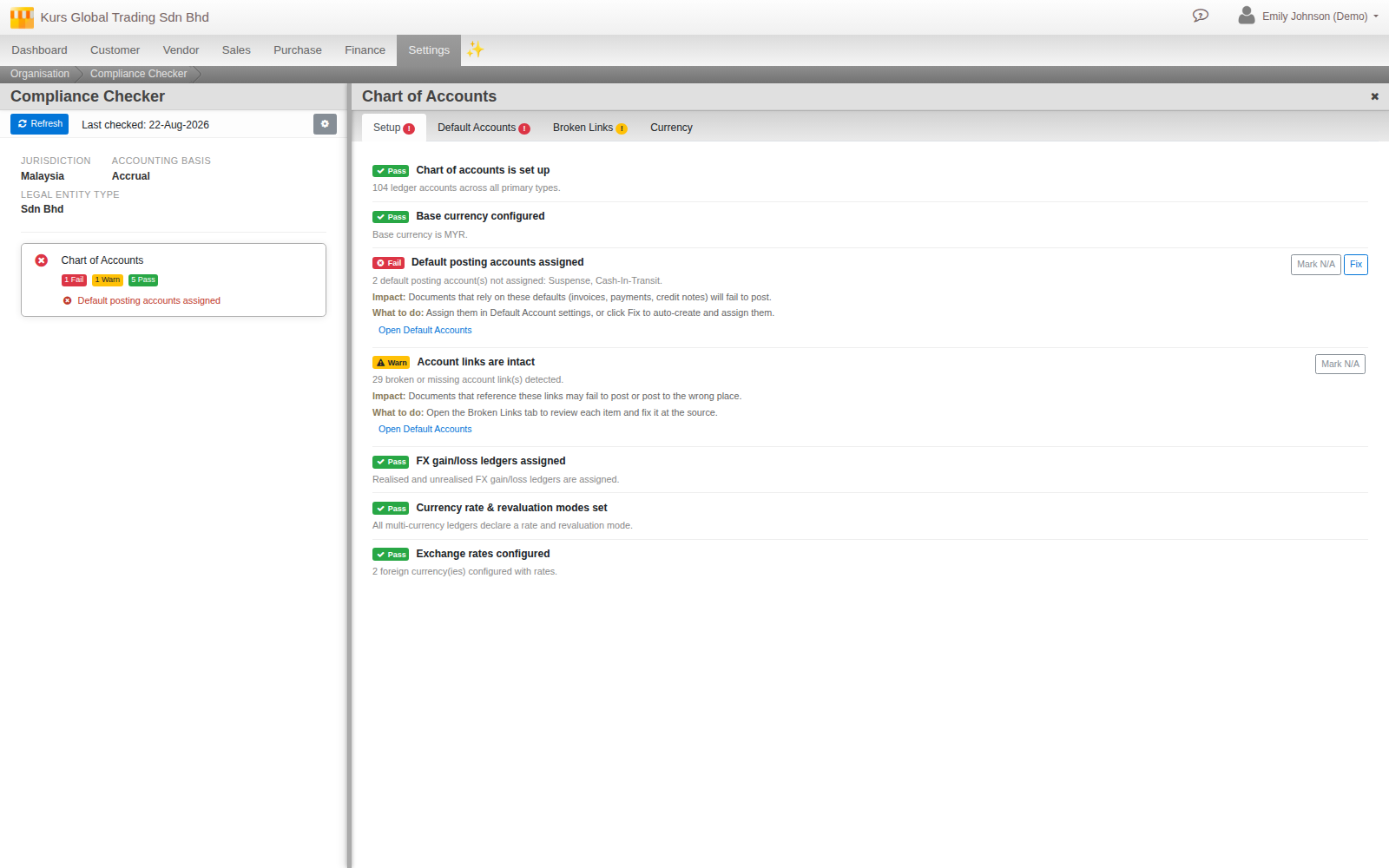
Multi-currency needs two default ledgers assigned before any of the mechanics above can actually post: a Realized FX Gain/Loss account and an Unrealized FX Gain/Loss account, both set on the same Default Settings screen the go-live guide already walks through for your other default accounts (Menu > Finance > Settings > Default Settings, Ledgers tab). Leave either one unassigned and a period close will refuse to run at all, with a named error telling you exactly which one is missing.
The Compliance Profile Checker, covered in the system configuration guide, checks this for you under its Chart of Accounts domain, Setup tab, as three separate lines: FX gain/loss ledgers assigned, Currency rate & revaluation modes set (every multi-currency ledger declares a rate and revaluation mode), and Exchange rates configured (your foreign currencies have rates on record). The first of the three also fails outright if either default is missing, with a one-click Fix that creates and assigns both for you, and separately warns if your Unrealized FX Gain/Loss account is sitting on your Balance Sheet rather than in Income/Expense, exchange differences belong in profit or loss, not parked as an asset or liability.
7. What actually gets posted behind the scenes
Every posting Cloudby makes for a foreign-currency document carries both figures at once: the base-currency amount that actually hits your books, and, for the foreign side, the foreign amount and the rate that connects the two. That rate is worked out by Cloudby itself at the moment of posting, from the base and foreign amounts actually recorded, not simply carried over from whatever the document’s widget last displayed. This is what makes the underlying promise of multi-currency actually true rather than a simplification: every foreign transaction really is booked in your base currency too, permanently, at the rate that applied on the day it happened.
8. Period close: revaluing what you still hold
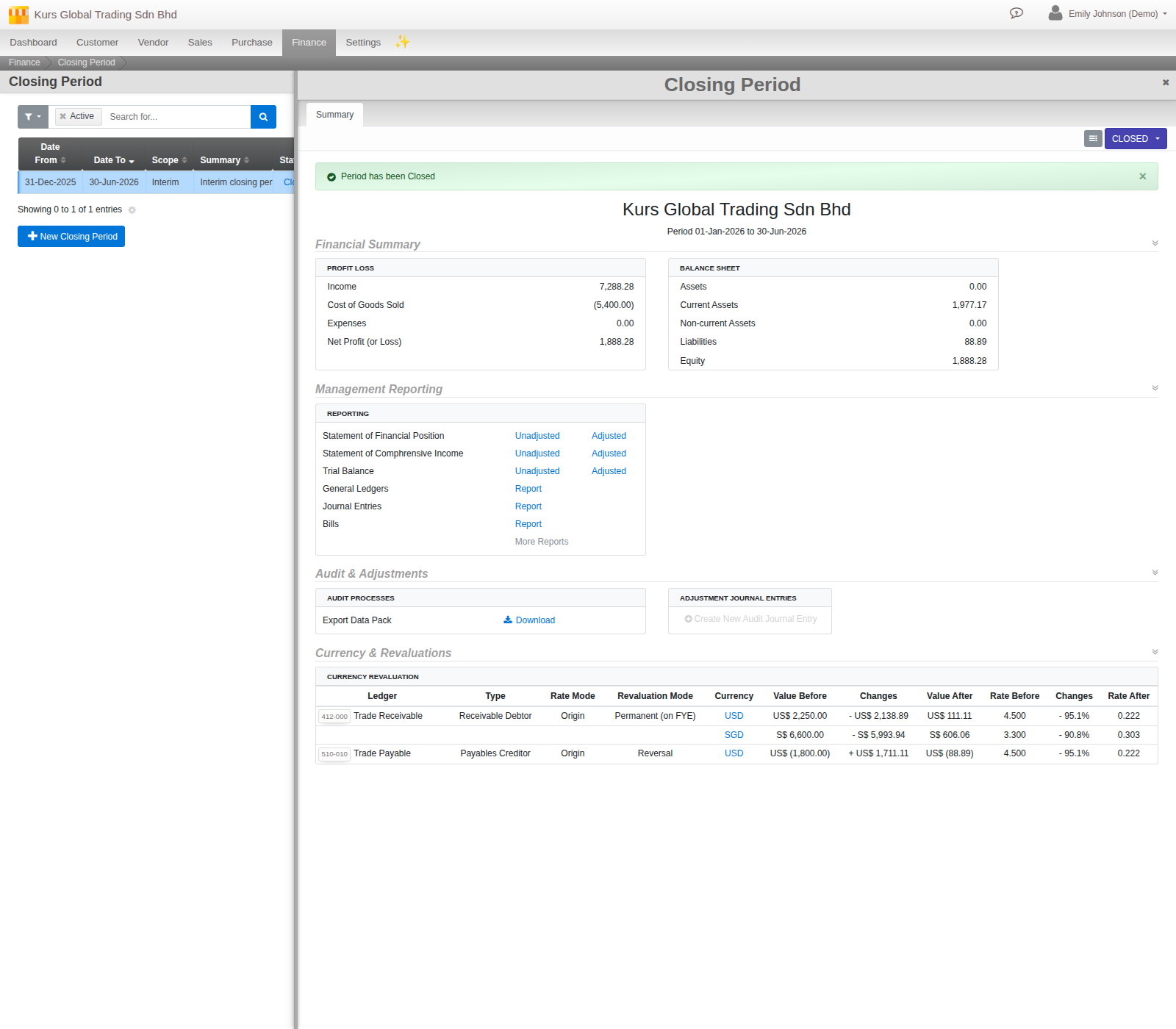
This is the part of multi-currency most worth understanding properly, because one part of it surprises almost everyone the first time they hit it. At period close, Cloudby looks at every ledger flagged for revaluation and asks: has the exchange rate moved since these foreign balances were booked, and if so, what would they be worth today?
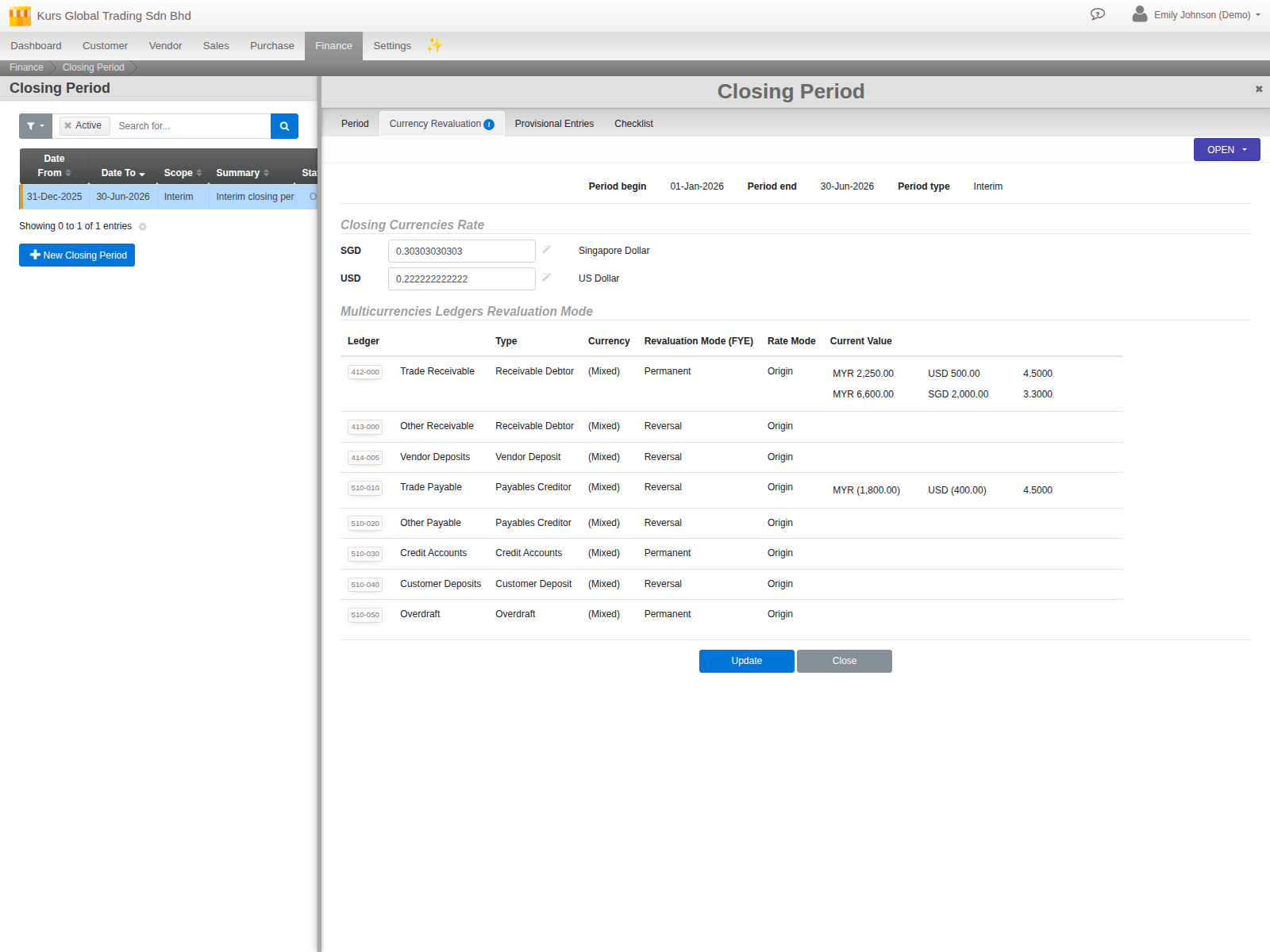
Only ledgers set to Permanent or Reversal revaluation are touched at all, a ledger left at Historical (the default) is never revalued, which is exactly right for something like a fixed asset bought in USD: its book value is meant to stay put, not float with the exchange rate. For everything else, the Closing Period screen’s own Currency Revaluation tab requires you to review and save the current rate for every active foreign currency before it will let the period close at all, a deliberate checkpoint, not something that happens silently in the background. Try to close without doing this and Cloudby stops you outright: “Currency Revaluation not reviewed. please review and save.”
One further small case: if a ledger’s foreign balance has already been fully cleared to zero but a tiny base-currency residue is left over from historical rounding, a “ghost penny,” Cloudby posts that residue straight to Realized FX Gain/Loss rather than Unrealized, since there is no longer any open foreign position left to mark to market.
9. Realised versus unrealised, and when it becomes real
Everything section 8 posts at close is unrealised, a paper adjustment to what an open foreign balance would be worth if you settled it today, not money that has actually moved. It only becomes realised when the underlying deal is actually settled, the customer pays, or you pay the supplier, and that settlement is handled by Cloudby’s ordinary payment and receipt posting, not by anything in the close routine itself. Reference: Multi-currency covers this distinction in more depth.
10. Multi-currency and e-Invoicing
If you already have e-Invoicing switched on (covered in the go-live guide), a foreign-currency Sales Invoice submits to MyInvois exactly as raised, in its own currency, it is never silently converted to Ringgit before submission. A separate exchange-rate field on the submission carries the rate back to Ringgit for MyInvois’s own purposes, alongside the document, not instead of it. If you have used an older version of Cloudby, or read about this being a gap in the past, that limitation no longer applies.
What’s next
- A currency, once used anywhere, cannot be deleted, only ledgers, accounts and documents that have never referenced it can be removed cleanly. If you registered one by mistake and it has not been used, it comes out cleanly; if it has, Cloudby will tell you exactly where it is still in use.
- This guide covers documents and ledgers. The Inventory guide (planned) will cover foreign-currency purchasing alongside physical stock receipt, a related but separate topic.
Scenarios and troubleshooting
I turned on multi-currency but my Sales Invoice still only offers my base currency.
Check Menu > Sales > Settings > Default Settings for the Multicurrency: Allow toggle. It is a separate, Sales-only opt-in, off by default, even once the feature itself is active. Purchase documents do not need this second switch.
A document won’t post, and the error mentions the exchange rate.
Either the currency has no rate on record at all (Cloudby never assumes 1:1), or the rate you entered is too far from the reference rate for that currency as of the document’s date. Fetch a fresh rate, or correct the figure, then try again.
I set a ledger’s revaluation to Permanent and it still reversed at close.
Expected, see section 8. Permanent only sticks at your fiscal year end close, every ordinary period close in between reverses it the next day, same as Reversal mode. This is named in the closed period’s own summary, watch for “Permanent (on FYE)” next to the ledger’s row.
My period close is refusing to run, complaining about a missing account.
Assign both the Realized and Unrealized FX Gain/Loss default ledgers under Default Settings (section 6). Neither is optional once multi-currency is active, and a close will not proceed without both.
A foreign-currency line won’t post to a particular ledger.
That ledger is not set up to accept it. Either set the ledger’s Currency to match, or turn on Mix-Currency if it needs to hold more than one foreign currency at once (section 5).
I typed amounts, then changed the currency, and now the totals look wrong.
Expected, see section 4. Changing currency does not convert figures already on the document, they keep their face value in the new currency. Set the currency first, then enter amounts, or correct the figures manually after switching.
I’m not sure whether to set a new ledger’s Rate Mode to Origin or Weighted Average.
Ask whether the ledger holds individually tracked debts (Origin, each settles at its own rate) or one pooled balance fed from many sources (Weighted Average, section 5). Most standard ledger types already come with the right mode set by default, this only matters for a new kind of foreign-currency account not already covered by a template.
Related
- Guide: Running your business day to day in Cloudby (the domestic cycle this guide extends)
- Guide: Closing your financial year (currency revaluation is one of its checklist steps)
- Guide: Configuring and administering your Cloudby organisation (the Compliance Profile Checker)
- Reference: Multi-currency (the ledger and revaluation mechanics in depth)
- Reference: Multi-currency Rate (the shared per-document widget)
- Reference: Chart of Accounts
- How to: Set up currencies