
Scope: organisation settings, locations, shared master data, custom fields, Document Overrider, Configurator, Data Porting, a handful of small cross-cutting document features, and the activity/audit trail.
What this guide is not: a guide to users, groups and least privilege (see Compartmentalizing access for that, it is not repeated here), and not a Partner Console guide.
1. Organisation settings
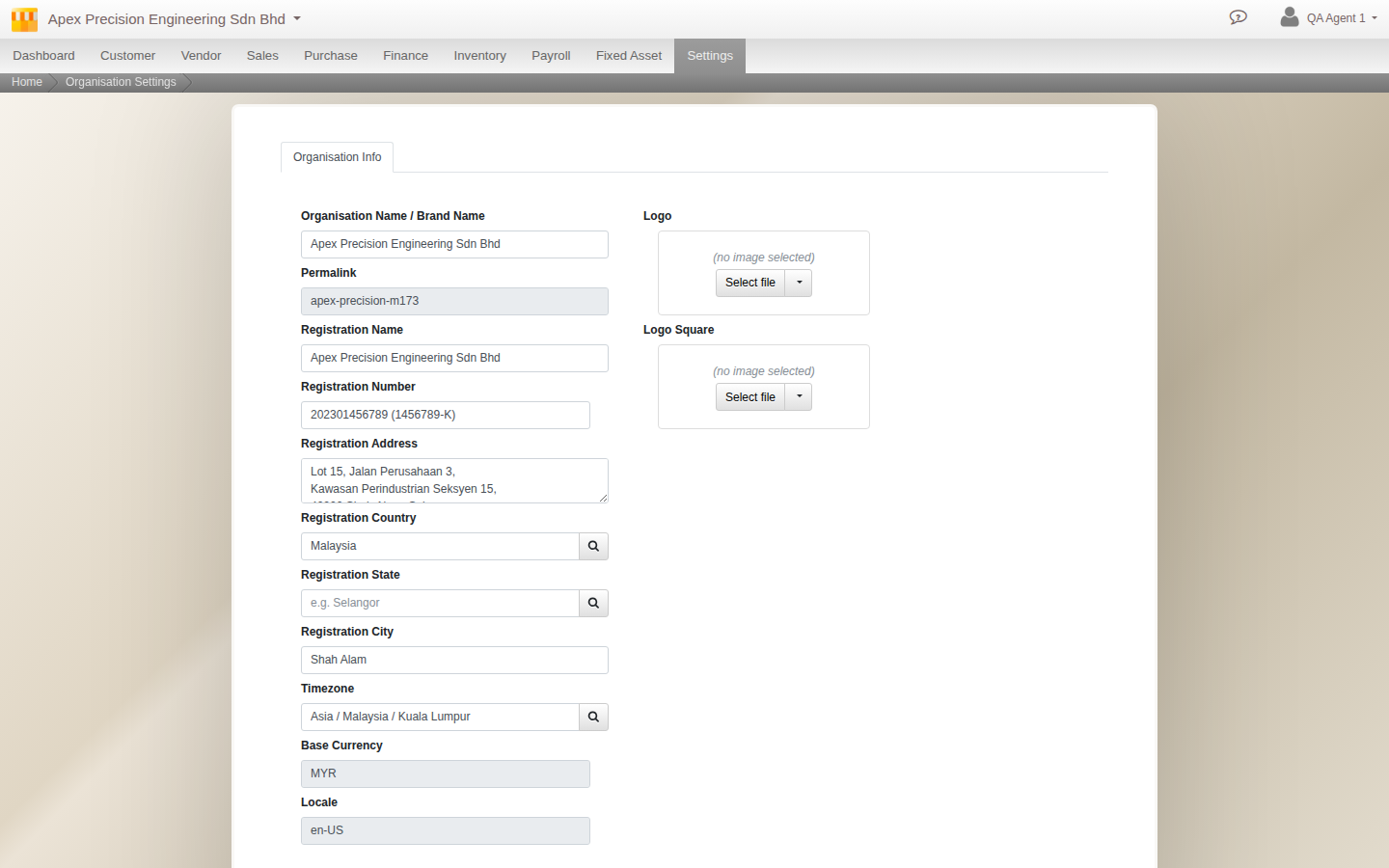
Ordinary admin. Go to Menu > Settings > Organisation. This is the screen everything else sits under: your registered name, number and address, contact person, timezone, currency and locale, and your logo, all on the Organisation tab, with a separate Billing tab if your billing contact differs. A Directors tab holds the company directors on record, and a Locations tab is where you add your physical sites, covered next. Get the registered details and logo right early: they flow onto every printed document and report, so fixing them once here saves correcting them everywhere later.
Further reading. How to: Set up your organisation.
2. Locations
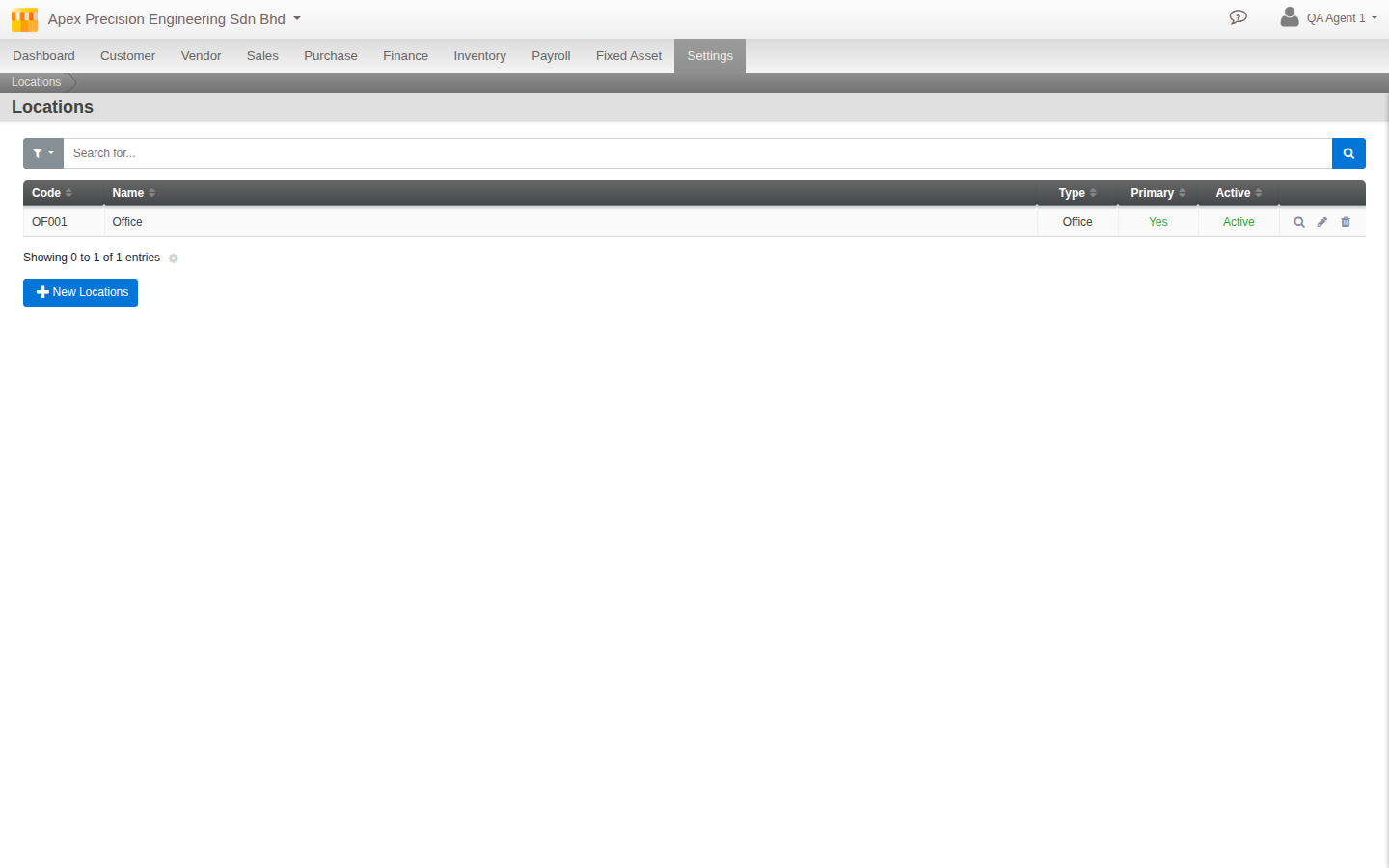
Ordinary admin. A location is a physical place your stock lives: an office, a warehouse, a production floor, an outlet, a gallery. One is marked primary. Stock is location-aware at the most fundamental level, so the same item has a real, separate count in each place, and moving units between locations is a tracked movement, not a guess.
Further reading. Reference: Locations.
3. The master data that shapes every document: units and numbering
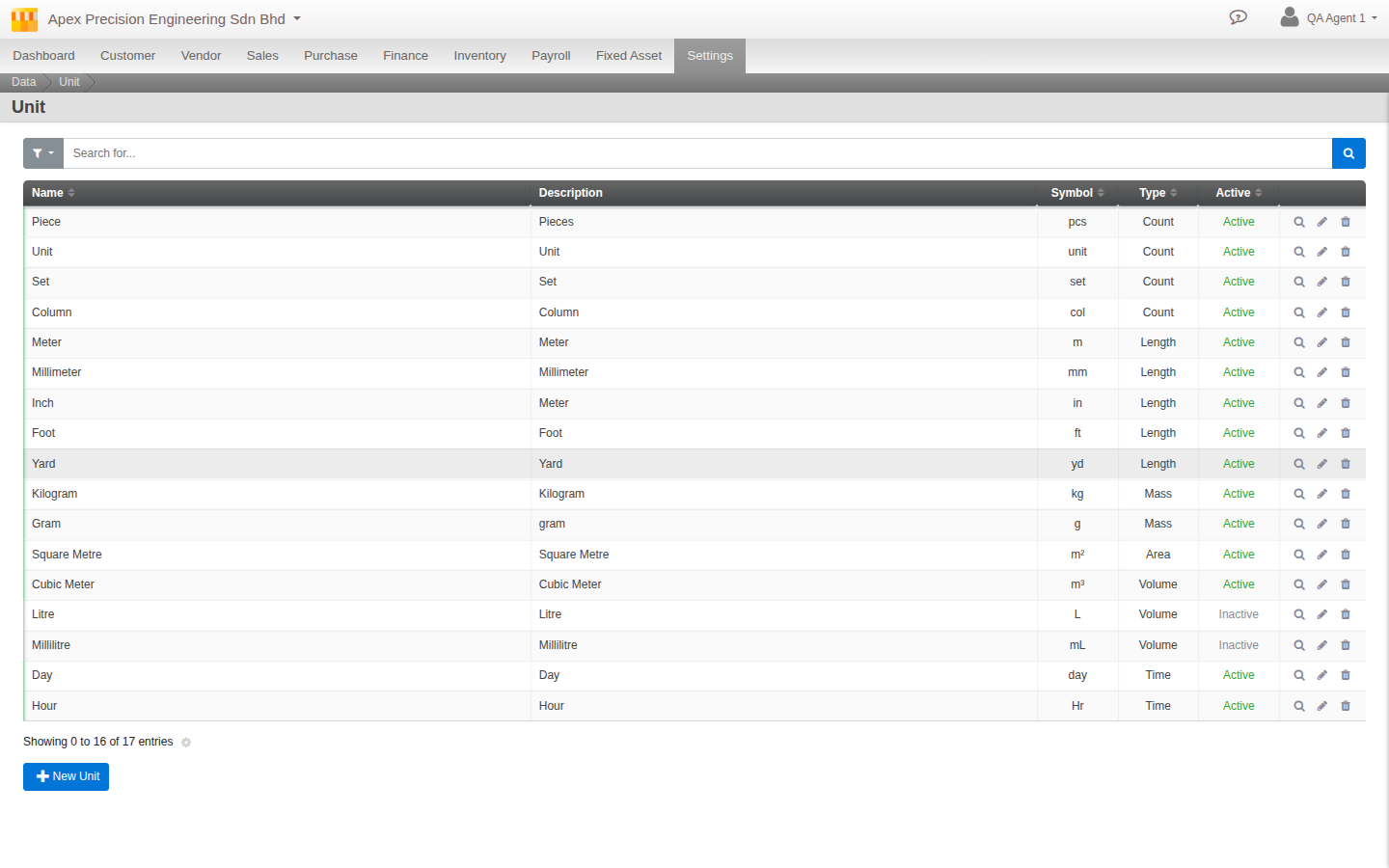
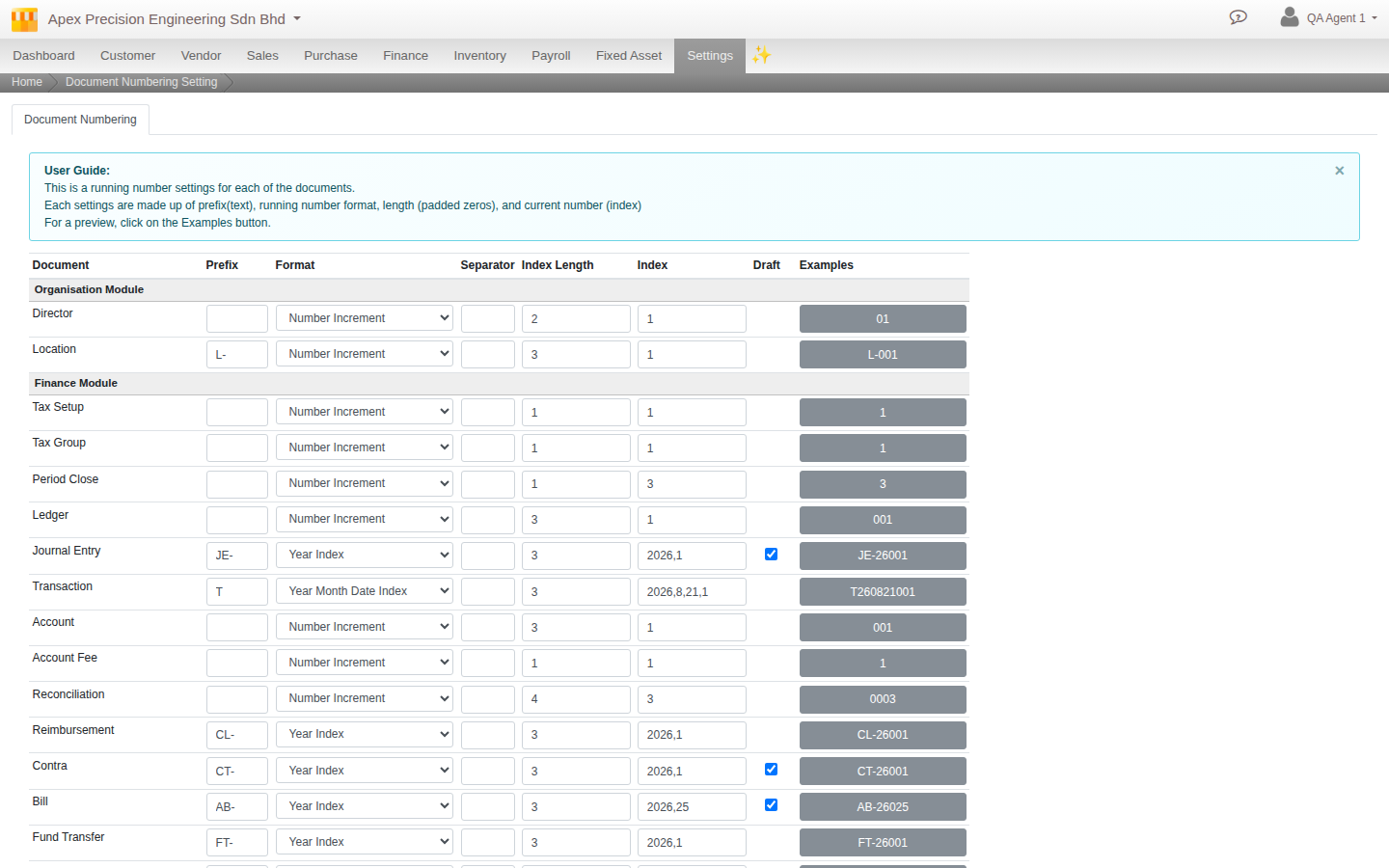
Ordinary admin. Two small screens quietly shape every document your business raises. Units of measurement (Menu > Settings > Maintenance > Unit of Measurement) are how you count and sell things, each, box, kilogram, litre, shared master data that stock, purchasing and sales all draw on; set these up before your stock items so conversions work from the start. Document numbering (Menu > Settings > Maintenance > Document Numbering) sets the reference format, prefix, separator and the rest, for every document type Cloudby creates, so your invoices and orders are numbered the way your business expects.
Further reading. How to: Units of measurement, Document numbering. Reference: Document Numbering.
4. Custom fields: extending records without engineering
Ordinary admin. Go to Menu > Settings > Maintenance > Custom Fields. Custom fields let you capture information Cloudby does not ask for out of the box, by adding your own fields to a defined set of records: on the sales side Customer, Sales Quotation, Order, Delivery, Invoice and Sales Product; on the purchase side Vendor, Purchase Quotation, Order, Delivery, Invoice and Purchase Product; and Employee in HR. A field carries a name (the stable internal identifier reports key on), a label (what shows on the form), a type, the model it attaches to, and a section and order within it. Once defined, it appears on every record of that model and becomes available to filter and report on.
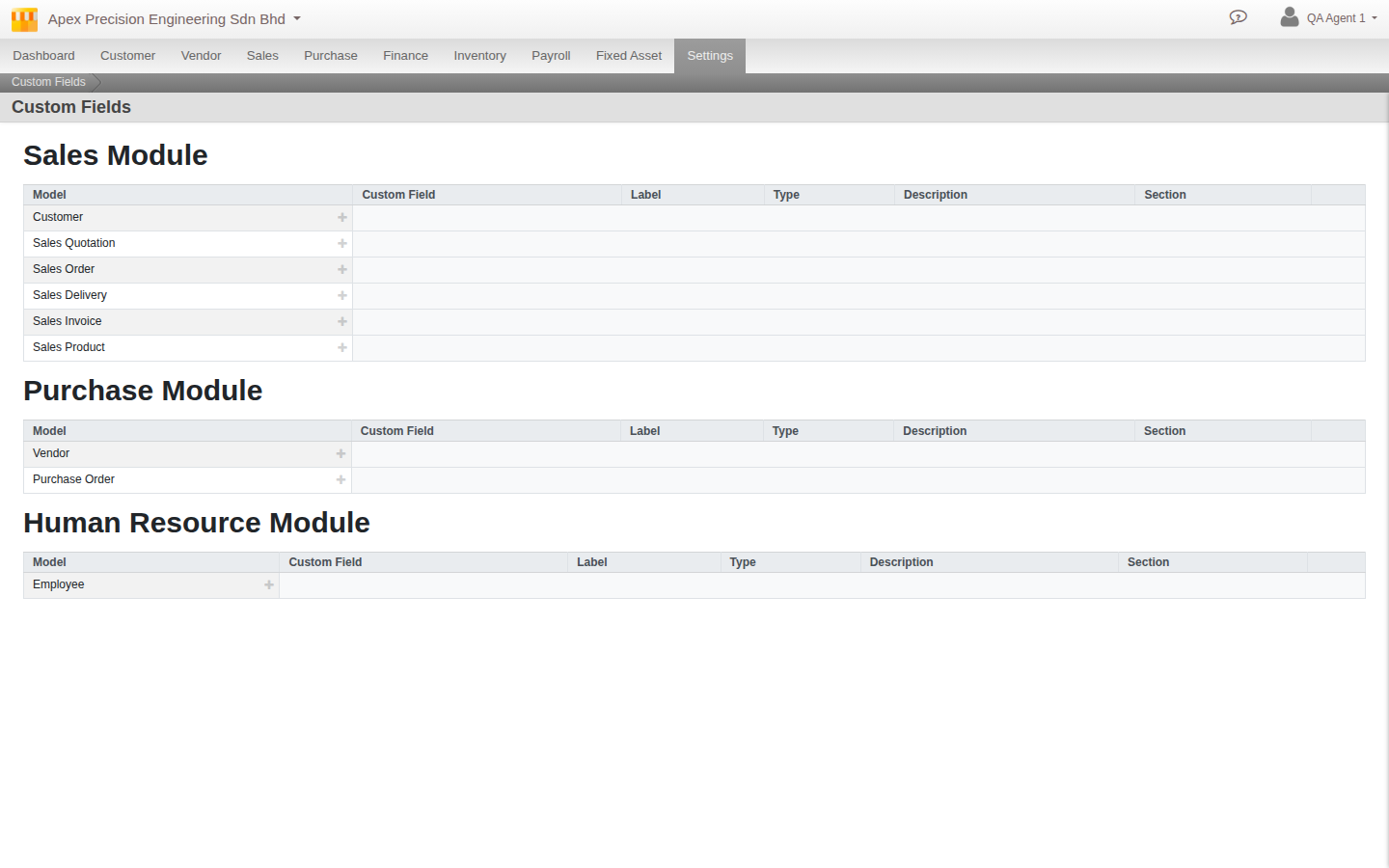
Further reading. How to: Custom Fields. Reference: Custom Fields.
5. Power admin territory
The next three tools are real and useful, but they are a different kind of thing from everything above: infrequent, consequential, and typically exercised by whoever set the organisation up in the first place, an implementation partner or consultant, or an admin following their lead, rather than something you reach for as part of routine work. Each is explained on its own terms below, including who tends to use it.
5a. Document Overrider: correcting what is already posted
Go to Menu > Settings > Administrative > Document Overrider. This corrects properties on documents that are already posted, without unwinding and re-entering them. Working by document type, it exposes a set of permitted operations: for most trading documents the serial, date and project; for accounting documents also the clearance and reversal dates; and for a fixed asset, its acquiring document.
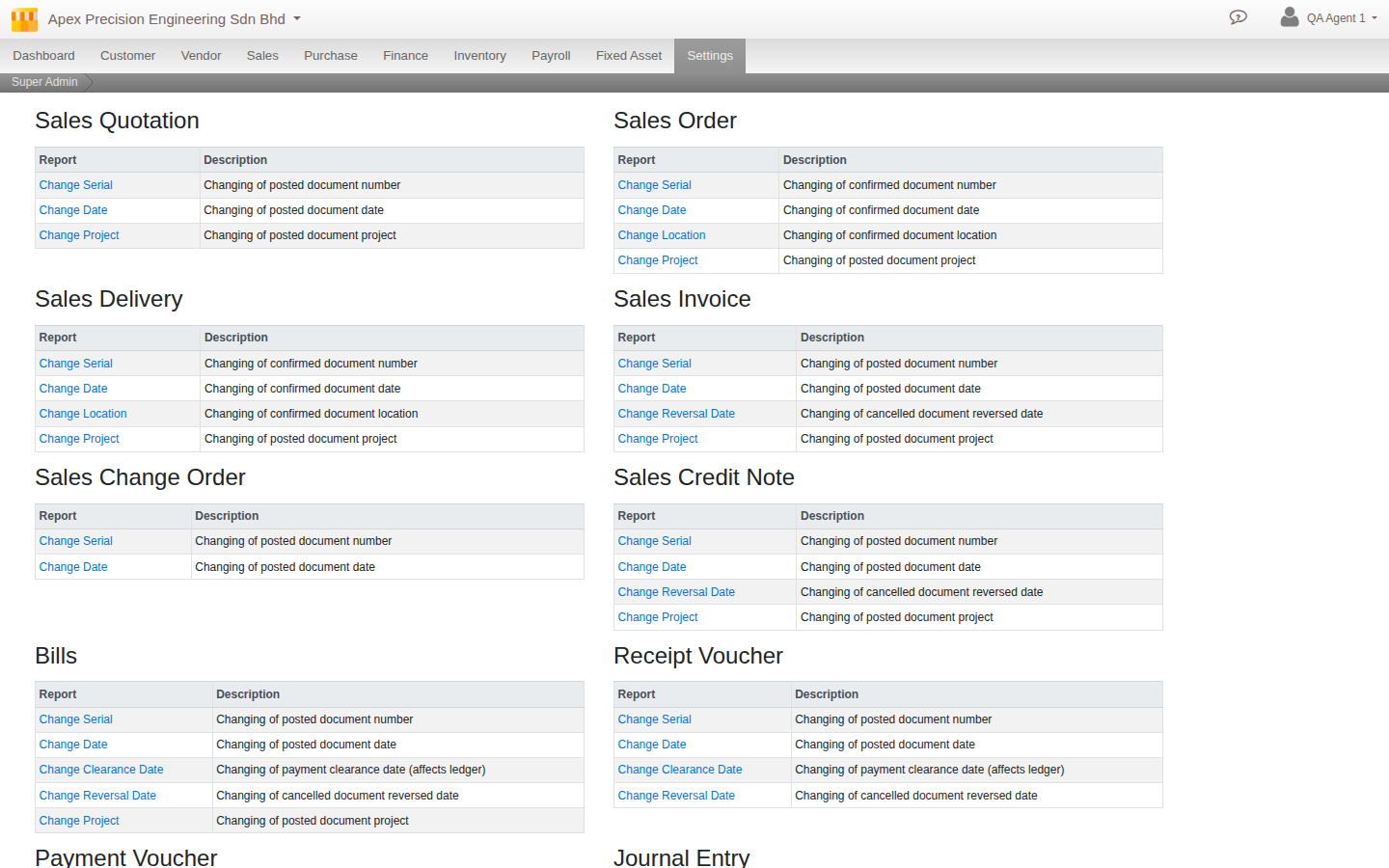
Worked example. A batch of invoices was posted into the wrong period before that period was corrected. Rather than reversing and re-entering every one, an administrator uses the overrider to move their dates into the right period directly.
Further reading. How to: Document Overrider. Reference: Document Overrider.
5b. Configurator: a mass-apply setup tool, not a field-by-field one
Go to Menu > Settings > Maintenance > Configurator Preset. Worth naming plainly: this lives in the same Maintenance menu group as the ordinary-admin screens above, even though it is not the same kind of task. A preset is a packaged, ready-made pack of settings, a chart of accounts, tax codes, document defaults, tuned for a country or a module, that you apply to an organisation in one action instead of assembling it by hand. Presets are searchable and filterable by country and module.
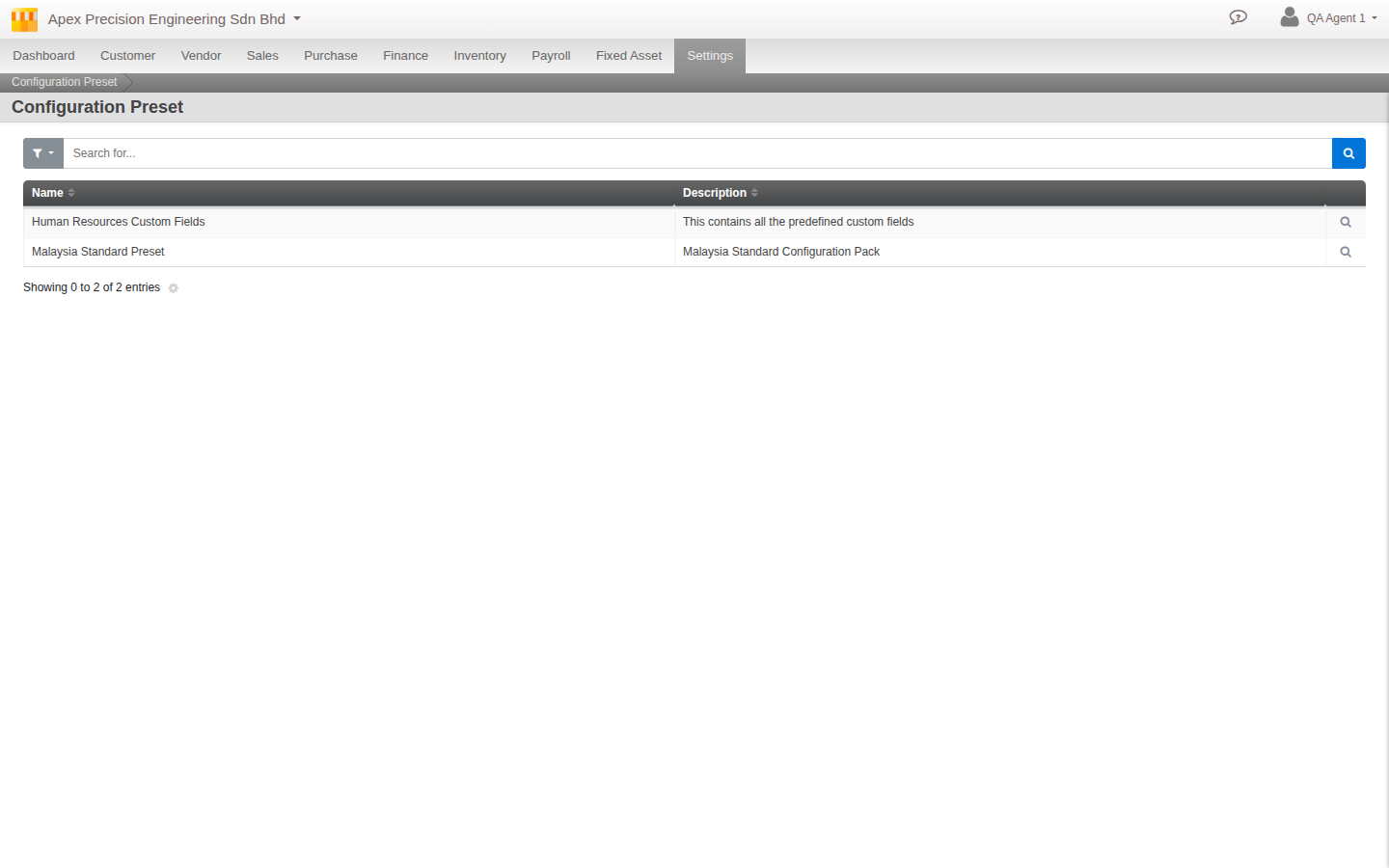
This is not the tool for adding one field or tweaking one setting, that is exactly what sections 3 and 4 above are for. Configurator exists for the moment an organisation is being stood up, or significantly reconfigured, and needs a sensible localised starting point in one step rather than built account by account. In practice that makes it something typically run once, early, often by whoever is implementing the organisation on the business’s behalf, not a screen you return to regularly.
Further reading. How to: Configurator Preset. Reference: Configurator Preset.
5c. Porting: the real, full story on moving data in bulk
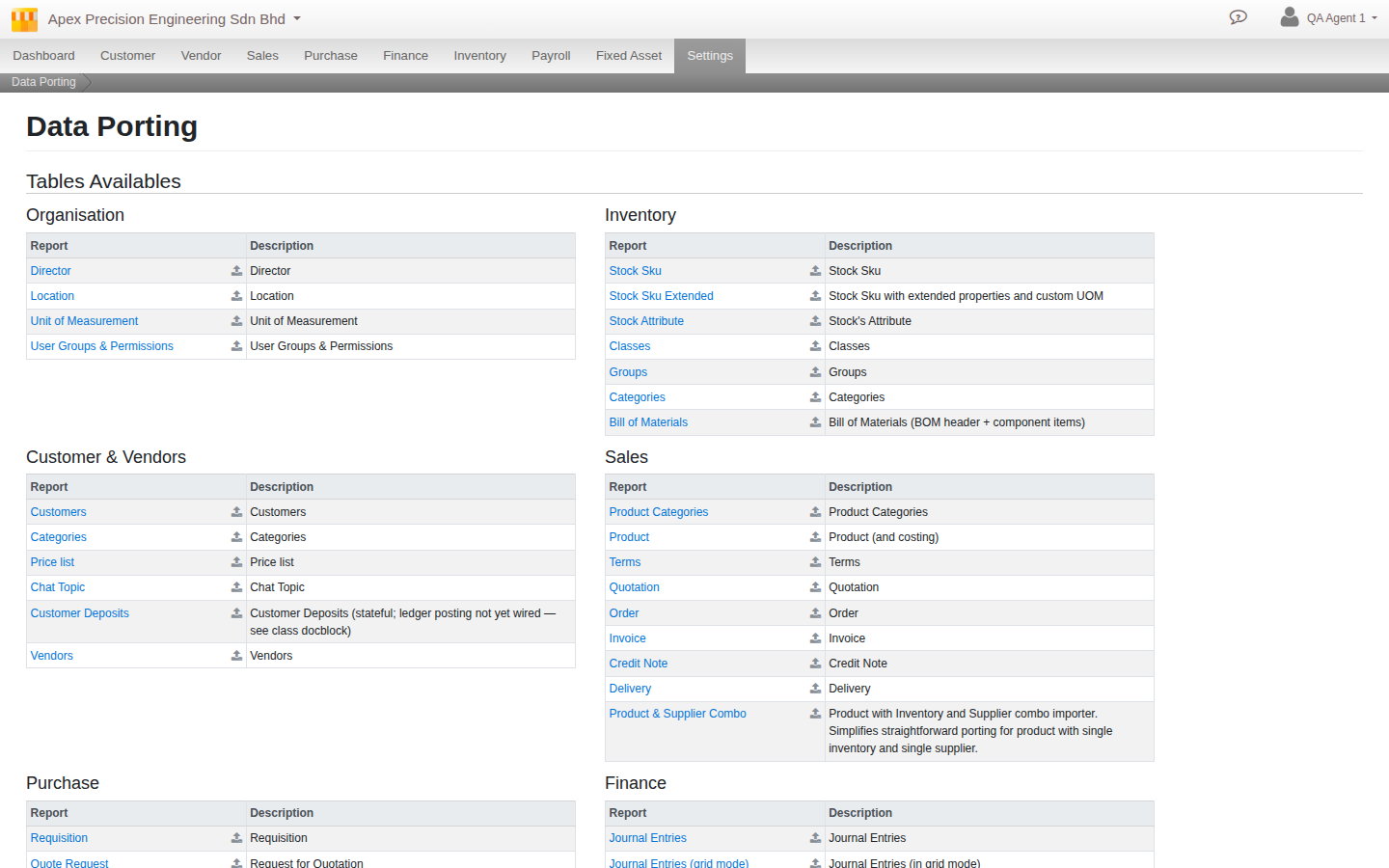
Go to Menu > Settings > Administrative > Data Porting. Porting moves data in and out of Cloudby in bulk, entity by entity, useful when you first set up, when you migrate from another system, or whenever you need a structured export. The pipeline is the same every time: export a module’s data as a structured file, or prepare one for import; import by uploading it, and Cloudby validates it first, showing you any issues before anything lands; then commit once it is clean. Every import is tracked as its own record, carrying its purpose, the file, its options and its status, with who completed it and when.
Worth being precise about how far this actually goes, because it is easy to undersell: porting is not limited to master data or an initial onboarding import. Real transactional documents port fully too, on the sales side quotations, orders, invoices and credit notes; on the purchase side quote requests, quotations, orders, receives and invoices; and on the finance side bills, journal entries, payments and reimbursements. Porting also doubles as a bulk-correction tool for data that already exists, not only a one-time migration path, an import that does not match the expected creation format is offered as a bulk edit instead. And usergroups themselves are portable, so defining access at scale via a spreadsheet is a real, if unglamorous, option alongside building groups by hand.
Further reading. How to: Import and export your data. Reference: Data Porting.
6. A tour of small cross-cutting document features
A handful of smaller mechanics show up across almost every document type. Each gets a short paragraph here rather than its own guide.
Verify. The document review step, submit for review, approve or reject, that gives you basic segregation of duties when set up deliberately. Covered in full in Compartmentalizing access, not repeated here.
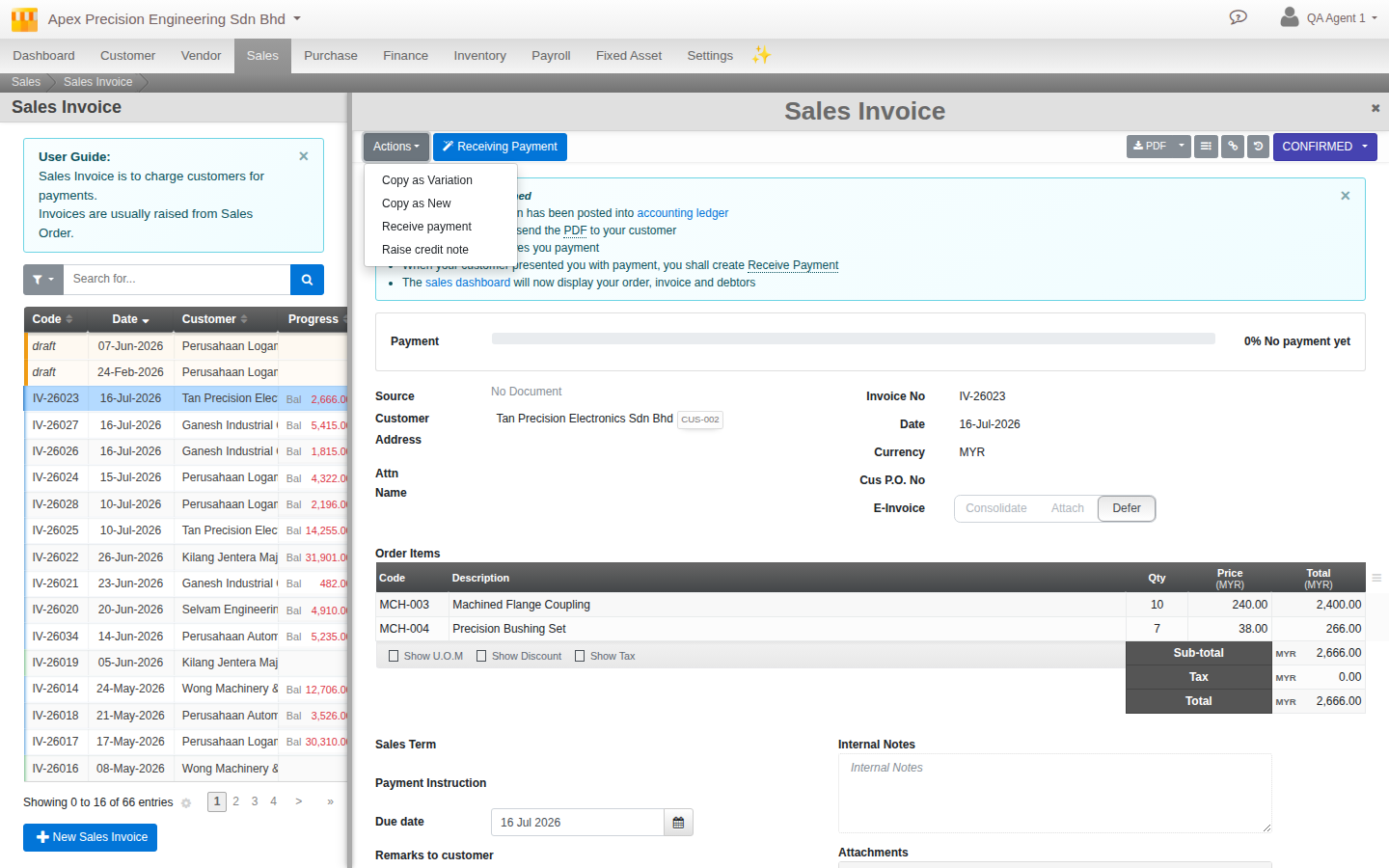
Copy/Duplicate, and the more powerful tool it is not. Any document can be copied, as an independent Copy as New, or as a Copy as Variation that keeps a link back to the original, useful for revising an offer for the same deal without erasing its predecessor. This is a different mechanism entirely from a separate, more powerful tool that consolidates two duplicate master records (a duplicate customer or vendor) into one, which exists in the product but has no dedicated hub documentation yet, flagged in What’s next rather than explained here.
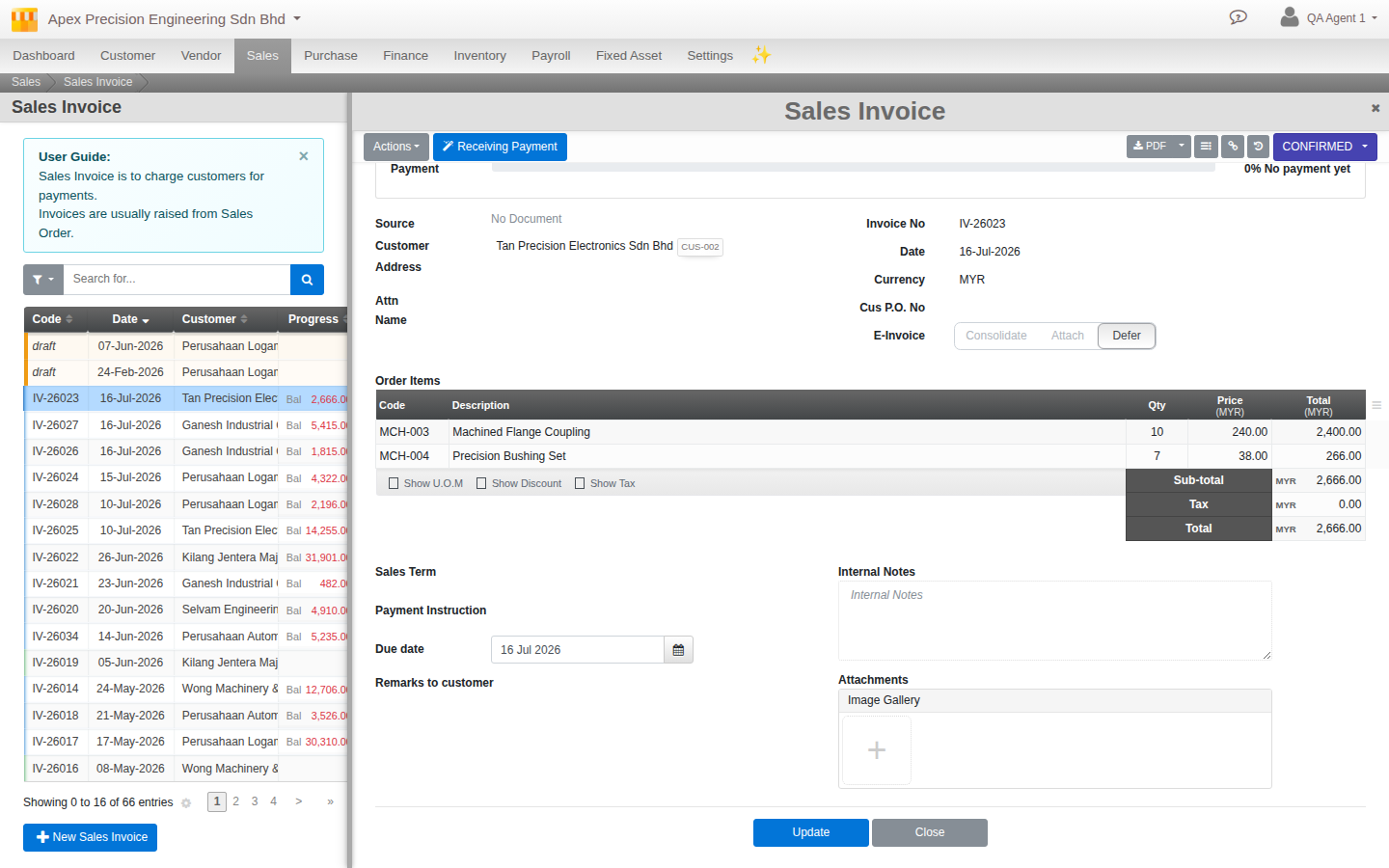
Internal Notes and Remarks. Nearly every document carries both: internal notes are a private scratchpad, never printed on any customer-facing document; remarks are the opposite, free text you deliberately want the customer to read, printed right on the document itself. Two boxes, two audiences.
File Attachments. Behind the plain “add a file” widget on almost every document and master record sits a real file manager: multi-file upload, drag and drop, reordering, and a built-in viewer for images, video, audio and multi-page PDFs, without leaving the page.
Transaction Preview. On any document that posts to the ledger, a button shows you the exact double entry it will create before you commit, generated by the same posting engine that does the real posting, not a separate simulation. The preview is the posting, shown early.
Further reading. Reference: Copy and Duplicate, Internal Notes, Remarks, File Attachment, Transaction Preview.
7. Activity history and the audit trail
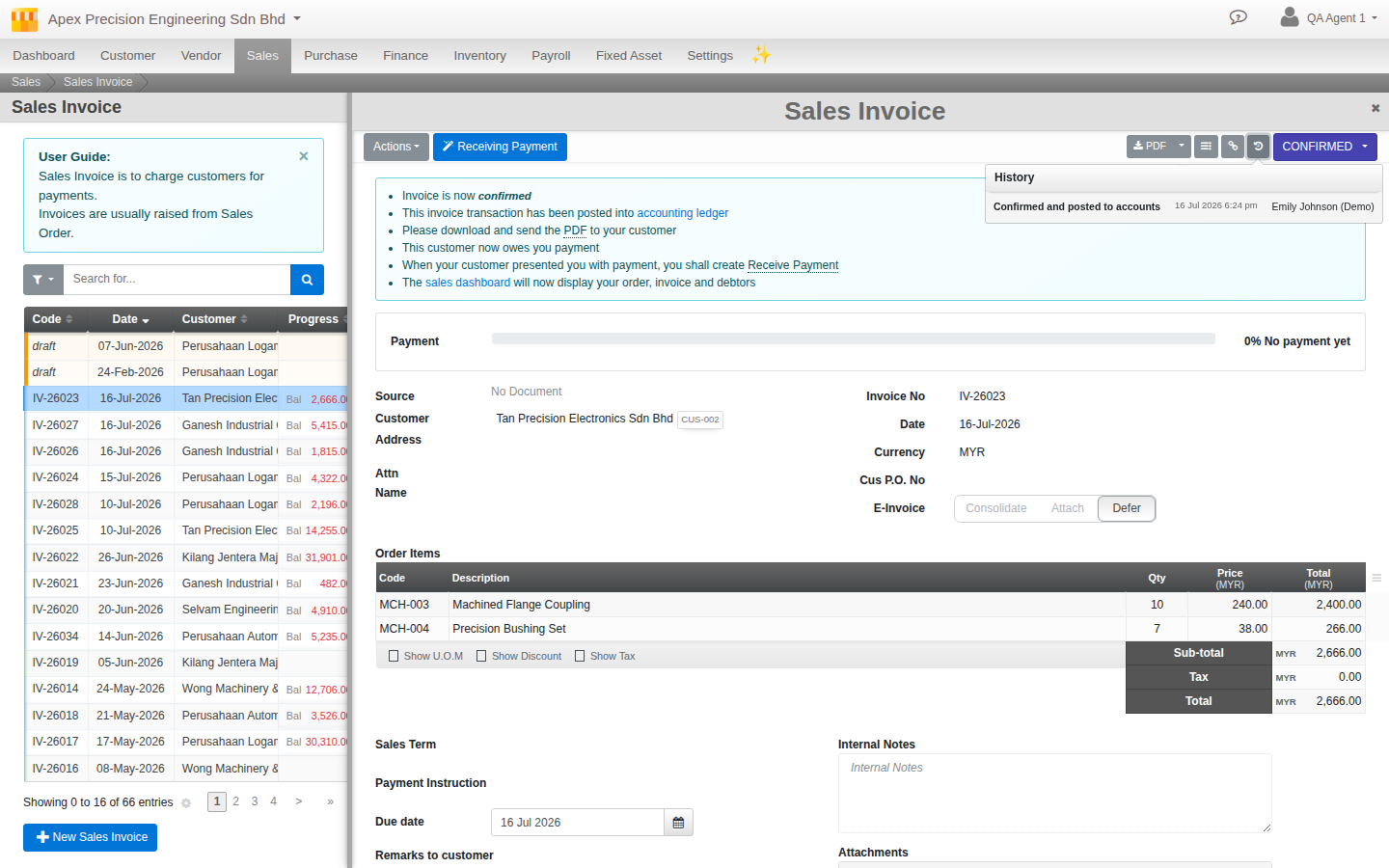
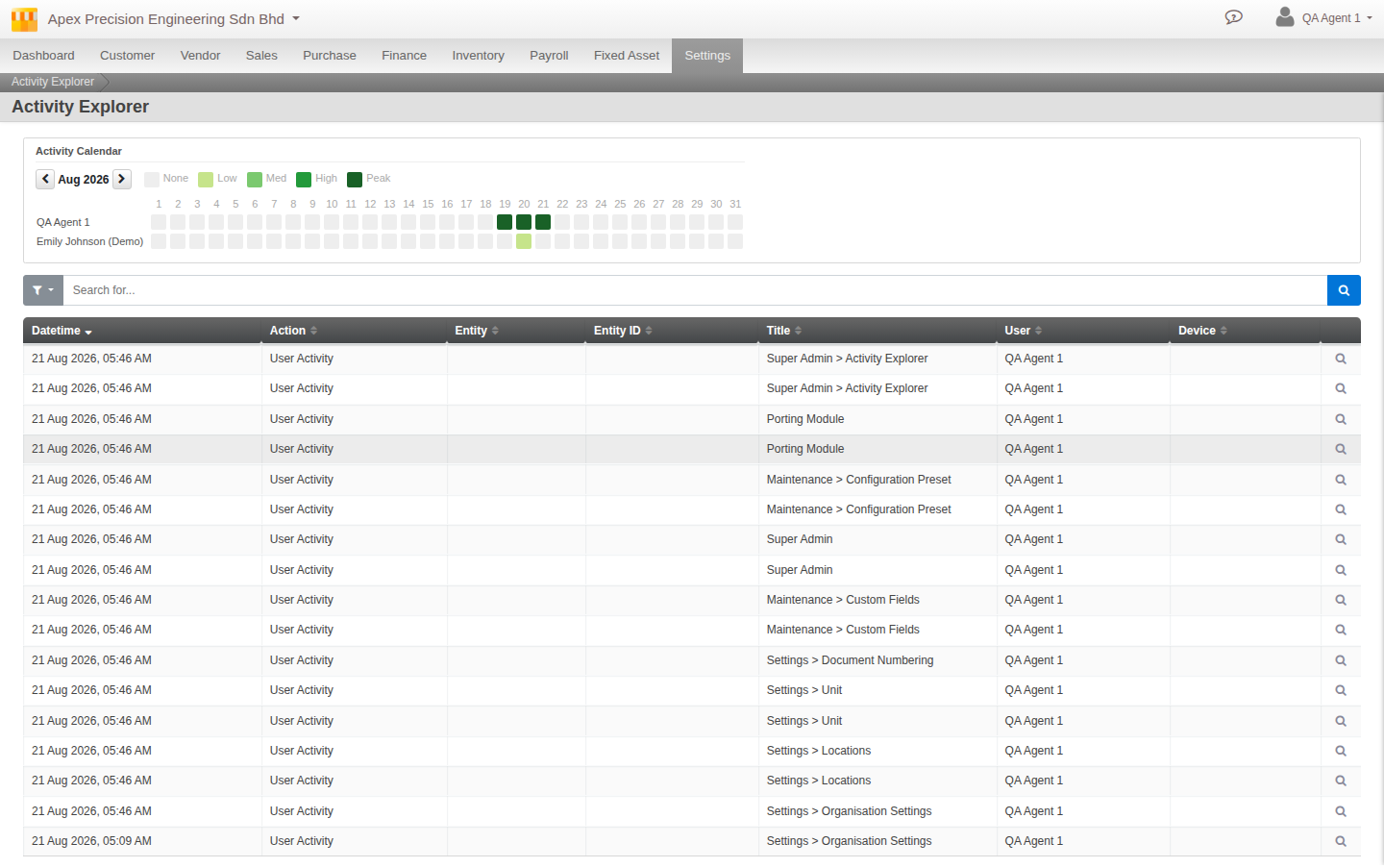
Every action in the system is recorded, who did what, to which document, and which fields changed. It comes in three layers. The per-document history, a button on the document itself, answers “what has happened to this record?” for anyone working it. A full audit engine browses that same activity system-wide, for administrators who need the broader view rather than one document at a time. And a separate, higher-sensitivity Privileged Operations ledger exists specifically for admin-level actions, the kind covered in section 5 above, recording a full before-and-after snapshot of what changed.
Further reading. Reference: Activity and Audit.
One more note: the Partner Console
If your organisation is set up and managed through a Cloudby partner or reseller rather than directly, that partner holds their own separate console with real administrative reach into your tenant, distinct from anything covered above. Common actions a partner can take from there:
- Assign or migrate a tenant to a specific hosting server
- Set a tenant’s lifecycle: start a trial, begin billing, schedule planned downtime, or suspend or terminate access outright
- Register and track a tenant as Sandbox rather than Live, keeping a client’s config-experimentation environment clearly separated from their real production data
- Post notice banners directly into a tenant’s own interface, timed to expire automatically
- Upgrade or downgrade a tenant’s feature entitlements and usage quotas, module by module
- Manage the tenant’s own users and trigger backups on its behalf
- See consolidated activity and usage statistics across every tenant they manage
That relationship, and what it grants your partner, is between you and them and outside the scope of this guide, but worth knowing the reach it has.
What’s next
A few notes as you keep configuring and administering your organisation:
- Risk Monitor and Entity Merge, the deeper Super Admin tools named in sections 6 and 7, are real product capabilities without hub documentation yet. They need their own Reference pages before a Guide can properly rest on them, this guide deliberately does not attempt to explain them from a summary alone.
- The finer shelf, bin and lot hierarchy under Locations is a roadmap item, not something available today.
- An image picker, a file picker and a plain checkbox are not yet available as custom field types, regardless of how the record’s own form might otherwise suggest.
- The Partner Console has its own guide, not covered here beyond the capability list above.
Scenarios and troubleshooting
I posted a batch of documents into the wrong period and need to fix it without reversing every one.
This is exactly what Document Overrider exists for, see section 5a. It changes a posted document’s date directly, but there is no undo, so understand the effect fully before you act, and keep it to the people who should hold that responsibility.
I expected Configurator to be where I add or edit individual fields, and it is not.
That is expected, see section 5b. Configurator applies a whole pre-built settings package in one action; adding or editing one field at a time is Custom Fields, section 4, a completely different, much more routine screen.
I thought porting was only for the initial setup, but I need to bulk-correct data that already exists.
Porting covers this too, see section 5c. An import that does not match the expected new-record format is offered as a bulk edit against existing data instead, not only a one-time migration path.
I need to merge two duplicate customer or vendor records into one.
That capability exists in the product but is not documented on the hub yet, see the note in section 6. Check with your administrator or Cloudby support in the meantime rather than working around it by hand.
Related
- Guide: Migrating to Cloudby: planning, cutover and go-live
- Guide: Compartmentalizing access
- How to: Set up your organisation
- How to: Document Overrider
- How to: Import and export your data
- How to: Configurator Preset
- Reference: Activity and Audit