
Scope: setting an account up to be reconciled at all, running the four tabs end to end, what every outstanding item reason actually means, fixing a reconciliation you got wrong, and the guardrails that stop you breaking an earlier one by accident.
What this guide is not: a repeat of the basic click path already covered in Reconcile accounts. Read that first for the literal steps; this guide is the layer on top, the judgement calls and techniques that turn a reconciliation session into something fast and trustworthy instead of a monthly chore you put off.
1. Every match is a decision you make
Every line you tick in a Cloudby reconciliation is a decision you made against your real statement, not a guess an algorithm made on your behalf. You work from your actual statement, paper or PDF, and tell Cloudby what cleared, the same way a careful reconciliation has always been done. Nothing on the ledger side is ever matched by an algorithm’s best guess at a similar amount on a nearby date, so when a reconciliation ties out, you know exactly why: because you checked it, line by line, and it did.
2. Before you start: the account itself
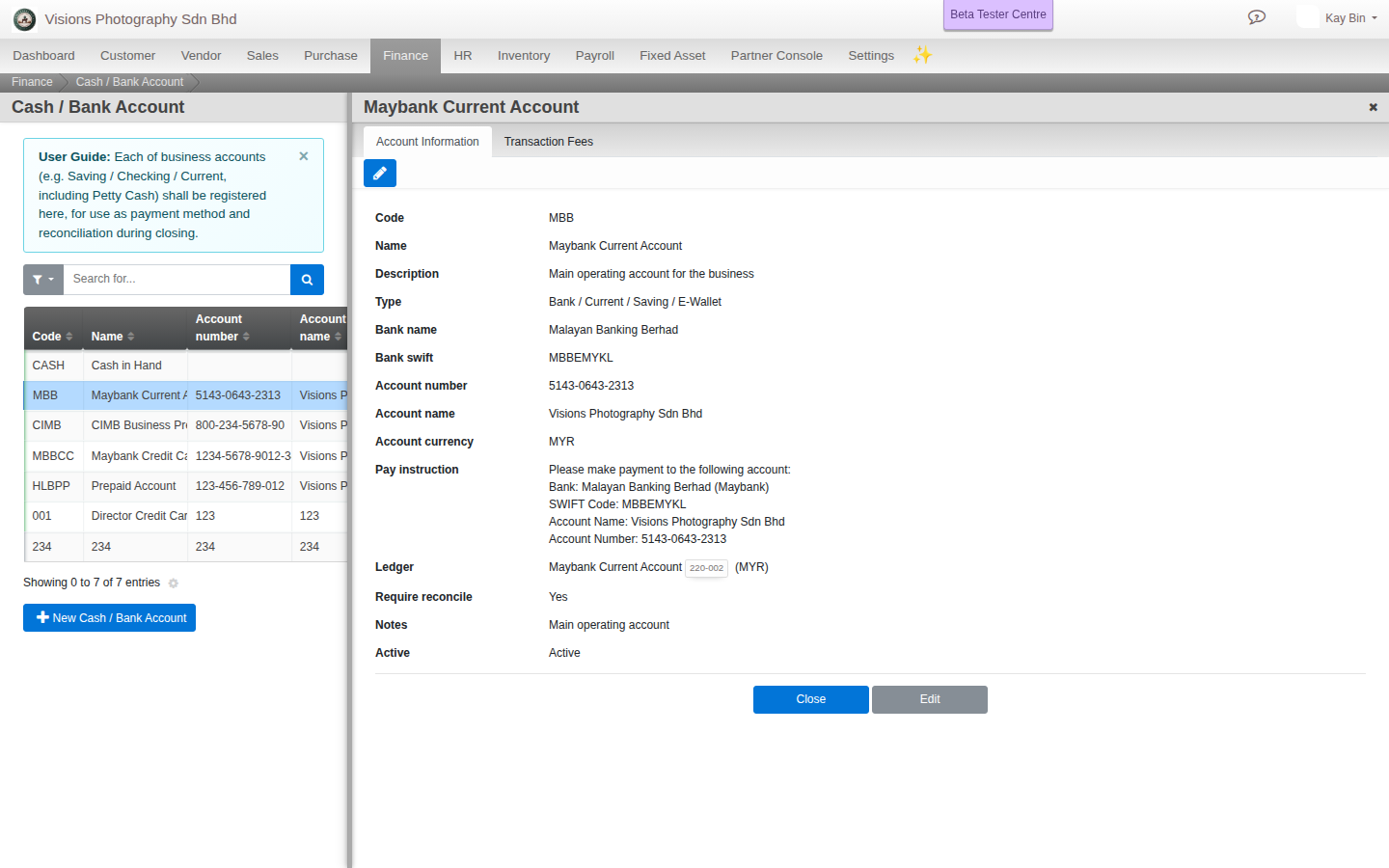
A reconciliation runs against an Account, not directly against a ledger. This is its own record, set up once (Add cash and bank accounts), carrying the bank name, SWIFT code, account number and account name alongside a type, Cashbox / Petty Cash, Bank / Current / Saving / E-Wallet, Credit Card / Overdraft, Loan / Financing, or Fixed / Term Deposit. Only an account with its Require reconcile switch turned on can have a reconciliation created against it at all, so if Create is greyed out or the account does not appear, that switch is where to look first.
3. Creating a reconciliation: let the period pick itself
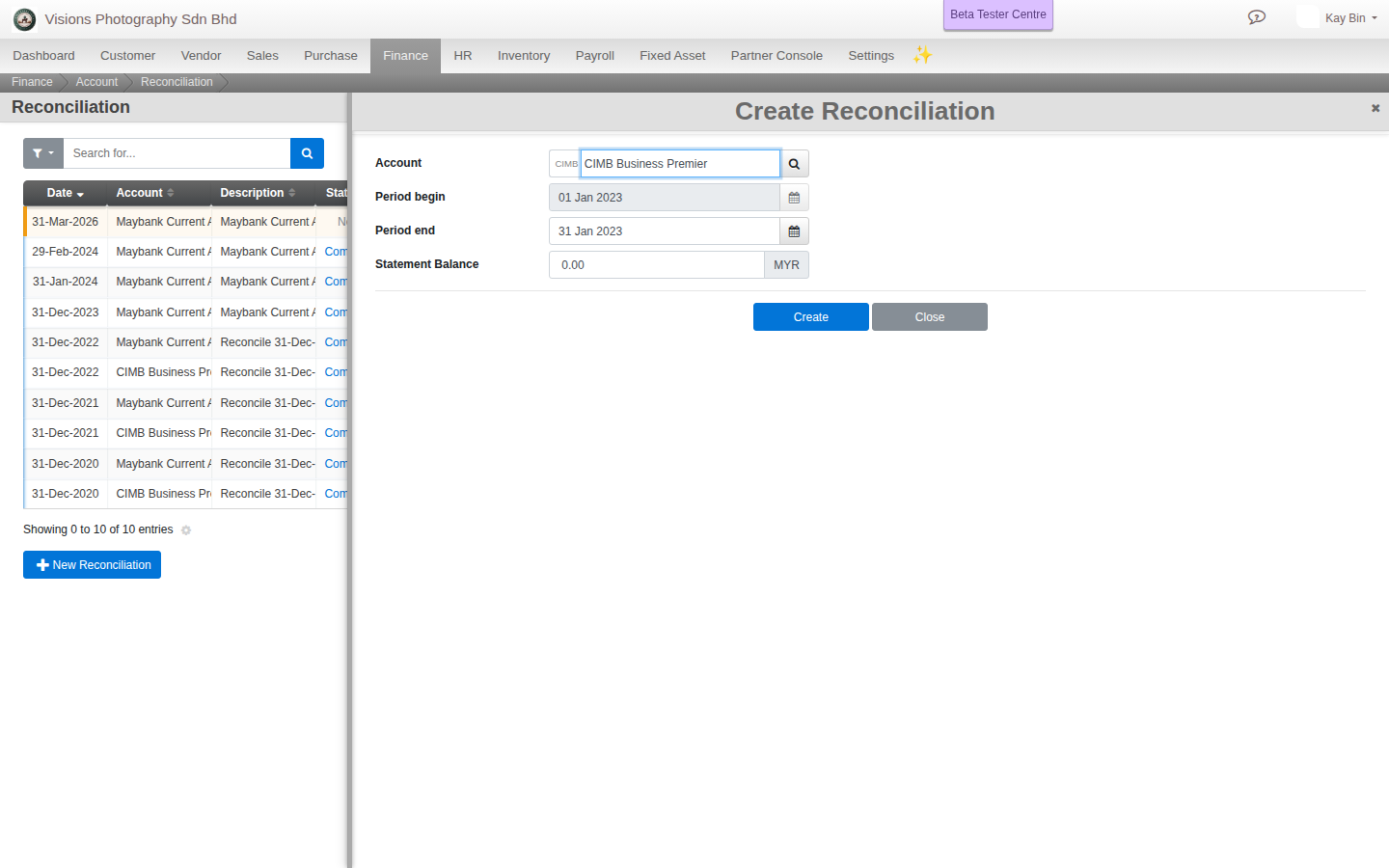
Go to Menu > Finance > Accounting Processes > Reconciliation, click Create, and pick the account. The period fills itself in from where you left off, Cloudby looks up the last reconciliation you actually completed on this account and offers its own ending date as your new starting point, one month later as a suggested end. Take that suggestion rather than typing dates cold. It removes the two easiest mistakes to make by hand: a gap where a few days of statement never get reconciled at all, and an overlap where the same transaction gets asked about twice.
Enter the Statement Balance, the ending figure printed on your actual statement. That single number is the target the rest of the session works toward.
4. The Statement tab: the number, and the proof behind it
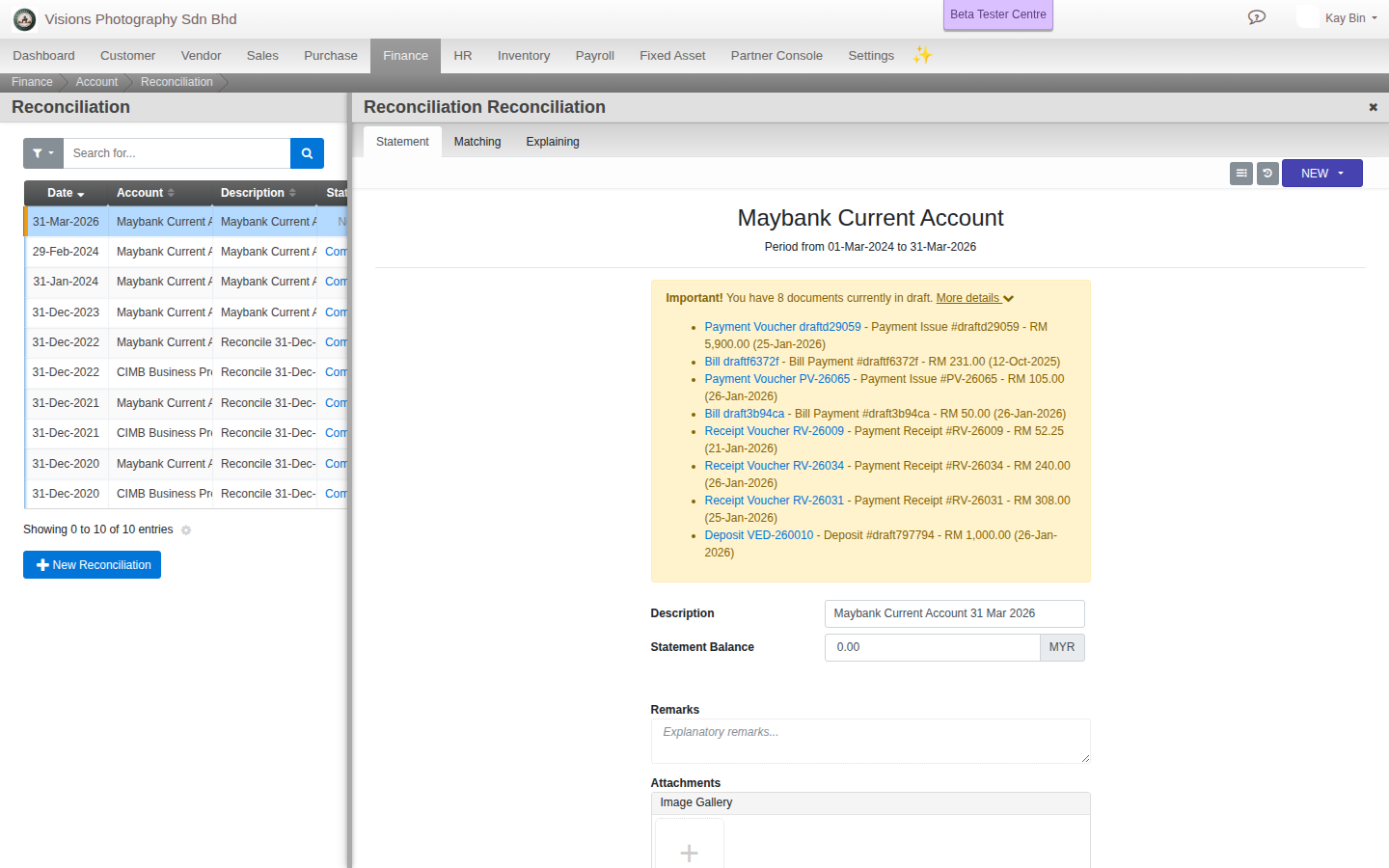
Alongside the statement balance and a description, the Statement tab has an Attachments field. Use it for the actual statement itself, the scanned page or the bank’s PDF. Attach it here rather than leaving it in an email or a folder elsewhere, and the whole audit trail for this period lives in one place: the number you typed, and the document that number came from, sitting together on the same record, for as long as this reconciliation exists.
Before you get anywhere near ticking items off, Cloudby checks for a problem that has nothing to do with the bank at all: any document in this ledger, dated inside the period, that is still sitting in draft rather than posted. If there are any, a warning appears with a direct link to each one. Clear these first. A reconciliation that will not tie out is sometimes not a real bank difference, it is a document you meant to post and forgot.
5. The Matching tab: strike off what you can see
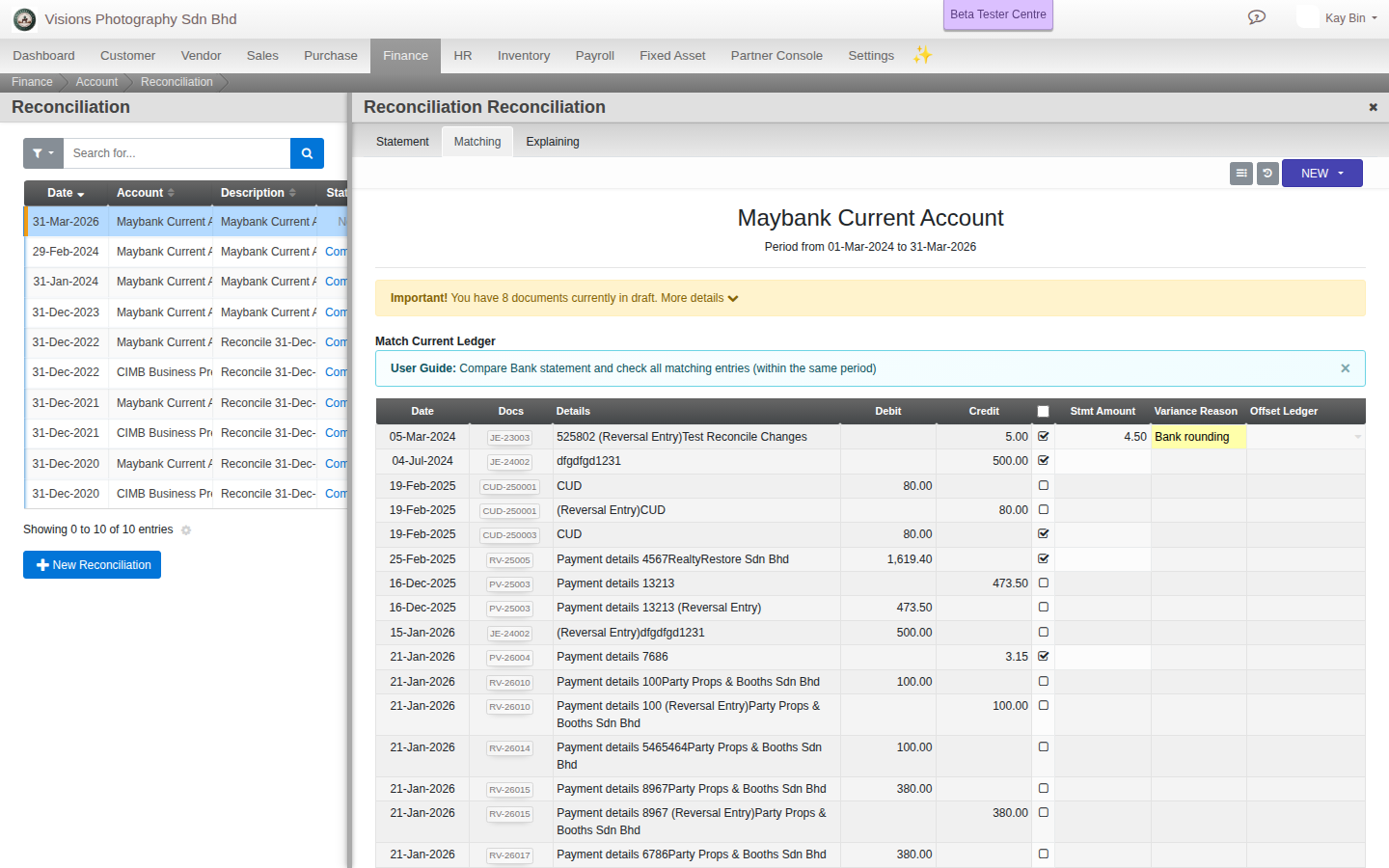
Two lists sit side by side. Match Current Ledger is every transaction posted to this ledger inside the period, tick each one that actually appears on your statement. Match Past Outstanding Items is everything left over from an earlier reconciliation that has still not cleared, tick off whichever of those have finally shown up on this statement.
Every row also carries a small Var field, for the case where an item on the statement is close to but not exactly what you posted, a small bank charge riding along with a larger transaction, a rounding difference, that kind of thing. Fill in the variance amount, a short explanation, and which ledger it should hit, Bank Charges, most often, and Cloudby posts that correction as part of completing the reconciliation. This is the tool for a small, in-line correction on an item you are otherwise matching. It is not the tool for something that is really its own separate transaction, that belongs on the Explaining tab instead, covered next.
6. Give every leftover a real reason, not just “outstanding”
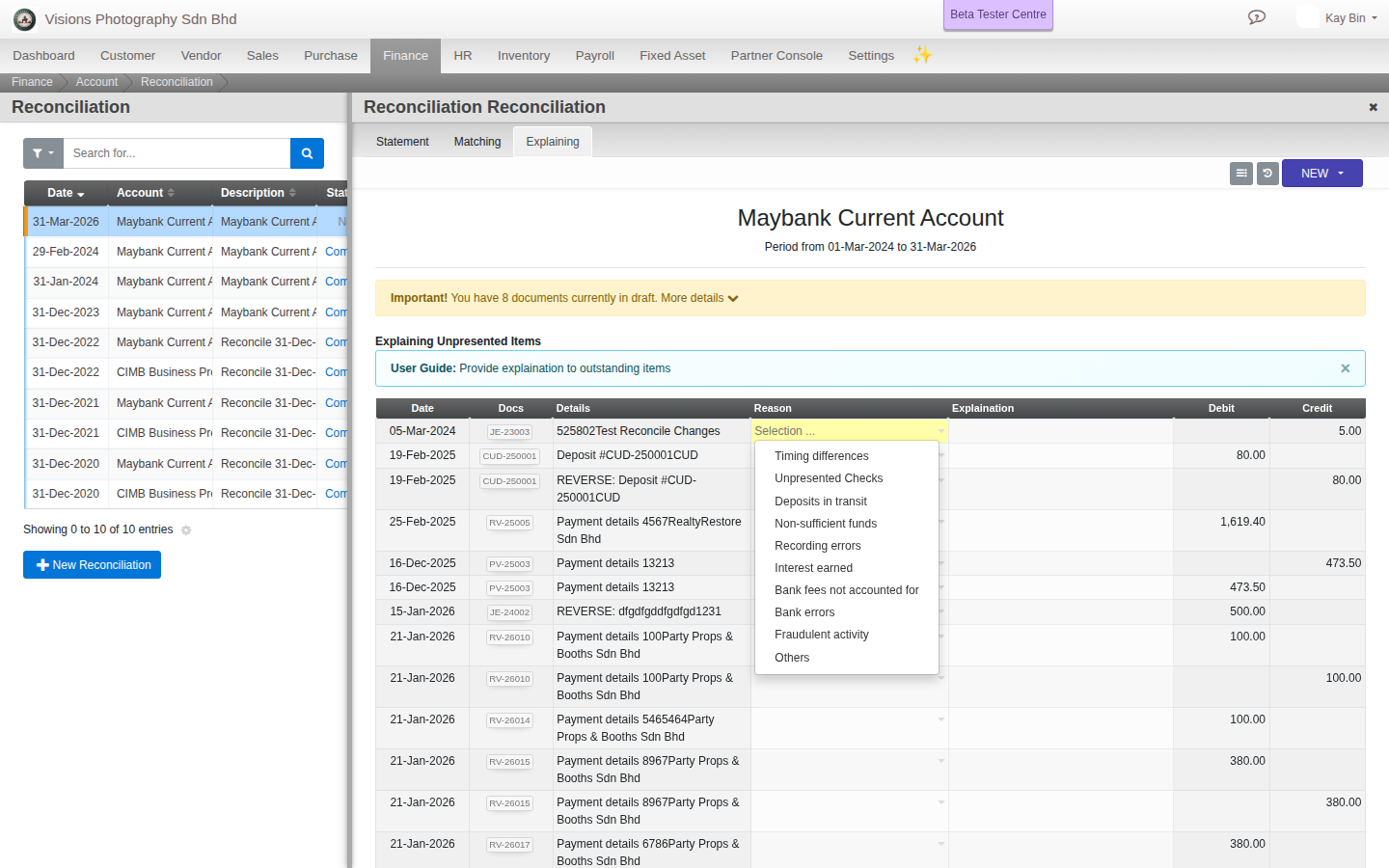
The Explaining tab is where every remaining outstanding item, this session’s and any still carried over from before, gets a reason. There are ten, and they group naturally into what each one is actually telling you:
- Timing differences. The catch-all for anything simply recorded in a different period, the most common reason by far.
- On your side, not yet on the statement: Unpresented cheques, Deposits in transit, Non-sufficient funds, Recording errors.
- On the statement, not yet on your side: Interest earned, Bank fees not accounted for, Bank errors.
- Rare, either side: Fraudulent activity, Others.
Picking the right one is not paperwork for its own sake. The final Report groups every adjustment by its reason with a subtotal, so a reader who was never in the room, an auditor, a partner, your own future self six months from now, can see at a glance whether a gap is waiting on the bank or waiting on you.
7. The two kinds of outstanding, and what each one is actually asking of you
Every outstanding item is one of two origins, and they call for opposite responses.
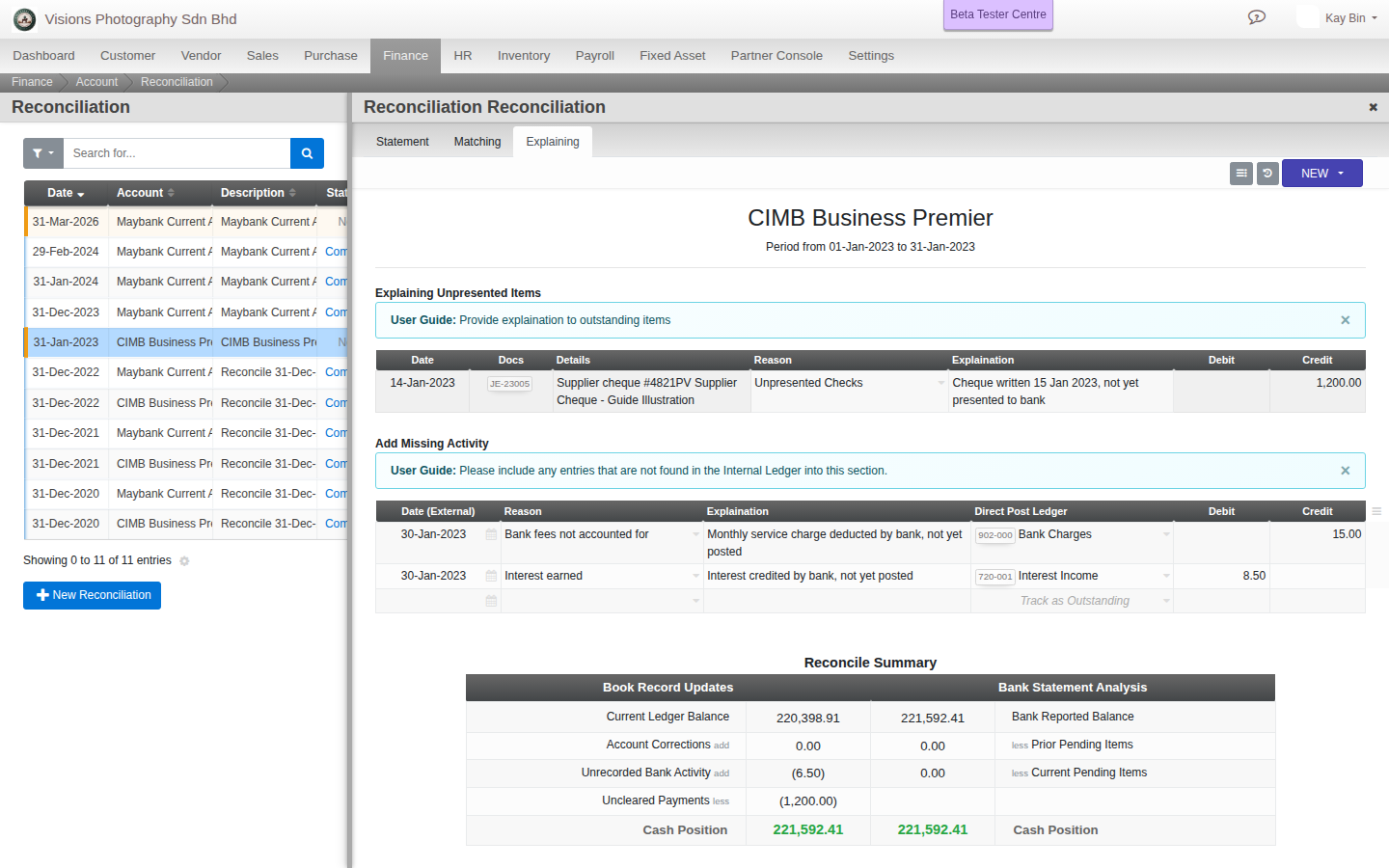
Already in your books, not yet on the statement. A cheque you have posted and handed over but the bank has not yet paid is the classic case. There is nothing to do here except wait, it should clear naturally on a future statement, and when it does, it will be sitting under Match Past Outstanding Items ready to tick off.
On the statement, not yet in your books. Interest the bank paid you, or a fee it charged, that you have not posted as a transaction yet. This is the opposite situation, a to-do rather than a waiting room. Raise it as a New Item on the Explaining tab with the right reason for now, so the reconciliation still ties out, but plan to go post the real transaction. Left alone indefinitely, it just sits as an outstanding item forever, technically explained but never actually resolved in your books.
8. Getting to zero: the tally, and the hard stop
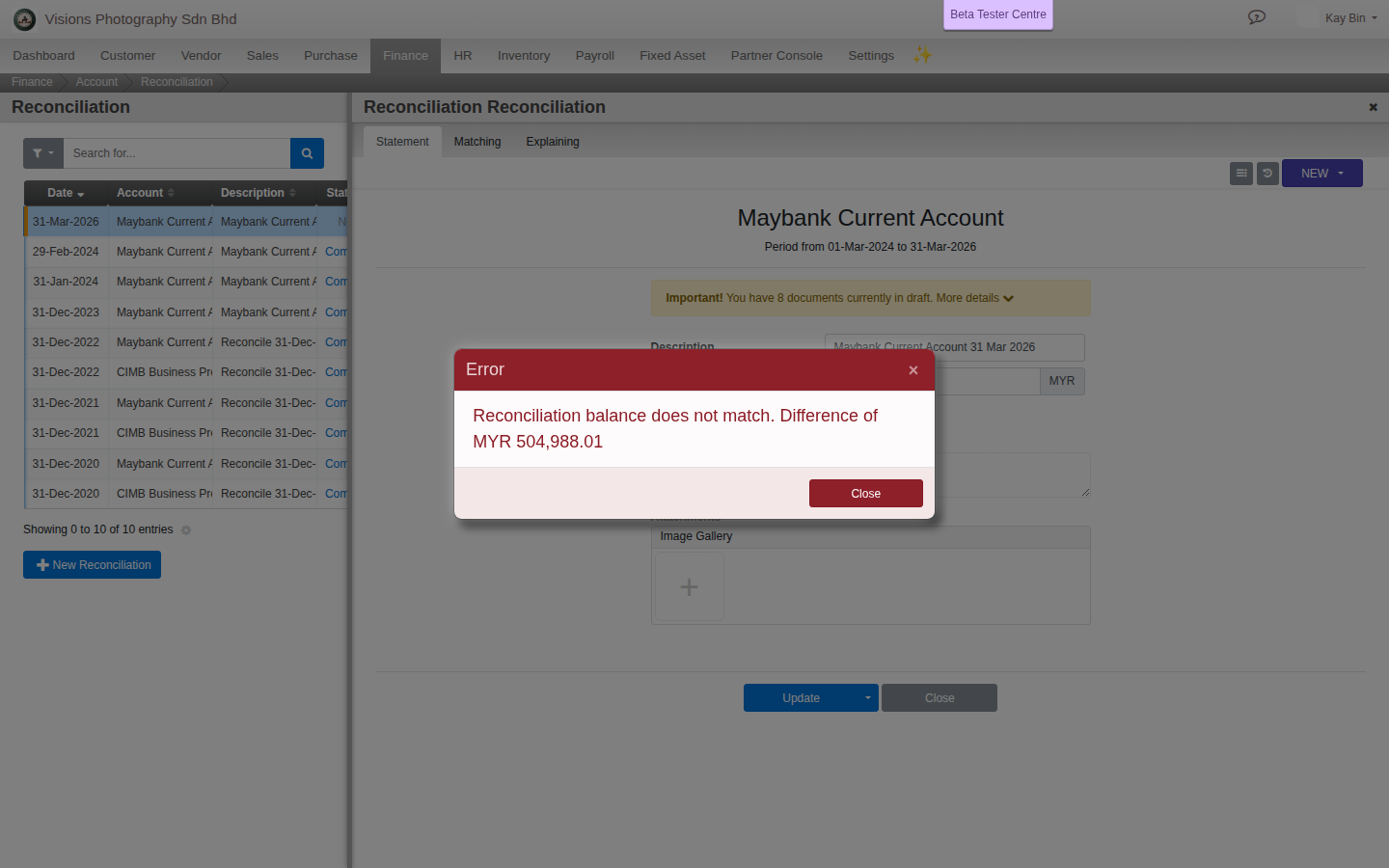
Underneath everything you tick and explain, Cloudby is running two parallel totals. One side starts from your ledger balance and adjusts it for this session’s corrections, anything newly posted, and whatever is still actually outstanding on your books. The other starts from the statement balance you typed in and adjusts it for whatever the bank has that you are deliberately not booking yet. When both sides land on the same figure, the difference reads zero, and that is the whole point of the exercise: not that everything matched, but that whatever did not match is fully and correctly accounted for on one side or the other.
9. Once it is complete, the report becomes your audit trail
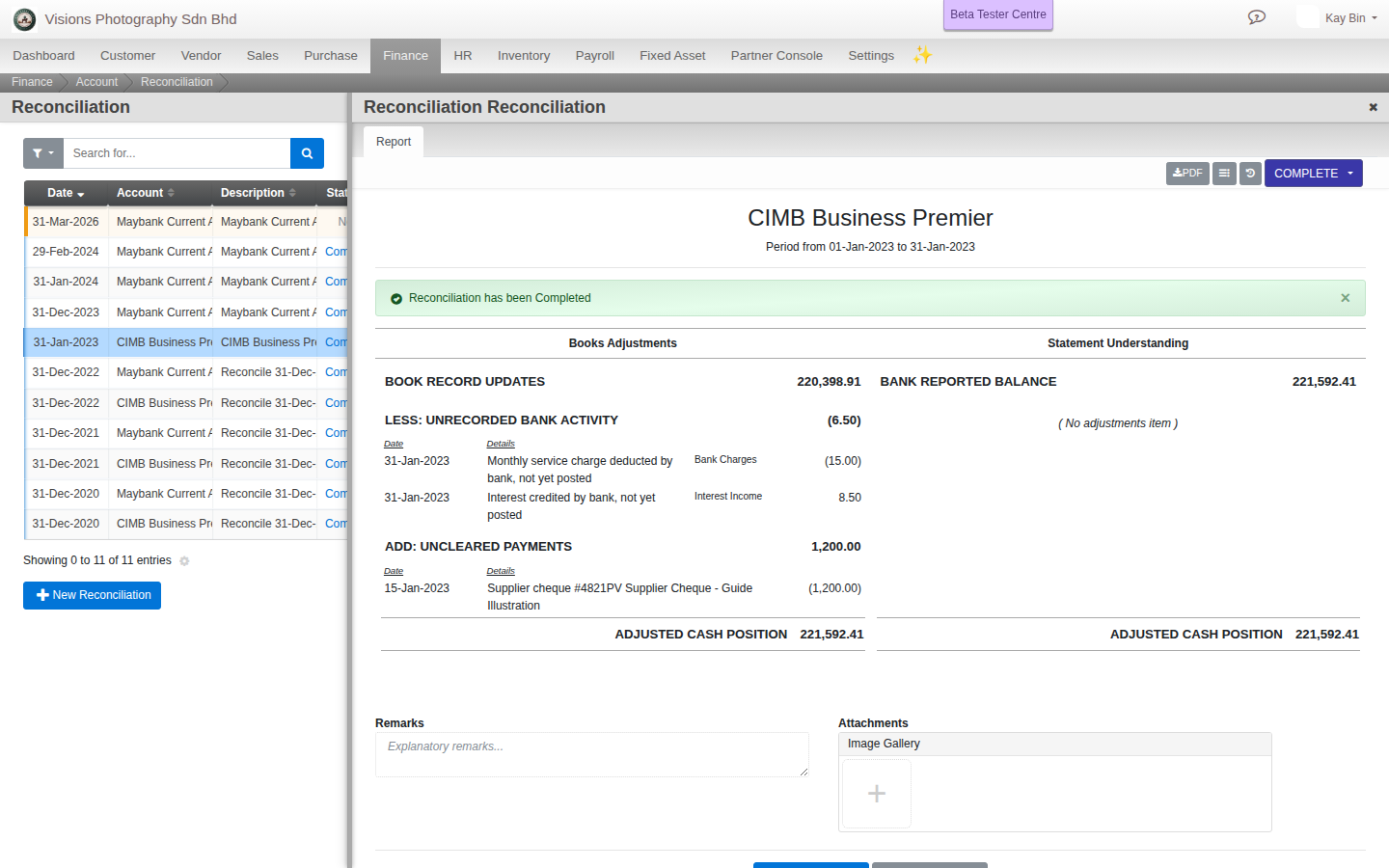
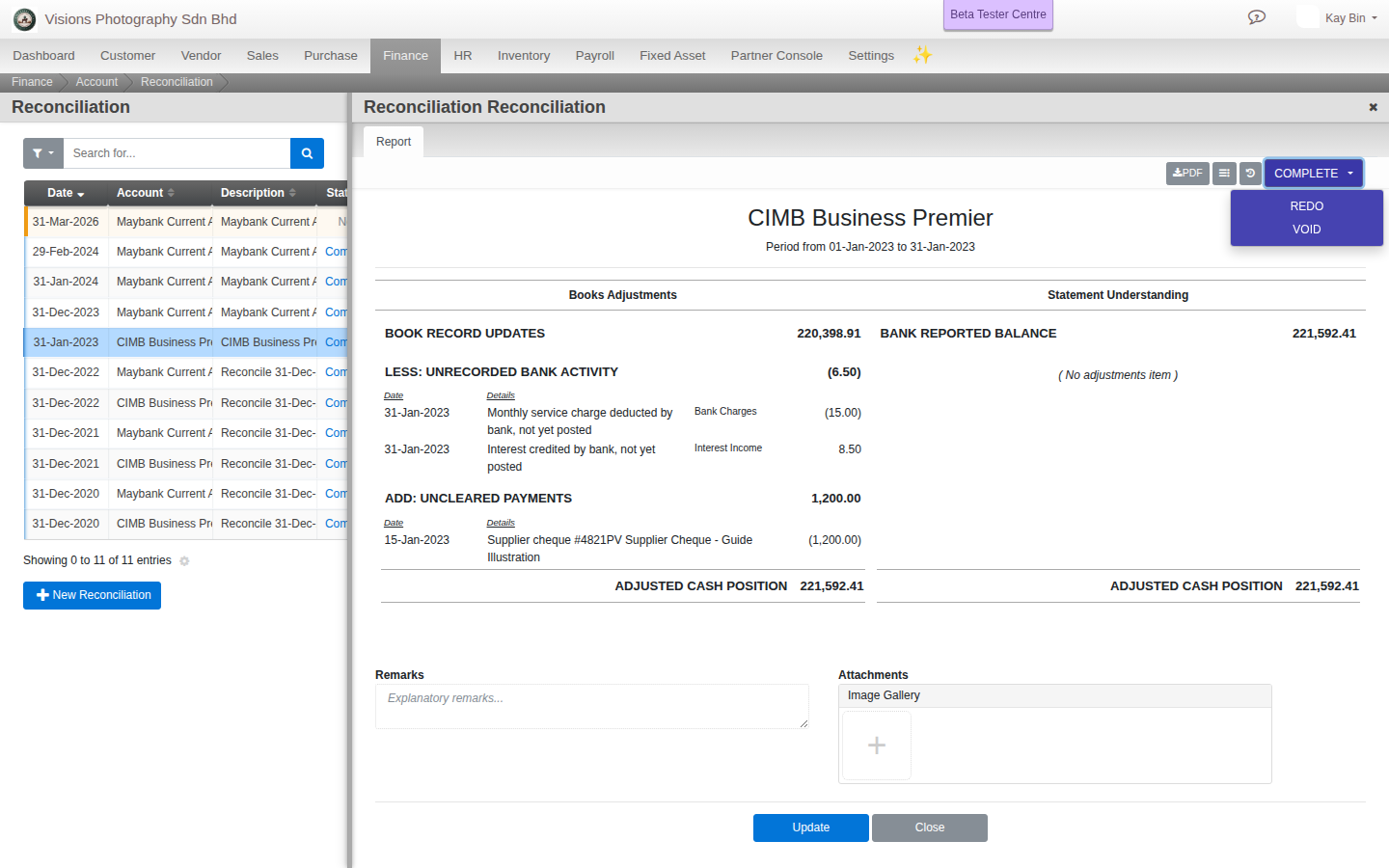
The Report tab is deliberately hidden until a reconciliation is actually Complete, there is nothing to show before then. Once it unlocks, it lays out the opening balance, the matched balance, your ledger balance, the statement balance, and every adjustment grouped by its reason with a running subtotal, the same structure you built on the Explaining tab, now presented as a finished statement. It exports to PDF. Combined with the statement you attached back on the Statement tab, this one record carries everything someone would need to review this month’s reconciliation without asking you a single question.
Say a period closes with three things still open: a supplier cheque for RM 1,200 you wrote weeks ago that the bank has not cashed yet, a RM 15 monthly service charge the bank deducted that you have not posted, and RM 8.50 of interest it credited you. The Report groups them exactly the way the Explaining tab did: Unpresented Checks, RM 1,200, subtotal RM 1,200; Bank fees not accounted for, RM 15; Interest earned, RM 8.50, the last two subtotaling RM 23.50. Anyone reading it afterward sees at a glance that RM 1,200 is still waiting on your side, and RM 23.50 was the bank quietly doing something you have since caught up on.
10. Fixing a mistake: Redo, Cancel, and the two guardrails
A completed reconciliation has two different ways back, and they are not interchangeable. Redo reopens it for correction, reverses whatever it posted, and drops it back to an editable state with everything else about the session intact, matches, outstanding items, notes, all still there to adjust. Cancel is a full void, it deletes this reconciliation’s matches and un-raises any outstanding items it created, though it deliberately leaves alone outstanding items that were raised by an earlier reconciliation and only happened to get settled here.
11. Reconciling a foreign currency account
An account held in a foreign currency ties out in that same currency, the actual figure printed on the actual statement, not a converted equivalent in your base currency. Cloudby handles this automatically once the account’s own currency is set. If you are reconciling a USD or SGD account for the first time, read Multi-currency in Cloudby alongside this guide, the ledger settings that govern how a foreign balance behaves the rest of the month also shape what you see here.
Scenarios and troubleshooting
My reconciliation will not let me mark it Complete.
The tally is not yet at zero. Check the Matching tab for anything still unticked that should be, and the Explaining tab for a Var row missing its explanation or ledger, section 8 covers what the tally is actually adding up.
I cannot create a reconciliation for this account at all.
Open the account’s own record and check its Require reconcile switch, section 2. Only accounts with it turned on can have a reconciliation created against them.
A cheque I wrote three months ago just showed up again asking for attention.
Expected. It is a still-open outstanding item carried forward from when you first raised it, and it will keep resurfacing on the Matching tab every reconciliation until it finally clears or you resolve it another way.
I need to reopen an old reconciliation, and it will not let me.
Two possible reasons, section 10: the accounting period it falls in is already closed, or a newer reconciliation already exists on the same account. If it is the second, undo the newer one first, in date order, before you can touch this one.
There is a small bank fee bundled into a bigger transaction I am otherwise matching.
Use the Var field on that same row rather than raising a separate item, one amount, one explanation, one target ledger, section 5.
The bank did something, interest, a fee, that I have not posted yet. How do I capture it?
Raise it as a New Item on the Explaining tab with the right reason so this session still ties out, section 7, then go post the real transaction separately so it does not sit outstanding forever.
Why is there no option to import my bank statement automatically?
Deliberate, not missing, section 1. Every match here is a decision you made against a real statement, not a guess an algorithm made on your behalf, which is exactly what makes the finished reconciliation something you can actually trust.
Related
- How to: Reconcile accounts
- How to: Add cash and bank accounts
- Reference: Statement Reconciliation
- Reference: Accounting Periods
- Guide: Running your business day to day in Cloudby
- Guide: Closing your financial year
- Guide: Multi-currency in Cloudby