This is the step-by-step. For what it is and how it fits the bigger picture, read Compliance Checker in the reference.
Setup task
What this does
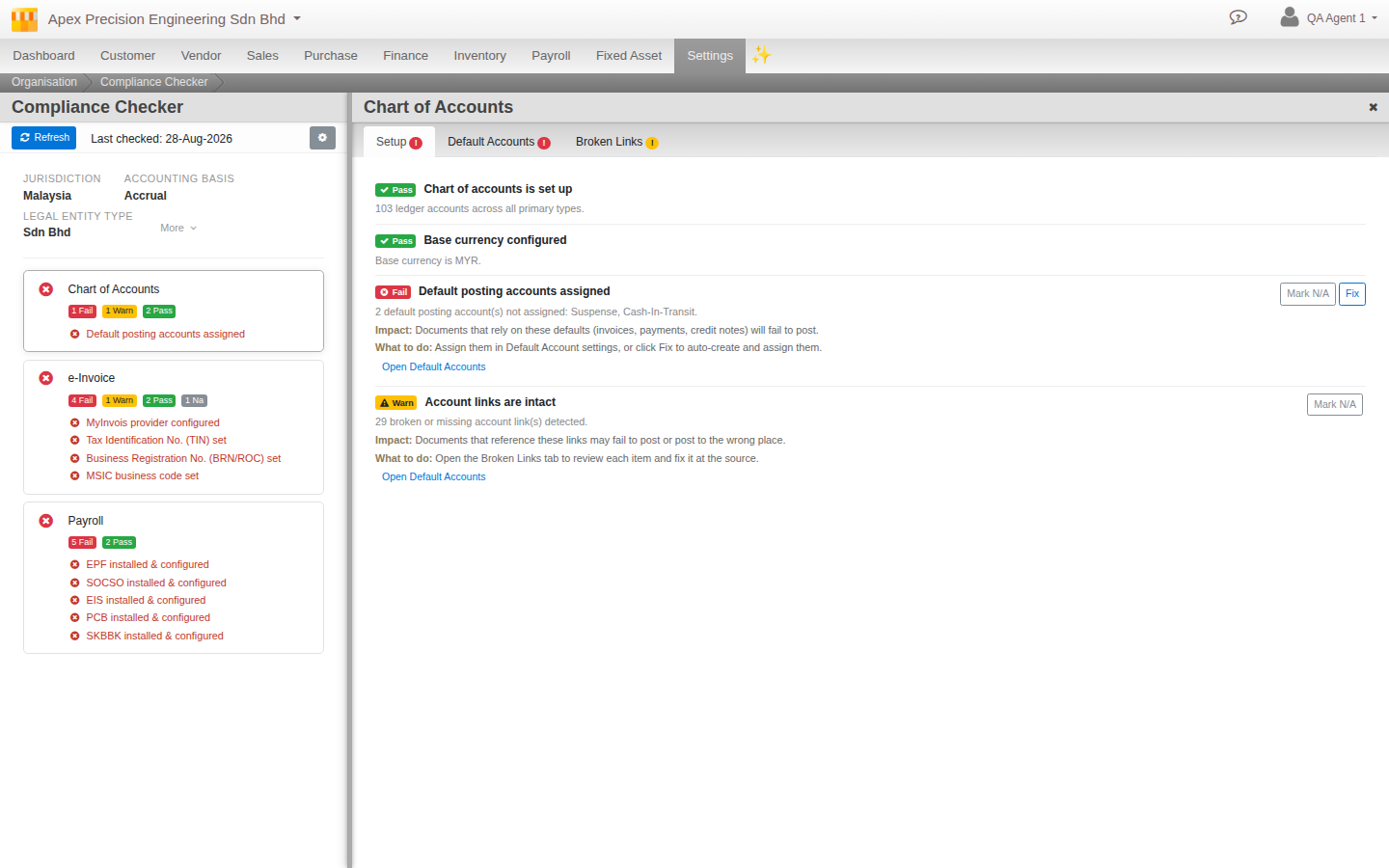
The Compliance Checker looks at how your organisation is set up and tells you whether it meets the rules for your country, pointing out exactly what to fix. It is a running health check for staying compliant, not a one-off form.
Open Compliance
Go to Menu > Settings > Organisation > Compliance.
Set your profile first
The first time, you tell the checker about your business so it knows which rules apply:
- Choose your jurisdiction (your country, and a sub-region where it matters).
- Answer the facts about your business, grouped into sections, for example whether you run payroll, employ foreign workers, or which turnover band you fall in.
- Save the profile. The checker uses these answers to decide which obligations apply to you.
Read the results
The checker lists your obligations, grouped by area such as e-Invoice, Payroll, Tax and Accounting. Each one is scored:
- Pass. The obligation is met.
- Warn. Advisable, due soon, or a minor gap.
- Fail. Not done, or not yet correct.
- Not applicable. It does not apply to your business, based on your facts.
- Unknown. Not evaluated yet, usually because a check is still rolling out or a prerequisite is missing.
For anything not passing, the checker explains the impact (why it matters), gives clear advice on what to do, and links straight to the screen where you fix it.
Fix what it finds
Many items offer a one-click fix that does the change for you. Anything that affects money or assignments asks you to confirm first, so nothing changes by surprise. You can always follow the link and do it by hand instead. Use Refresh to re-check after a change.