This is the step-by-step. For what it is and how it fits the bigger picture, read Service in the reference.
What this does
A Work Order is one visit or one crew's slice of a service order — a single, self-contained record of what was planned, who did it, and what actually happened. Most jobs never need to see one directly: a single-visit order runs entirely in Simple mode on its own Work tab, with no separate work-order document in sight. Switch that order to Advanced mode when a job needs more than one visit or more than one crew, and each visit becomes its own Work Order.
Open Work Orders
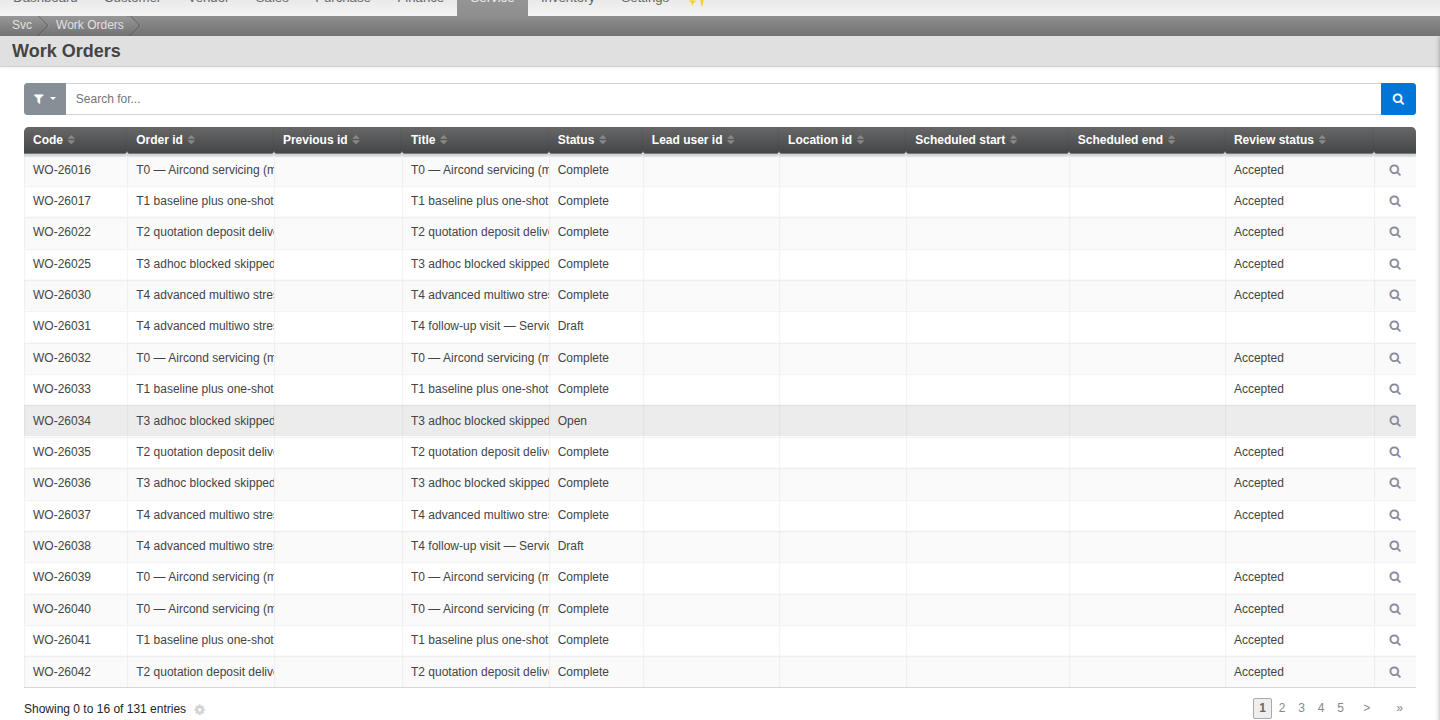
Go to Menu > Service > Work Orders for the full list across every order, or open one from an Advanced-mode order's Work tab.
The tabs
- Details. The header: schedule, lead and crew.
- Progress. A log of what has actually happened once the crew is on the job — execution notes, sign-offs, and custody events for any asset involved.
- Costing. Actual quantities, unit cost and unit price against each line, plus any memo expense a crew added along the way.
- Review. One screen to reconcile planned against delivered before you decide.
Move it along
A Work Order starts Draft. Once it is ready, sending it out opens it for the crew; when the work is done it moves to Verify for review. From there, Accept issues any reserved stock and completes the work order; Reject sends it back with reservations kept, so nothing has to be re-picked. You can Hold a work order at any point with a reason, and Resume it later.