Learn the concept
This is the step-by-step. For what it is and how it fits the bigger picture, read Tickets in the reference.
This is the step-by-step. For what it is and how it fits the bigger picture, read Tickets in the reference.
What this does
A ticket is one support request. You log it, assign it, talk it through with threaded replies, and close it when it is resolved. When a request turns into real work, raise a service order straight from the ticket without losing the conversation.
Open Tickets
Go to Menu > Service > Tickets, then New Ticket.
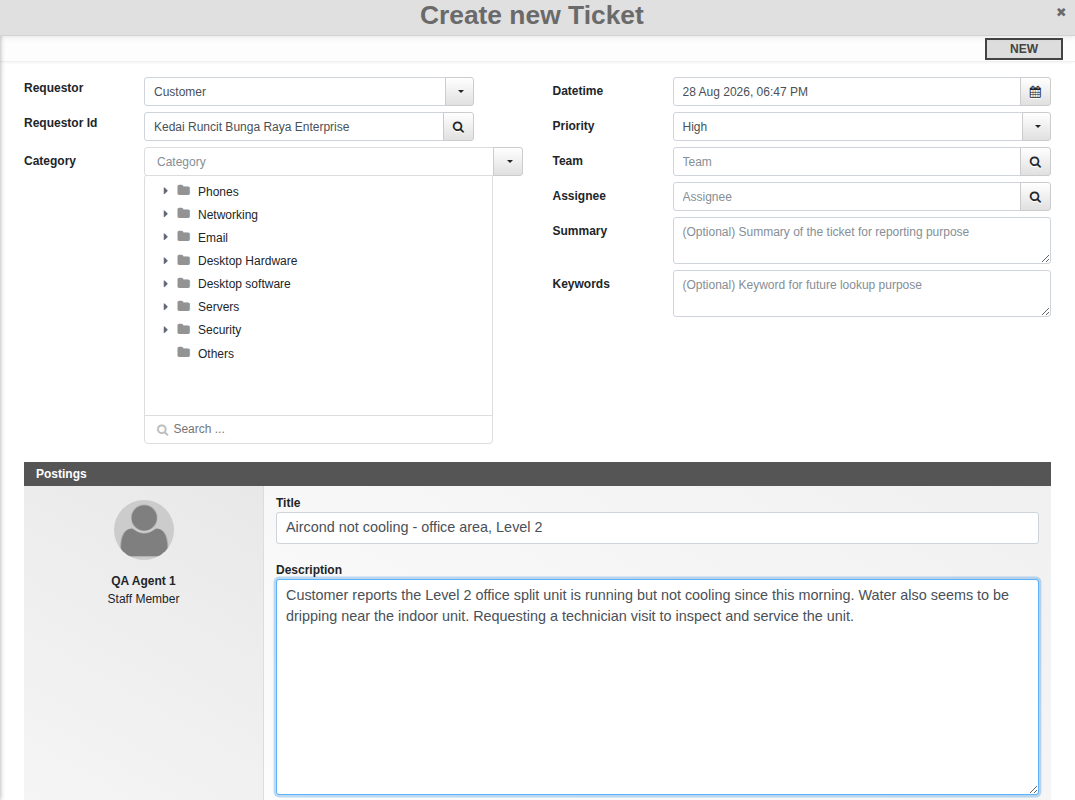
Raise a ticket
- Set Requestor to Customer or Staff Member, then search for the actual person in Requestor Id. Only customers switched on for Service Ticketing show up here — see Set up a service customer and portal.
- Pick a Category from the tree, and set Priority. Team and Assignee are optional.
- Under Postings, give it a Title and a Description of at least a few sentences — this becomes the ticket’s first post.
- Click Create. The ticket opens straight into Active — there is no separate confirm step.
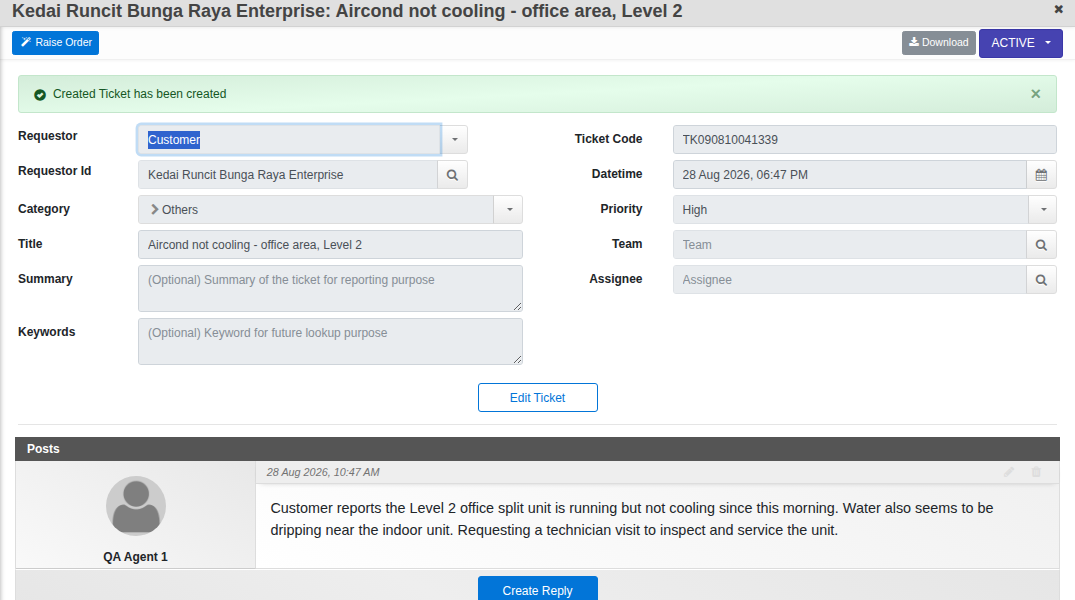
Work it
- Add posts to the ticket: replies and updates, kept as a thread under the original request.
- Filter your list by status, priority and assignee.
- Merge duplicate tickets into one so the history stays together.
- When it is done, Close Ticket. You can Cancel Ticket (with a reason) or Re-Open Ticket later.
Turn a ticket into a service order
Most tickets stay tickets — a quick question, a small fix. When one turns into real chargeable work, click Raise Order right on the ticket — a panel opens beside it, pick a Service Plan and the task list is filled in for you, all without losing the conversation. Full walkthrough: Raise a service order from a ticket.
Good to know. Tickets a customer raises through their portal land in the same list, assigned to the right team, so nothing falls through the gaps.