This is the step-by-step. For what it is and how it fits the bigger picture, read Users & User Groups in the reference.
What this is
Your profile and sign-in security belong to you, the person, and carry across every organisation you work in. This is where you keep them up to date.
Open your profile
Use the profile menu at the top right of the workspace and choose My Profile.
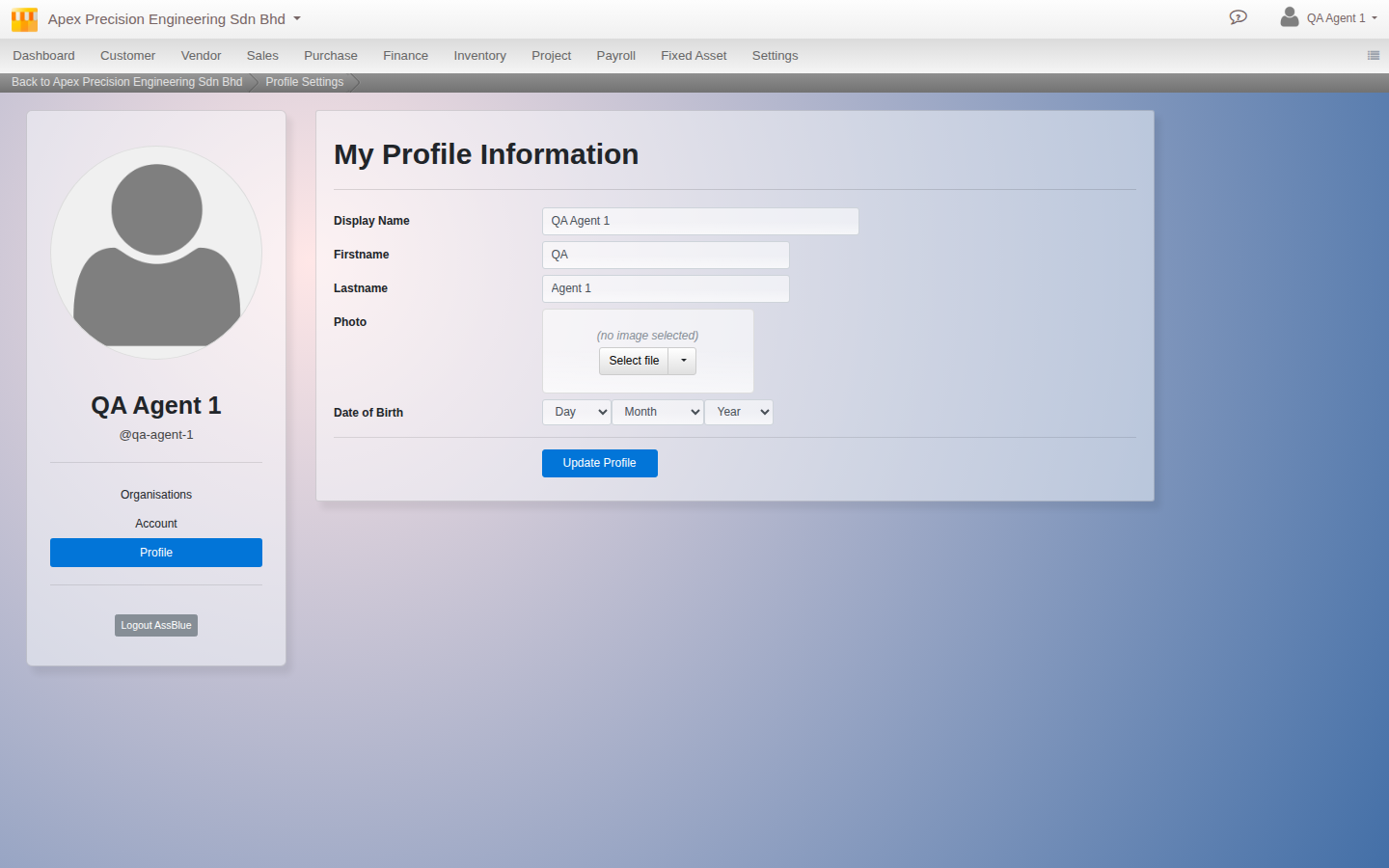
Your details
On your profile you can set your Display Name, Firstname, Lastname, Photo and Date of Birth.
Change your password
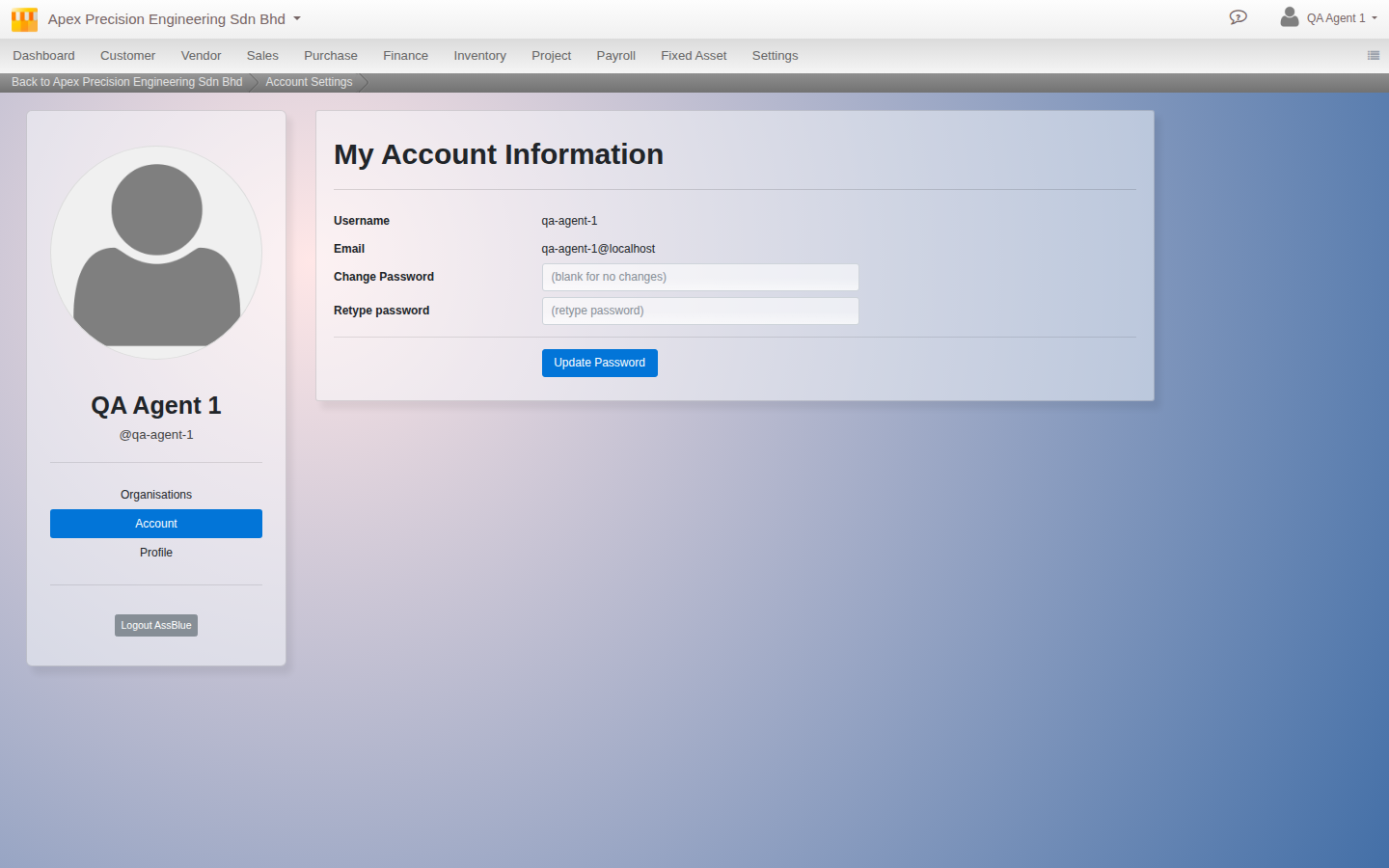
On the Account tab, enter a new password under Change Password, repeat it in Retype password, and choose Update Password.
Turn on two-factor security
Two-factor adds a one-time code on top of your password. It has its own settings screen, separate from the rest of your profile, at /account/authentication/totp on your Cloudby address. There is no link to it yet from My Profile itself, so go there directly, or ask whoever manages your Cloudby account for the address. To set it up:
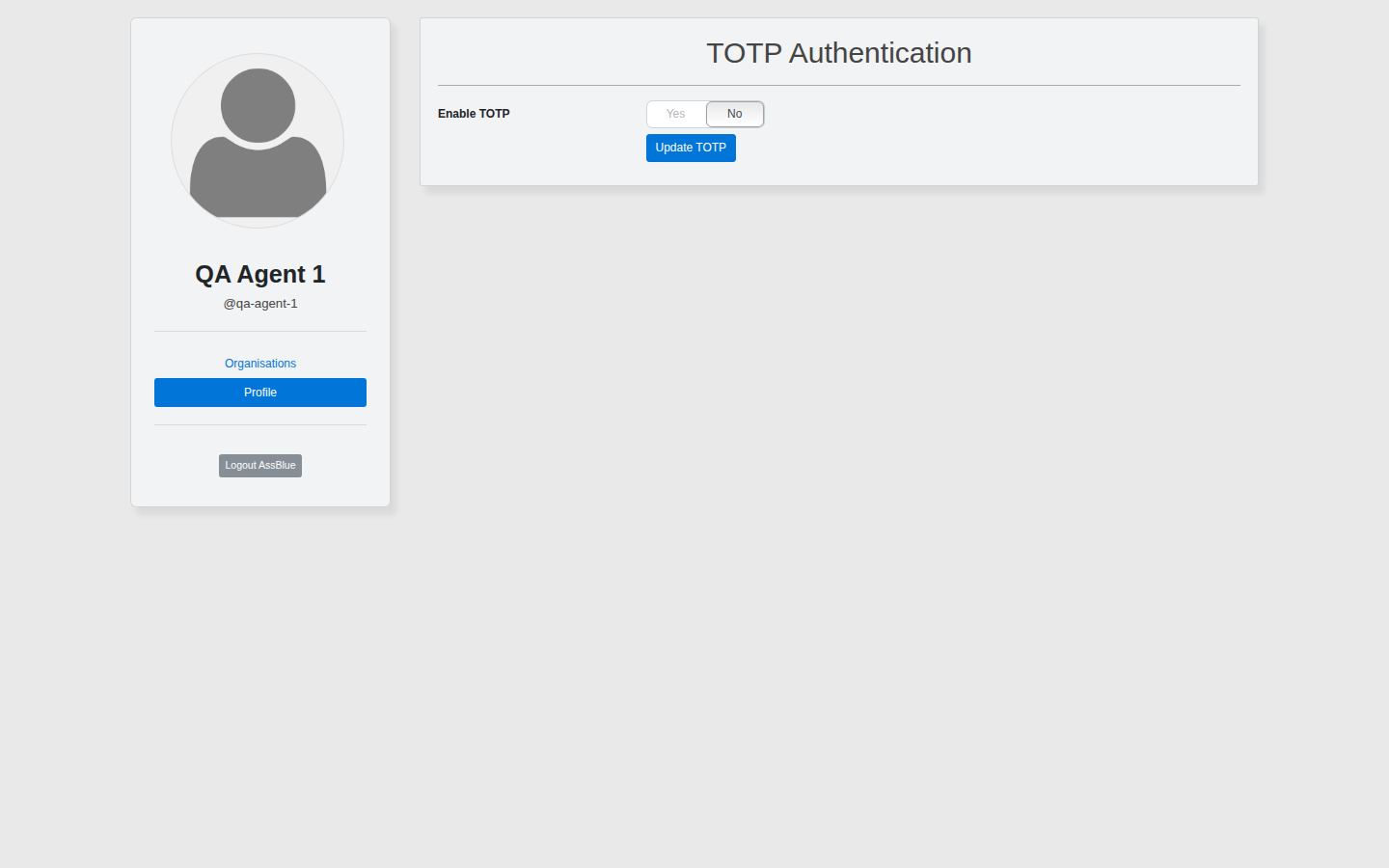
- Switch Enable TOTP to Yes.
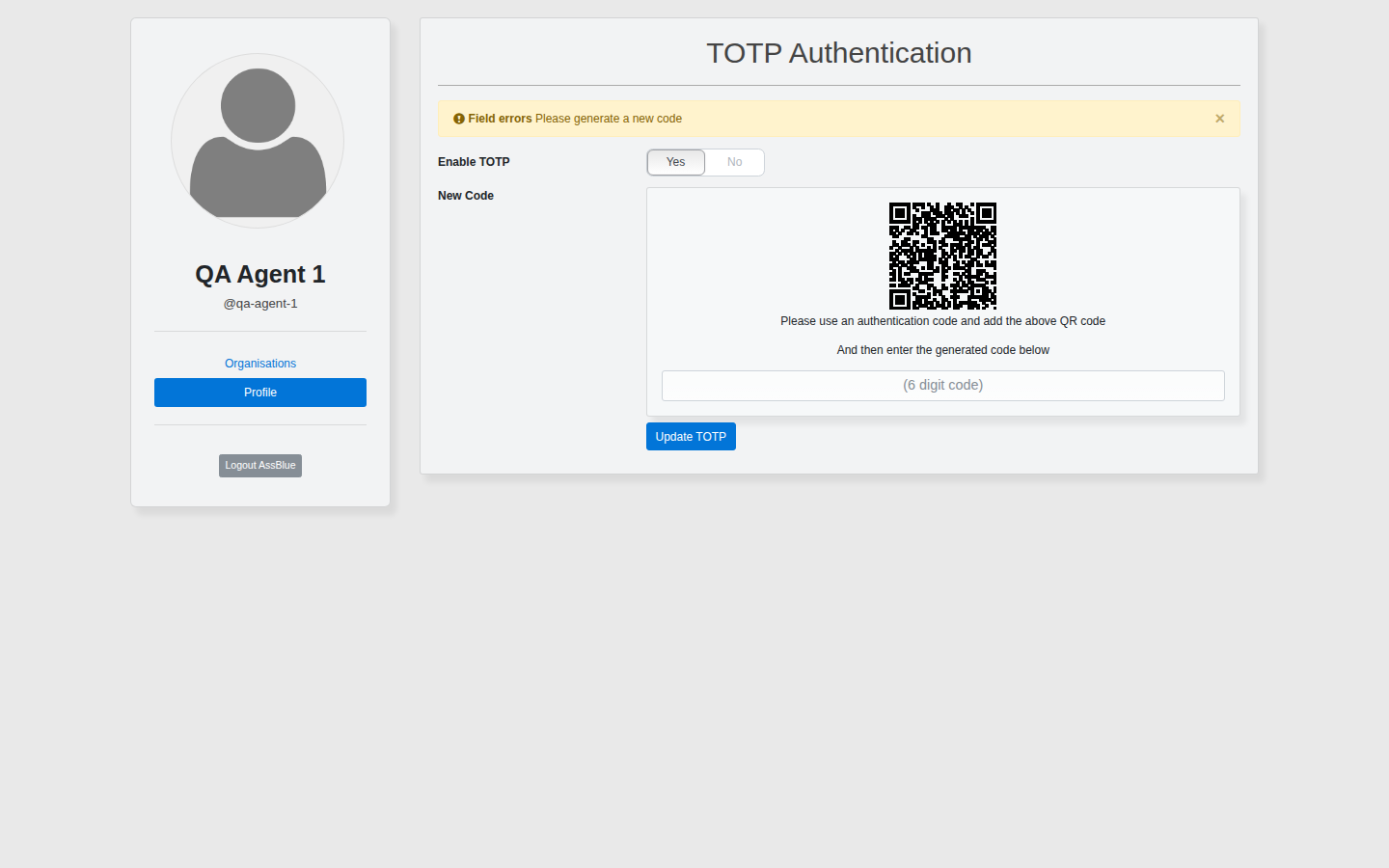
- Click Generate New and scan the QR code with an authenticator app on your phone.
- Enter the 6 digit code the app shows, then click Update TOTP to confirm it.
From then on you enter a code from the app each time you sign in.