Learn the concept
This is the step-by-step. For what it is and how it fits the bigger picture, read Service in the reference.
This is the step-by-step. For what it is and how it fits the bigger picture, read Service in the reference.
Setup task
What this does
Two settings decide how a service order gets priced and what it can be built from: a Charging profile says how billable lines are rated, and a Service Plan is a reusable task list you drop onto an order (or a ticket's Raise Order panel) in one click.
Charging profiles
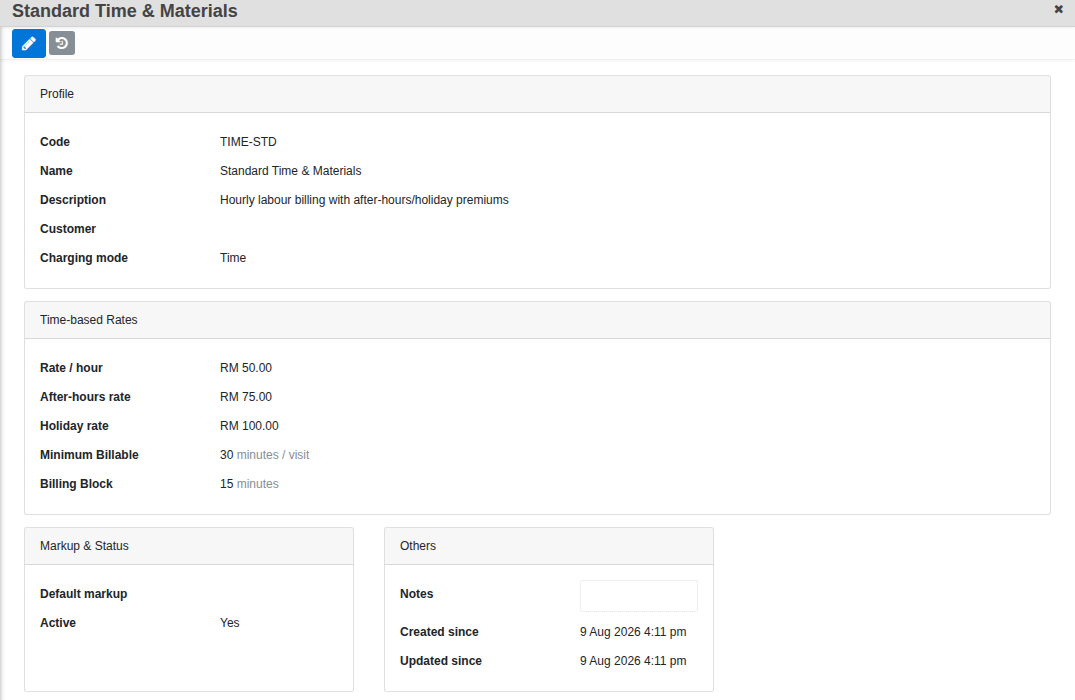
Go to Menu > Service > Settings > Chargings. Every profile has a Charging mode, and the form only shows the fields that mode needs:
- Time — Rate / hour, plus optional After-hours rate and Holiday rate, a Minimum Billable per visit and a Billing Block (rounds actual time up to the nearest 10/15/30/60 minutes).
- Credit — a Credit rate and a Credit unit definition (e.g. “1 credit = 1 standard service hour”), for pre-purchased hour or visit blocks.
- Flat — a Flat rate and Flat cycle (Month / Quarterly / Annual), plus a free-text What{apos}s Included note.
- Catalog — a Catalog price source (the Service Plan{apos}s own default price, or the linked product{apos}s Sale Product catalog price), with an option to apply the customer{apos}s own CRM pricelist when pricing from the product.
Every profile also carries a Default markup % and an Active flag.
Service Plans
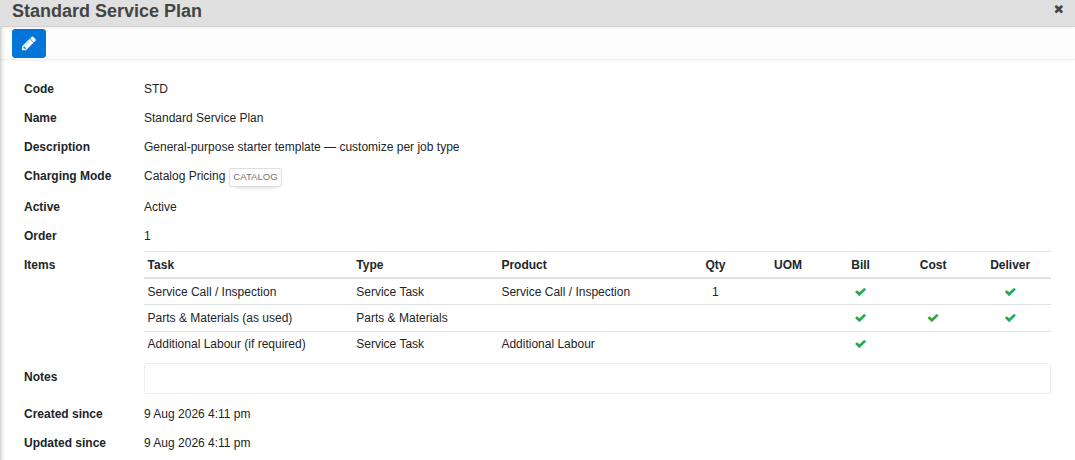
Go to Menu > Service > Settings > Service Plans. (The page itself is titled “Templates” once you{apos}re on it — same screen, the nav just calls it Service Plans.)
- Give it a Name and, if you like, a Default Charging profile — picking a plan on an order pre-fills the order{apos}s Charging with this if the order does not already have one set.
- Build the Items tree: a Task name, a Type (from your Order Item Types), a Product once a type is set, and a default Qty. Bill, Cost and Deliver pre-check from the Type{apos}s own defaults the moment you pick it — still yours to override per row.
- Set Active and an Order number (controls where it sits in the plan picker).
Good to know. Set up your Charging profiles first — a Service Plan's Default Charging can only point at one that already exists.