Learn the concept
This is the step-by-step. For what it is and how it fits the bigger picture, read Service in the reference.
This is the step-by-step. For what it is and how it fits the bigger picture, read Service in the reference.
What this does
Most tickets stay tickets — a quick question, a small fix. When one turns into real chargeable work, you do not have to leave the ticket, retype what the customer said, or hunt for their record again. Raise Order opens a panel right beside the ticket, and one click on a Service Plan fills in the whole task list.
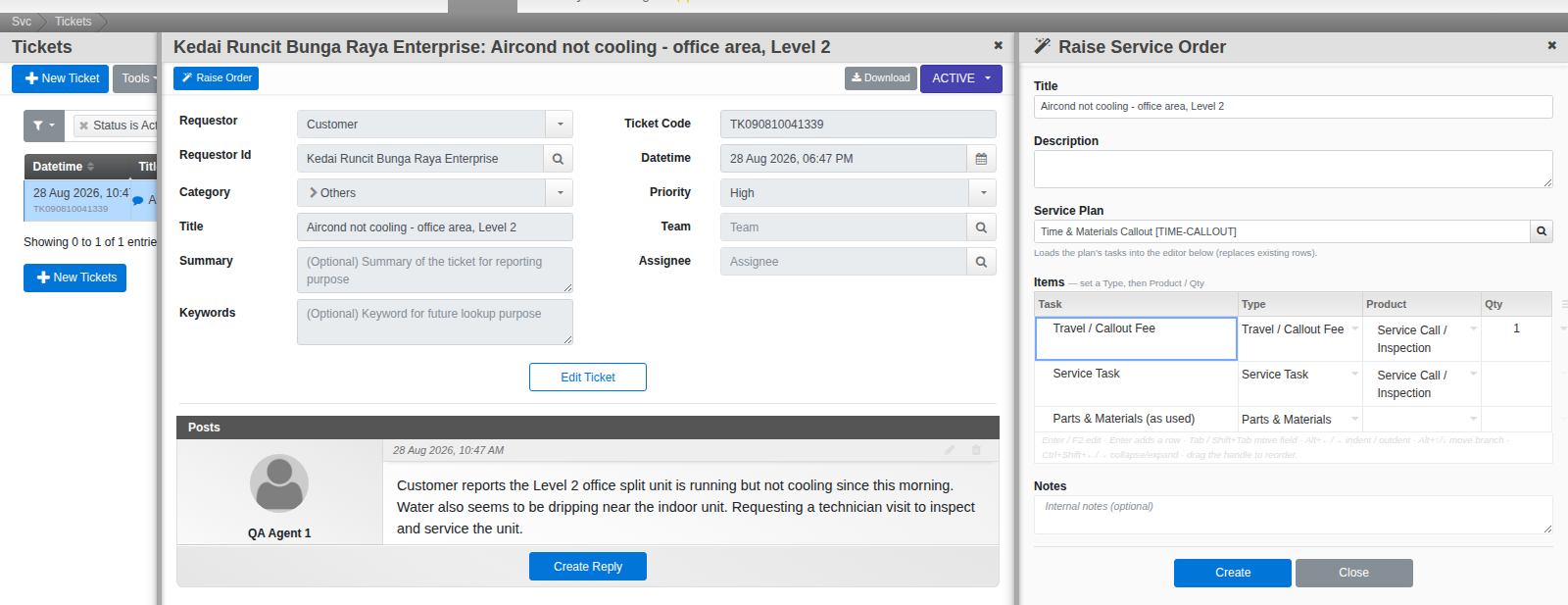
Open a ticket and raise the order
- Open the ticket. Click Raise Order in its headbar.
- A panel slides in beside the ticket — the conversation stays visible and selectable the whole time.
Fill it in
- The order's Title is already filled in from the ticket. Add a Description if you want one.
- Pick a Service Plan. Its task list drops straight into the item table — type, product and quantity all filled in, ready to edit or use as-is.
- No plan fits? Type tasks into the item table by hand instead — the plan step is a shortcut, not a requirement.
Create it
- Click Create, then confirm.
- Choose whether to open the order now or stay on the ticket. Either way the order is already linked: the ticket's button becomes Open Order, and the order carries a chip back to the ticket it came from.
Good to know. The ticket and the order stay loosely linked, not merged — closing or cancelling the ticket does not touch the order, and the order runs its own lifecycle from here. See Run a service order for what happens next.