This is the step-by-step. For what it is and how it fits the bigger picture, read Service in the reference.
What this does
A service order is the record for one job: the tasks or products it carries, who it is for, how it gets fulfilled, and how it gets billed. Raise one directly, or turn a ticket into one without leaving the conversation — see Work a service ticket.
Open Orders
Go to Menu > Service > Orders, then New Orders.
The Order tab
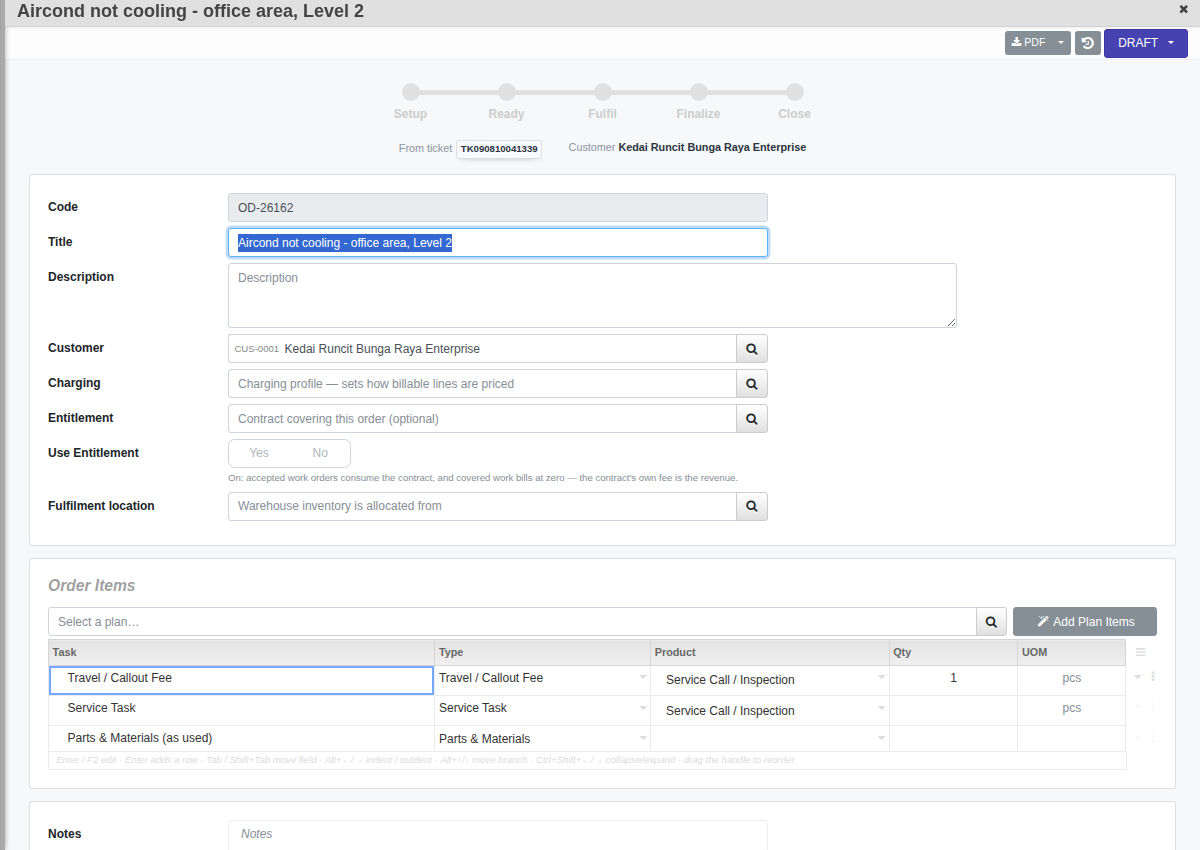
- Customer, Charging (which pricing profile prices billable lines) and, if this customer has a contract, Entitlement with Use Entitlement to bill covered work at zero — see Set up a service entitlement.
- Order Items. Type tasks in directly, or click Add Plan Items to pull a Service Plan's task list onto the order in one click. Each row has a Task, Type, Product and Qty — UOM is set automatically from the product or item type, so it is read-only.
Move it along
A new order starts Draft. Confirm it to send it to Verify for a quick Approve or Reject, or straight to Active depending on how your org is set up. From Active you can Hold it, mark it Complete, or Cancel it with a reason. Once it's Active, a milestone strip across the top — Setup → Ready → Fulfil → Finalize → Close — gives you an at-a-glance read of where the job stands.
The Work tab
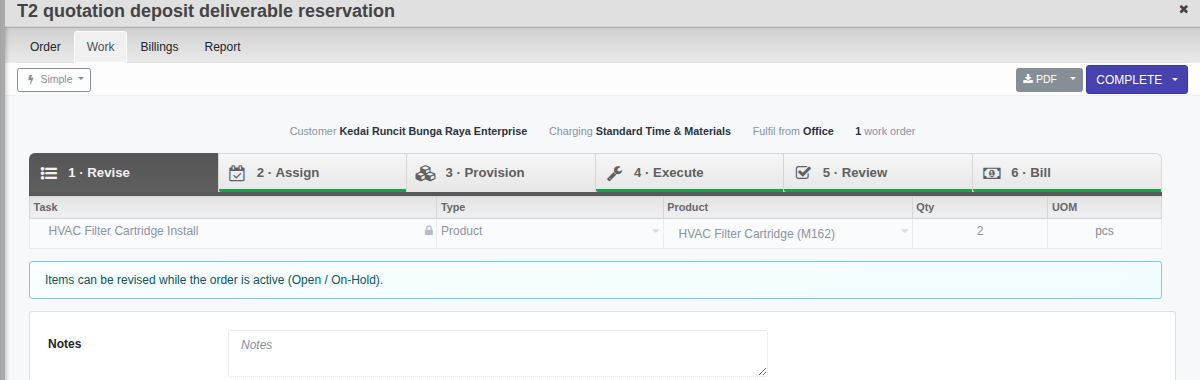
This is where the job actually gets done, as one pipeline: Revise (adjust tasks while the order is active) → Assign (pick a crew and schedule) → Provision (spec parts, reserve stock) → Execute (record what was done) → Review (planned vs. delivered) → Bill. For a single visit, Simple mode is enough — it runs the whole order as one to-do list, no separate work order document in sight. A job that needs more than one visit or crew switches to Advanced mode, where each visit becomes its own Work Order — see Coordinate a job with Work Orders.
The Billings tab
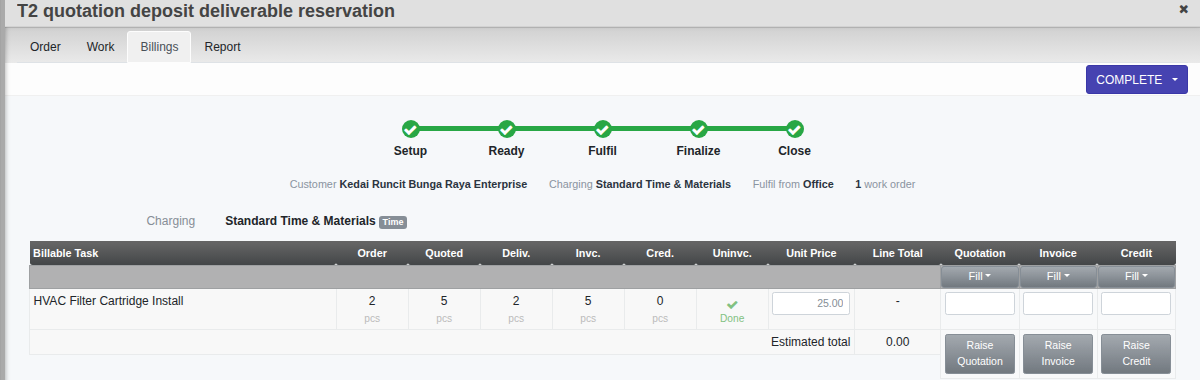
A live grid of every billable line on the order: Order, Quoted, Deliv., Invc. and Cred. quantities side by side, with the unpriced quantity flagged under Uninvc. When you are ready, Raise Quotation, Raise Invoice or Raise Credit generates the matching Sales document straight from what has actually been delivered.
The Report tab
A rollup across every work order on this order: Costing, field-added Expenses, inventory currently on Reserve, and a combined Timeline of the order and its work orders.