This is the step-by-step. For what it is and how it fits the bigger picture, read Dashboard in the reference.
What this is
Your dashboard is your home screen after you sign in: a live, personal grid of widgets pulled straight from the modules you use, arranged exactly how you want. It is not one fixed layout, it is a set of sheets you can switch between.
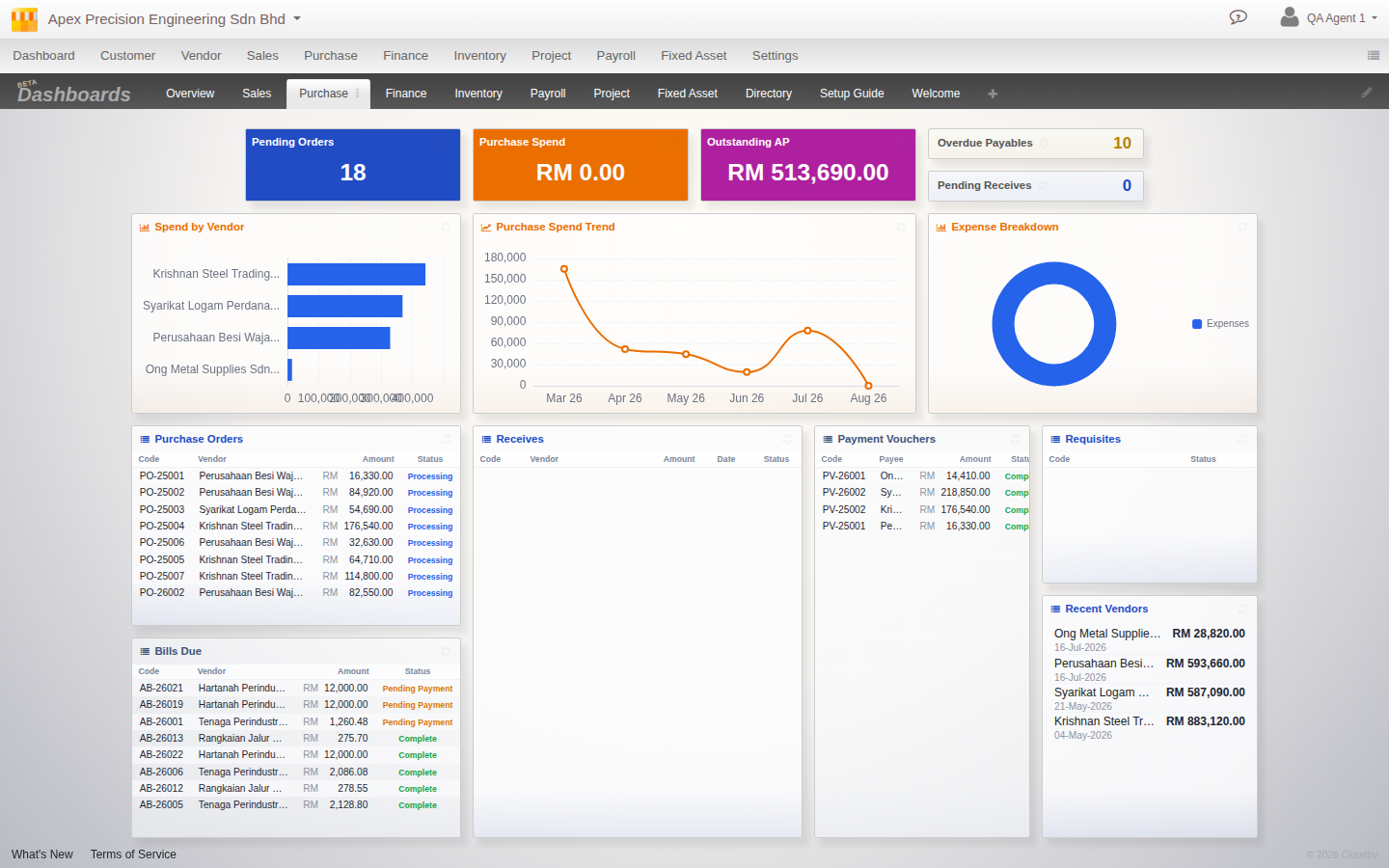
Sheets: switch views for different jobs
Along the top of the dashboard is a row of tabs, these are your sheets. A system sheet is provided automatically for each module you have enabled, already populated with useful widgets. You can also build your own personal sheets, for a daily check-in, for month-end, for anything you like, by duplicating a template or starting from a blank one.
- Click the + tab to add a sheet, from a blank layout or from any system template not already on your bar.
- Editing a system sheet automatically forks it into your own personal copy, the shared template is never changed for anyone else.
- Use the sheet’s ⋮ menu to rename, duplicate, export, import or remove a sheet.
Customizing your widgets
Click Edit to rearrange your dashboard. In Edit mode you can:
- Drag any widget to a new position.
- Resize a widget by its corner handle to whatever shape suits it, a wide chart, a compact tile, a tall list.
- Add a widget with the puzzle-piece picker, which only shows widgets you have not already placed and that you have access to.
- Remove a widget you do not need.
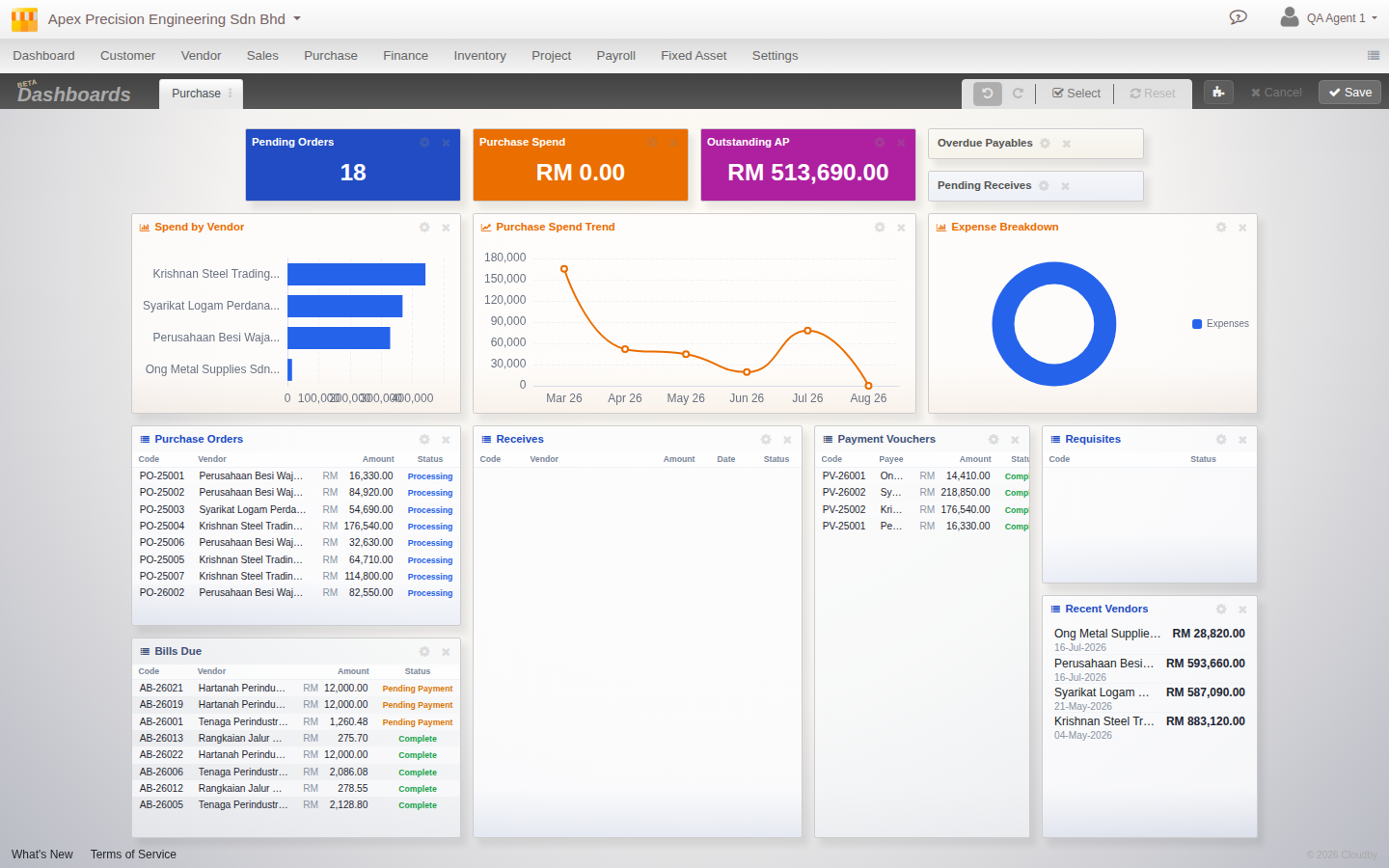
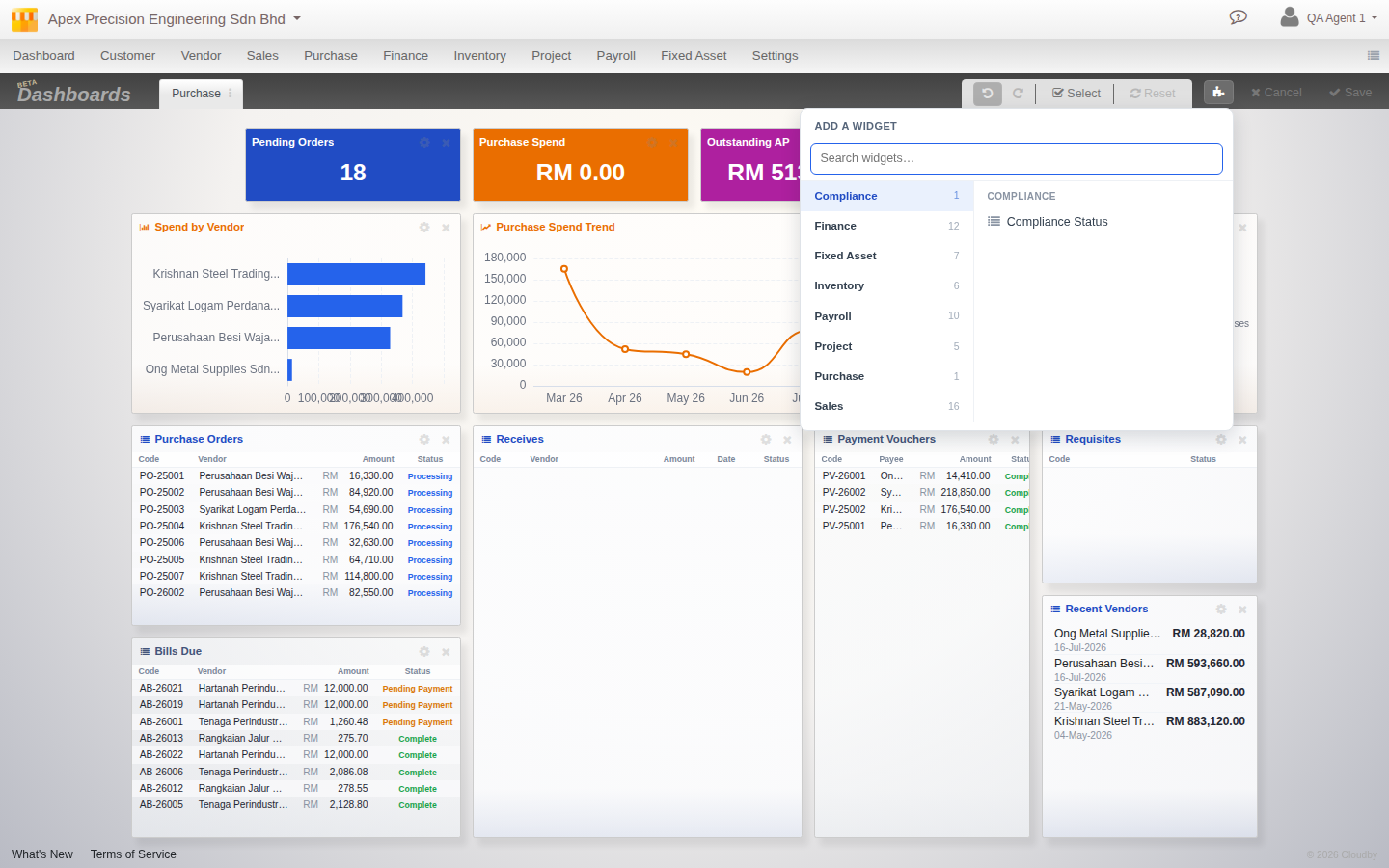
Your layout is personal: it is yours alone, a colleague signing in sees their own arrangement. The grid is also fully responsive, so the same sheet reflows cleanly whether you are on a wide monitor, a tablet or a phone.
Getting started sheets
Alongside your data sheets you will also find Welcome, a Setup Guide and a Directory, to help you find your feet when an organisation is new.