Learn the concept
This is the step-by-step. For what it is and how it fits the bigger picture, read Stock Finder in the reference.
This is the step-by-step. For what it is and how it fits the bigger picture, read Stock Finder in the reference.
What this does
Stock Finder is the fastest way to answer “how much do we have and where”. It shows Physical, Reserved and Available for every item, with several ways to slice the view.
Open Stock Finder
Go to Menu > Inventory > Stock Finder.
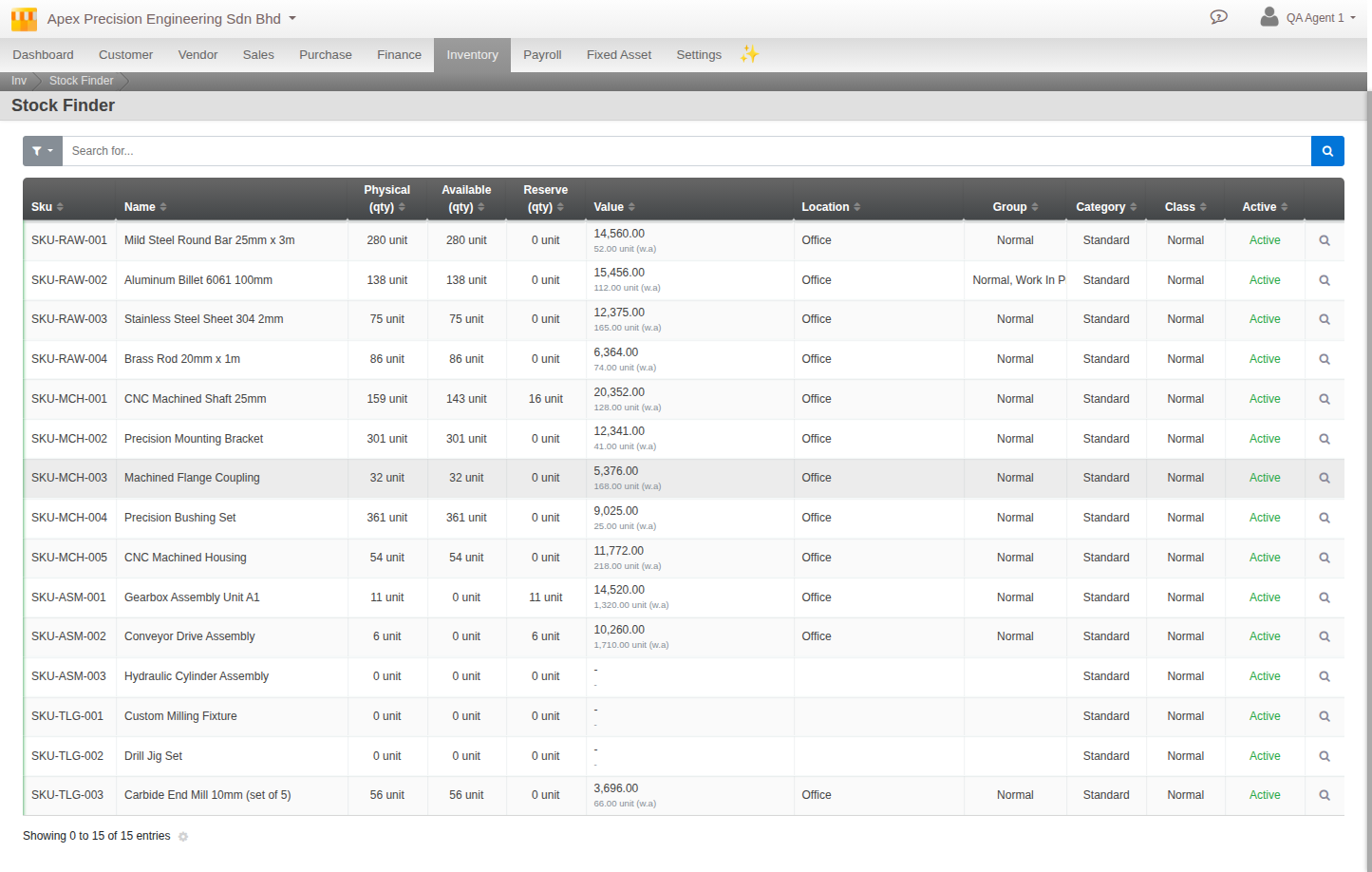
The tabs
- Stock Information. Each item with its quantities and unit cost.
- By Location. The same stock grouped under each location.
- By Group. Grouped by your own stock groups instead.
- Reserved. What is held against orders, and for which document.
- Breakdown. A build-your-own explorer: choose the order to break down by (location, group, attributes, variations, serials) and filter freely.
Reading the numbers
- Physical. Counted on hand, before anything is set aside.
- Reserved. Already promised to a sales order or other document.
- Available. Everything that is not reserved, free to sell or commit. See Understanding stock quantities for how this relates to Physical and Incoming.
Force release. If stock is stuck reserved against a document that is no longer live, a permitted user can Force release it back to Available. Use it carefully, only when you are sure the reservation is stale.
Filters
Narrow any tab by Location, Group, Category or Class, or search by item code or name.