Learn the concept
This is the step-by-step. For what it is and how it fits the bigger picture, read Vendor Company in the reference.
This is the step-by-step. For what it is and how it fits the bigger picture, read Vendor Company in the reference.
What this does
Adding a vendor creates the master record you use across Purchase and Finance: requisitions, purchase orders, goods receipts and bills all point back to it.
Open Company
Go to Menu > Vendor > Company and click Create.
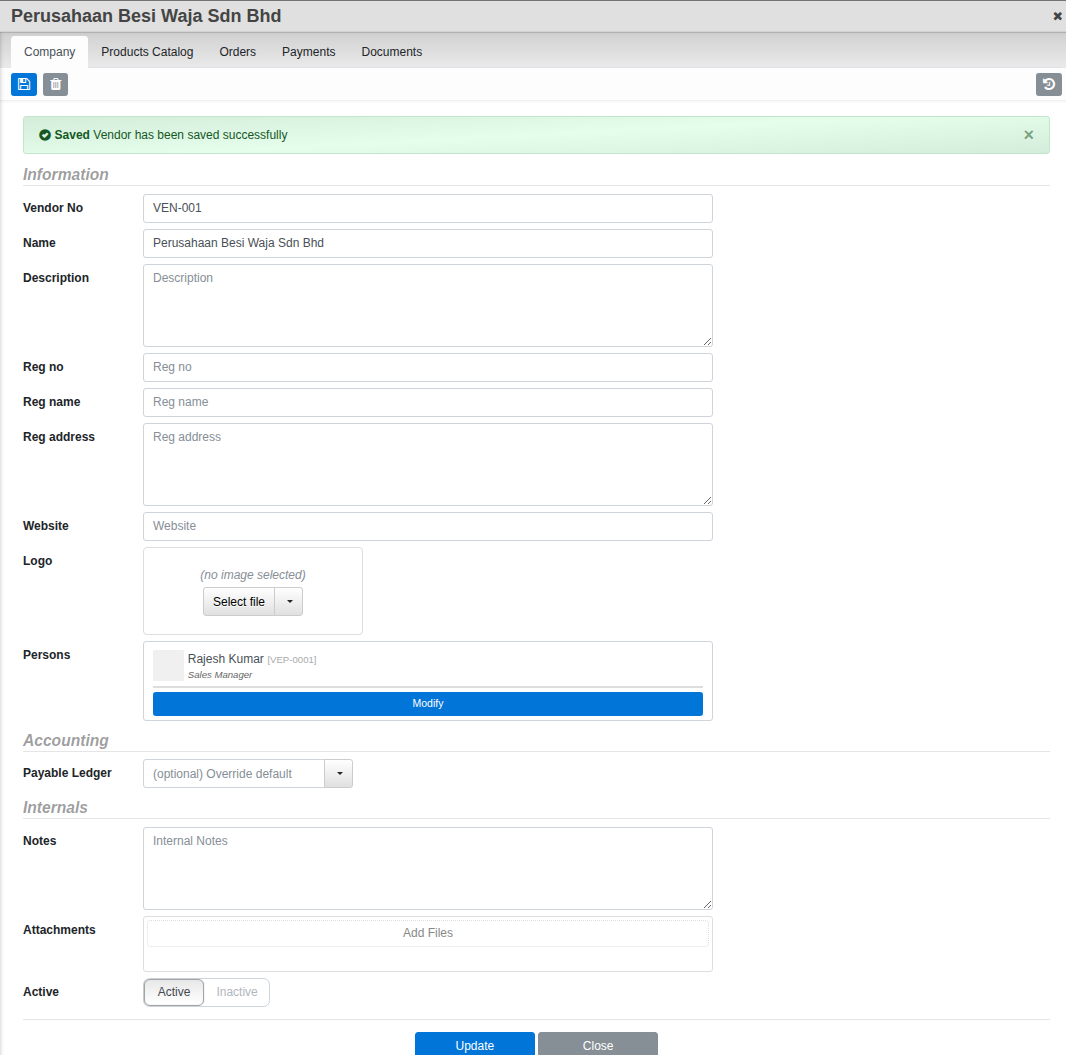
The tabs
- Company. The core details (below).
- Products Catalog. The stock and services this vendor supplies, with their vendor SKU, price and tax.
- Orders and Payments. The purchase history and what you have paid.
- Documents. Attached files for this vendor.
A Details tab also appears if your organisation has added custom fields for vendors.
Fill in the Company tab
- Enter the Name. Leave Vendor No blank for an automatic number.
- Add the registration details (Reg no, Reg name, Reg address), Website and a Logo if you have them.
- Add your contacts under Persons: click Modify, then Add, and pick an existing contact or type a new name to create one on the fly.
- Under Accounting, the Payable Ledger is optional: leave it blank to post this vendor’s bills to your organisation’s default payable ledger, or pick a different one to override it just for this vendor.
- Add any Notes, set Active, and click Update.
Products Catalog
Once the vendor is saved, open the Products Catalog tab. It holds two tables: Inventory Catalog for stock items (Sku, Ven.Sku, Description, U.O.M, Price, Tax, Tax Incl) and Service Catalog for services (Ven.Sku, Description, U.O.M, Price, Tax, Tax Incl). The items you list here are what pre-fill a purchase order for this vendor: their vendor SKU, unit, price and tax all carry across, so ordering is quick and consistent.
Good to know. Payable Ledger only needs setting here if this vendor should post to a different ledger than your organisation’s default. Vendors and customers are kept separate, with their own accounts. A business you both buy from and sell to is set up in each area.