Learn the concept
This is the step-by-step. For what it is and how it fits the bigger picture, read Partner Console in the reference.
This is the step-by-step. For what it is and how it fits the bigger picture, read Partner Console in the reference.
What this does
Once a client is live, the Partner Console is where you look after it: its settings, the features it has, who can access it, its backups, and a record of activity.
Open the tenant
From Menu > Partner Console, open the client. Its tabs cover everything you maintain.
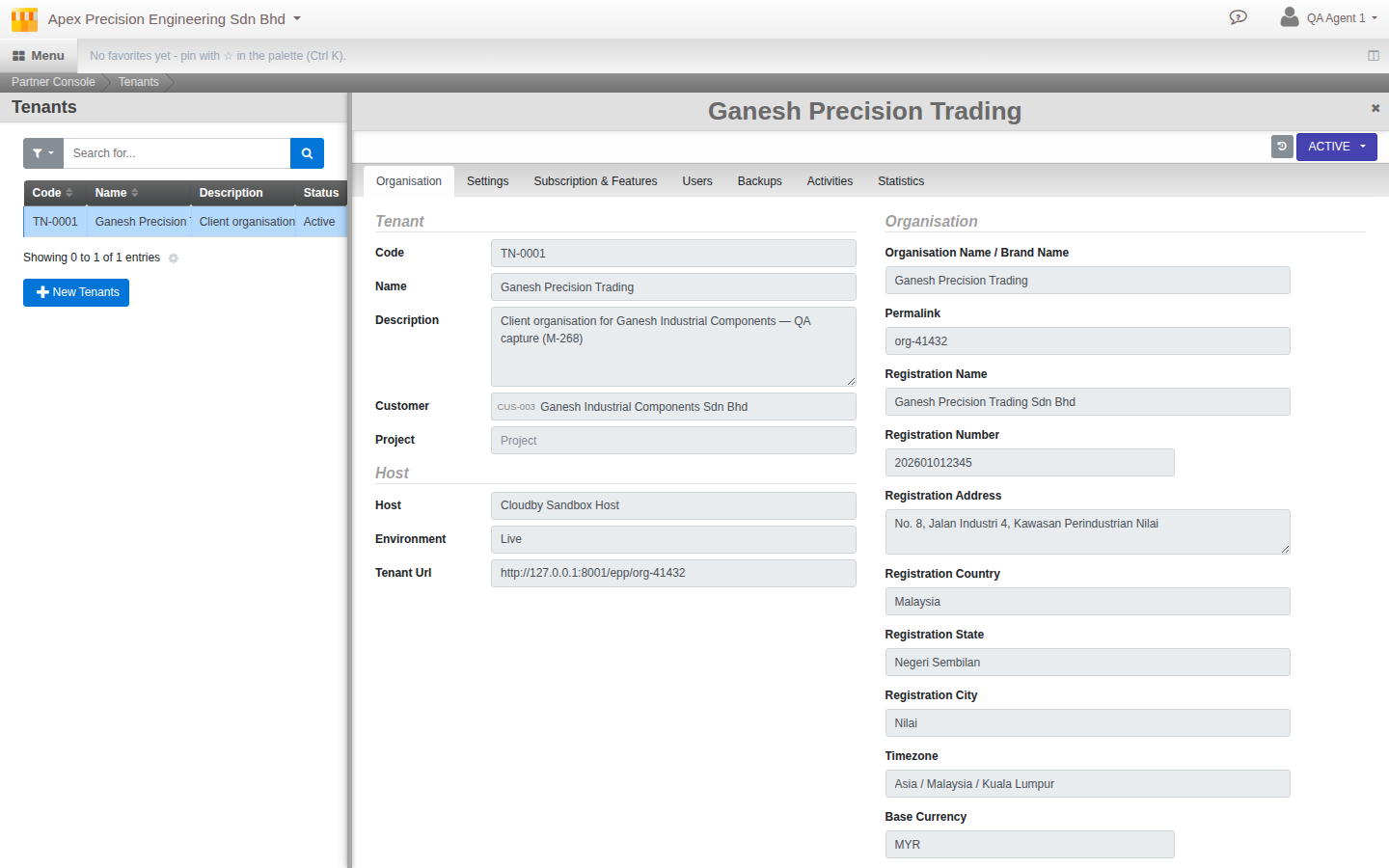
The tabs
- Organisation. The client organisation details, kept in step with the live tenant.
- Settings. Admin and user notices (with expiry) and scheduled downtime windows are yours to set here. Commence, suspend and terminate dates are also shown, but as a read-only record synced from the tenant, not fields you edit from this tab.
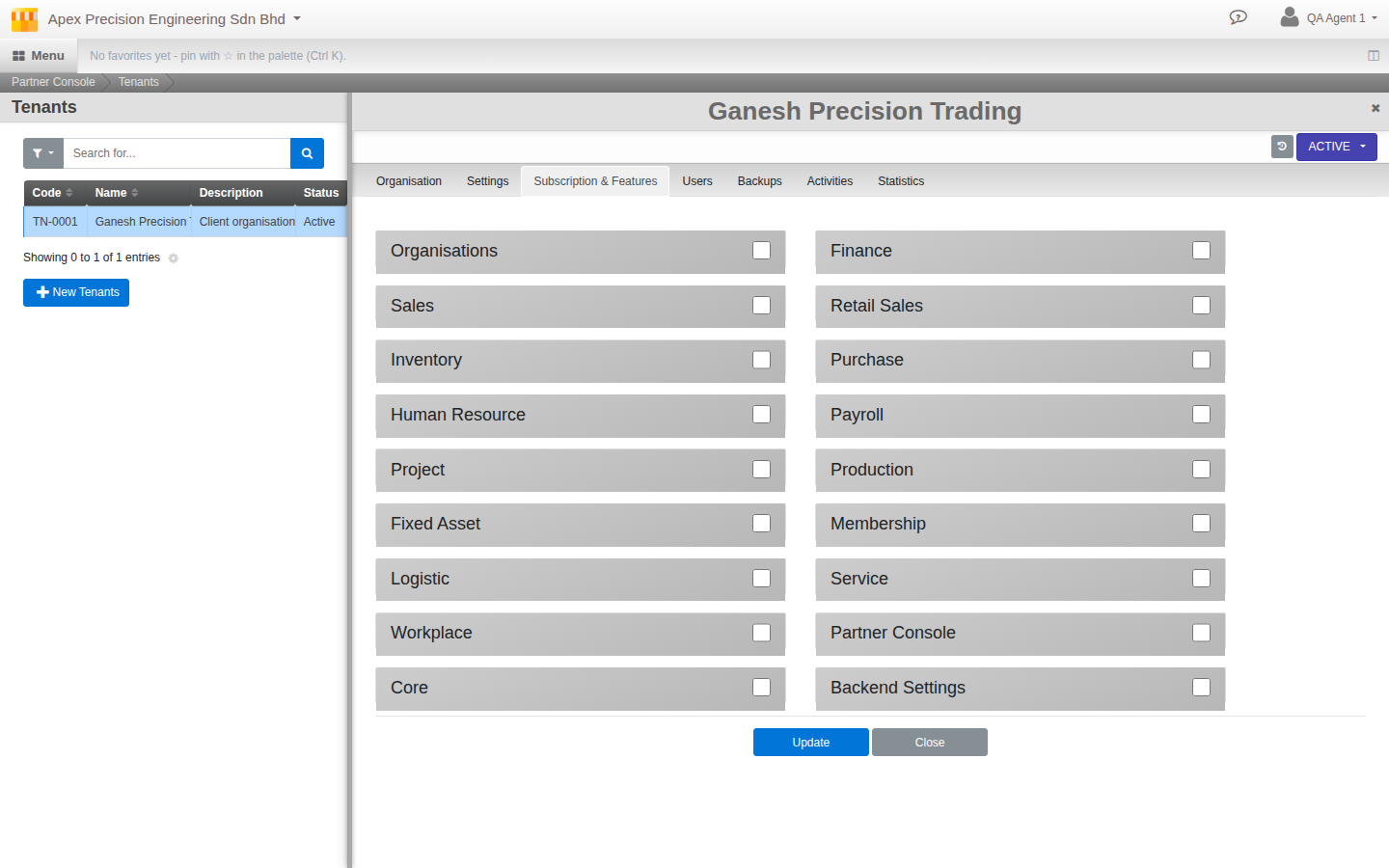
- Subscription & Features. The modules and features the client has switched on.
- Users. The partner users who may access this client organisation.
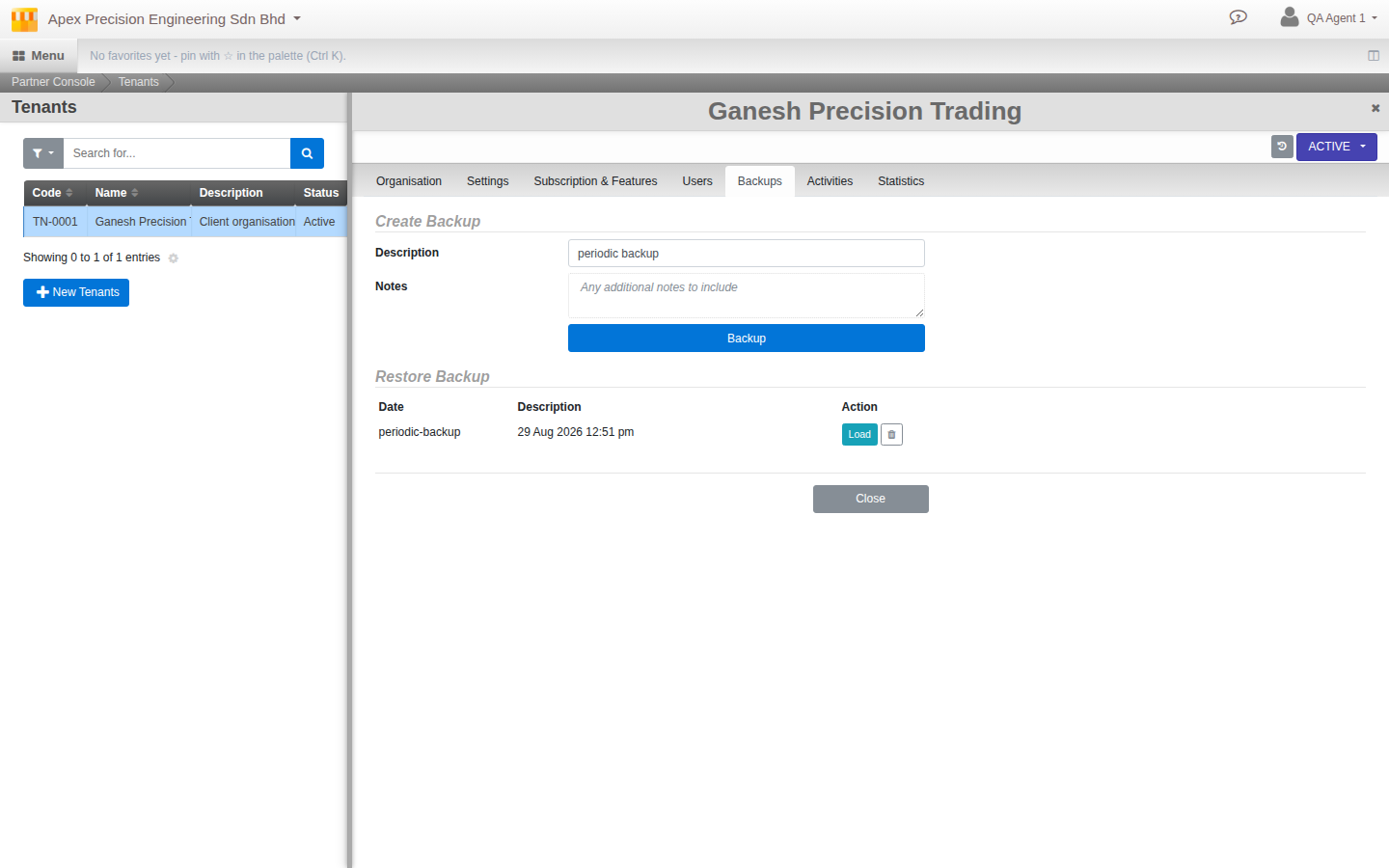
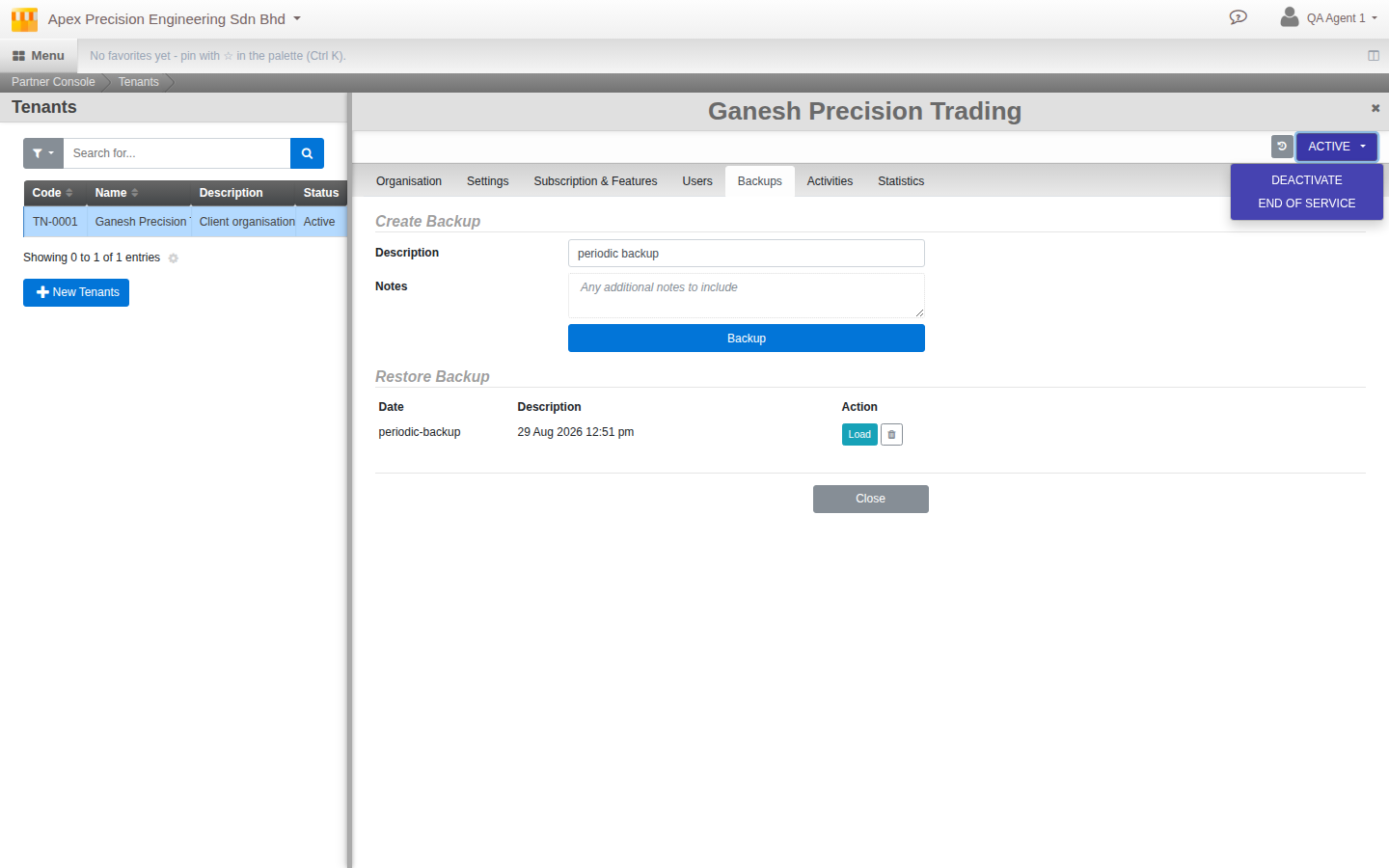
- Backups. Create, restore and remove backups.
- Activities. The activity log for the client, so you can see what happened and when.
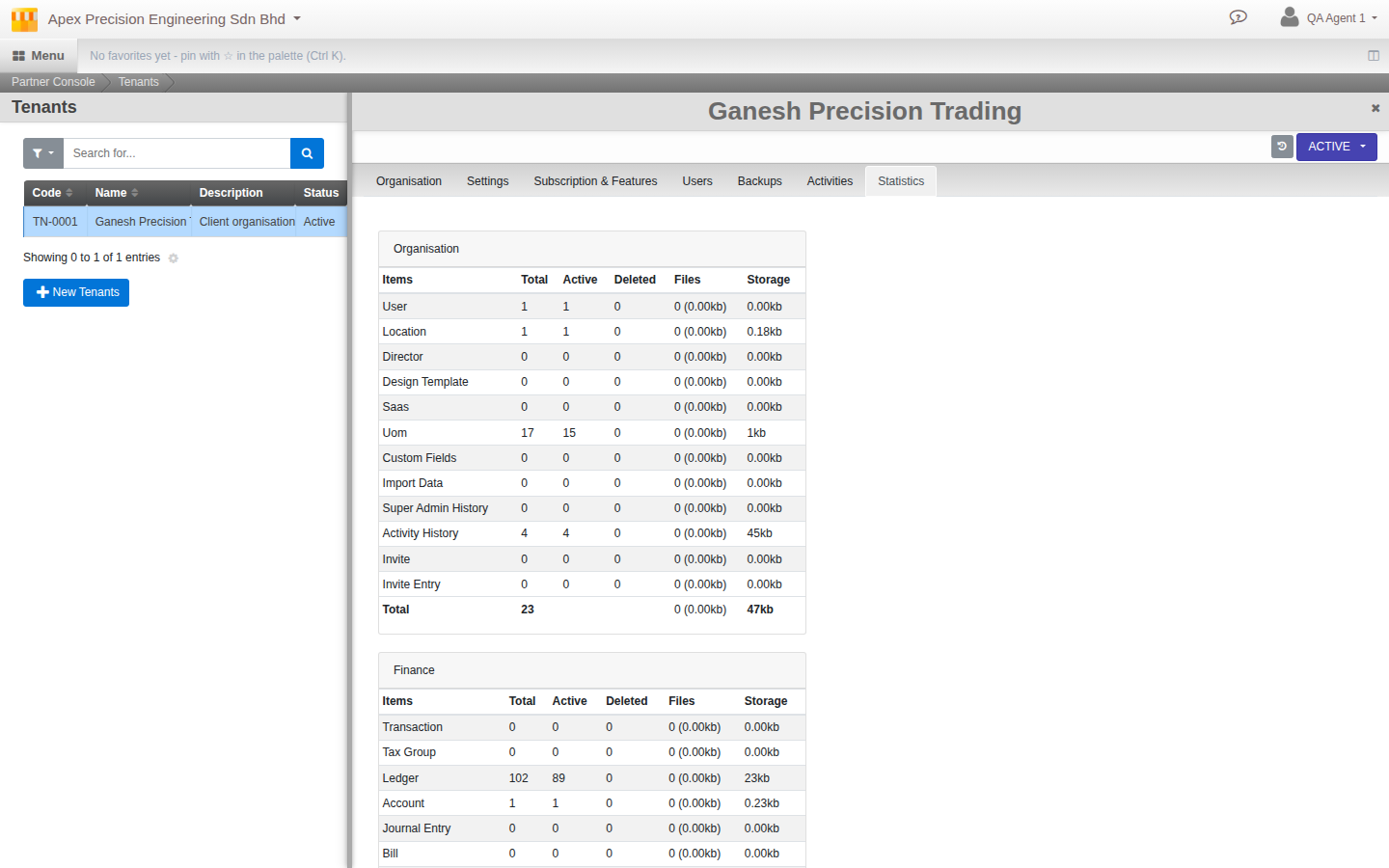
- Statistics. A read-only usage snapshot — how many records of each kind (users, ledger entries, documents, storage used) the client organisation holds, by module.
The service lifecycle
A tenant moves through Draft, Active, Hold and Complete (service ended), driven by the status button at the top of the tenant: Deploy to go from Draft to Active, Deactivate to put an Active tenant on Hold, Activate (or Restore, once ended) to bring it back, and End Of Service to complete it. A Complete tenant can finally be Deleted — this is permanent, and destroys the live organisation.
Good to know. Notices and downtime windows let you tell a client about maintenance in advance, shown to their administrators and users at the times you set.