
Scope: what the Stock import covers and does not, setting opening quantity and cost, the progressive stock-count technique, and Bulk Edit for stock.
What this guide is not: a guide to data import order (see the data import order guide) or to finance data setup (see the finance data guide).
1. What Stock import covers, and does not
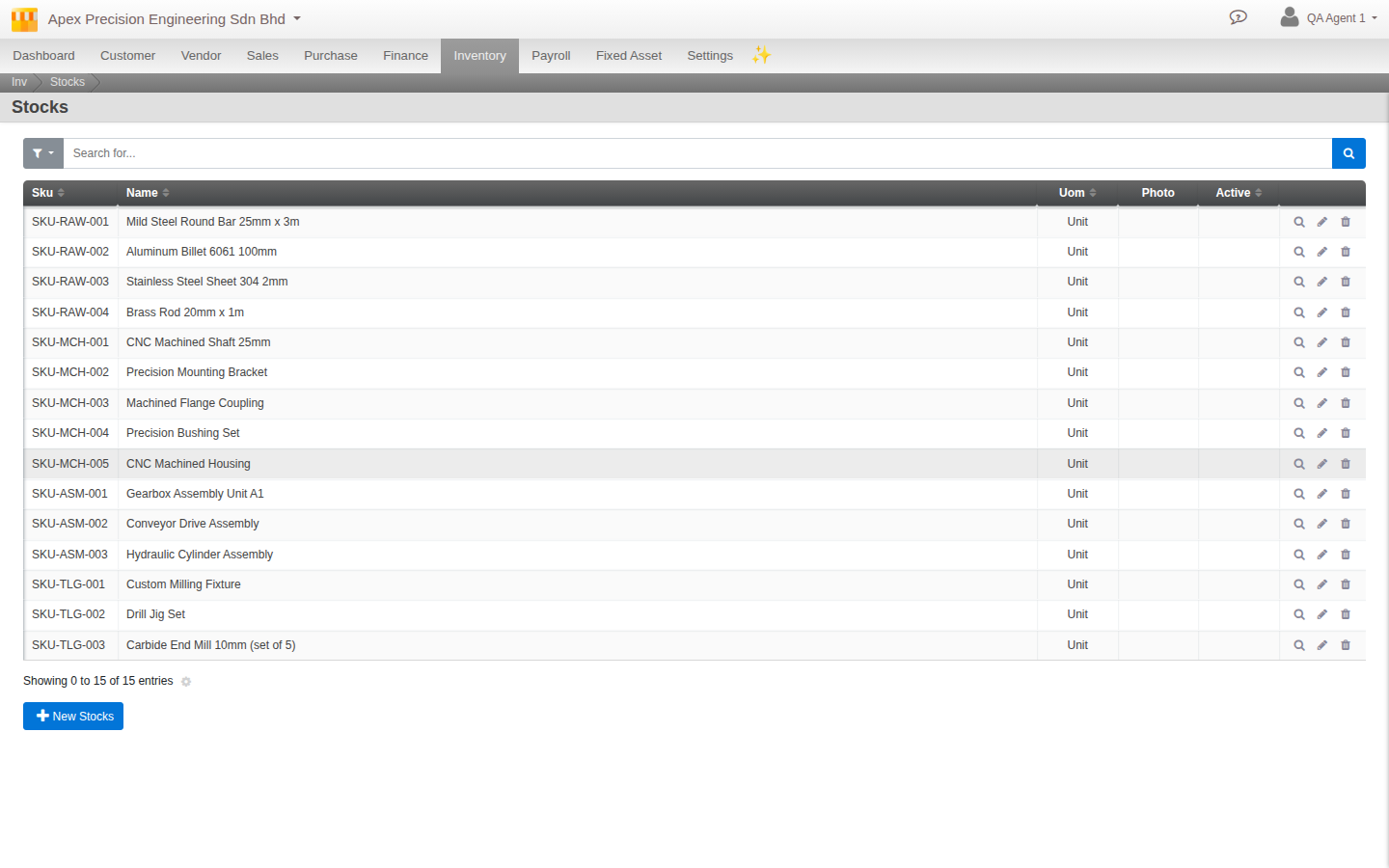
The Stock import brings in the SKU itself, code, name, description, unit of measurement, class and category, and a handful of physical attributes. It does not carry quantity, cost, or location, those live in a separate part of the system entirely and are never touched by importing the SKU. A Unit of Measurement is required for every stock item, Class and Category are optional and Category falls back to a default if left blank.
Further reading. How to: Import and export your data.
2. Setting opening quantity and cost
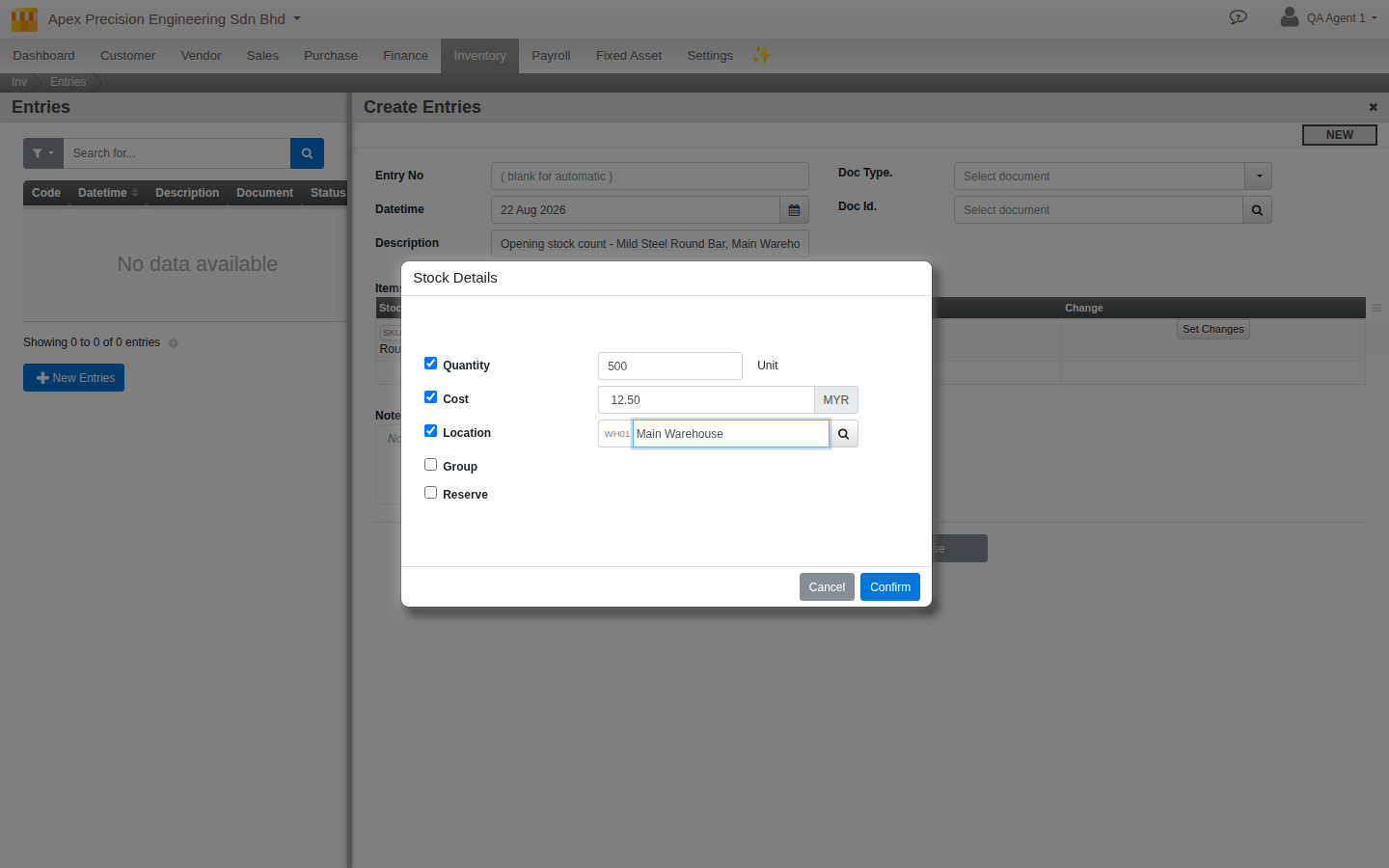
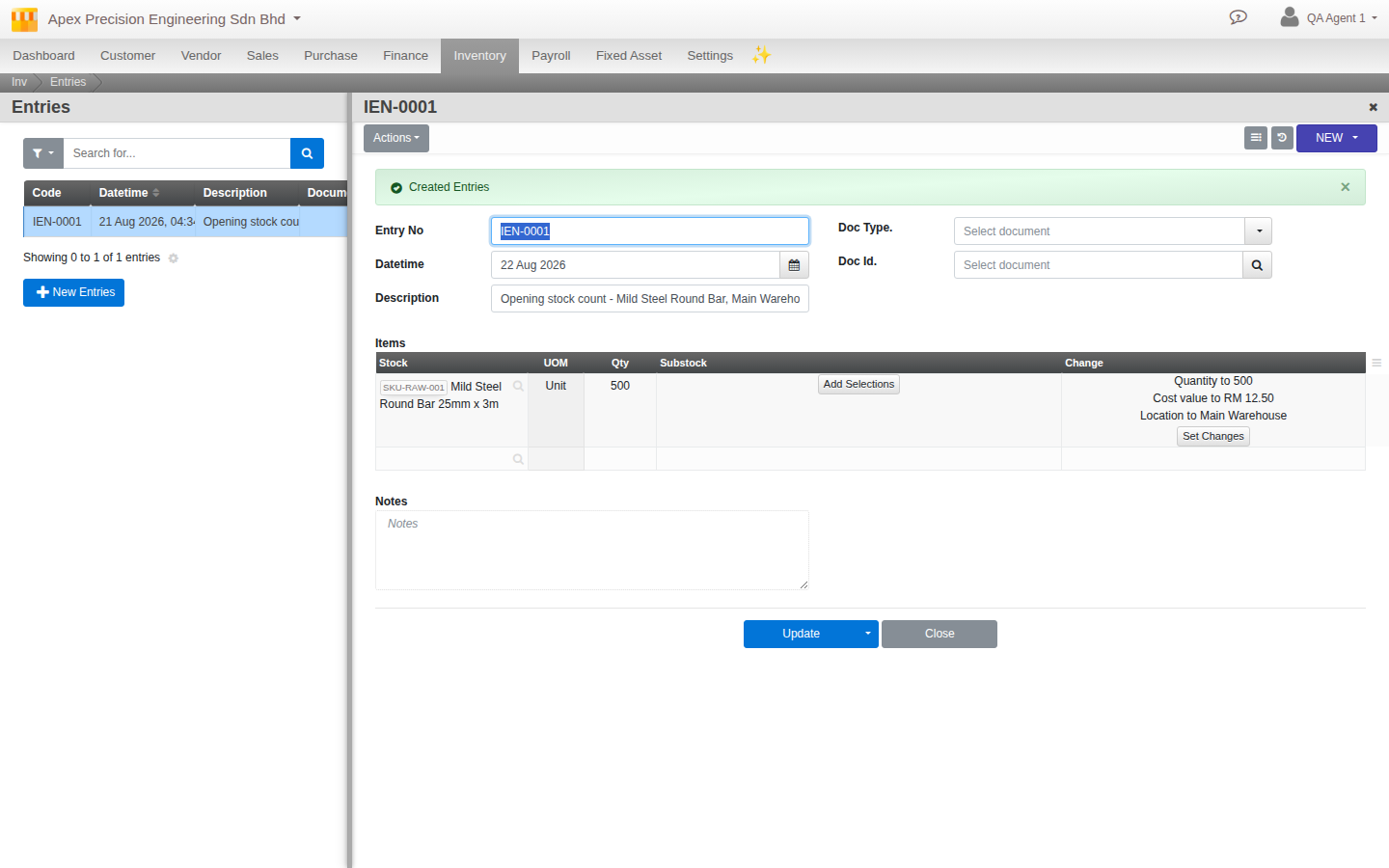
Go to Menu > Inventory > Adjustments > Adjustment Entry. This is the real, live tool for setting how much of a SKU you hold and at what cost, and it is a general-purpose tool, not a dedicated opening-balance importer, worth knowing plainly rather than assuming otherwise.
An entry is made up of lines, and each line opens a Set Changes panel offering five checkboxes, quantity, cost, location, group, and reserve, only quantity, cost, and location matter for an opening balance, the other two are for more specialised stock movements. Setting quantity is a direct assignment, you are telling Cloudby the correct figure as of now, not adding or subtracting from whatever it already holds, which is exactly what an opening balance needs. Every entry requires a description and a date, moves through a Draft to Posted lifecycle, and posts to the ledger the same way any other document does, so it is a real, traceable transaction, not a silent overwrite.
Further reading. Guide: Getting your finance data right, for how this posting ties into your opening balances more broadly.
3. The progressive stock-count technique
For a large stock count, getting every item exact on day one is not always realistic. A real, workable alternative: start with your best estimate for every item, then correct location by location, or category by category, as you physically count each section, using the same Adjustment Entry tool from section 2 each time, scoped to just that location.
By the end of your counting period, every item has passed through a real physical count and a real correcting entry, and you have a complete, traceable record of when each correction happened and by how much, which is a useful side effect even for a business that does not otherwise need this staged approach.
4. Bulk Edit for stock, and the size limit
Stock supports Bulk Edit, but only through the extended Stock import, not the plain one, and only for renaming a SKU’s code or deleting it, the same narrow scope Bulk Edit has everywhere else, covered in the data import order guide. The same real 30 second execution limit from that guide applies here too, a large stock catalogue is best split into a few smaller files rather than one giant one.
Further reading. Guide: Data import order.
What’s next
A few notes as you work through your inventory data:
- Data import order, including where Stock sits relative to the master data it depends on, is covered in its own guide, not repeated here.
- Finance data setup, including how a posting ties back to your opening balances, is covered in its own guide too.
- There is no self-service backup or restore point available to an organisation admin today, and no undo for a posted adjustment entry beyond posting a correcting one. Scope each batch of entries to something you can verify before moving to the next.
Scenarios and troubleshooting
I imported my Stock list but quantity and cost are still showing as zero.
Expected, see section 1. The Stock import never carries quantity or cost, use Adjustment Entry, section 2, to set them.
I was expecting a dedicated stock-count or cycle-count screen and cannot find one.
There is not one today, see section 3. The progressive technique described there uses the general Adjustment Entry tool instead, and works, it is simply not a purpose-built feature.
I need to bulk-correct stock quantities for many items at once.
Bulk Edit will not do this, section 4, it only renames or deletes. Quantity and cost corrections go through Adjustment Entry, section 2, one entry covering as many lines as you need.
Related
- How to: Import and export your data