
Scope: what order entities need to go in, the real import mechanic (Upload, Review, Import), how to verify a batch, what Bulk Edit actually does, and how to handle very large volumes.
What this guide is not: a guide to opening balances or to inventory cost and location, each has its own guide, linked from the relevant section below rather than repeated here.
1. Why order matters
Data Porting imports by matching codes, a Customer row references a Customer Category by code, a Sales Invoice references a Customer by code, and so on. If the thing being referenced does not exist yet, the import does not guess or create it for you, it fails that row with a clear reason. Importing in the right order the first time avoids a frustrating cycle of failed rows, fixes, and re-uploads, and for anything that posts to the ledger, getting the order right also means your Chart of Accounts is ready to receive it.
Further reading. How to: Import and export your data. Reference: Data Porting.
2. The dependency map
Five practical waves, each depending only on what came before it. Within a wave, order does not matter, entities in the same wave do not reference each other.
3. The import mechanic
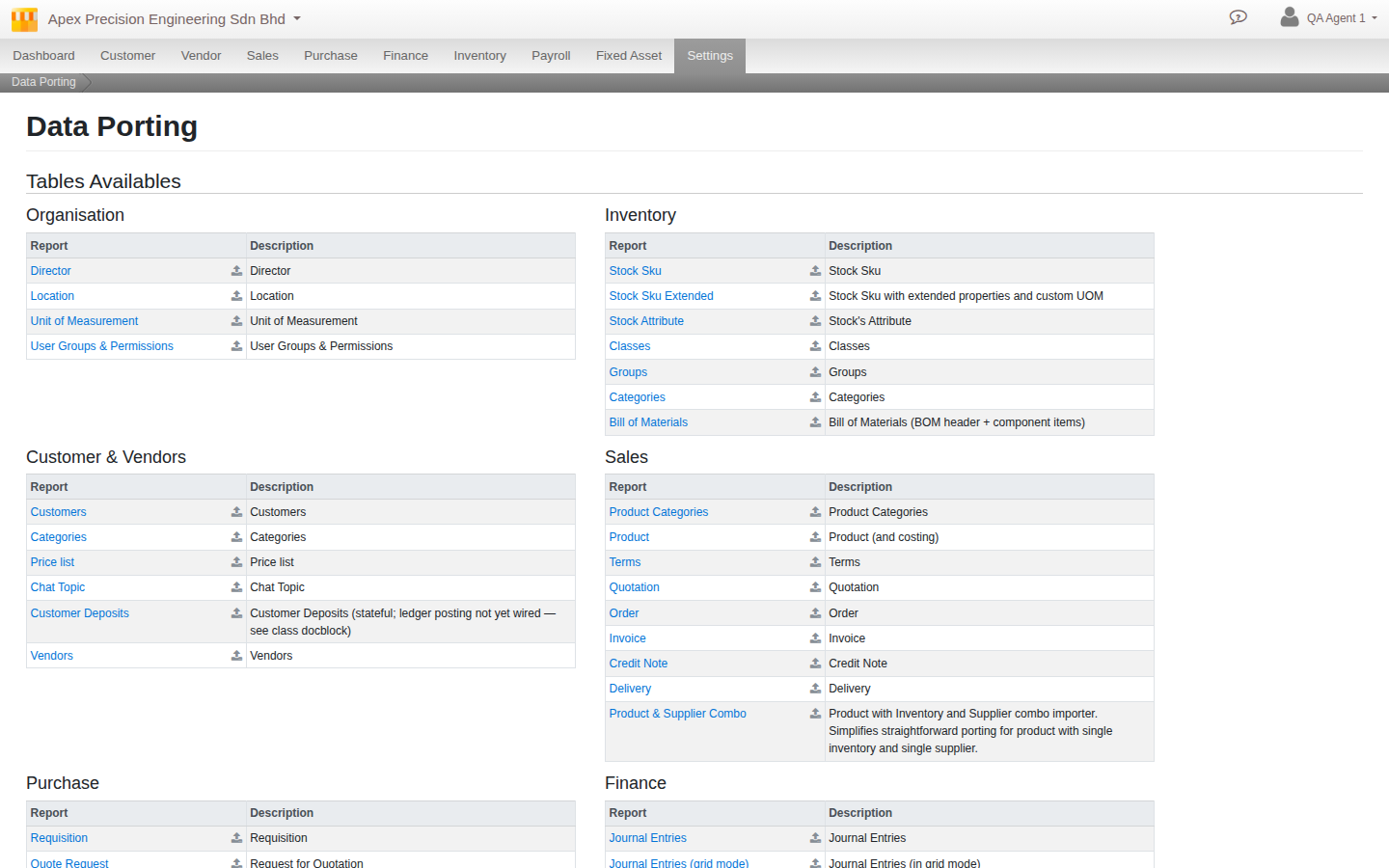
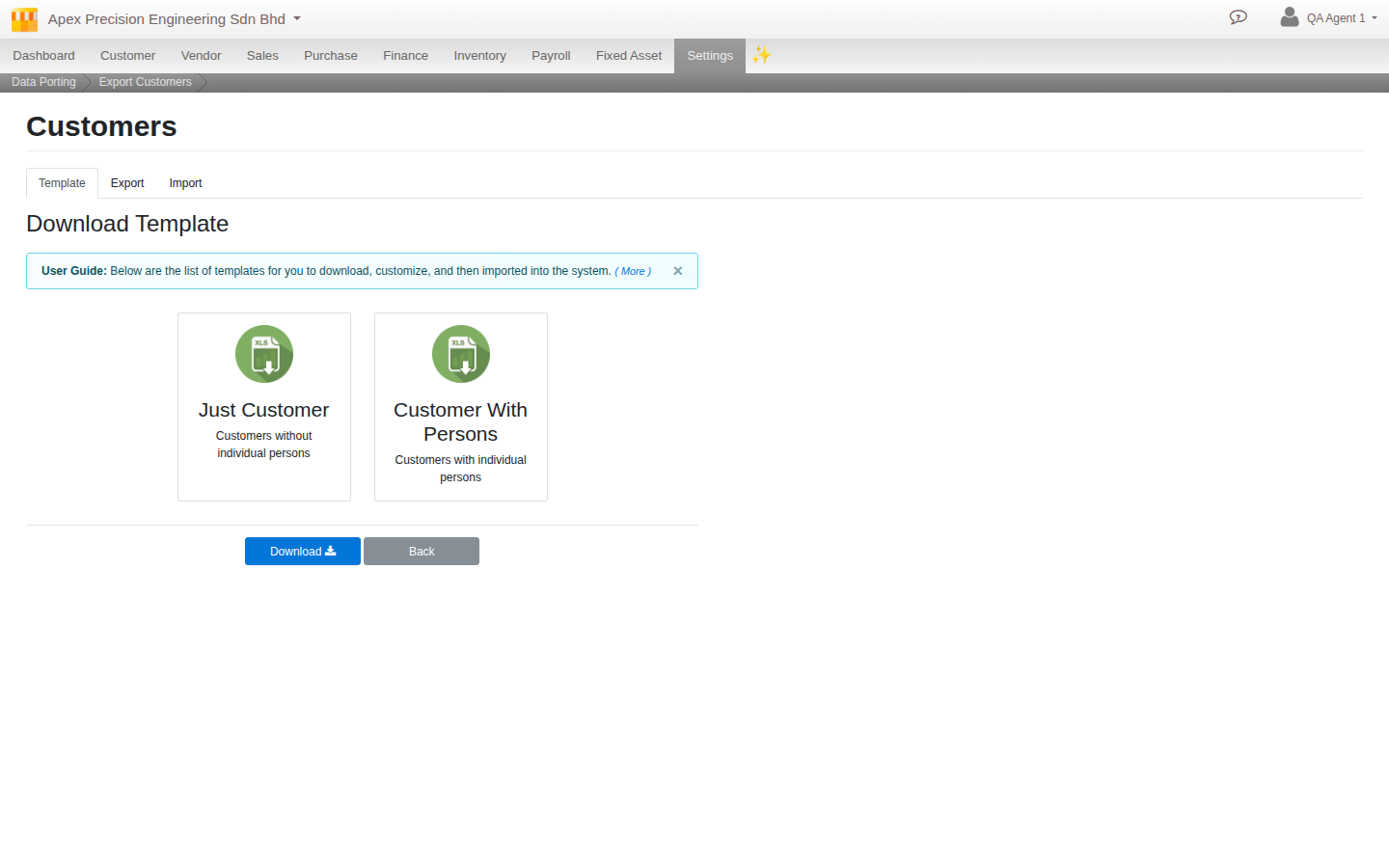
Go to Menu > Settings > Administrative > Data Porting. Every entity follows the same real, on-screen stepper: Upload, Review, Import. Pick what you are importing from the entity list, and each entity’s screen offers a Template tab to download a spreadsheet with the right column headers already in place.
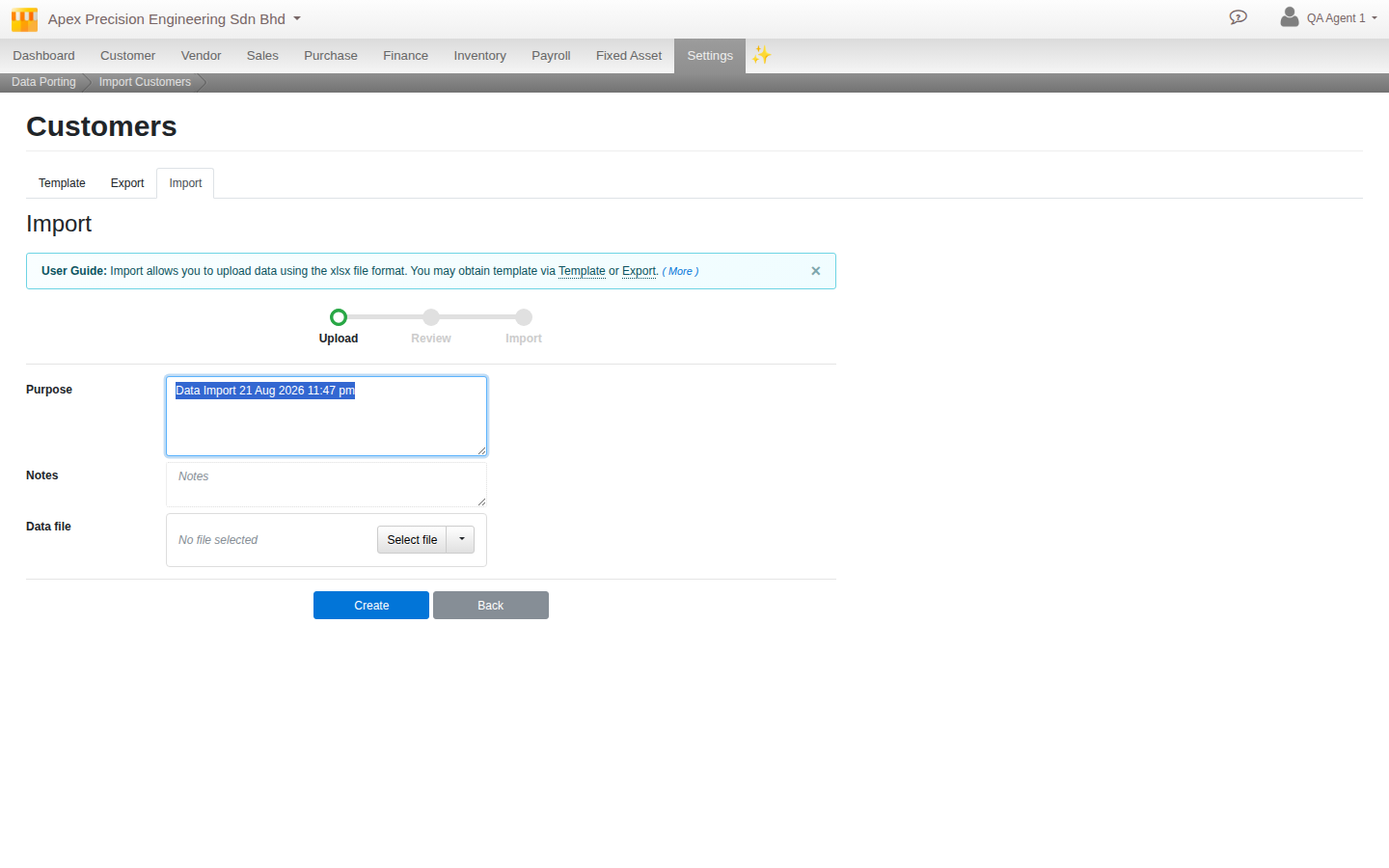
On the Upload tab, attach your filled-in spreadsheet, nothing has happened to your data yet, then a button labelled Validate checks every row and produces a report right there. If any row is clean and you are ready to proceed, the same tab’s final action button, labelled Create, is what actually commits the data. Review is where you read that report before deciding to proceed, there is no separate button confirming a commit, Create at the Upload stage is the real point of no return.
Further reading. How to: Import and export your data.
4. Verifying a batch
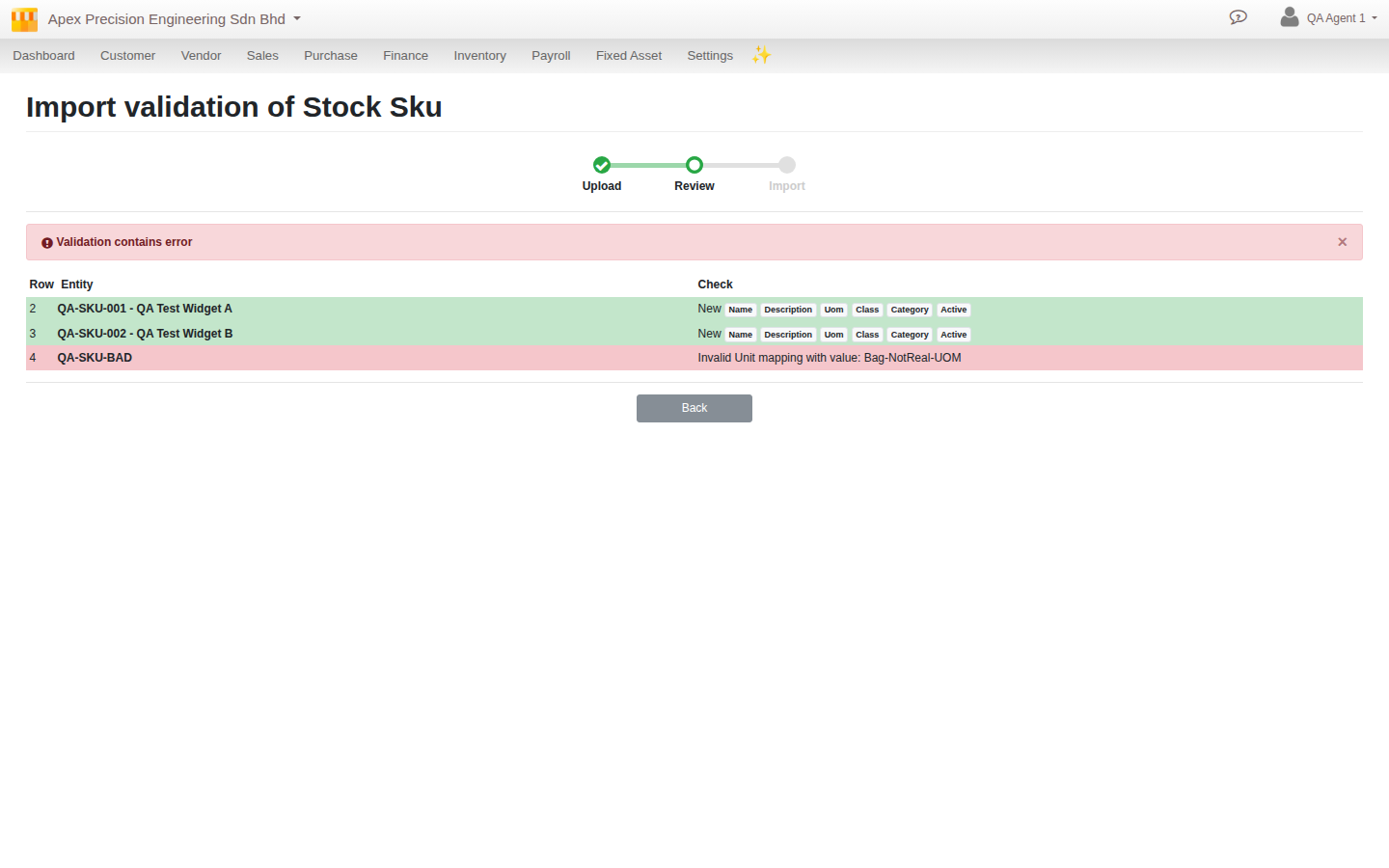
Validate reads every row and reports, row by row, which are fine and which have a problem, naming the exact reason for each. In one real test, a Stock SKU sheet with a unit of measurement that did not exist reported back precisely: “Invalid Unit mapping with value: Bag-NotReal-UOM”, exactly as specific as it sounds. Nothing is saved from this report on its own, you either fix the source spreadsheet and re-upload, or once every row is clean, use Create to commit.
Further reading. How to: Import and export your data.
5. Bulk edit: what it actually does
Bulk Edit is a separate, deliberately narrow tool, not a way to re-upload a spreadsheet and change any field on existing records. Working from a worksheet tab named “Bulk Edit,” it supports exactly three operations per row, matched by the entity’s code: rename the code itself, a status change where the entity supports one, and delete, done by typing the word DELETE in a Delete column. Everything else about a record, its name, description, any business field, is untouched by Bulk Edit, the ordinary Data-sheet import is what handles that.
6. Handling large volumes
There is no row-count or file-size limit written into Data Porting itself, a large sheet is read a document at a time rather than loaded whole into memory. The real constraint is a fixed 30 second server-side execution window on every import request. A sheet with simple, flat rows, Stock SKUs with no nested lines, handles far more rows in that time than one with many child lines per document, a Bill of Materials with a long component list, for example. If an import does not finish in time, the request fails outright with no partial progress kept, since the whole batch runs inside one transaction.
What’s next
A few notes as you plan the rest of your data migration:
- Opening balances, the correct technique for entering them, and what goes wrong if you skip it, are covered in their own guide, not repeated here.
- Inventory cost and location, including a real technique for correcting stock counts progressively rather than all at once, are covered in their own guide too.
- This guide describes Porting as it stands today. Tax code validation on invoice and bill line items happens downstream of the import layer itself and was not traced in full for this guide, treat any tax-related import warning on those documents as worth double checking manually.
Scenarios and troubleshooting
My import failed on a row that references something I am sure I already imported.
Check the wave table in section 2, the reference likely needs a code match, not just a name that looks similar, and a small typo or trailing space in either sheet is enough to break the match. Re-check the exact code in both places.
I need to bulk-import stock levels or bulk-fix product descriptions.
Bulk Edit will not do this, see section 5, it only renames, changes status, or deletes. Quantity and cost are set through Inventory Entries instead, covered in the inventory guide, and a description change goes through the ordinary Stock import.
A large import keeps failing partway through with no clear error.
This is very likely the 30 second execution window in section 6, not a data problem. Split the file into smaller batches and re-try.
I committed a batch and now realise part of it is wrong.
There is no built-in undo, see the caution in section 4. Correct the affected records directly through their own screens, or through a fresh, deliberately scoped import, rather than looking for a rollback option that does not exist.
Related
- How to: Import and export your data
- Reference: Data Porting
- Guide: Configuring and administering your Cloudby organisation