Learn the concept
This is the step-by-step. For what it is and how it fits the bigger picture, read Disposal in the reference.
This is the step-by-step. For what it is and how it fits the bigger picture, read Disposal in the reference.
What this does
Disposal takes an asset off your books when you sell it or write it off, and works out the gain or loss against its remaining value.
Open Disposal
Go to Menu > Fixed Asset > Disposal and click Create.
Steps
- Set the Datetime and a Description.
- Choose the Dispose Mode: Sold or Write off. For a sale, add the Customer and their contact.
- Add the asset being disposed to the Dispose Asset Items table. Each line shows the asset’s Current Value, Current Qty and Current Age; set the Dispose Price (for a sale) and Dispose Qty.
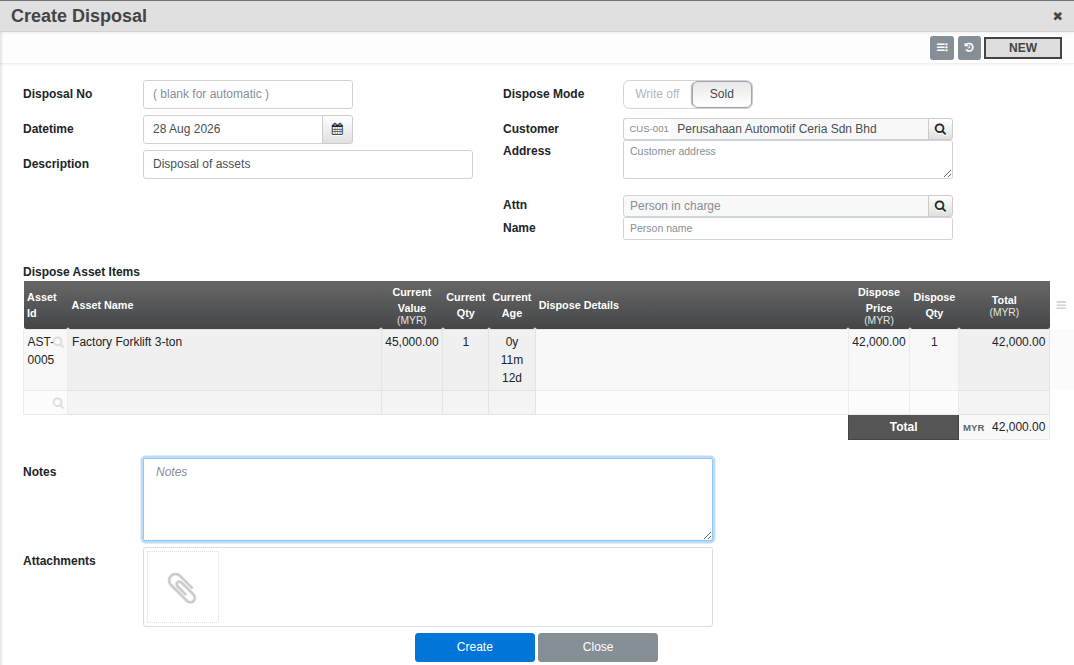
- Confirm. The asset moves to Disposed and Cloudby posts the gain or loss against its book value.
Good to know. Once a Sold disposal is posted with money still owing, a Receiving Payment action raises a real receipt voucher linked back to the disposal, so the sale and the payment stay in step.