Learn the concept
This is the step-by-step. For what it is and how it fits the bigger picture, read Payroll Batch in the reference.
This is the step-by-step. For what it is and how it fits the bigger picture, read Payroll Batch in the reference.
What this does
A batch runs payroll for a period: it calculates everyone in one go, lets you review, then posts the result to your accounts.
Before you start
Payroll items set up, and each person configured on their Payroll tab.
Open Payroll
Go to Menu > Payroll > Payroll Runs and click Create.
Steps
- Set the Payroll Date (the period end) and a Description.
- Choose the Selection: All Employees or Individual.
- Generate the batch. It calculates every payslip and sits in Draft.
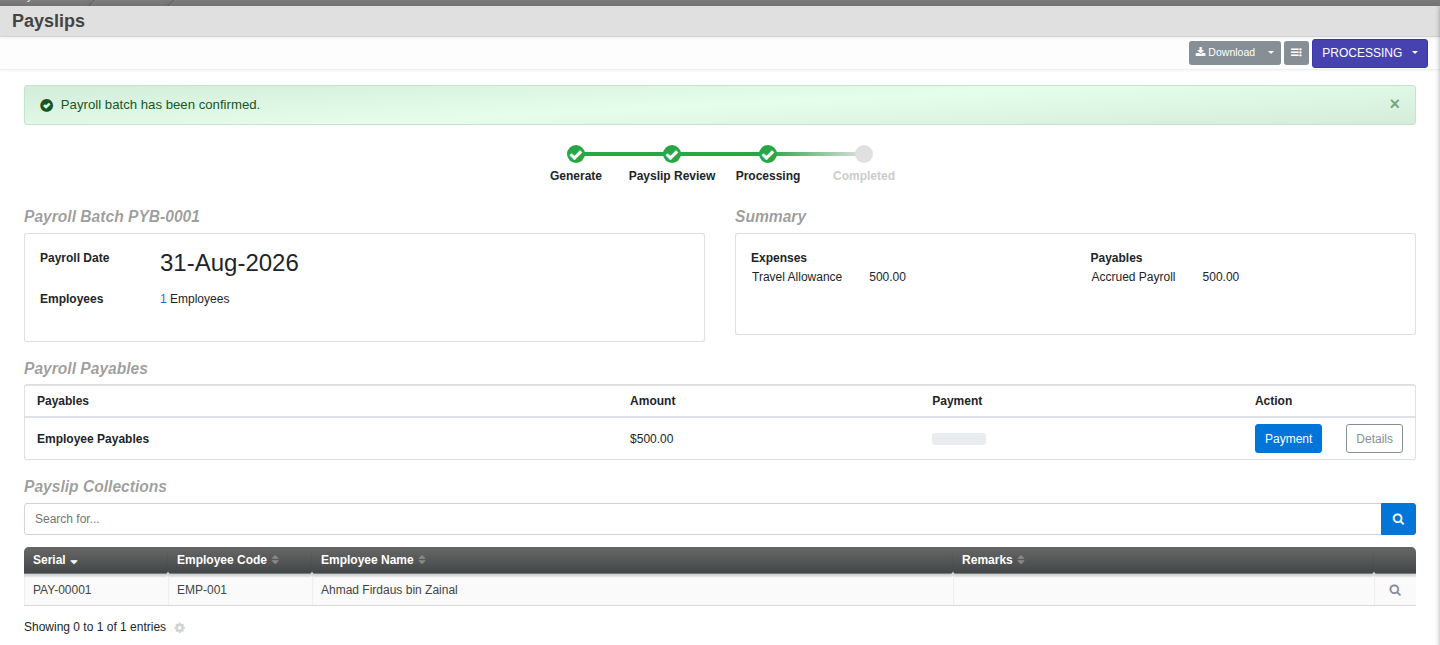
- Review the payslips and make any adjustments, then Confirm. The batch moves to Processing — this is the moment it posts to your accounts, the payroll expense and payables land on your books right here, not later.
- Once every payable (statutory remittances and net pay) is fully paid, Complete the batch to lock it — Complete is a payment-completion lock, it does not post anything itself. To stop a run before that, Cancel it (a reason is asked; only possible before anything has been paid).
The lifecycle. Draft (generated, fully editable, nothing posted yet), then Processing (reviewed and confirmed — this is when it posts to your accounts), then Completed (every payable fully paid, locked). Posting to Finance happens at Confirm, not at Complete. On screen the same stages show as a Generate → Payslip Review → Processing → Completed progress bar.