Learn the concept
This is the step-by-step. For what it is and how it fits the bigger picture, read Product Catalogue in the reference.
This is the step-by-step. For what it is and how it fits the bigger picture, read Product Catalogue in the reference.
Setup
What this is
A product is anything you sell. How you set it up decides whether it moves stock, and how.
Before you start
You need access to Sales settings.
Open Product
Go to Menu > Sales > Settings > Product.
Create a product
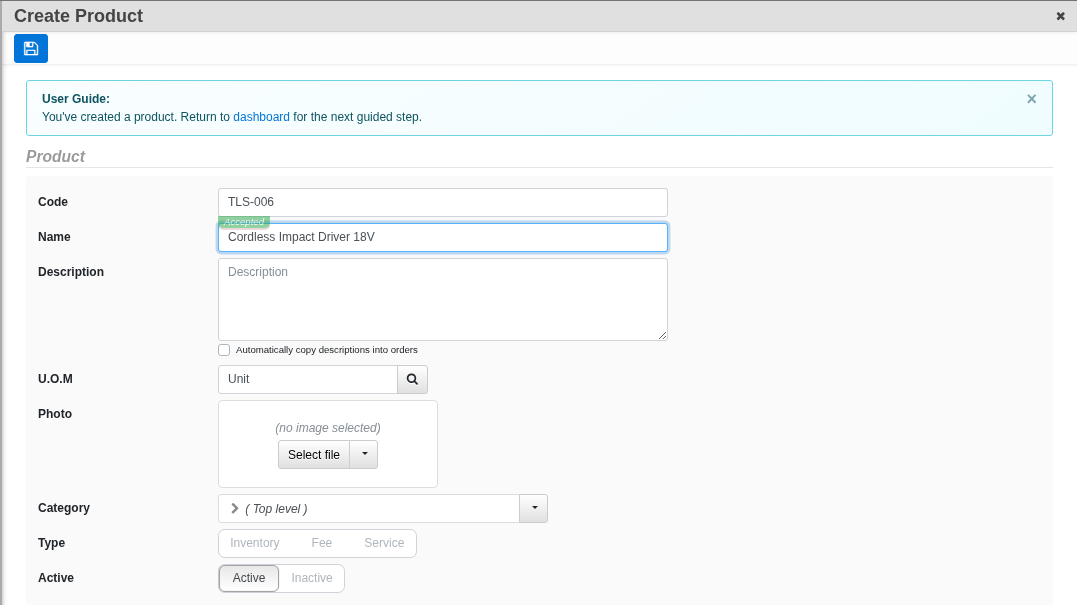
- Click Create. Enter a Code, Name and Description, and set the UOM (unit of measure).
- Set the Type (the delivery mode): Service (delivers no inventory), Fee (a charge, no inventory), or Inventory (a stocked item).
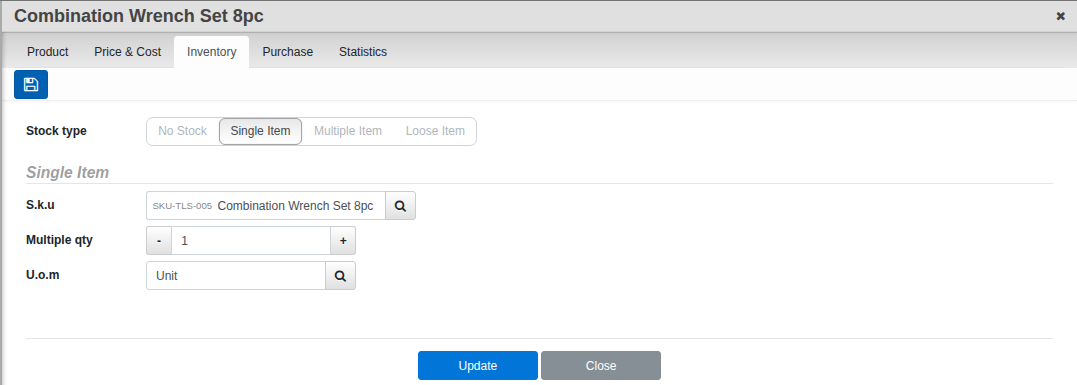
- For an Inventory product, open the Inventory tab and choose the Stock Type: Single Item (one fixed SKU), Multiple Item (a bundle of SKUs), Loose Item (the SKU is chosen on the sales document), or No Stock (nothing to track; used for products you never carry a quantity for).
- Click Create.
Field guide
- Code, Name, UOM.
- Type. Service, Fee or Inventory.
- Stock Type. Single Item, Multiple Item, Loose Item or No Stock.