Learn the concept
This is the step-by-step. For what it is and how it fits the bigger picture, read Invoice in the reference.
This is the step-by-step. For what it is and how it fits the bigger picture, read Invoice in the reference.
What this does
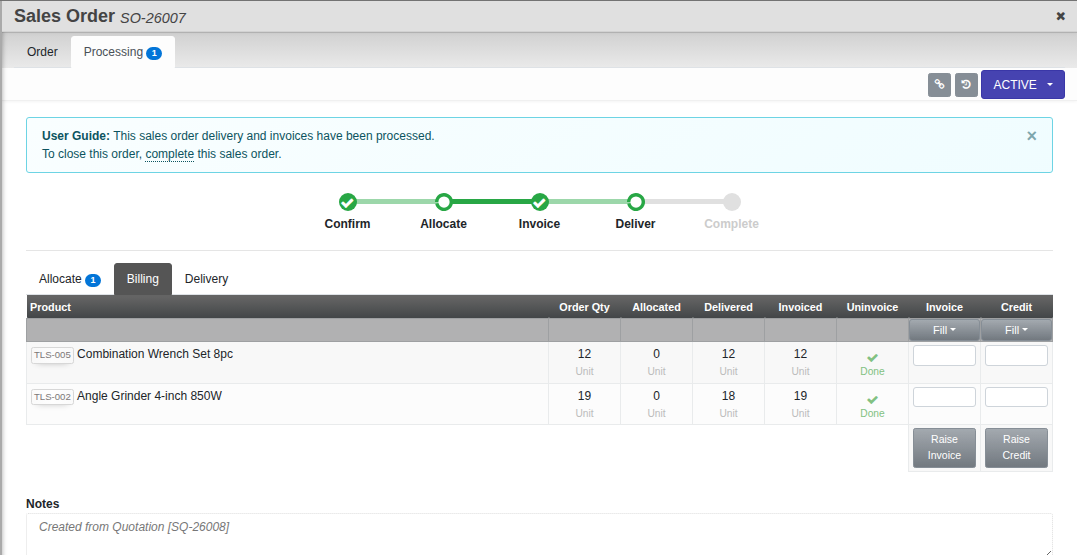
The Billing tab turns a sales order into invoices. Bill the whole order, bill it in stages, or bill by item.
Open the Billing tab
Open the sales order, go to Processing, then Billing.
Steps
- Choose how to bill: By Item bills exact line quantities; By Amount bills any amount you choose, which also covers a lump sum or a staged milestone.
- Bill the order fully, or enter partial amounts to bill progressively over time.
- Use Raise Invoice to bill. It posts to Finance and lowers what the customer still owes on the order.
- Use Raise Credit from here if you need to reverse part of a bill.
Good to know. An order can be billed across several invoices until it is fully billed.