Learn the concept
This is the step-by-step. For what it is and how it fits the bigger picture, read Quotation in the reference.
This is the step-by-step. For what it is and how it fits the bigger picture, read Quotation in the reference.
What this does
Use a quotation to price up work for a customer. Send it as a Quotation, an Estimate or a Proforma Invoice, then turn it into an order or an invoice in one click.
Before you start
The customer exists, and your products are set up.
Open Quotation
Go to Menu > Sales > Quotation.
Steps
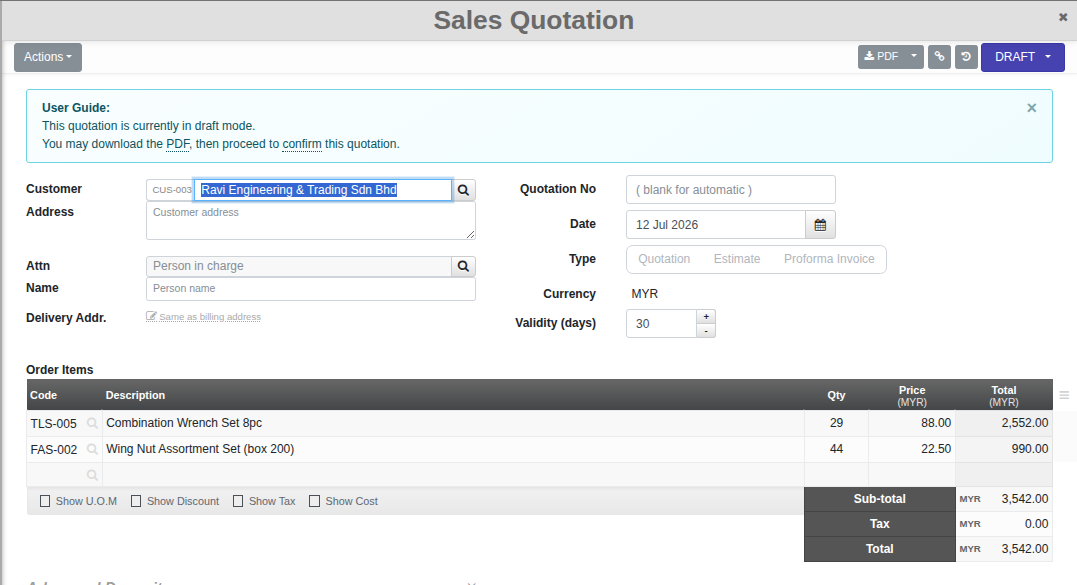
- Click Create. Pick the Customer and check the Address and Attn (the contact person).
- Choose the Type: Quotation, Estimate or Proforma Invoice.
- Add Order Items: the products, quantities and prices.
- Set Validity (days) so the quote expires.
- Confirm it. When it is posted, use Create Sales Order to turn it into an order, or Create Sales Invoice to bill it directly.
Field guide
- Customer, Address, Attn, Delivery Addr.
- Type. Quotation, Estimate or Proforma Invoice.
- Order Items. The lines you are quoting. Validity (days). When the quote lapses.
Good to know. The three types share one screen. The Type changes the heading and how the document reads to the customer.