Learn the concept
This is the step-by-step. For what it is and how it fits the bigger picture, read Expense Claims in the reference.
This is the step-by-step. For what it is and how it fits the bigger picture, read Expense Claims in the reference.
What this does
An expense claim lets an employee submit what they have paid out of pocket, so it can be approved and reimbursed.
Open your claims
Go to Menu > My Workplace and choose Claim Your Expenses. You see your claims with their counts: Pending, Approved and Rejected.
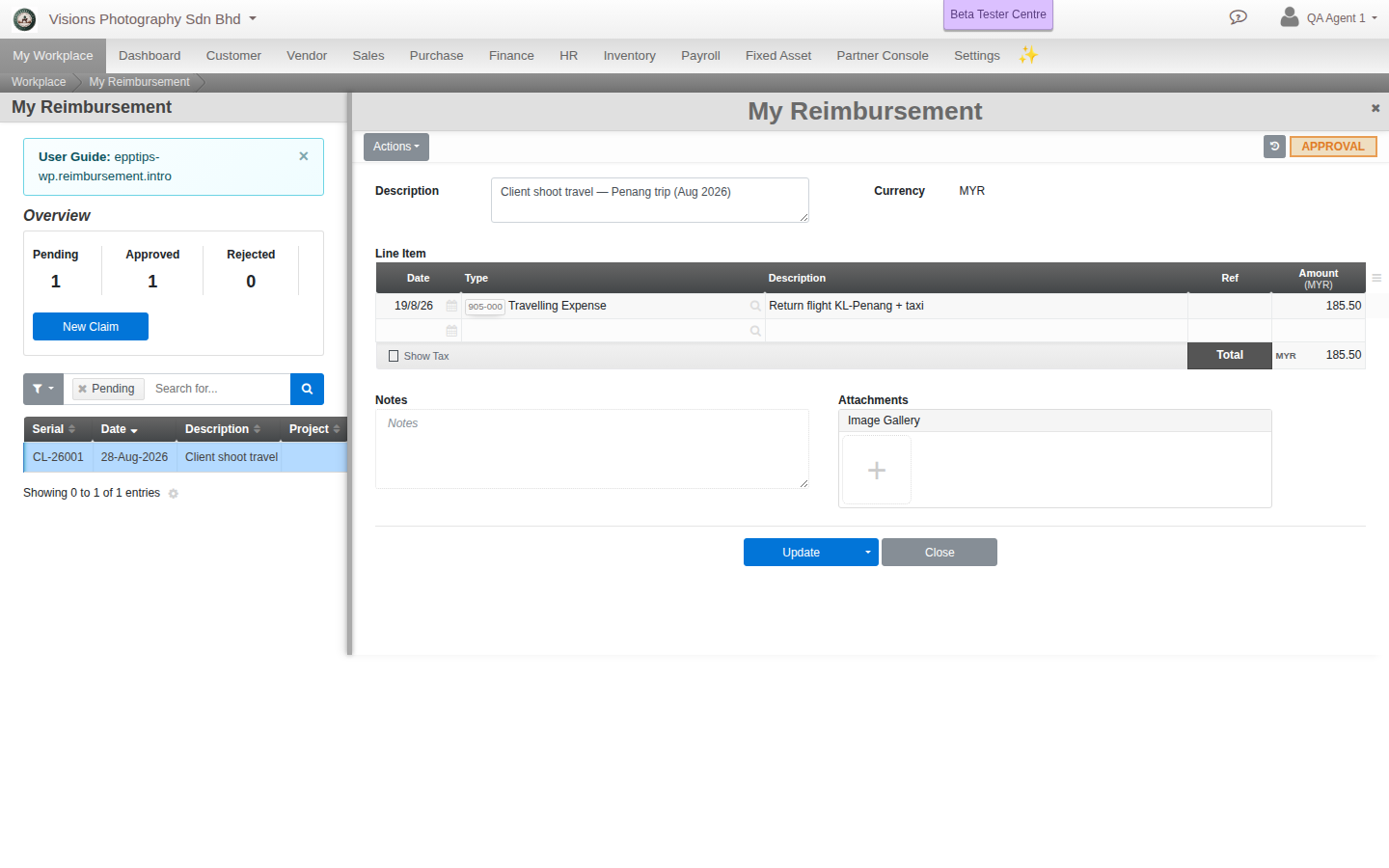
Raise a claim
- Click New Claim. Set a Description for the whole claim. The claim is yours automatically, tied to your own login, and gets its reference number once you create it.
- Add the expense lines: each one has its own Date, a Type (the expense ledger), a line Description, an optional Ref and the Amount. If your organisation uses Projects, tag one here too.
- Attach receipts under Attachments, and add any Notes.
- Use Submit for Review. The claim leaves Draft and goes to your approver.
What happens next
- Draft. Yours to edit. You can still delete or copy it.
- Submit for Review. Waiting on an approver, who accepts it or rejects it with a reason.
- Accepted. Approved and locked. It then posts to the accounts and is settled in the payroll cycle.
Good to know. A rejected claim comes back with the approver reason, so you can fix and resubmit. Once accepted, a claim locks, which keeps the record clean.
Related
- My Workplace overview
- Reimbursements