Learn the concept
This is the step-by-step. For what saved searches are and how they fit the report controls, read Report controls in the reference.
This is the step-by-step. For what saved searches are and how they fit the report controls, read Report controls in the reference.
What this is
A saved search remembers a report’s date range and filters under a name, so you reload the same view in one click instead of setting it up again. Every EPP report has a saved-search bar across the top.
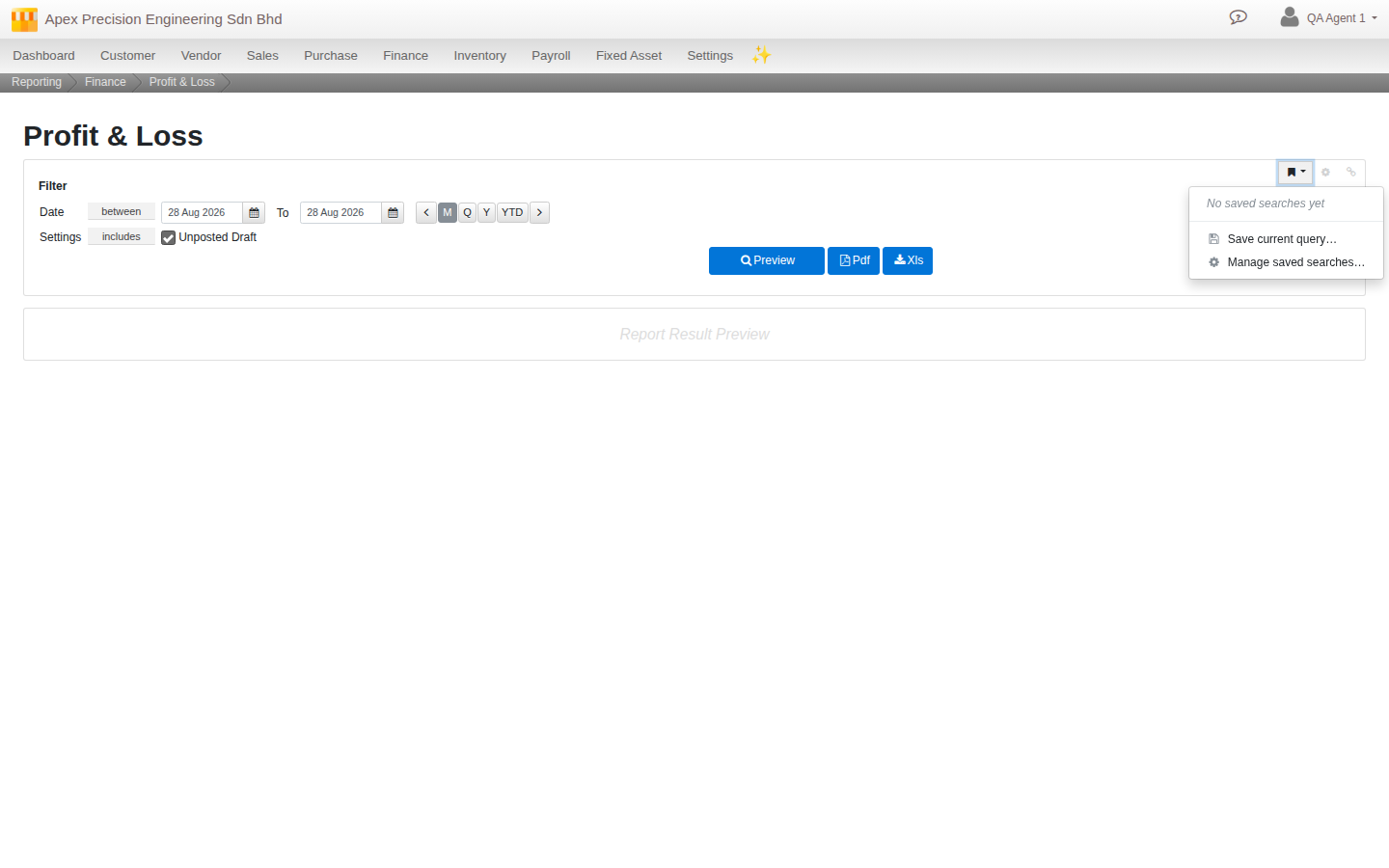
Save a search
- Open a report and set the date range and filters you want.
- On the saved-search bar, open the bookmark dropdown and choose Save current query…
- Give it a name: Cloudby suggests one from the date period: and save.
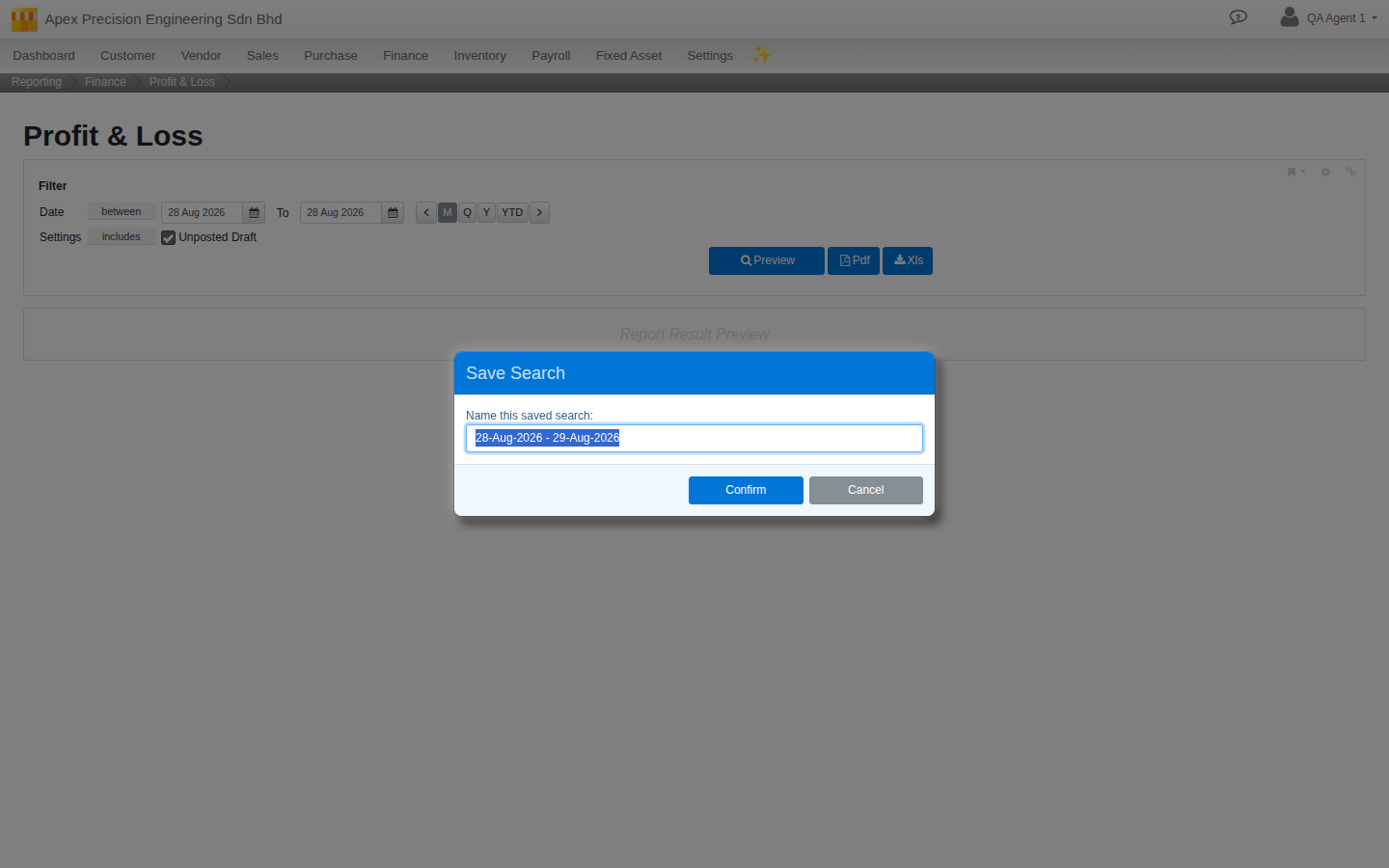
Load a saved search
- Use a starred quick-load button on the bar, or
- open the Saved searches dropdown and pick the one you want. The report re-runs with those filters.
Star your favourites
Star a saved search to pin it: starred searches rise to the top of every list and appear as quick-load buttons directly on the report bar, so your most-used views are one tap away. Until you star anything, the bar shows your most recent saved searches instead (up to 5), so it is never empty — starring is how you take control of what shows there.
Manage them all in one place
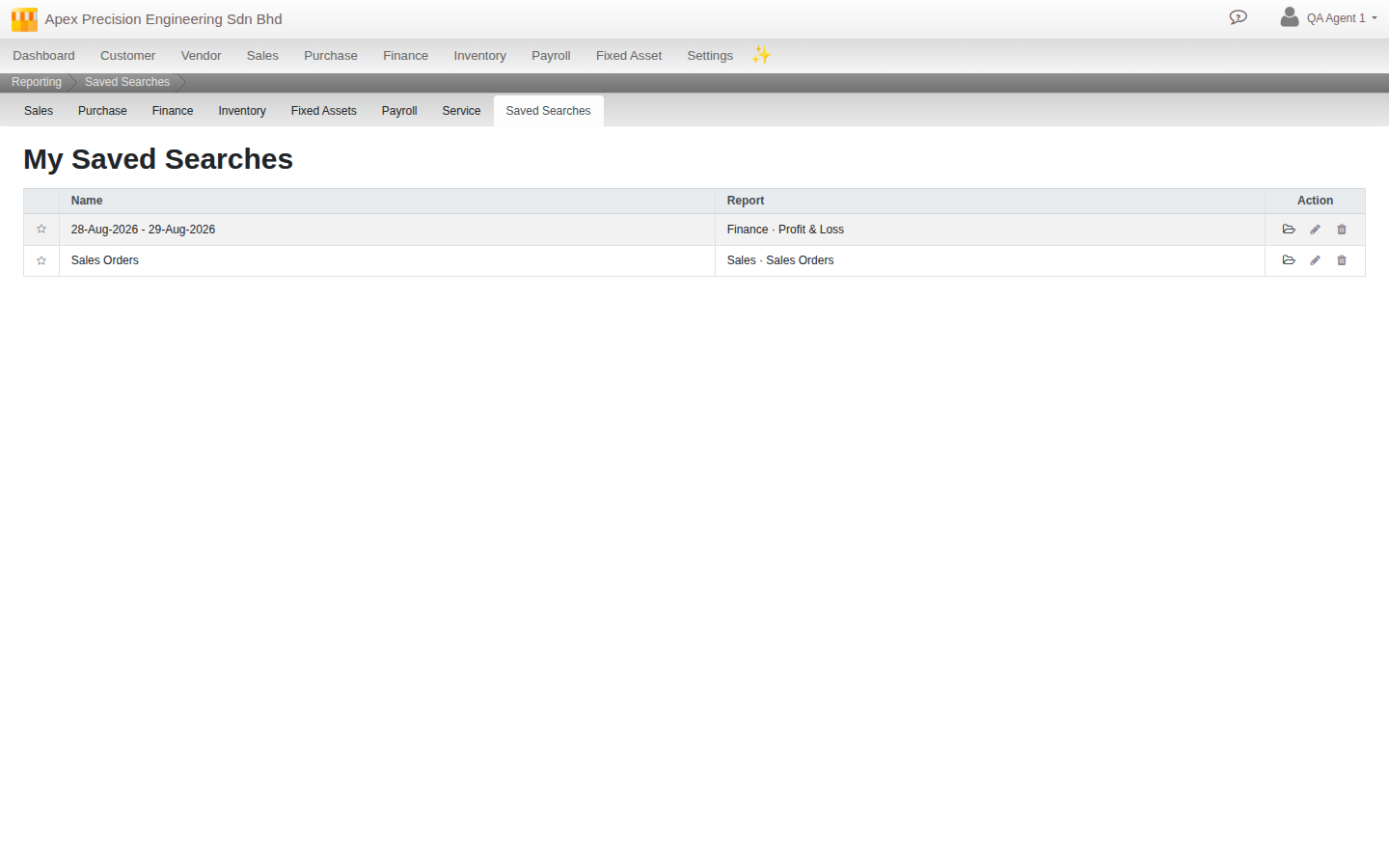
- On any report, open the bookmark dropdown and choose Manage saved searches…, or click the Saved Searches tab on the Reporting screen’s own tab strip.
- You see every saved search across all reports, each labelled with its report (for example Finance · Profit & Loss).
- From here you can load, rename, delete or star any of them (there is no duplicate action — save a fresh query if you want a variant).
Share a search by link
- Set up the query you want on the report.
- Click the link icon on the bar to copy a shareable URL.
- Send it to a colleague: opening it loads the report with the same filters already applied.
Customise the filter fields
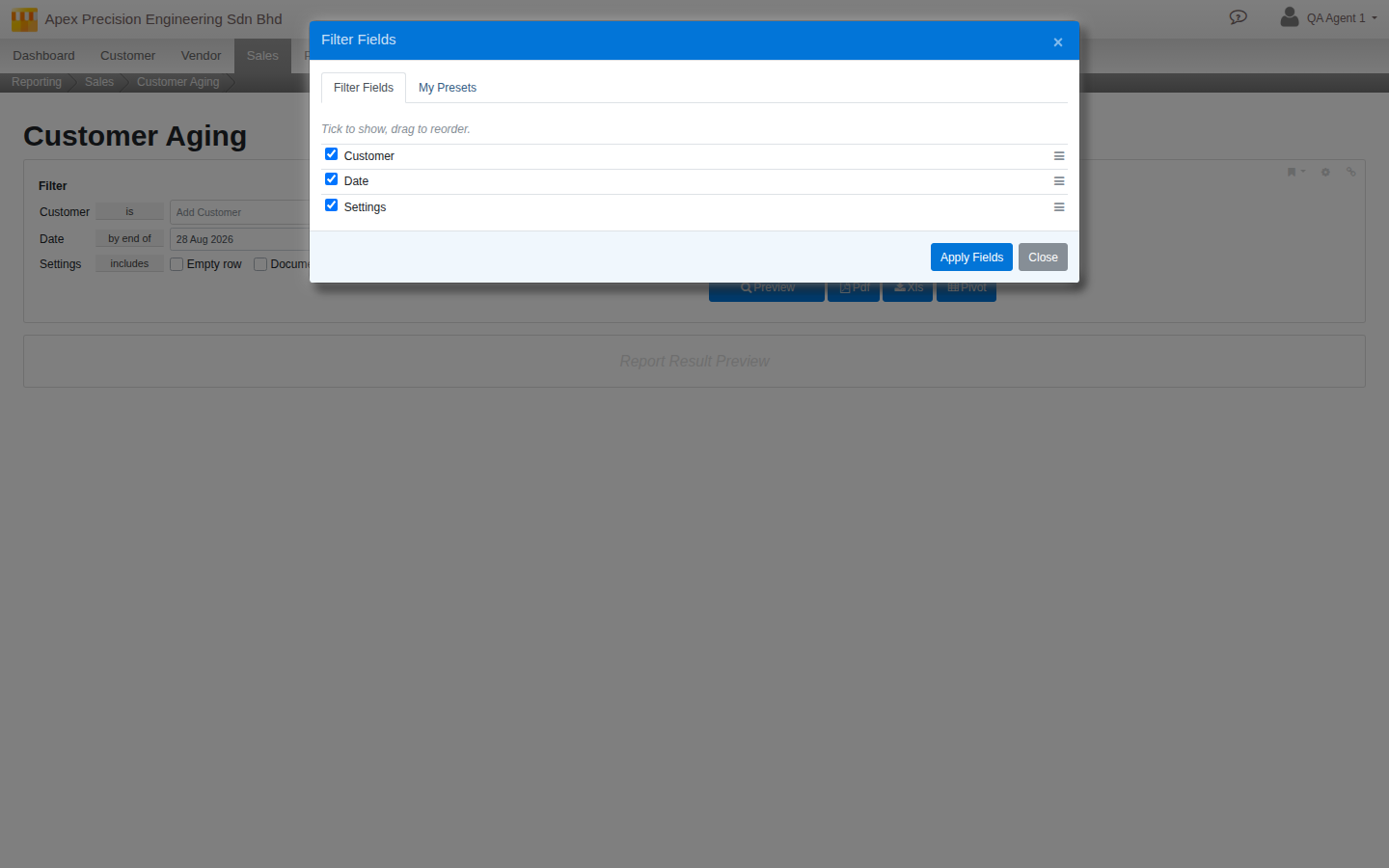
- Click the fields cog on the bar (separate from the bookmark dropdown) to open the Filter Fields dialog.
- On the Filter Fields tab, tick which fields are visible and drag them into the order you prefer. A My Presets tab sits alongside for quick access to your saved searches from the same dialog.
- The last remaining field is kept on so a report always has at least one filter.
Good to know. Saved searches are per user, per organisation and per report: they are private to you and never shared between organisations. They work on standard reports; the matrix report is not covered.
Related
- Reference: Report controls
- How-To: Reports overview