Learn the concept
This is the step-by-step. For what it is and how it fits the bigger picture, read Price List in the reference.
This is the step-by-step. For what it is and how it fits the bigger picture, read Price List in the reference.
Setup task
What this does
A price list gives chosen customers their own pricing: either a discount off your list price, or a fixed new price per item. It then applies automatically when you quote or invoice them.
Open Price List
Go to Menu > Customer > Pricelist and click New Price List.
Steps
- Enter a Name (leave Code blank for an automatic number) and pick a Pricing Mode: Discounts (a percentage off list) or New Pricing (a fixed price you set). Click Create.
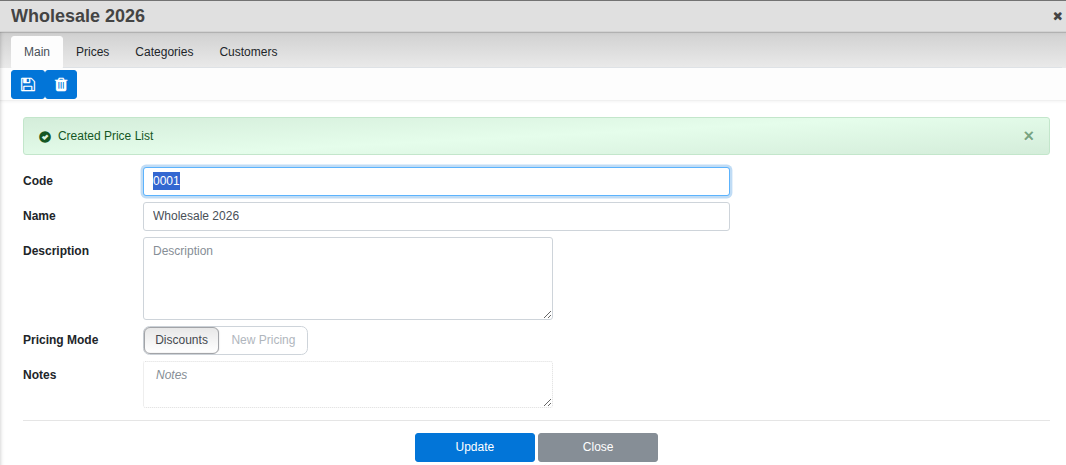
- Saving opens three more tabs: Prices, Categories and Customers. On Prices, add each product and set its Discount percentage or its New Price, depending on the mode you chose; the list also shows each product’s Ori.Price and works out the resulting Set Price.
- On Categories or Customers, choose who the list applies to.
- Click Update. The pricing now flows onto their quotations and orders automatically.
Good to know. Pricing Mode decides the whole list. Discounts keeps you tied to your list price (a rise in list price carries through automatically); New Pricing fixes the number until you change it.