This guide is how to do SST in Cloudby. For who must register, the rates, exemptions and the SST-02 itself (the regulatory side), see the SST compliance handbook.
For where tax sits among your documents and how tax groups work as a feature, read Taxation in the reference.
Scope: Malaysia / SST only.
Time: set up once, then keep the Applying tax and Filing parts open as you work.
1. The idea: two taxes, charged on a line
SST is not one tax but two: Sales Tax on taxable goods and Service Tax on prescribed services. It is run by Customs (RMCD), not LHDN. In Cloudby you never calculate either by hand: you build tax groups once, then pick the right group on each document line, and Cloudby works out the tax and posts it.
A tax group bundles one or more tax items, and each item has a rate (a percentage such as 8%, or a fixed amount) and the ledger its tax posts to. Rates are effective-dated, so when a rate changes you add a new dated rate and old documents keep resolving at the rate that applied then.
2. Set up SST (once per organisation)
Three things make SST work: your registration details, your tax groups, and (if you e-Invoice) the right tax type codes. Do them in order.
2.1 Mark your organisation as SST-registered
Open your organisation’s Compliance Profile and set SST registered to Yes. Cloudby does not currently have a dedicated screen to record your actual SST registration number or your filing frequency (SST is normally a two-month taxable period) — keep those with your own records for now and enter them directly on the MySST portal when you file.
2.2 Install the SST tax pack, or build the groups
You do not have to type the tax codes in from scratch. Open Finance → Chart of Accounts → Setup Wizard, choose the Chart of account builder, and pick Malaysia (Add-on) → SST & WHT. It seeds the standard tax groups (Sales Tax 5% and 10%, Service Tax, and the exemption codes) wired to dedicated SST ledgers, and installs the customer and vendor SST / TIN / BRN / MSIC fields. If you would rather build your own, open Finance → Tax → Tax and add each group and its rate by hand. Either way the result is the same: a set of tax groups you can pick on a line. See Tax groups and Tax rates in the reference.
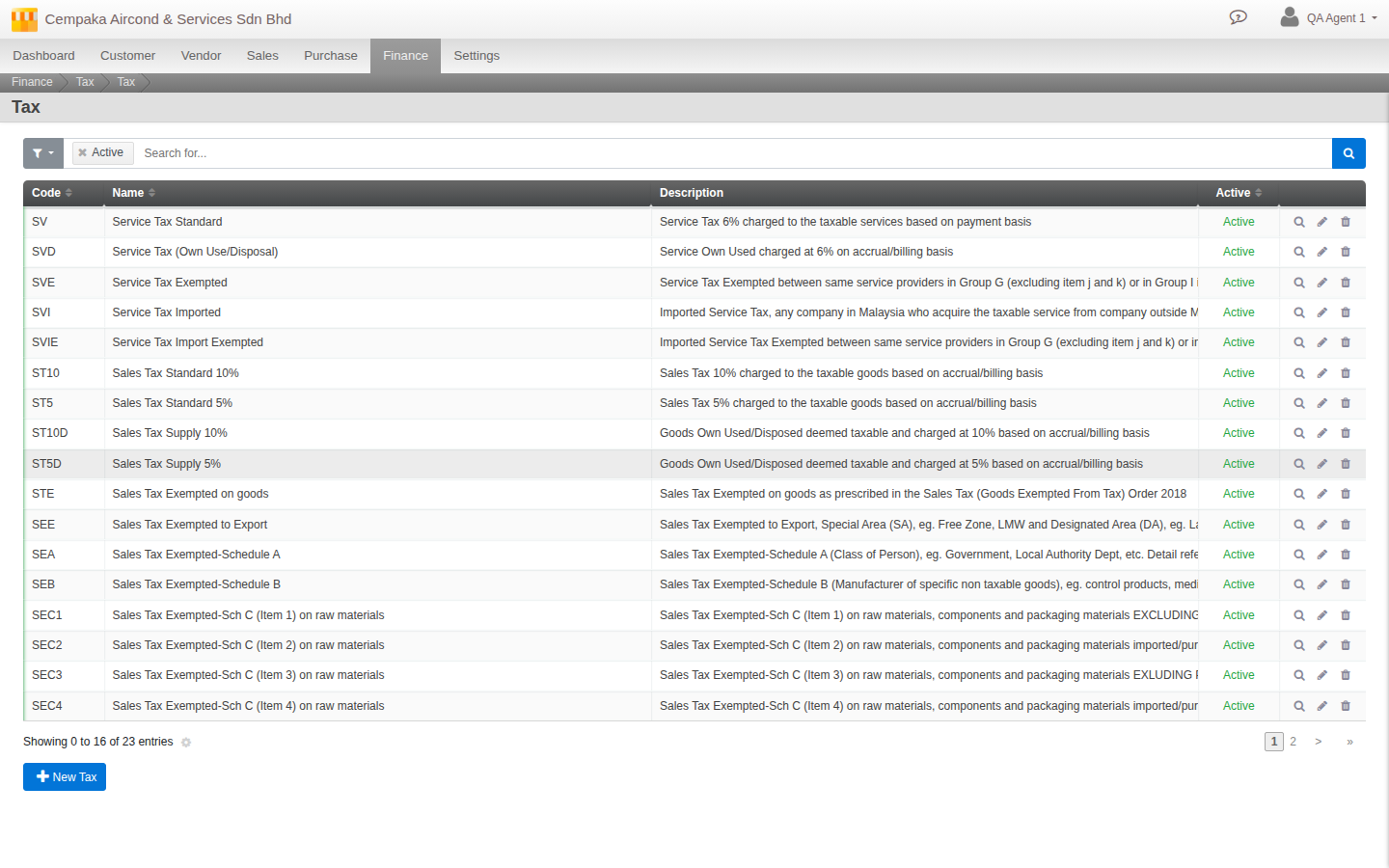 Finance → Tax → Tax after installing the pack: Service Tax, Sales Tax 5%/10%, and the exemption codes, ready to pick on a document line. Open any row to see its rate history and ledger.
2.3 Wire the tax ledgers
Each tax item posts to a general-ledger account. The sale (output) side must point at a liability account (the SST you owe Customs); the starter uses dedicated Sales Tax and Service Tax payable accounts. If you built groups by hand, set the ledger on each item so the tax has somewhere to post. A group with no ledger is the most common setup error.
2.4 Set the MyInvois tax type code (if you e-Invoice)
B1_10 & B2_11C), which is not a MyInvois code and will fail e-Invoice validation the same way a blank one would — it is just easier to miss because the field already looks filled in. Replace it with the real code on every tax item you use: 01 for Sales Tax, 02 for Service Tax, 06 for not-applicable / exempt. Get this right once at setup and your e-Invoices validate. See the e-Invoice guide for the wider e-Invoice setup.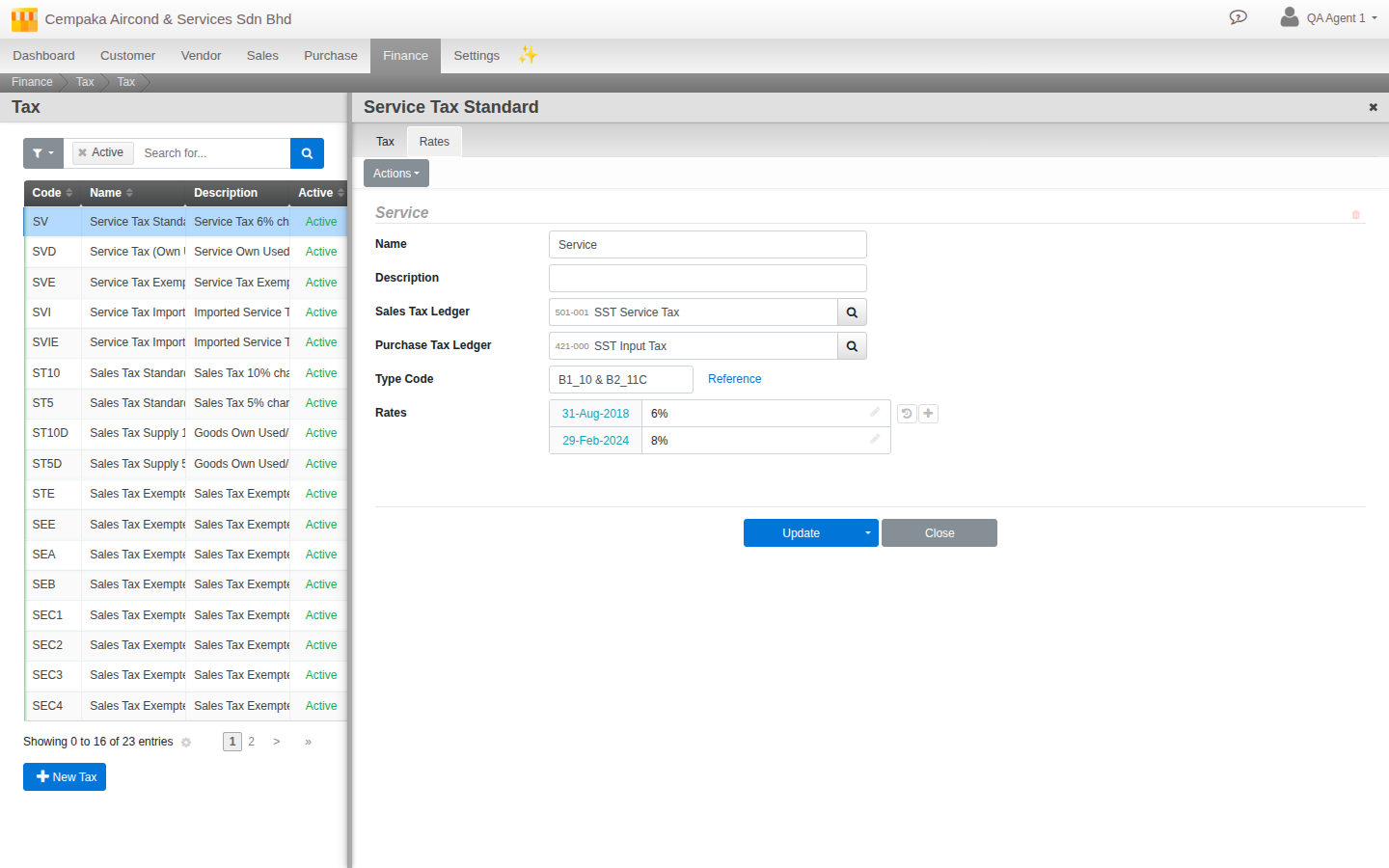
2.5 Fill in the tax fields on customers and vendors
For e-Invoicing and for correct documents, your customers and vendors need their tax identity: registered name, SST number, TIN, BRN and MSIC code. The SST pack adds these fields; fill them in as you onboard each party. They flow onto the documents and the e-Invoice automatically.
3. Applying tax, day to day
With the groups in place, tax is a single choice on each line.
Pick the tax group on the line
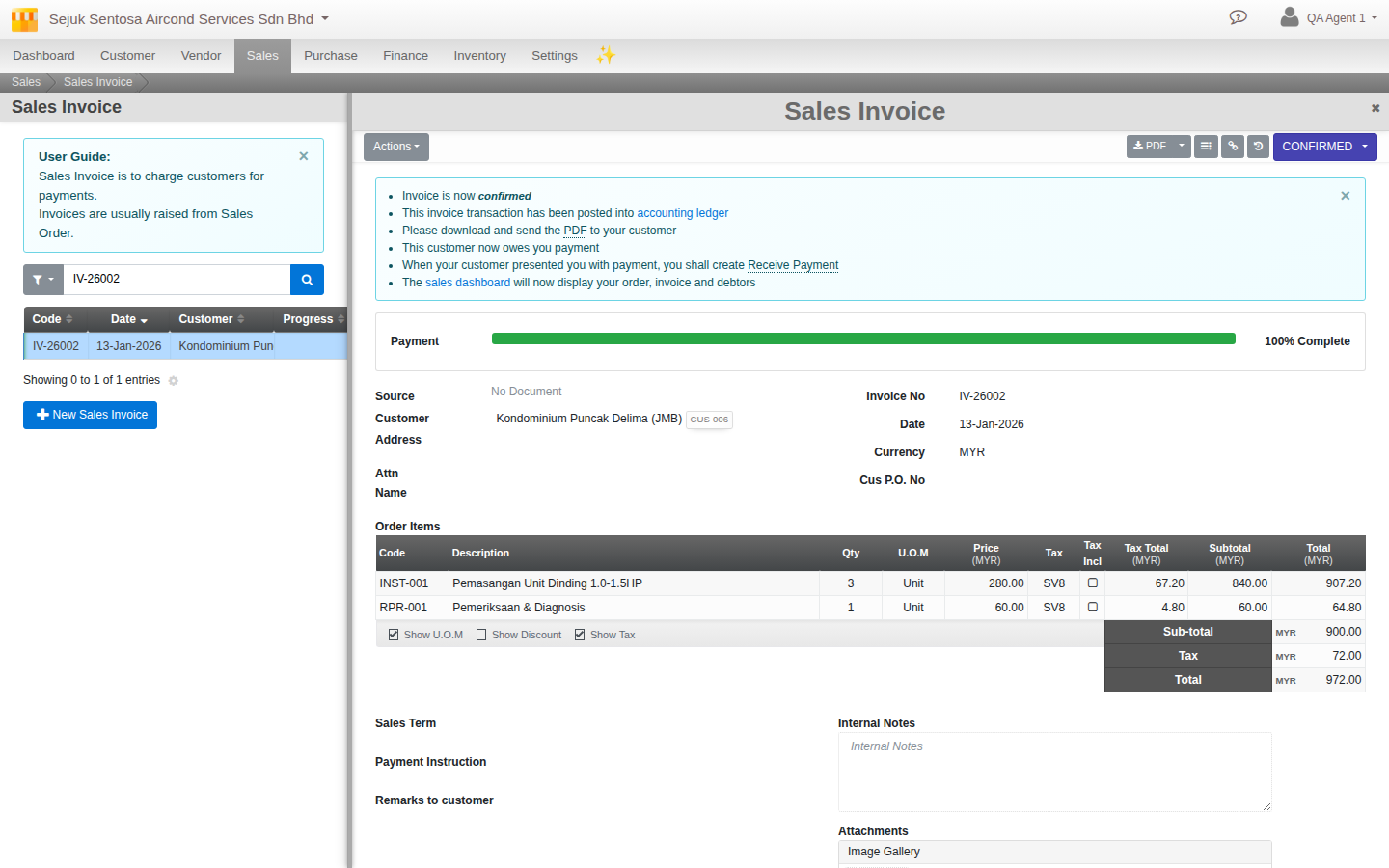
On any taxable document (a Sale Invoice, Credit Note, Debit Note, Purchase Invoice or Bill), choose the tax group on each line. Cloudby calculates the tax, shows it on the document, and posts it to the ledger you wired. Set the customer or product default so the right group is chosen for you and you only change the exceptions.
Tax-inclusive or tax-exclusive
Cloudby supports both. On a tax-exclusive line the tax is added on top of the amount; on a tax-inclusive line the price already contains the tax and Cloudby extracts it. Pick whichever matches how you quote your prices; the posted tax is the same either way.
Credit and debit notes
Adjustments carry tax the same way. Raise a Credit Note or Debit Note against the original, choose the same tax group, and Cloudby reverses or adds the tax and posts it. Your tax reports pick the adjustment up automatically for the period it falls in.
4. Exemptions and special cases
Which exemption applies (Schedule A/B/C, exports, special areas, intra-group) is a regulatory question. This guide is only how to record it in Cloudby. For the rules, see Exemptions in the handbook.
Cloudby applies whatever rate a tax group carries, so an exempt or zero-rated line is simply a line with a 0% tax group. The SST starter already includes the exemption codes (STE, SEE, the Schedule A/B/C codes and so on) as 0% groups, so you pick the one that names your reason rather than typing a plain zero. That keeps the exemption visible on the document and in your reports.
Exempt or zero-rated sales
Choose the exemption tax group that matches the reason (an export, a Schedule A customer, exempt goods). The line shows no tax, but the group records why, which is what you want if Customs ever asks. When e-Invoicing, attach the exemption reason so it is reported to MyInvois too.
Imported services
If you acquire a taxable service from outside Malaysia, use the imported-service group (SVI). Registered persons report it on the SST-02; non-registered persons report it on the SST-02A. Cloudby records it so it appears in your tax figures for the period.
5. Filing the SST-02
The return, the boxes and the due date are covered in Filing the SST-02 in the handbook. Here is how to get the numbers out of Cloudby.
Run the Tax Summary report
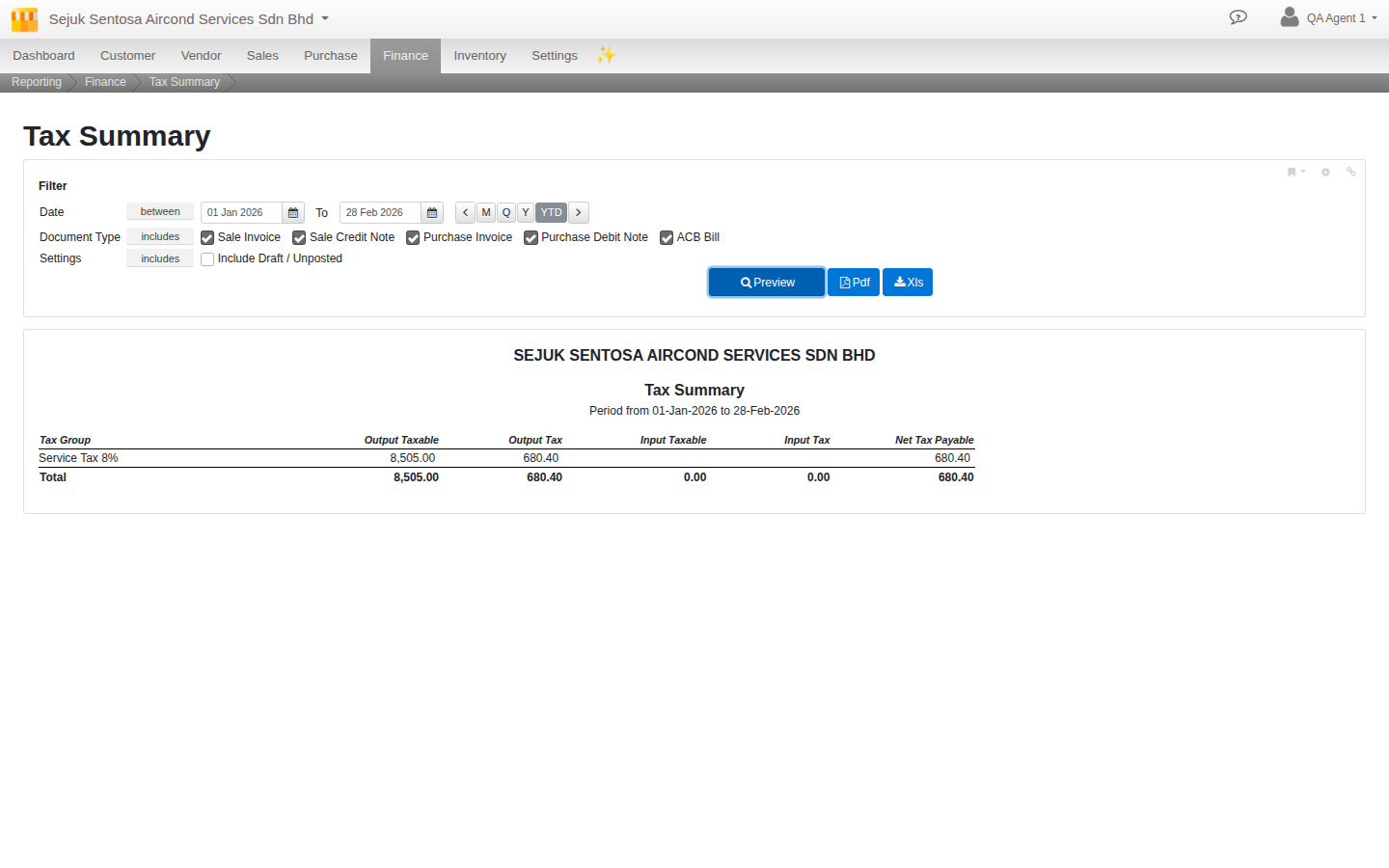
Open Menu → Finance → Reports → Tax Summary and set the report to your taxable period. It lists, per tax group, the taxable value and the tax charged (output tax on your sales, and the input / purchase side for your records). These are the numbers that go on the SST-02. See Run finance reports.
Map to the SST-02 and submit
Read the Tax Summary totals across to the matching boxes on the SST-02 form on MySST, submit, and pay by the due date (the last day of the month after the taxable period). Use the Tax Listing report if you need the document-by-document detail behind a figure. Keep the Tax Summary as your working paper for the period.
6. Scenarios and troubleshooting
Find your situation and follow it through.
My Service Tax is charging 6%, but it should be 8%.
The current SST pack ships with both the 2018 6% rate and the 2024 8% rate already, so a fresh install should already be charging 8%. If yours is not, you are likely on an older install, or built the tax group by hand. Add a new effective-dated 8% rate on the service tax item (do not overwrite the 6% one, so older documents stay correct). New invoices from the effective date will charge 8%.
My e-Invoices are being rejected on tax.
Almost always a wrong or missing tax type code. Open each tax item and check its Type Code field: it must read 01 (Sales), 02 (Service) or 06 (exempt), not an SST-02 box reference like the shipped pack currently sets. This is the first thing to check.
How do I record an exempt or zero-rated sale?
Use a 0% tax group that names the exemption (an export, a Schedule A customer, exempt goods), rather than deleting the tax. The line shows no tax but records the reason, which is what Customs expects.
The tax is not posting to the ledger.
The tax item has no ledger wired, or it points at the wrong account. Set the sale side to your SST payable (liability) account. A quick way to catch this across your setup is the Compliance checker under the org compliance area, which flags unwired tax ledgers.
I bought a service from overseas.
Use the imported-service group (SVI). If you are SST-registered it goes on your SST-02; if not, it is reported on the SST-02A. Either way, recording it in Cloudby puts it in your tax figures for the period.
A price already includes tax.
Set the line to tax-inclusive and Cloudby extracts the tax from the price. The posted tax is the same as an exclusive line; only the presentation differs.
FAQ
Does Cloudby file my SST-02 for me?
No. Cloudby produces the Tax Summary with the figures; you submit and pay on the MySST portal. There is no auto e-filing.
Do I get input-tax credit like GST?
No. SST is single-stage: there is no offset. You remit the output tax you charged, less any exemption.
The rate changed mid-year. Do I edit the old rate?
No. Add a new effective-dated rate. Cloudby keeps both, so each document uses the rate that applied on its date.
Where do the tax type codes come from?
You set them per tax item, on its Type Code field (01 Sales, 02 Service, 06 exempt). They flow onto every e-Invoice line, so check this even on tax items from the shipped pack: do not assume it is already correct.