Release notes · 21 October 2026
Cloudby now comes in dark. Not a colour swap: every office screen was redesigned for the dark, modelled on the backlit keys and smoked panels of classic hi-fi, and the Service Field app matches it.
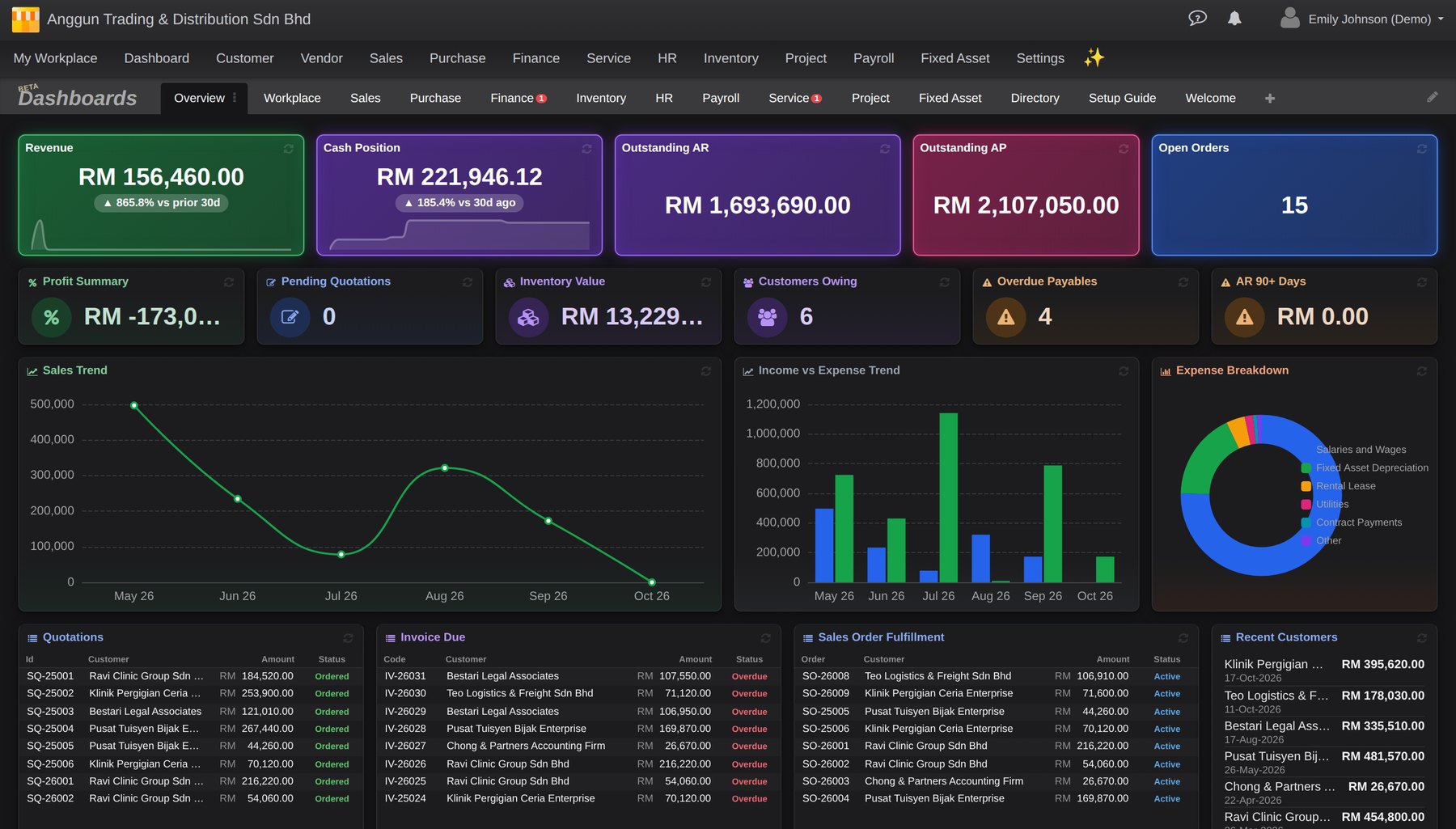
Dark mode in the office
- Open My Profile and pick from the Appearance card: Match device, Light or Dark
- Match device follows your computer’s own light or dark setting, so Cloudby turns dark in the evening if your computer does
- The change takes effect at once, with no reload, and is remembered on that computer
- Covers the whole office: dashboards and their charts, lists, records and line items, the Planner, reports, menus, the date picker and pop-ups
- Printouts and PDFs stay light, so your documents look the same however you work
- Light mode is unchanged
Designed for the dark
- Thin lines, quiet greys: dense lists stay organised with faint row stripes, a gentle lift on the row under your pointer and a clear selected row
- Backlit tiles: dashboard tiles keep their colour as a deep tint with a fine bright edge and a soft glow
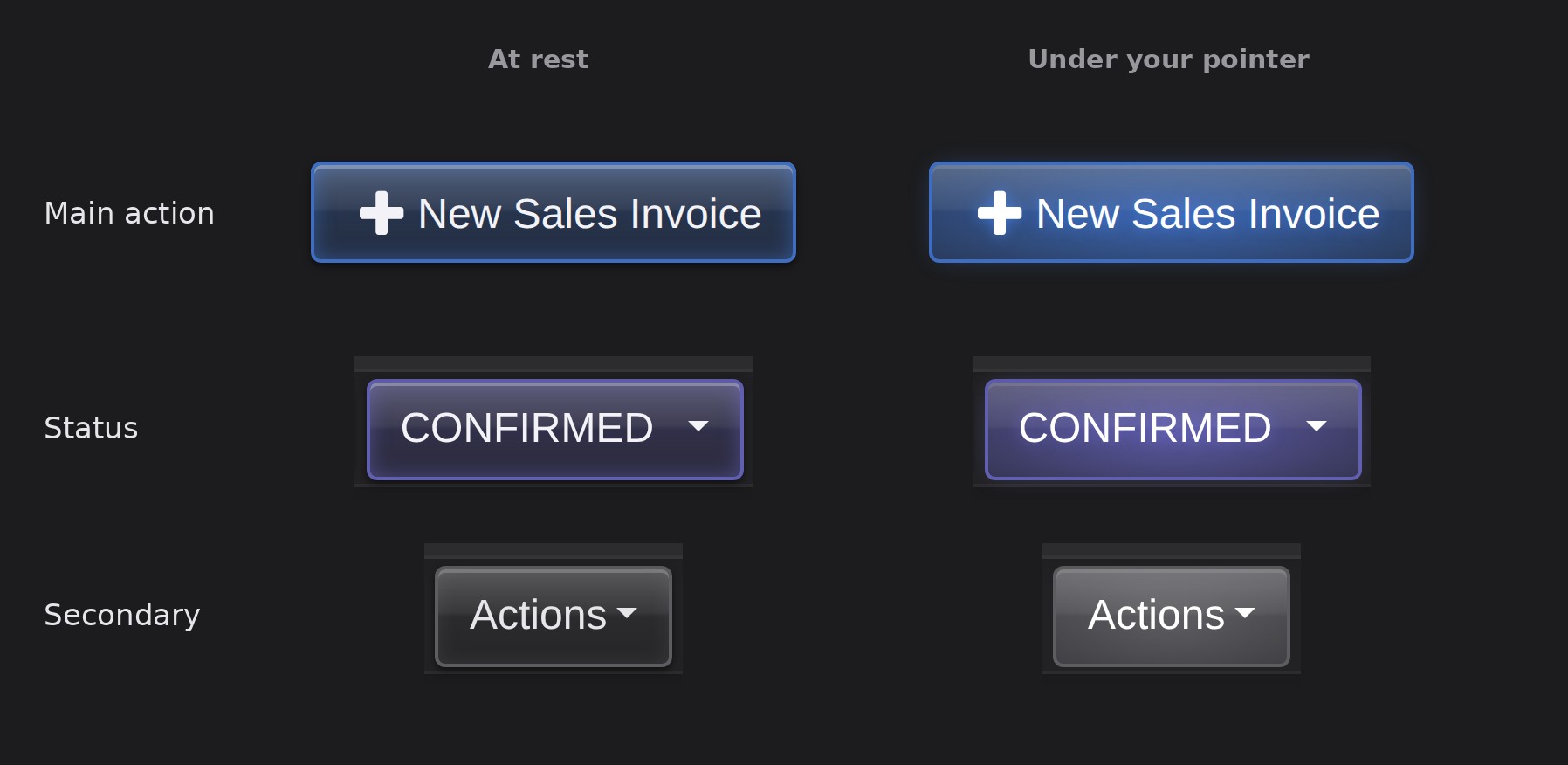
- Keys that light up: buttons are calm at rest and light from behind when you hover or press, and the main action stands apart from the quieter ones
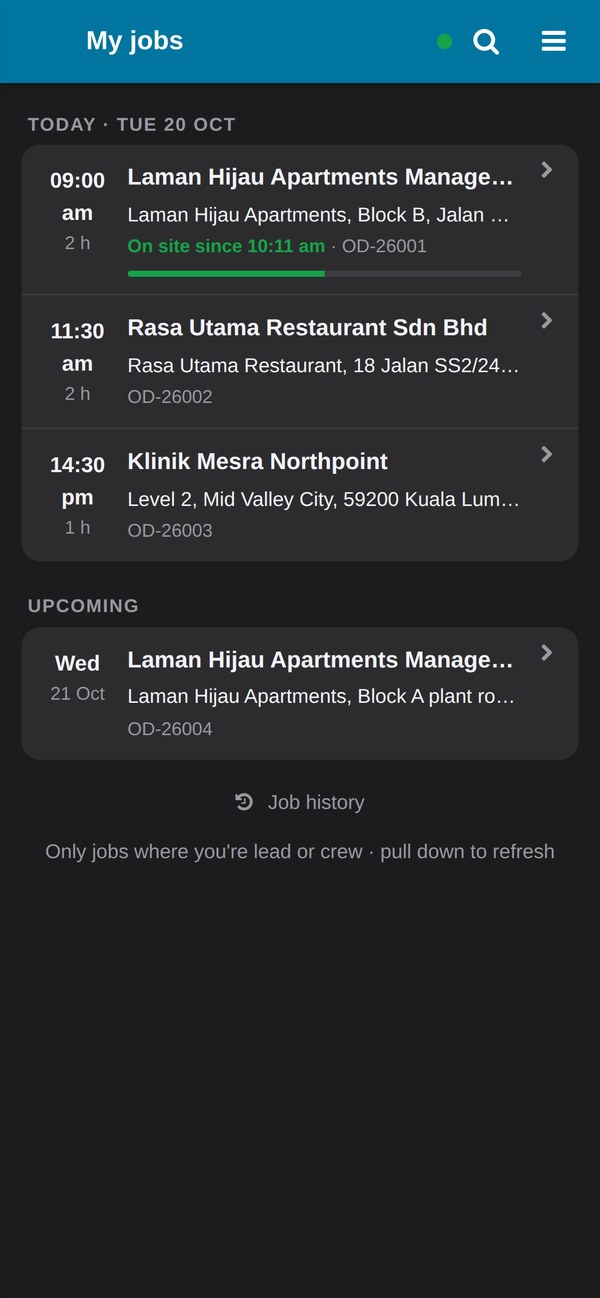
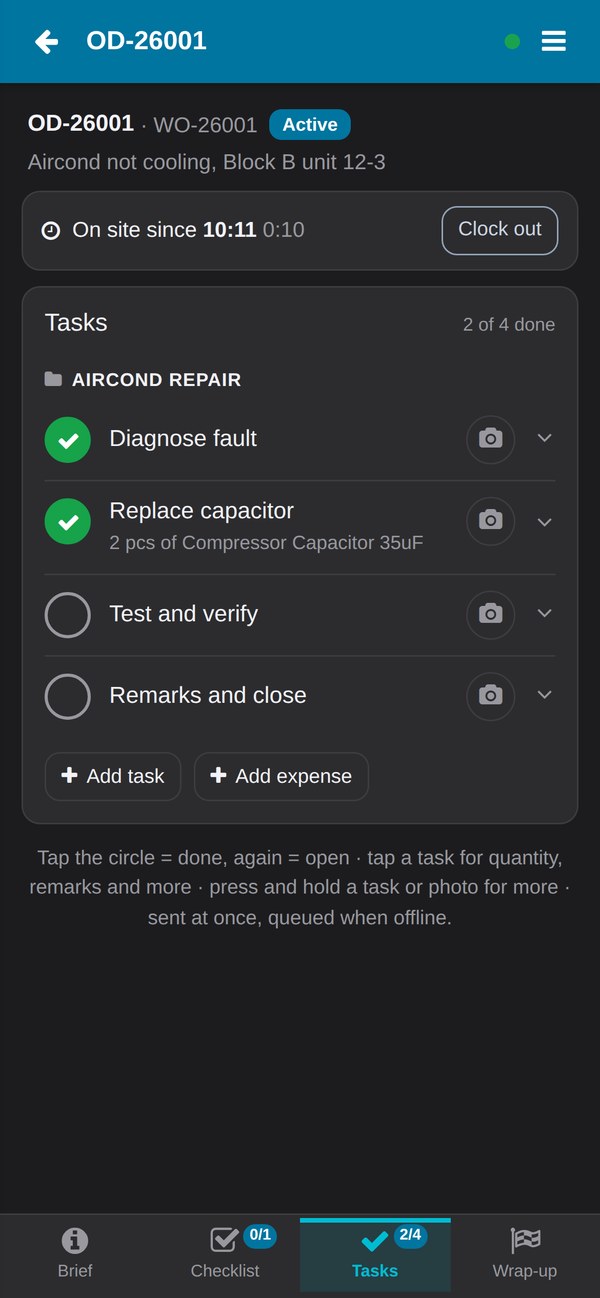
In the Service Field app too
- The Service Field app follows your phone’s light or dark setting
Read the full story
How dark mode was designed, from backlit hi-fi keys to glowing dashboard tiles, with more screenshots: Cloudby after dark on the Cloudby blog.