Every listing across the system, sales orders, invoices, stock items, service tickets, payroll runs, filters the same way: quick chips for the everyday search, unified date presets instead of a different date picker per screen, an AND/OR group builder for the query a chip can’t express, and saved filters that stay meaningful over time. Learn it once here and you already know it on every list you open.
- The three controls in the bar, and what each opens
- How to discover which fields a given listing can filter by
- The chip widget types, including multi-value chips
- How the unified date control resolves presets against your own org’s “today”
- The AND/OR group builder, and how it differs from stacking chips
- How a saved filter stays meaningful instead of freezing a date
The chip bar
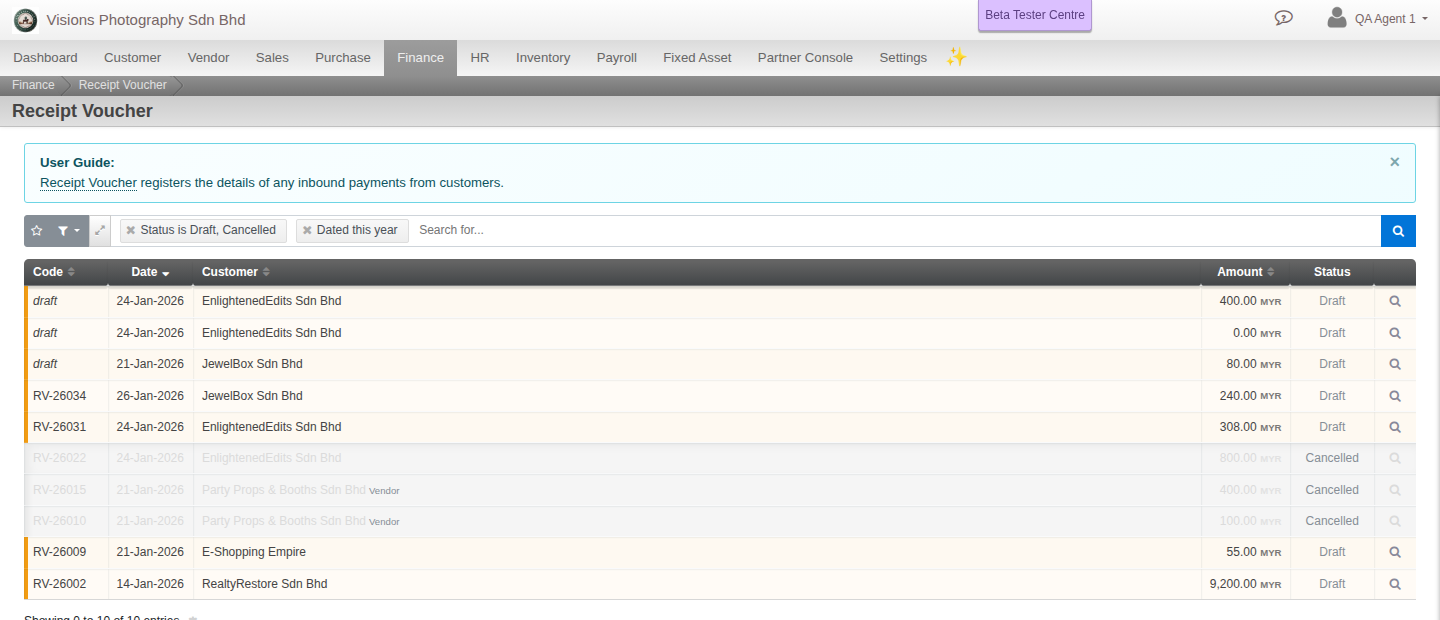
Every listing has the same filter bar above it. Tap a chip to narrow the list by a field, Status, Product, Customer, Vendor, whatever fields that listing exposes, and results update immediately. Several chips stack together as one query, and the free-text search box still applies on top of whatever chips are active.
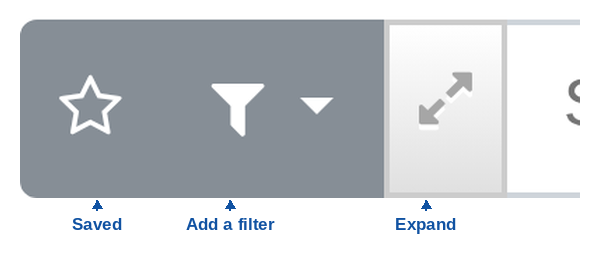
To the left of the search box, three small controls do the rest of the work:
Discovering what you can filter by
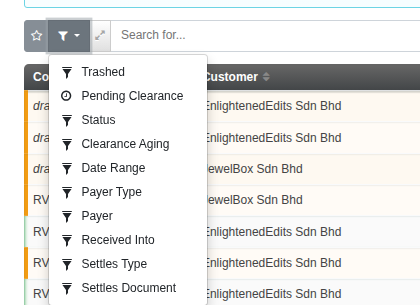
Click the funnel icon and a menu lists every field that listing can filter on, tick one to add it as a chip. The list is specific to that listing, a Receipt Voucher offers Trashed, Pending Clearance, Status, Clearance Aging, Date Range, Payer Type, Payer, Received Into, Settles Type and Settles Document; a Sales Order offers Customer, Status and Contains Product instead. This is how you find a filter you have not used before, without needing to already know its name.
Widget types, and multi-value chips
Each chip opens a small popover shaped for its field, not one generic input:
- Choice (single or multi). Tick more than one value at once, a Draft-or-Cancelled status in one chip, not two separate searches; some fields only ever offer one choice at a time.
- Combo (single or multi). Type-ahead search a linked record, an account, a product, a customer, by name instead of picking from a long list.
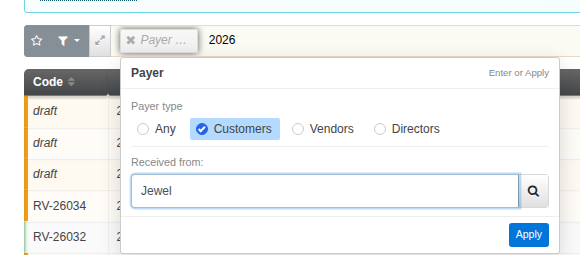
- Associate type + combo. Some filters combine a type toggle with a search in one chip, the Payer filter on a Receipt Voucher, for instance, lets you choose Customers, Vendors or Directors and then search within that type.
- Free text and number. Plain text or numeric match, including a from/to range for numbers.
Dates resolve against your own org’s “today”
Dates are one unified control everywhere: a preset list (Today, Yesterday, Last 7 days, Last 30 days, This week, This month, Last month, This quarter, This year, Year to date), a two-month calendar, or a manual range, whichever gets you there fastest. A preset is not a frozen date range: it is resolved fresh, every time, against the organisation’s own current day. That is also what makes a saved “This Month” filter keep meaning next month instead of quietly re-running last month’s range.
The AND/OR group builder
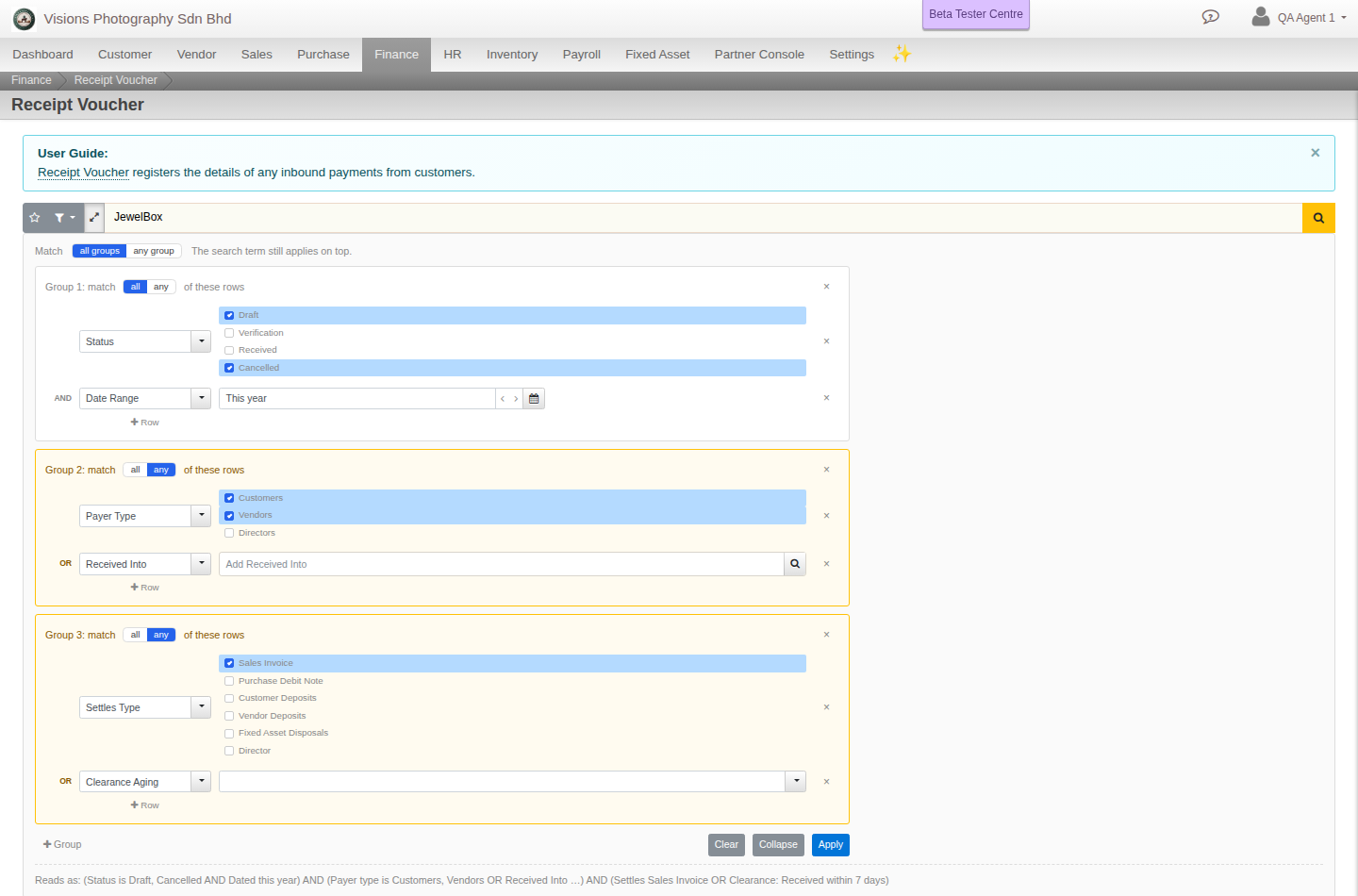
Stacking chips already gives you an implicit AND across different fields. When a question needs more than that, expand the filter bar into the group builder: each group holds one or more condition rows and its own match all (AND) or match any (OR) setting, and groups combine with the same all/any choice at the top level. A field can appear more than once, in the same group or a different one, if that is what the question needs, so you can express something like “(Status is Draft or Cancelled, dated this year) AND (Payer is a Customer or Vendor, or Received Into is Maybank) AND (Settles a Sales Invoice or is aging for Clearance)” without writing a query by hand. A plain-English “Reads as” line underneath spells out exactly what the current combination means, so you can check your own logic before applying it.
Saved filters
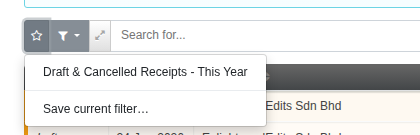
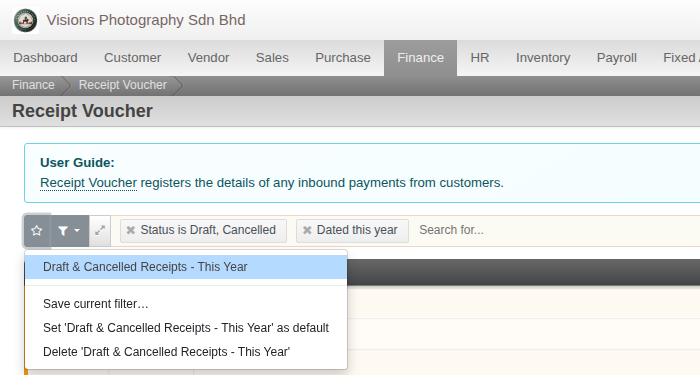
Save a filter, chips, dates and the expanded group builder all included, and it comes back exactly as you left it next time. Open the star icon and either apply a filter you already saved, or choose Save current filter… to store what is active right now under a name of your own. A saved filter belongs to the user who saved it, scoped to the organisation they saved it in, and because presets resolve dynamically rather than storing a frozen date, a saved “This Month” filter is still asking for the current month whenever you reopen it, not the month you happened to save it in.
Worked example
You want unresolved Receipt Vouchers this year, either drafted or cancelled, from a Customer or Vendor payer (or specifically anything received into Maybank), that settle a Sales Invoice or are still aging for clearance. That is three separate conditions joined by AND, with an OR inside two of them, more than a single chip can express but exactly what three groups in the builder are for: one group for Status + Date Range (match all), one for Payer Type + Received Into (match any), one for Settles Type + Clearance Aging (match any), the three groups combined with AND. Save it once and it is ready every time you need that same question answered.
Good practice
- Not sure what a listing can filter by? Open the funnel. The available-fields menu is the fastest way to discover a filter you have not used before.
- Reach for chips first. Most questions are answered by stacking a few chips; the group builder is for the question a chip genuinely can’t express.
- Trust the presets to stay current. A saved date preset is not a snapshot, it re-resolves every time you open the filter.
- Read the “Reads as” line before applying a multi-group query, it is the fastest way to catch a misplaced AND/OR.
Related
- Reference: Document Lifecycle and Cancellation (the Status values most chips filter on)